Category: SharePoint

  • SharePoint Road Trips!

    With the devastating storm that has hit New Hampshire over the weekend, there is no better time for a SharePoint Road Trip to start than today!  It was so bad up here that our city postponed Halloween Trick-or-treating until next Sunday.  Here are a couple of pictures of the devastation, just from our driveway:

    1 2 3

    Here is a quick list of where you can find me over the next 2 months.

    banner

    I fly out to Las Vegas this evening to present 5 sessions at the SharePoint Connections Conference this week (October 31st – November 4th), 3 of which are with my good friend and collaborator Cornelius J. van Dyk.  I am presenting:

    HAD13: SharePoint Logging & Debugging: The Troubleshooter’s Best Friend (Tuesday)

    HAD14: SharePoint Performance: Best Practices from the Field (Tuesday)

    HAD15: Battle Scarred But Still Standing: A SharePoint Admin’s Tell-All (Wednesday)

    HAD12: Heavy Metal PowerPivot (Thursday)

    HNC04: Human Workflow with Visio 2010 and SharePoint Designer 2010 (Thursday)

    denver

    After Las Vegas I head to Colorado to take part in SharePoint Saturday Denver (November 11-13), an amazing 2 day event (registration is open and there are still some seats available), where I will be presenting:

    SharePoint Logging & Debugging: The Troubleshooter’s Best Friend (Friday)

    SharePoint Performance: Best Practices from the Field (Saturday)

    I am also planning on taking part in my first ShareSki as a part of SharePoint Saturday Denver!  I haven’t skied in Colorado in almost 10 years (East Coast skiing is nothing like Colorado sadly), but if you can’t find me on the slopes after my sessions, look for the guy in the full body cast by the fire drinking scotch  
     nhspug

    Corne & I will be presenting at the December installment of the Granite State SharePoint Users Group located at Daniel Webster College on 12/8 @ 6pm, which I happen to co-organize, followed by a SharePint.

    We will be doing our SharePoint Logging & Debugging: The Troubleshooter’s Best Friend session.  If you are in the area New Hampshire / Northern Massachusetts area please check us out.  We have had 7 sessions and we are continuing to grow.  We have great list of speakers already lined up for 2012!

    sasug

    I am heading back to the Lone Star State to round out the calendar year of SharePoint where I will be speaking at the SASPUG meeting on December 15th and presenting Heavy Metal PowerPivot Redux, a session featuring the goodness of PowerPivot v1 and a preview of PowerPivot v2 and Power View.  Join us at Rackspace – Castle I-35 and Walzem starting at 530p. 

    fireworks Happy New Years!

    That will wrap my SharePoint Road Trip to a close.  I hope to see you at one of more of these great events.  The 2012 calendar of SharePoint events is already starting to fill up with amazing events so keep an eye out for an announcement later in the year about those dates.

  • How to: Run PowerShell ISE as Administrator under alternate credentials

    Coming from a security focused AD background I prefer to have the Managed Service Accounts OU locked down with a GPO restricting interactive logon to a server. This helps avoid service accounts becoming compromised and being taken advantage of in attacks.

    Having an ISE is especially helpful when you are doing SharePoint work on the farm and while I am a big fan of PowerShell, running straight at the command line is often a pain. Rather than installing one of the terrific third party solutions out there for an Integrated Shell Environment I try to only install the PowerShell ISE.

    As we know, there are something that you cannot do unless you are running in the context of the Farm Administrator account. There is code out there that will let you elevate your PowerShell script and run in the context of a different user, but I really wanted to be able to open PowerShell ISE as the farm account so that I can run parts of a script at a time, or rerun specific lines.

    Here is the code that I compiled that allows me to launch PowerShell ISE as the Farm Admin account:

    Add-PSSnapin Microsoft.SharePoint.PowerShell -EA 0

    # Farm account name
    $farmAccountname =
    “domainservice_account”

    # Load the Farm Account Creds
    $cred = Get-Credential
    $farmAccountname

    # Create a new process with UAC elevation S
    tart-Process
    $PsHomepowershell.exe -Credential $cred -ArgumentList “-Command Start-Process $PSHOMEpowershell_ise.exe -Verb Runas -Wait

    Once your PowerShell ISE window is launched you can run the following code to validate that you are running as the user that you are expecting:

    [Security.Principal.WindowsIdentity]::GetCurrent().Name

    Great you learned some more neato PowerShell, but why do I need to use a PowerShell command for this?

    You may be asking why wouldn’t I just do a simple “SHIFT+Right Click” and “Run as different user” rather than resorting to a PowerShell solution. The answer is that doing that does not give you the runAs Administrator privileges that we need to do so many of SharePoint’s PowerShell Functions.

    Smarty Pants.

    powershell PowerShell launch code on GitHub

    notepad Text launch code

    powershell User Context validation code on GitHub

  • SharePoint/Office 2007 Service Pack 3 coming Q4 2011

    The Office Sustained Engineering Team has announced that Service Pack 3 (SP3) for Office 2007 & SharePoint 2007 will be coming some time during 2011 Q4.  This appears to be the last major update to the 2007 client & server stack as the team states:

    “We are offering this release in preparation for the April 2012 end of mainstream support for the 2007 client and server products. The October 2011 release provides a 6-month window to test and deploy the release prior to exiting mainstream support.”

    The Service Pack will be a roll-up of all prior 2007 Cumulative and Public updates since Service Pack 2 plus some new hotfixes.  As always with the SharePoint 2007 world, you will need to install the WSS update before the MOSS update.  There is not a planned or expected CU requirement following the SP3 installation. 

    To quote the article directly:

    “SP3 will include changes in the following areas:

    Office Client 2007 Suites
    Office SharePoint 2007 Servers
    Office SharePoint Search Server 2007
    Office SharePoint Designer 2007
    Office Project 2007
    Office Visio 2007
    Office Proofing tools 2007
    Calendar Printing Assistant for Outlook 2007
    Office InterConnect 2007
    Office Compatibility Pack
    PowerPoint Viewer
    Visio Viewer
    Office Servers Language Pack
    Windows SharePoint Services 3.0
    Office Access Runtime and Data Connectivity Components”

    Soapbox time!!!!

    upgrades

    As always, please plan to test your upgrade plan in your Development/Test/QA environment prior to ever consider installing in Production. 

    Keep in mind that if you only have a Production environment, you really only have a testing environment.  Now is a good time to start updating your resume if you haven’t and you are even thinking about heading down an upgrade path. 

    Consider spending as little as $50 a month with a company like CloudShare to get a testing environment.  They have a great pre-production hosting option that will allow you to validate your scenarios without having to invest a ton of capital to do it.

    NOTE: Best Practices for installing SharePoint 2010 Service Packs and updates changed as of August 31, 2011 according to the Update for SharePoint 2010 Products page

    “As a result of the new packaging, it is no longer necessary to install the SharePoint Foundation cumulative update and then install the SharePoint Server cumulative update.”

    Keep an eye on this, the story has now changed and then changed back since RTM.

  • How SharePoint Governance is like a moose in a swimming pool

    I was watching the news last night and a story came on about a man in Manchester, NH (about 30 minutes from my house) who heard a noise that was coming from his backyard, and when he turned on this lights he found a Moose in his backyard.  The moose was spooked by the sudden flood of light and charged through his fence and directly into the man’s swimming pool.

    moose

    The man from didn’t have many options going in to the situation, it just descended upon him from nature and he was forced to simply deal with the situation.  He went from having a nice quiet evening at home to needing help from 12 people to get a moose out of his pool, having a shredded pool cover, and ending up with his saga documented on the evening news.

    How this relates to SharePoint

    Lying in bed after fasting all day for Yom Kippur, the Jewish day of Atonement, all I could think was how similar this man’s scenario was to all too many deployments of SharePoint: Someone hears something, starts to investigate, the next thing they know they have a 2000 pound angry animal on their hands.

    In our many cases we have the ability to hold off the animal and redirect its efforts into something more productive and healthy with governance and proper planning, however many times the beast barrels through our defenses and we are dealing with a world of trouble that we didn’t intend on.

    The man in the story had many options:

    1. ignore the situation and hope it clears itself up
    2. grab a gun and shoot it himself
    3. call a local hunter to deal with it for him
    4. calmly call the police and figure out how best to deal with the situation with expert assistance

    I sincerely hope that when faced with situations like this we deal with things as well as the man from the news story did because in the end, all that was really lost was part of a fence, a $200 pool cover, and some time.

    Here are a couple of things to keep in mind, whether you are dealing with an angry moose, or an impending SharePoint deployment:

    1. Find out what you don’t know
    2. Stop and determine the correct plan of action before proceeding
    3. Understand what the drivers of your situation are
    4. Get control over an out of control situation

    When it comes to SharePoint deployments, whether properly conceived or not, it is always best to stop and examine your options.  It is always going to be best to take a bit of time up front to save a complete rebuild later.

    The moral of the story

    When cooler heads prevail, everyone comes out alive, and with a reasonably interesting story to share.  Think before you act, and in our world, before you implement.

  • SharePoint Network Topology Diagram Add-In

    This was referred to this morning in the keynote at SharePoint Conference 2011 and appears to be a really cool solution.

    Source: Visio.Microsoft.com

    “SharePoint Network Topology Diagram Add-in leverages Visio Services to deliver a near real time intuitive rendering of the status of SharePoint farm’s infrastructure and associated services. Visio Graphics services – A key part of SharePoint 2010, enables customers to share their dynamic data driven Visio diagrams and dashboards within SharePoint. This helps extend the reach of valuable information and insights across relevant teams within the enterprise for capacity planning and general IT maintenance.

    The timer job fetches all the key technical metrics about the SharePoint farm infrastructure using SharePoint object model and WMI (Windows Management Instrumentation). It’s frequency can be adjusted based on specific administrative needs. The timer job creates a SharePoint list that is linked to a Visio diagram. A client add-in helps you generate, customize and link the output of the timer job to a Visio diagram by using a wizard driven interface.

    Upon publishing the Visio diagram within SharePoint, Visio Services enable users to refresh their diagram from within SharePoint.”

  • What is MaximumFileSize limit set to on all of my Web Apps? Now that I know, how do I change it?

    I ran into an issue today where I needed to quickly pull the MaximumFileSize setting for every web application across my farms.  I found lots of blogs that told me how to change the setting, but none that told me how to pull the information from the farm before I change it.

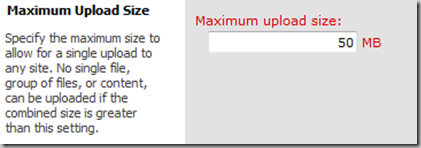
    The UI method for this is simple, but cumbersome if you have multiple web apps and multiple farms.  Simply go to Central Administration|Application Management|Manage Web Application and select the Web Application you want to look at.  In the ribbon the General Settings button will light up and when you click on it you will get the menu that includes:

    a

    That great for single scenarios.  I wanted a PowerShell option that would loop through every one of my web applications and give me a list that I can store, and also will give me a quick way to audit if someone has made an unauthorized change.  Here is what I came up with:

    b

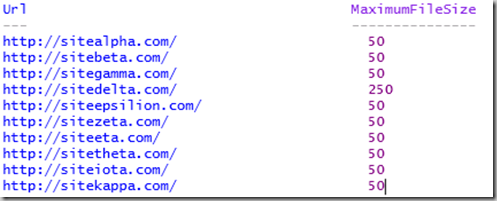
    The output looks like:

    c

    In a DevQA want all of my sites to have the same file upload size limit, so I can use the following script to set them all the same:

    d

    In a Production environment I want to have different upload size limits based upon what the function of the Web App is, so I will use a script that allows me to change the limit on each specific web app:

    e

    Why all the “add-pssnapin microsoft.sharepoint.powershell –ea 0”?

    Easy answer to this is that I am generally the numbskull who forgets to pop open the correct PowerShell console (SharePoint 2010 Management Shell) on a server that I don’t usually log into, or I am using PowerShell ISE and haven’t configured a profile.  The –EA 0 flag allows me to throw the command to load the snap-ins without errors showing up if they are already loaded.  Makes for a cleaner overall experience.

  • Review of the new storage “guidance” for SharePoint 2010 SP1

    Rob D’Oria, father of StoragePoint, has written a very comprehensive review of the new storage “guidance” from Microsoft with regard to the limits on ContentDB size when using RBSEBS.  It is a very long post, but completely worth reading from start to finish. 

    For a peak at what you can expect, here is a direct excerpt from one of my favorite sections:

    Everyone hold on, here’s the super-hard backup/restore process you have to follow in this brave new world:

    Backup

    1. Backup content database
    2. Backup BLOB store(s) referenced by content database

    Restore

    1. Restore BLOB store(s) referenced by content database
    2. Restore content database

    Did anyone pass out?  Anyone hyper-ventilating?  Anyone soil themselves?  I didn’t think so.  That’s the process in all of its complicated ugliness.  In this scenario the worst thing you end up with is some orphaned BLOBs…you have some extra BLOBs in the BLOB store back-up that are not reflected in the content DB backup because it was taken first.  Upon restoring these datasets the extra BLOBs are orphaned, but they will be garbage-collected if the EBS/RBS solution supports it.

    And, oh by the way, this is your worst case scenario.

    Please take some time and read Rob’s full post, which can be found here: http://blog.sharepointedutech.com/2011/07/11/sharepoint-contentdb-guidance-too-many-shades-of-gray-along-with-a-little-brown/

    Connect with Rob on Twitter at @robdoria or on LinkedIn at http://www.linkedin.com/in/robdoria

    Rob’s opinions in his post of ISVs are his own.  I may or may not agree with everything he says, so be sure to rub a couple of brain cells together and form your own opinions.

  • The big news: Data Storage Changes for SharePoint 2010

    I go on vacation for one week and they try to change the entire strategy on us, eh?  When I first started hearing rumbles about the changes announced by the Microsoft SharePoint Product Group via their blog it sounded like the world was completely changed and that all previously known storage strategies can be thrown out the window in favor of using RBS and storing whatever you want in the Content DB!

    Happily that is not at all what was being said.  While the recommended limits have been revised by Microsoft to suggest that significantly more can be stored, the key word in the statement is CAN, not should.

    Let’s examine a few telling things from the Product Group’s blog article:

    For a SharePoint content database up to 4 TB you need to additionally plan for the following two requirements:

    • Requires disk sub-system performance of 0.25 IOPS per GB, 2 IOPS per GB is recommended for optimal performance.

    • Requires the customer to have plans for high availability, disaster recovery, future capacity, and performance testing.

    • And you need to review additional considerations in the TechNet Boundaries and Limits article.

    What this part is suggesting to us is we can us a single mirrored set (RAID1) for a large content database and get what Microsoft is defining as “optimal performance” using a 15k RPM drive scenario (approximately 180 IOPS per drive).  Great if you are looking to get some separation and you are doing sequential I/O, however when you separate the BLOBs out of the ContentDB you aren’t doing sequential I/O anymore.

  • Office Web Apps Service Pack 1 is here!

    It has almost gone overlooked, but Office 2010 and SharePoint 2010 are not the only products to get a Service Pack 1 release today.  I know that the Office Web Apps are a bolt on to SharePoint 2010 and so they don’t get a whole lot of attention, but from an end user feature enhancement perspective, I am almost more excited about the Office Web Apps SP1 than anything else released today (Office 365 not withstanding).

    Sourced directly from Microsoft’s KB2460073:

    Overview of Office Web Apps SP1 improvements

    These are the key areas of improvement in SP1.

    All Office Web Apps

    • OpenDocument Format (ODF) support:
      Lets you view and edit ODF documents in Office Web Apps.
    • Lets you use Office Web Apps with the Google Chrome browser.
    • Outlook Web App document attachment viewing (for Exchange Online only):
      Lets you view Office document attachments in the browser directly from Outlook Web App.
    • Lets you use Office Web Apps with Internet Explorer 9 in Native mode.

    Word Web App

    Lets you print Word documents from Edit mode (in addition to View mode).

    Excel Web App

    • Added a Close button.
    • Lets you insert charts in Excel Web App.
    • Lets you copy and paste values and formulas by dragging the fill handle.

    PowerPoint Web App

    • Lets you print presentations from PowerPoint Web App.
    • Lets you edit text in more shapes, not just placeholder shapes.
    • Lets you insert clip art in PowerPoint Web App. (By default clip art support is disabled. An administrator can decide to enable it.)

     It is important to keep in mind that Microsoft has already released the June 2011 Cumulative Updates that contain security patches important enough to be released simultaneously with these Service Packs, so be sure to install that as well.

    Also, Microsoft has already released a list of known issues when installing Service Pack 1.  The Office Web Apps specific item,sourced directly from Microsoft’s KB2532126, is:

    • If Office Web Apps will be used in a mixed version environment, where Office Web Apps has SP1-or-later applied while SharePoint Server 2010 remains on the RTM version, you must install the following two updates before you install SP1 for Office Web Apps:
      • 2510639 Description of the SharePoint Server 2010 update: April 12, 2011

      • 2510648 Description of the Office Web Apps update: April 12, 2011

    Here are the download links:

    Service Pack 1 for Microsoft Office Web Apps 2010 (KB2460073)
    http://www.microsoft.com/download/en/details.aspx?id=26639

    Downloadable list of issues that the service pack fixes
    http://download.microsoft.com/download/B/0/D/B0D1540B-6CF6-4674-9C8E-7A45FD91C163/Microsoft%20SharePoint%202010%20and%20Office%20servers%20Service%20Pack%201%20Changes.xlsx

    SharePoint Foundation 2010 June 2011 CU (UPDATED)
    http://support.microsoft.com/hotfix/KBHotfix.aspx?kbln=en-us&kbnum=2536601

  • SharePoint 2010 Service Pack 1 is here!

    Today Microsoft released Service Pack 1 for SharePoint 2010 which is a rollup of all previous Cumulative Updates through April 2011, which means that deploying directly on top of RTM bits supported, as well as number of stability, performance, and security enhancements based upon customer feedback.  There is a detailed white paper that about the Service Pack that can be found at this location.​

    CAVEAT: Microsoft strongly recommends installing the June 2011 Cumulative Update immediately after the installation of Service Pack 1. The June Cumulative Update includes several important security and bug fixes that are not included SP1.

    Here is the list of of the new features in SP1:

    · Support for SQL Server Code Name “Denali”

    anyone who has read any of my tweets or articles has probably noticed that I am a fan of Denali, so this is a huge feature for me

    · Shallow copy functionality

    this new feature allows sites with externalized blobs to be moved from one contentdb to another without having to reinternalize the blobs using the Move-SPSite powershell cmdlet. 

    The white paper states​:

    Prerequisite
    In order to use shallow copy, you must have installed the Microsoft® SQL Server® 2008 R2 Remote Blob Store. The Remote Blob Store is included in the Microsoft® SQL Server® 2008 R2 SP1 Community Technology Preview Feature Pack (http://go.microsoft.com/fwlink/LinkId=221775).

    There are a couple of things that jump out at me here that are concerning:

    1. The link doesn’t work
    2. SP1 supports functionality that is only available in SP1 CTP?  RBS is supported in SQL 2008 R2, does it work with that? (I fully intend to test this and post back, but it is a concern that I felt was worthy of raising)

    I’m not getting all nervous about this just yet since this all just released today.  It will be interesting to see what comes of this over the next couple of days/weeks, but it is a VERY exciting feature if it works as advertised.

    · Site recycle bin

    Great feature to allow self recovery of Site Collections and Sites without having to revert to backups or third party tools.

    · Improvements to storage management (StorMan.aspx)

    Storage Space Allocation is huge when dealing with quota enforced sites.  This page, which was available in versions prior to 2010, allows end users to view their large files and determine what fat to trim to keep within their quotas.

    · Cascading filters for Performance Point services

    Quoted from the white paper: “New cascading filter support enables you to pass the value of one filter to another.”

    · Additional browser support

    Better support for Chrome

    One more piece of really useful information to come out of the white paper:

    Updated Windows PowerShell Commandlets

    · NEW: Get-SPDeletedSite (SharePoint Server 2010)

    · NEW: Remove-SPDeletedSite (SharePoint Server 2010)

    · NEW: Restore-SPDeletedSite (SharePoint Server 2010)

    · Move-SPSite (RBSProviderMapping parameter added) (SharePoint Server 2010)

    Here are the download links:

    Service Pack 1 for SharePoint Foundation 2010 (KB2460058)
    http://www.microsoft.com/download/en/details.aspx?id=26640

    Service Pack 1 for Microsoft SharePoint Server 2010 (KB2460045)
    http://www.microsoft.com/download/en/details.aspx?id=26623

    Downloadable list of issues that the service pack fixes
    http://download.microsoft.com/download/B/0/D/B0D1540B-6CF6-4674-9C8E-7A45FD91C163/Microsoft%20SharePoint%202010%20and%20Office%20servers%20Service%20Pack%201%20Changes.xlsx

    SharePoint Foundation 2010 June 2011 CU (UPDATED)
    http://support.microsoft.com/hotfix/KBHotfix.aspx?kbln=en-us&kbnum=2536601

    SharePoint Server 2010 June 2011 CU (UPDATED)
    http://support.microsoft.com/hotfix/KBHotfix.aspx?kbln=en-us&kbnum=2536599