Category: SharePoint

  • A summer of fun & SharePoint

    I am sitting in the Toronto City Airport after speaking at #SPSToronto yesterday and realized that I hadn’t posted anything about my upcoming talks.

    Yesterday was a day of BI. I did Heavy Metal PowerPivot Remastered in the morning, followed by John White doing SharePoint for Business Intelligence, and then I did Business Intelligence in SharePoint 2013. The whole day built nicely and the attendees grew in numbers from session to session. All it all it was a great collaborative day of BI. I have to give a ton of credit to Eric Riz, Kanwal Khipple & Ruven Gotz for putting together a terrific day for the attendees. It was great to see the hall completely packed at the end of the day with people who really loved what they got.

    Next up for me is #SPSNYC this coming weekend (7/27) where I will be giving my SharePoint Performance: Best Practices from the Field talk.

    Following that I will be speaking at SharePoint Fest DC (8/5 – 8/7) & SPTechCon Boston (8/11 – 8/14).

    After those two I am taking a few weeks to rest up before we put on SharePoint Saturday New Hampshire, for which we have an open call for Speakers & Sponsors.

    4 conferences in 4 weeks… let the insanity commence!

  • Setting up SharePoint Online collaboration with external users

    One of the key enhancement in SharePoint 2013 is the ease of sharing. Being able to share a site, library, or piece of content is as easy as clicking on the Share button and specifying a user and assigning the rights you want them to have. This, along with the new licensing model that allows non-organizational users to use your SharePoint environment without requiring a CAL or FIS licensing for the farm, have made SharePoint 2013 target for extranets.

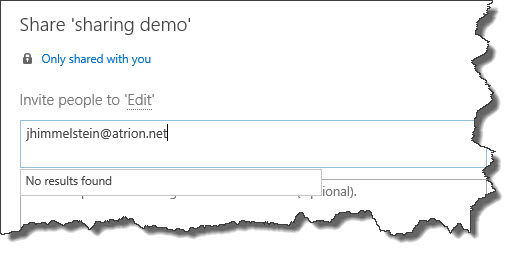
    Once a site collection is established sharing with external users is quick and easy. The one thing that is that upon intial setup of a private site collection in SharePoint Online is to setup sharing with external parties. By default sharing is set to “Don’t allow sharing outside your organization”. When you attempt to share with outside people from a site collection that still has this set you get a message that no results are found when typing in an email address.

    no sharing

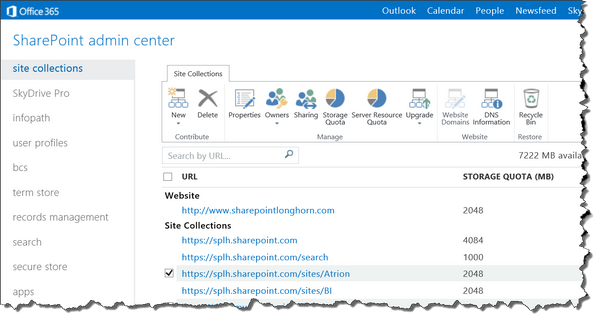
    To change this you need to log into the SharePoint admin center select the site collections tab on the left nav and then select the site collection you wish to enable external sharing for.

    O365 Site Collections

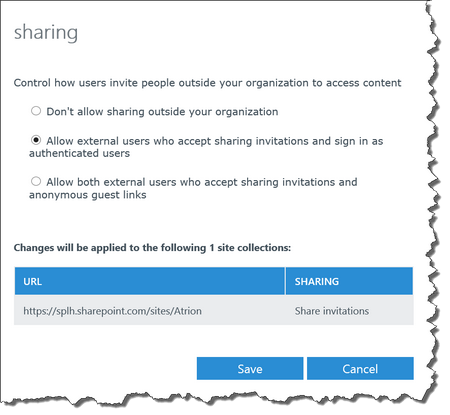
    Once selected click on the Sharing option in the ribbon and set the option to “Allow external users who accept sharing invitations and sign in as authenticated users”. This will allow you to share securely with specified users.

    SPO External sharing

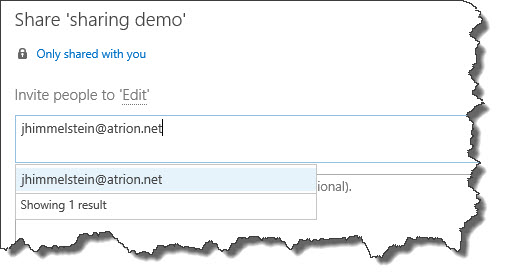
    Once this is set return to your site collection and attempt to share again. You should find a result based upon the email address that you entered now.

    yes sharing

    If you prefer to allow users to share links and allow external parties to access the site collection without having to authenticate you can chose the “Allow both external users who accept sharing invitations and anonymous guest links”.

  • PowerShell Script: SharePoint Farm Creation

    For a long time I have been meaning to rewrite the PowerShell script that I have been using to do my SharePoint farm creation and just haven’t gotten around to completing the necessary effort to make it all that I want it to be. I have leveraged the work of others, borrowing a piece here and a snippet there but to honest I haven’t been satisfied.

    What I really wanted was a script that I can use in my consulting practice as a normalized practice of how a farm should be deployed as well as a script that I could use in the highly repetitive process of doing ITPro dev work. I wanted something that was flexible enough to use for client installs, but repeatable enough that I could use it in my dozens of farm builds that I do in my spare time for troubleshooting and fun.

    Here are the key points of what I did differently with this script:

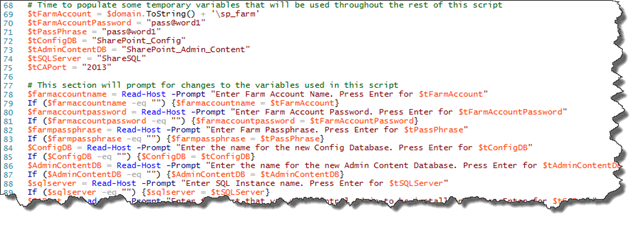
    1. use temporary variables that can be accepted or overridden at the PowerShell command-line when the script is called
      SNAGHTML37d3721b
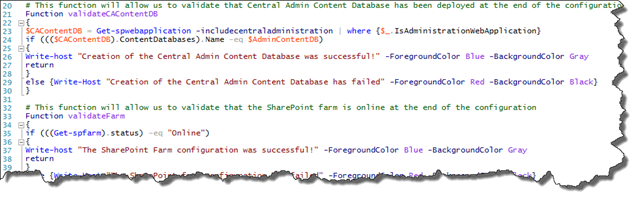
    2. validate if the pieces have been implemented correctly & gives information about what piece failed, not just throwing the ugly PowerShell errors that we are used to seeing
      SNAGHTML37d4db9e
    3. validate that you are using PowerShell running as Administrator to ensure that you won’t fail for that silly reason
      SNAGHTML37d64475
    4. pulls the system & domain variables rather than having to set those parameters manually
      SNAGHTML37d7b73f

    I am happy to report that I was able to accomplish all of these things in my script and am happy to offer it up for others to use if you see fit. I highly recommend that you consider using the PowerShell profile that I laid out in my previous article “How to: Automatically log your PowerShell session everytime” so that you can, among other things, capture the output of building your farm.

    There are very few people who can honestly say that they created their PowerShell scripts completely from scratch, and I am certainly not among them. Credit is due for snippets & reference to Shannon Bray, Gary LaPointe, Brian Lalancette, Todd Klindt, & I’m sure others. Special appreciation to Evan Riser for helping me QA this script. 

    One last thing to note about this script… it does just what it says it does. It creates a SharePoint farm.  This is not an all inclusive build your farm & configure every setting script. If you are looking for the all inclusive, über build & configure script please go visit Brian’s codeplex project: AutoSPInstaller. There is no need for anyone to recreate the amazing work that he has done. 

    The reason I create this scripts like this is that I prefer to break my scripts down into pieces and keep them highly modular. This is partly because I consult on such a wide variety of projects that it makes my life easier to be able to deploy pieces at a time using different scripts. It also could be that I am a neurotic, lunatic control freak who is a bit over obsessed with developing in PowerShell for fun.  Hopefully it’s more the first thing than the second thing… 🙂

    I will continue to publish the scripts that I find useful here in the hopes that it helps someone else along the way. You can find my SharePoint Farm Creation PowerShell script here on my SkyDrive.

  • How to: Create Active Directory Users using PowerShell

    Not unlike several posts in recent weeks, tonight’s adventures in PowerShelling started with from a conversation at SharePoint Saturday New Hampshire with the Iowan treasure Todd Klindt. The conversation was around the script that he used to create Active Directory users. I had my own bit of jumbled together code for this purpose, but his has some snazzy ifelse-ness to it and the ability to set Managers and add Pictures that made it especially appealing.

    At the same time there were things in his script that I felt were a bit lacking and it lead to the whole “I can write that code in 2 hours” game not unlike a name that tune style geek-out.

    Rather than reiterating all of the goodness that Todd built into his version of the script I will refer you to his post: http://www.toddklindt.com/PoshMakeUsers to read all of his fun comments.

    Instead I will regale you with the updates that I have made:

    1. Specify an OU – I am an old school AD guy at heart and I HATE a mess Users directory where I can’t find anything. I always end up moving my SQL & SharePoint Service accounts to their own OU, as well as my dummy test accounts. This tweak to the script asks you what OU you want the accounts created in and then will create the OU if it doesn’t already exist (given you have those rights). If you hit enter it will default to attempting to place the accounts in an OU called “SharePoint Service Accounts”.
    2. Prompt for the CSV input file – I have multiple files that I use in different dev environments for different purposes: a.) SQL service accounts b.) SharePoint service accounts c.) Dummy user accounts d.) Smart user accounts e.) etc, etc, etc. The script now prompts for which CSV file you want to import the users from. Hitting enter when prompted will look for a file called Users.csv in the local running directory.

      **Updated**

    3. Change the default passwordOn Todd’s Netcast tonight he mentioned this little bit of code, however I hadn’t actually written it yet. Nothing like throwing down the gauntlet there, Mr. Klindt! In response I whipped up version 3.1 of the script which now allows you to change the default password as a variable when run. If you choose nothing it will default to the pass@word1 standard.

    Here is a copy of the code:

    # Script to create Active Directory accounts
    # v3.1 11/26/2012
    # Updated by Jason Himmelstein
    # https://bifocal.llc
    # Based upon the script by Todd Klindt
    # http://www.toddklindt.com
    
    # Add the Active Directory bits and not complain if they're already there
    Import-Module ActiveDirectory -ErrorAction SilentlyContinue
    
    $OU= Read-Host -Prompt "Enter OU name you want. Press Enter for SharePoint Service Accounts"
    If ($OU -eq "") {$OU = 'SharePoint Service Accounts'}
    $FQDN = (Get-ADDomain).DistinguishedName
    
    If ([adsi]::Exists("LDAP://OU=$OU, $FQDN") -eq $True){
    write-host "The OU already exist" -ForegroundColor DarkGreen -BackgroundColor Gray}
    else{dsadd ou "ou=$OU,$FQDN"}
    
    $OU_specified = "ou=$OU,$FQDN"
    
    # specify the file location
    $csvfile = 'users.csv'
    $userfile = Read-Host -Prompt "
    Enter the location of the CSV file containing the users you want to import. Press Enter for $csvfile"
    If ($userfile -eq "") {$userfile = $csvfile}
    
    # set default password
    # change pass@word1 to whatever you want the account passwords to be
    $userpassword = Read-Host -Prompt "Enter default password you wish to set for all of these accounts. Press Enter for pass@word1"
    If ($userpassword -eq "") {$userpassword = 'pass@word1'}
    $password = (ConvertTo-SecureString $userpassword -AsPlainText -Force)
    
    # Get domain DNS suffix
    $dnsroot = '@' + (Get-ADDomain).DistinguishedName
    
    # Import the file with the users. You can change the filename to reflect your file
    $users = Import-Csv $userfile
    
    foreach ($user in $users) {
    if ($user.manager -eq "") # In case it's a service account or a boss
     {
    try {
    New-ADUser -SamAccountName $user.SamAccountName -path $OU_specified -Name ($user.FirstName + " " + $user.LastName) `
    -DisplayName ($user.FirstName + " " + $user.LastName) -GivenName $user.FirstName -Surname $user.LastName `
    -EmailAddress ($user.SamAccountName + $dnsroot) -UserPrincipalName ($user.SamAccountName + $dnsroot) `
    -Title $user.title -Enabled $true -ChangePasswordAtLogon $false -PasswordNeverExpires  $true `
    -AccountPassword $password -PassThru `
                        }
    catch [System.Object]
     {
    Write-Output "Could not create user $($user.SamAccountName), $_"
     }
                }
     else
     {
    try {
    New-ADUser -SamAccountName $user.SamAccountName -path $OU_specified -Name ($user.FirstName + " " + $user.LastName) `
    -DisplayName ($user.FirstName + " " + $user.LastName) -GivenName $user.FirstName -Surname $user.LastName `
    -EmailAddress ($user.SamAccountName + $dnsroot) -UserPrincipalName ($user.SamAccountName + $dnsroot) `
    -Title $user.title -manager $user.manager `
    -Enabled $true -ChangePasswordAtLogon $false -PasswordNeverExpires  $true `
    -AccountPassword $password -PassThru `
                        }
    catch [System.Object]
     {
    Write-Output "Could not create user $($user.SamAccountName), $_"
     }
                 }
     # Put picture part here.
     $filename = "$($user.SamAccountName).jpg"
     Write-Output $filename
    
     if (test-path -path $filename)
                {
    Write-Output "Found picture for $($user.SamAccountName)"
    
     $photo = [byte[]](Get-Content $filename -Encoding byte)
    Set-ADUser $($user.SamAccountName) -Replace @{thumbnailPhoto=$photo} 
                }
       }
    

    If you are looking for the downloadable PowerShell or text file version, please find them linked below. Happy PowerShelling!

    powershell notepad

  • Office 2013 has reached RTM… SharePoint, Lync & Exchange as well.

    The big news of the [yester]day (after presenting at NHSPUG & then doing other work this post won’t actually go up until morning) is that Office 2013 has reached RTM.  Big excitement for those of us who are already huge fans, but especially exciting is the announcement that Office, SharePoint, Exchange and Lync will all be dropping at the same time.  The MSDN & TechNet availability is stated to be “mid-November” (can’t imagine what event that might coincide with​) and Volume License with SA customers will have availability by December 1.  General Availability is expected in Q1 of 2013.  For a feature overview please refer back to my post SharePoint 2013 Unveiled!

    office While Office, SharePoint, Lync and Exchange are all completely separate products with different product teams within Microsoft and their own processes and development methodologies it is very impressive that everything has come together for this release and was announced by Kirk Koenigsbauer, the Corporate VP of the Microsoft Office Division.  It was a unified message that was echoed by the rest of the products.  We know the tight integration across this version of the stacks, but this seems like a pretty big shift to a unified stance within Microsoft. 

    SharePoint

    The biggest statement in the post from my perspective is: “We will begin rolling out new capabilities to Office 365 Enterprise customers in our next service update, starting in November through general availability.”  This suggests that the shift that many of us have been predicting is coming to pass and that true availability of this version of SharePoint is going to be in Office 365 first. 

    Lync

    The announcement coming from Kirk seems to signal that Microsoft is pushing these 4 very distinct products together and that, ready or not, Office 365 is THE future.  It seems like a question of when, not if we are going to see Microsoft abandon the on premises model for these products.  I hope that I am reading the tea leaves wrong, but that is certainly what it is looking like after today.  </prognostication>

    Exchange

    Read the entire post on the Office News Blog site here, The SharePoint Team Blog announcement can be found here, the Exchange Team Blog announcement can be found here, and the Lync Team Blog announcement can be found here.

  • Getting PowerPivot & Power View working in Office 2013

    One of the many exciting features of Office 2013 is that PowerPivot now comes as a part of the installation & Power View is now available in the client for Excel 2013 , rather than being an post installation add-in for PowerPivot and web resident only for PowerView.  PowerPivot is still a COM add-in, but is not more tightly integrated with the product & Power View is now a COM Add-in.

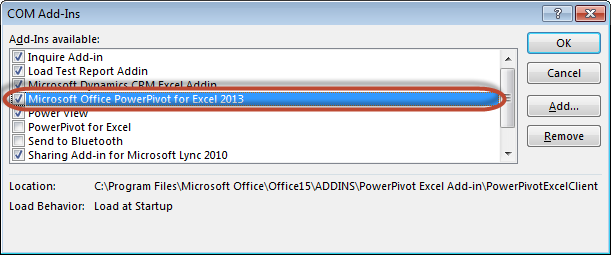
    I upgraded to Office 2013, removing the 2010 version, on Monday night and immediately I was faced with a problem.  PowerPivot showed in the ribbon, but was not clickable! After attempting to click in the greyed out bar for about 5 minutes I started digging in.  I found that PowerPivot was active in the Add-ins section, but something didn’t seem quite right:

    1

    This Add-in was the SQL 2012 version.  Once I unchecked this and went back to the Add-ins section I found the newer version of PowerPivot was now available.  There was a conflict with the older version blocking the newer version from being able to be activated.

    2

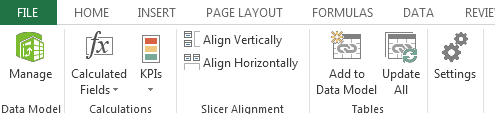
    Once I checked “Microsoft Office PowerPivot for Excel 2013” (and Power View since I was already here and excited to check it out) the Manage option in the ribbon lit up and I was off to the races.

    3

    Since I still need to do work with PowerPivot v2 models and am not willing to upgrade everything to the beta version yet, I did re-install Office 2010 and now have the fun experience of two PowerPivot tabs in my ribbon in Excel 2013 (doesn’t happen in Excel 2010), but if I disable the older version of PowerPivot in 2013, it disables it in 2010 as well. 

    4

    5

    I have yet to have an issue with having both add-ins active at once since reactivating the older version, as the active add-in is the only one that lights up.

    6

    More to come on the great new features of PowerPivot, Power View and Inquire, but for now its time to get back to my vacation smile

  • SharePoint 2013 Unveiled!

    It is a very exciting day to be in the SharePoint space!  We have been speculating and anxiously awaiting this day for a long time, and of course it happens when I am out on vacation! smile

    I got the news the the veil was lifted while at lunch and have been anxious to get back to my keyboard ever since.  There are so many great new features in this release that I am going to hold back from trying to put everything into a single post, so here are the high points for me based on what I have parsed in the public offering:

    1.) Architectural changes in SharePoint 2013

    a.) Claims first.  The default for SharePoint 2013 web applications will be in Claims-based Authentication.  Classic mode will still be supported, but Classic mode authentication web apps will have to be created through PowerShell.  Does this mean that Microsoft will finally support 100% of the features in SharePoint 2013 under Claims?  I am betting on it.

    b.) Office Web Apps moves out from under the SharePoint umbrella and takes on a life of its own, giving the ability to share Office docs on the web in more than just SharePoint.  Moving to its own architecture, that cannot be hosted on the same servers as SharePoint, gives it scalability and credibility that Microsoft is investing in this model.

    c.) Search becomes unified.  There is no longer multiple versions of Search for SharePoint.  Many exciting things to uncover in this space, especially when leveraged with Office Web Apps, however the topology requirements grow considerably.

    d.) The new Distributed Cache Service. Scale points have not yet been determined, but expect more data points on this during the Beta release.

    e.) Server requirements changes. The big surprise here is that there are no changes to the minimum hardware requirements for the servers.  The only real change here is in that Windows 2008 R2 SP1 is the minimum software platform and SQL 2008 R2 SP1 is the minimum database platform.  64bit is required across the board.

    f.) Web Analytics changes.  They have gutted the model used for SharePoint 2010 and have made massive improvements, including considerations for scaling and impact on SQL & IO.

    g.) Work Management Service.  This is one of the biggest features for end users in this version of SharePoint.  WMS provides us with out of the box task aggregation from SharePoint, Exchange, and Project Server with additional systems that could be added later.  Due to the nature of the model, I expect that this will be extended by third parties to hopefully include many other systems driving SharePoint to be the one place to go to manage your day.

    h.) Upgrade gets a facelift.  Visual Upgrade is completely changed for SharePoint 2013 and there are some architectural considerations to be taken into account here.  More to discuss here than what I can put into a partial blog post, but come find me at SPTechCon on Sunday night at the “Meetup with SharePoint Experts” where I will be sitting with Shane Young & Todd Klindt of Rackspace at the Upgrade table and I am sure that we can discuss for hours.

    2.) Social changes

    a.) Massive investment in Social, even before the acquisition of Yammer, have been made in SharePoint 2013 around Microfeeds, Social Lists, Personal sites, a new way of handling personal documents.

    b.) A complete re-architecture around privacy settings &sharing to make the process more intuitive for the user.  Users of SkyDrive are going to find the screens very familiar.

    3.) The new App Model & WCM

    a.) While generally not topics that I write about, I read about them constantly and would recommend that you join me in reading every word that Andrew Connell has to write about these topics.  Not only is AC one of the brightest SharePoint minds I know (Scot Hillier not withstanding), he is also one of the instructors who developed and delivered the Ignite training and the MSDN training that is now available.  Follow AC on twitter at @andrewconnell and on his blog at http://www.andrewconnell.com/blog/

    If you try following him at @SharePointAC you will find Andrew Clark instead, who is a great guy and an awesome guy to take to a bar if you like pre-prohibition cocktails and fun SharePoint dev talk, but ultimately not the same person.

    Now is the time to get your hands on the beta bits and start learning!  Here are a few resources I have found so far from my scouring and a few other posts:

    Builds:

    Microsoft SharePoint Server 2013 Preview

    SharePoint Foundation 2013 Preview

    SharePoint Designer 2013

    Microsoft Office Web Apps Server Preview

    Microsoft Office 2013 Audit and Control Management Server

    SQL 2012 SERVICE PACK 1 (SP1), COMMUNITY TECHNOLOGY PREVIEW 3 (CTP3)

    Reading:

    TechNet: SharePoint 2013 Preview

    Downloadable eBook: Deployment guide for SharePoint 2013 Preview

    SharePoint 2013 for IT pros

    SharePoint 2013 training for IT pros

    Topologies for SharePoint 2013 Preview

    Back up and restore: SharePoint Server 2013 Preview

    Search architectures for SharePoint Server 2013 Preview

    Enterprise search architectures for SharePoint Server 2013 Preview

    SharePoint 2013 Preview: App Overview for IT Pro

    What’s new in business intelligence in SharePoint Server 2013 Preview

    SharePoint 2013: Claims is the new black – by Wictor Wilén

    SharePoint 2013 IT Pro and Developer training materials released – by Vesa Juvonen

    Understanding SharePoint 2013 Apps (aka: Apps 101) – by Andrew Connell

    SP2013 WCM: Forget Everything You Knew About SharePoint WCM! – by Andrew Connell

    You are likely to notice an uptick in blogging from many people who have gone quiet over the past few months (myself included) while we have been working on things we haven’t been able to talk about.  Now that the flood gates are open expect to hear from me more often.

  • PowerPivot & Claims Based Authentication–Is there hope in SQL 2012?

    I promised an update on this in my previous article and it is time to share what I have learned.

    The issue:

    As many of us have painfully found, PowerPivot v1 on a Claims Based Authentication web application is not supported in SharePoint 2010.  I had a case open with Microsoft last year that had the aspirations of rectifying that situation.  We had hoped that working with the PowerPivot team (a part of the SQL Server Product team) and the SharePoint Product team that we would be able to find a way for Microsoft to change their stance and provide us a way to allow PowerPivot v1 to be supported. 

    The answer for v1:

    Sadly, the changes that would have to be made were too drastic for Microsoft to make in the middle of PowerPivot v1’s existing product lifecycle. 

    The new and improved question:

    That begs the question: Is there hope that PowerPivot v2 will be able to work on a Claims Based Authentication web application?

    The caveated answer:

    Keeping in mind that the product has not launched yet and things can still change (they won’t, but lets keep hoping) and that all of the SQL 2012 TechNet that are posted currently have the following statement at the top of them:

    [This documentation is for preview only, and is subject to change in later releases. Blank topics are included as placeholders.]

    The answer is still no.  In the TechNet article entitled “Hardware and Software Requirements (PowerPivot for SharePoint and Reporting Services in SharePoint Mode)” you will find the section under PowerPivot Sofware Requirements says in reference to SharePoint web applications:

    PowerPivot for SharePoint only supports SharePoint web applications that are configured for classic-mode authentication. If you are adding PowerPivot for SharePoint to an existing farm, be sure that the web application you plan to use it with is configured for classic-mode authentication. For instructions on how to check authentication mode, see the section “Verify the Web application uses Classic mode authentication” in Deploy PowerPivot Solutions to SharePoint.“

    Well damn.  Is there any hope that this is ever going to change?

    Keep your chins up.  Rumor in the interwebs is that there is going to be a new version of SharePoint coming in sometime soon.  I can tell you that Microsoft has heard and continues to hear our cries out about this matter.  The more we raise this up as an issue, the more real it will be to Microsoft and the more likely they will be to invest in making the change.  If there is no perception that this is an issue, then there is no attention that will be paid and no investment dollars that will be spent.

    If this is an issue for you, make sure that your Microsoft reps hear about it.  I talk about this with every Product Team member that I can get to listen to me for 5 minutes and I have never met with anything other than a warm reception and a sincere desire to know the feedback on how to make the product better.

    Is this going to stop you from deploying PowerPivot v2 and Power View?

    Not a snowman’s chance in the hot Jamaica sun.  I cannot wait for the final bits to drop so that I can get this amazing new product suite into the hands of every customer who wants to do BI.  The new BI story is too game changing not to get on the bus, and if I am riding it why not be driving smile

  • When in doubt, check ALL the permissions…

    Having just completed my last speaking engagement of 2012 it was time to get back into the swing of things and start playing with troubleshooting a bit. 

    The dilemma

    In a continuing effort to evolve my PowerShell build script for SharePoint I spent a few hours with my team playing with different settings.  One of my team members was driving to get better hands on experience with using PowerShell to configure SharePoint.

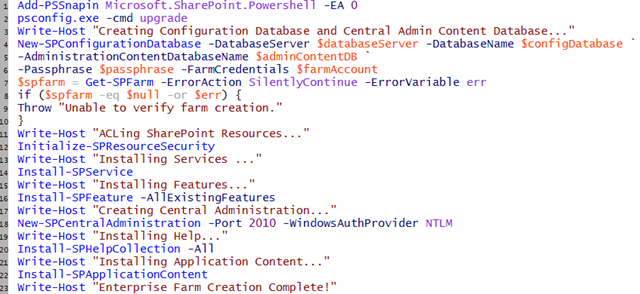
    We started with the very standard PSConfig script that I have used hundreds of times in the past:
    (I left out the variables to save some space)
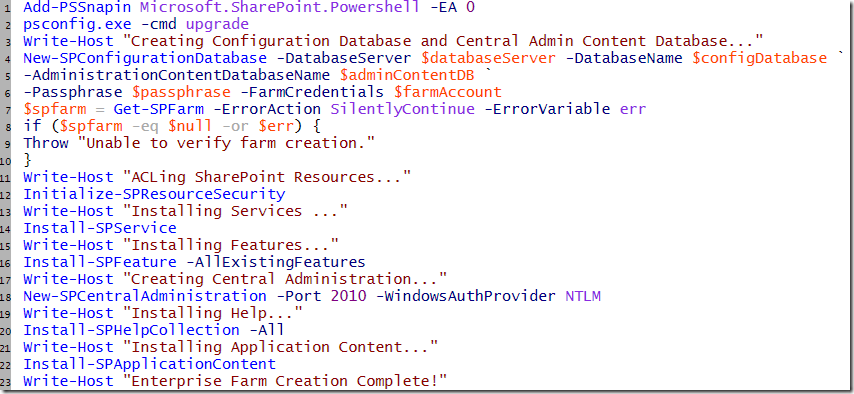
    1

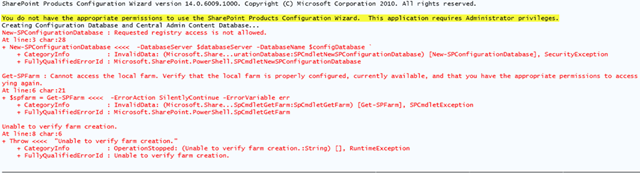
    The following error popped its ugly head up in PowerShell’s angriest color when attempting to run this initial farm configuration:

    New-SPConfigurationDatabase : Requested registry access is not allowed.

    The troubleshooting

    Check permissions

    Hackles went up immediately when the error was read out loud.  Prior to running the script we had just walked through several Security Best Practice checks, following Microsoft’s guidance in TechNet, partly to see if anything had changed recently (it hadn’t) and partly as a good refresher:

    Account permissions and security settings (SharePoint Server 2010)

    Plan administrative tasks in a least-privilege environment (SharePoint Foundation 2010)

    Plan for administrative and service accounts (SharePoint Foundation 2010)

    We went back and doubled checked all of our settings and found that things were configured as prescribed.  The SharePoint install account had local administrator permissions on the SharePoint server and SecurityAdmin and DBCreator rights on the SQL server.

    Examine the logs

    We visited our Server Event Log and 14 Hive Logs folder but found no evidence that anything was in error.  In fact, no logs entries were created at all…

    Check the firewall rules

    We validated that for this configuration, in a sandbox without external connections to the world, that the Windows Firewalls were turned off.

    Check the connection between servers

    Using the trusty Data Sources (ODBC) validation method we were able to make connection from the SharePoint server to the SQL server, and browse the available databases.

    Get thyself to Google!

    Completely perplexed at this point by an error that doesn’t make any sense due to the fact that the SharePoint install account was a local admin we went to our good friend Google and found, well to be honest a bunch of crap that didn’t help us in any way.  Lots of stuff for people who have lost access to Central Admin due to GPO changes, or had a driver go corrupt, or are trying to write to the registry using C# in ASP.net, & even a forum about people having problem registering their car in Nebraska.

    Review of Local Security Policies

    One last ditch effort to check the local security policy to see if a new GPO pushed down changes to turned out fruitless, however one of the AD admins mentioned they had seen an issue similar to this once before they changed the User Account Control Settings (UAC). 

    The Root Cause

    Not even thinking about it my response to the UAC question was “There is no need to do that, you just right-click and launch as Administrator or use my PowerShell script to run as a different user

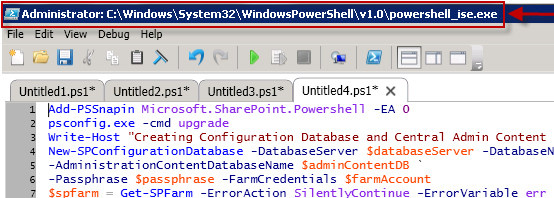
    Upon examination of my team member’s screen it was revealed that: 2
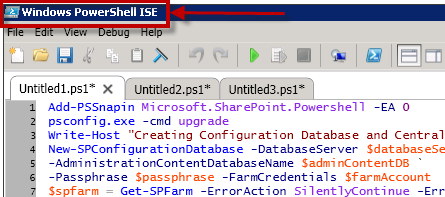
    PowerShell ISE have in fact been opened without being run as Administrator.  A costly lesson from a time perspective, but a good learning experience for a newbie at PowerShell for SharePoint.

    The most troubling of all however was upon reexamination of the PowerShell error message we needed to only go 2 lines above the big red error message that we were troubleshooting on, to the plain black texted TRUE error: (highlighted here in yellow)
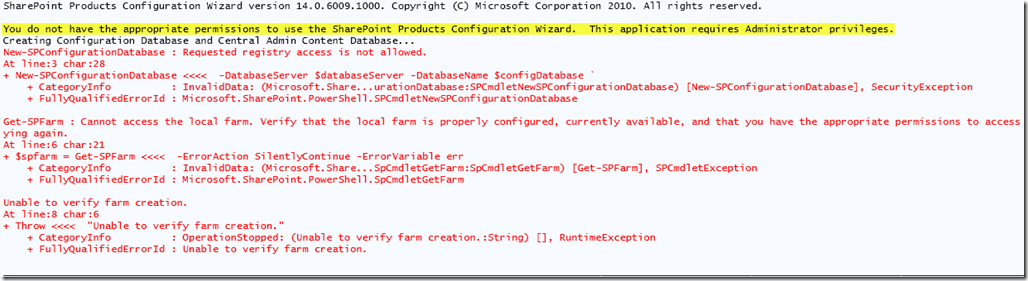
    3

    Unassuming and unnoticed as we troubleshot the obvious error, the line was thrown by the PSConfig.exe and not a bad PowerShell parameter which explains why PowerShell did not recognize it as an error.

    The moral of the story…

    Even after following every documented Best Practice out there, we still were able to find a way to cause an error.  While the UI was bad for the error that would have been useful to us, it was at least thrown in our faces.

    The easy answer is to always make sure that you open PowerShell or PowerShell ISE as Administrator.  My personal preference is always going to be login in to servers using a non-SharePoint privileged account and then elevate permissions to run in the context of a SharePoint Farm admin or service account as demonstrated in my previous post which sets the run as Administrator for you.

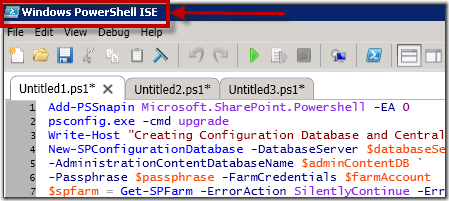
    Be sure when you are ready to do any SharePoint Admin work that you see the “Administrator:” in front of your PowerShell ISE path, like this:
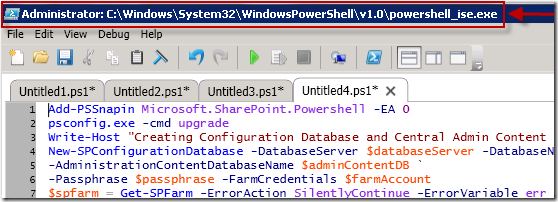
    4

    At the end of a fun troubleshooting session we walked away with a new notch in our troubleshooter tool belt, a fun article to write, and team member who will never forget to fire the RunAs flag ever again.
  • SharePoint Connections Las Vegas 2011 Wrap up

    I just completed my 5 sessions, 3 of which I presented with my great friend Cornelius J. van Dyk, here at SharePoint Connections Las Vegas.  While here we received several pieces of great news:

    1.) O’Reilly has green lit our book “SharePoint for Business Intelligence” which will be coming out in 2012 and will revolve around how you can solve business problems using SharePoint 2010, SQL Server 2012, & Visual Studio LightSwitch technologies for Business Intelligence.

    2.) We will be doing our “SharePoint Disaster Avoidance for Large Scale Enterprises” post conference  and several other sessions for the SharePoint Connections Las Vegas show in March 2012

    3.) Power was finally restored to my house in Nashua after more than 6 days!

    I had almost 450 attendees across my 5 sessions and I sincerely hope that you all enjoyed the conference as my as I did.  As promised, here are links to my final decks:

    SharePoint Logging & Debugging: The Troubleshooter’s Best Friend

    SharePoint Performance: Best Practices from the Field

    Battle Scarred But Still Standing: A SharePoint Administrator’s Tell All

    Heavy Metal PowerPivot Redux

    Human Workflow with Visio 2010 and SharePoint Designer 2010

    Heading home tonight and then back to the SharePoint Road Trip on Thursday to hit SharePoint Saturday Denver!