Category: General

  • Creating hotkeys for functions in Word 2013

    In my previous posts on Enabling the “Mark Comment Done” & “Quick Switching between Review Markup Styles” I made reference to repetitive stress injury inducing activities and how to avoid them, but the biggest single improvement I made to my editing process for the book was creating a hotkey for Approving Comments.

    I have long been a fan of Office Application allowing me to customize my toolbar and tabs, but until recently I did not realize what I was missing with creating hotkeys.  The operation is simple and intuitive and makes repetitive functions significantly easier to live with.

    Simply right-click in the ribbon and select “Customize the Ribbon”
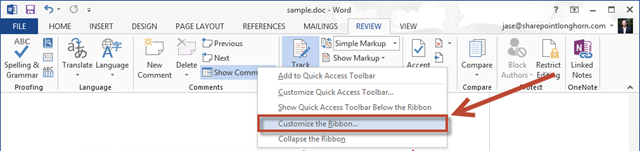
    1

    This will open the Word Options window where you will select the “Keyboard shortcuts:” customize button.
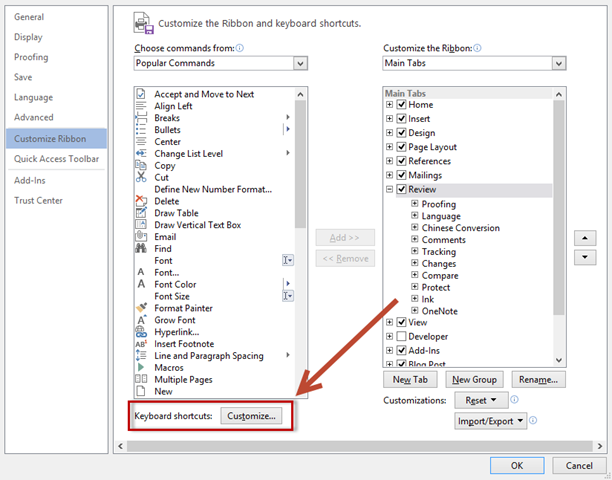
    2

    Once open you will select the tab that contains the feature you are looking to create a hotkey for.  In this case I selected the Review Tab and chose the AcceptChangesOrAdvance option.
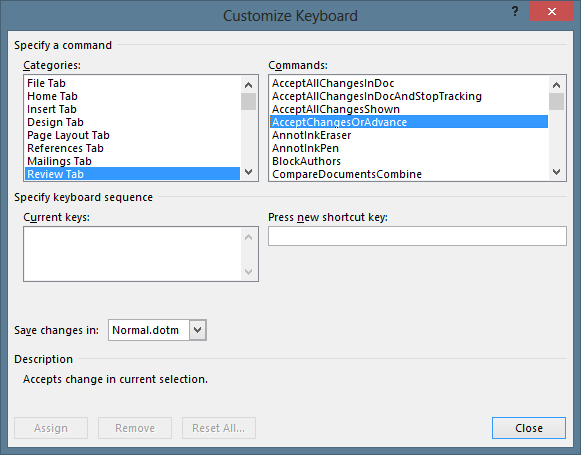
    3

    To avoid the aforementioned repetitive stress injury inducing activity I chose to employ multiple key combinations so that I could switch hands as I went so that I didn’t over use one combination and cause myself to be a claw-handed, arthritis riddled, angry author.  The nice thing about the Customize Keyboard window is that it lets you know when key combination is already in use so that you can decide whether or not you want to override the existing hotkey or add an additional hotkey.
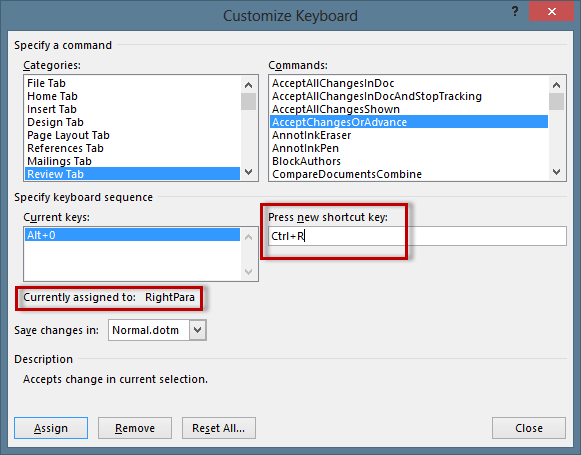
    4

    Once I assigned the changes I was able to go back to Word and use the hotkey right away.  This saved me a decent chunk of time as it allowed me to keep both hands on the keyboard and not to have to use the touch screen or the mouse.
  • Quick switching between Review Markup styles in Word 2013

    This is the second in a shorts series of helpful hits for editing using Word 2013.  You can find the first in the series Enabling the “Mark Comment Done” here. 

    When I first started with the copyedit review of my book I used to go into the Review tab for each chapter and select to show All Markup each time.  This repetitive stress injury inducing activity was not only annoying, but it was counter productive as it made it difficult to understand the full context of the changes that were being proposed.

    Happily I stumbled upon a feature that was previously unknown to me.  It is possible that this has been a part of Word in previous versions, but as I have not had to review documents in such a massive way until the book, I hadn’t ever bothered to look into the Markup features.

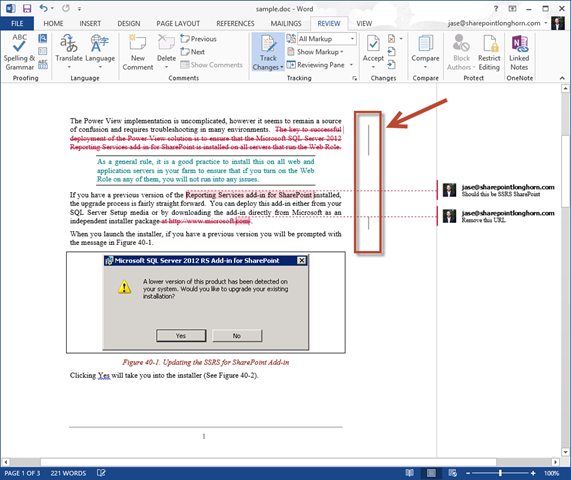
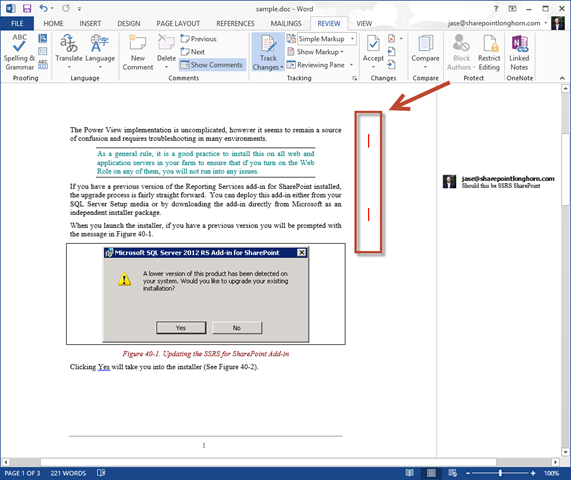
    The feature that I am referring to is the inline show/hide side bar.

    1

    This side bar is grey when All Markup is being show and red when Simple Markup is employed.  To toggle between the two simply click on the side bar.

    2

    This will allow you to quickly and easily see what changes are being made and what the output will look like without having to hit the toolbar, which is optimal when you are in a touch enabled environment such as a Surface or other tablet.

    I found this feature to be invaluable when working on edits and reviews for the book.  Since no one had pointed it out to me before, I figured it was worth sharing.

  • Enabling the “Mark Comment Done” feature in Word 2013

    I am finally at the end of the first copyedit review for my book “Developing Business Intelligence Apps for SharePoint” and the experience has left me with some valuable tidbits about how best to edit 400+ page word documents.  I will post these during the course of the next week.

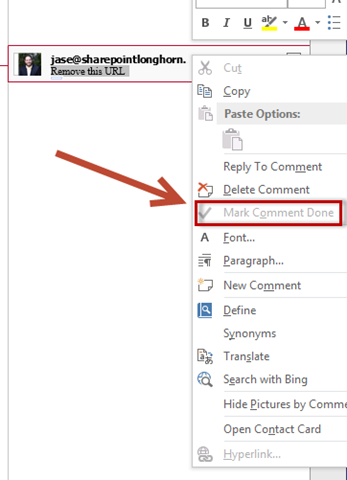
    While co-author, Dave Feldman, and I are both using Office 2013 and had every intention of leveraging all of the great features that come as a part of the .docx format, we found that people in the book publishing biz tend to be on less up to date software and would send us drafts in .doc format.  This made it so that the “Mark Comment as Done” feature is not available.

    1

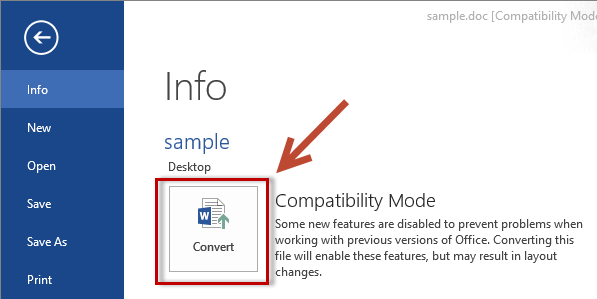
    Convert from Compatibility Mode

    To solve this go to the File Menu (or Backstage) and select convert.

    2


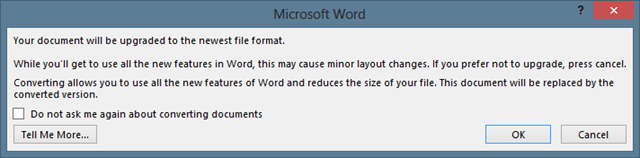
    You will get a warning that you are about to upgrade to the newest file format to which you will say OK.

    3

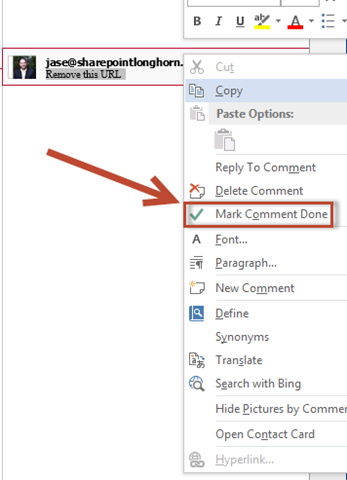
    This will light up “Mark Comment Done”.

    4 

  • How to: Create a OneNote help file out of a PowerShell Module

    Being an ITPro in the current day and age I write a decent amount of PowerShell. Since I am not always on a server that has the SharePoint PowerShell modules installed most of my time on TechNet is spent basically reading the help files of specific modules to validate syntax, flags or review examples. This can become a bit of a pain after a while so I thought it would be nice to have a OneNote notebook on my SkyDrive that I could sync to my laptops or access in the cloud where I could search more easily and have all of my cmdlets at my fingertips.

    Here is how I accomplished this:

    Select the module. For this example I used the Microsoft.SharePoint.PowerShell module, however this will work with any PowerShell module.

    Run the following command to get an output of the cmdlets in the module:

    1

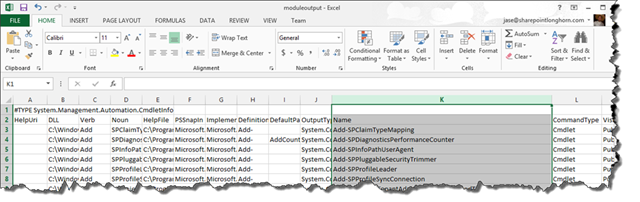
    Opening in Excel will give you the best opportunity to grab what you need. Column K in this particular output will list all of the cmdlets names.

    2 

    Grab just that column and copy it to a text file called “cmdlets.csv”.

    Next use the following PowerShell command to create an ANSI output file for each of the help files in the module.

    3

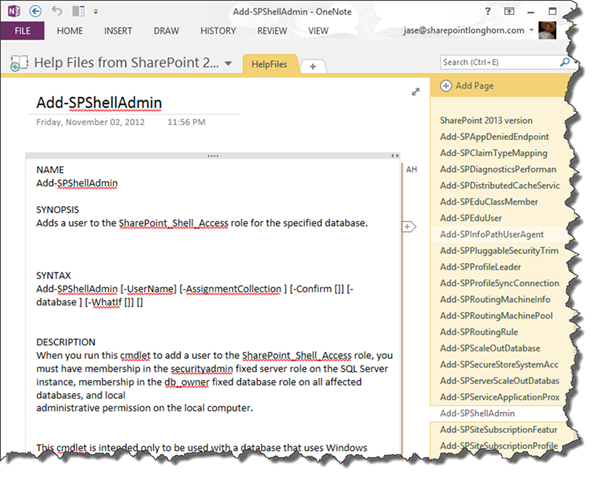
    For this module it created 771 individual text files. Using the OneNote 2010 Text Importer from John Guin I was able to create a single OneNote file that contains all of the help for the entire SharePoint 2013 PowerShell module that is now searchable in a faster and easier way. One caveat, I had to use OneNote 2010 for the importer to work properly.

    Not sure if this will be helpful for anyone else, but I use it all the time when writing PowerShell Code.

    4

    I will endeavor to keep this up to date, but since I just explained how to accomplish this, if I slip up you can perform the actions yourself.

    You can get download the notebook here: http://sdrv.ms/X7PqqI

    notepad  get cmdlets in the module script

    notepad  create ANSI output file for each of the help files in the module script

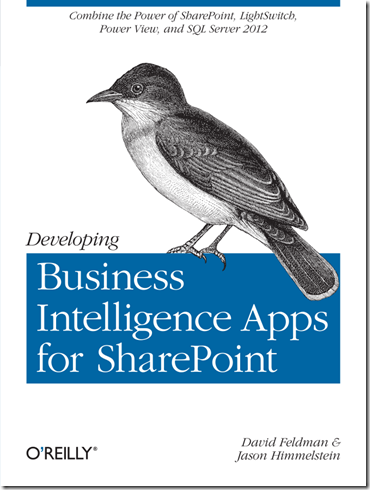
  • Hooray, it’s a book!: “Developing Business Intelligence Apps for SharePoint”

    book

    Over the past year I have been spending my night’s & weekends working on a book with my co-author, Dave Feldman, and I am proud to say that we have completed our draft of “Developing Business Intelligence Apps for SharePoint”

    Through the book you will learn to create dynamic Business Intelligence solutions for SharePoint, using Microsoft Visual Studio LightSwitch, SQL Server 2012, and other tools and technologies. This hands-on book shows you how to create data-rich BI applications with SharePoint faster and with more capabilities than previously possible. You’ll learn the entire process, from high-level concepts, to low-code development and deployment, to setup and configuration.

    • Quickly build a robust schema and applications with Visual Studio LightSwitch
    • Leverage PowerPivot v2 to build a business intelligence semantic model
    • Create reports with Excel Services, Report Builder, and Power View

    The happy thing about our book is that we saw the CSOM model of SharePoint 2013 coming down the road and architected our solutions in the book so that they are relevant to both the 2010 & 2013 platforms (and hopefully many versions of SharePoint to come).

    The book is available for pre-order on Amazon now and will be available via O’Reilly Early Release.   Dave & I will be at the SharePoint Conference in Las Vegas where O’Reilly will have a form of the book available (not quite sure if it will be a few chapters or what at that point, but there will be something!). 

    I will say that Dave & I were warned by Andrew Connell & Scot Hillier when we started talking about writing this book that taking on a book project is much like having a child.  9+ months of long uncomfortable sleepless nights to give birth to something that you hope goes on to do good things in this world (I am paraphrasing a bit here… basically they both said it was going to suck something awful, but we would be happy when it was all over).  Well gents, you were right on all counts.  The fun part is that while I have 2 kids and sort of had an idea of what something like that was going to be like, Dave’s wife is pregnant with their first child and is due this SUNDAY.  Needless to say, we are glad to be done before Baby “Cookie Monster” Feldman arrives. smile

  • Planning a SharePoint Saturday: A recap of #SPSNH

    We are now almost a month removed from SPSNH and it has been just enough time for the glow to start to fade and for life to start getting back to normal.  The event was wildly successful and somehow managed to receive nothing but positive reviews.  There were a few things that I noted that are worth mentioning:

    1.) Drop off between registration and attendance was between 30-40%. 

    2.) Doing 6 keynotes instead of 1 made the day interesting, but did not draw people in for the early sessions the way that a big name keynote might have.

    3.) Planning 3 tracks (ITPro, Dev, End User) at 2 different skill levels (Beginner & Advanced) and keeping the tracks consistent in the same room so that people weren’t hunting for their next session was a BIG hit.

    4.) Todd Klindt is a freaking rock star.  This isn’t something that we learned, but it was certainly reinforced.  The dude stepped up to deliver a session he had never seen until 5 minutes before when someone called in sick for the first timeslot & then presented to a standing room only group later in the day.  Todd’s heroic efforts win the booby prize with Chris McNulty coming in a close second for taking on an extra session with only a day’s notice.  The edge went to Todd because he had less prep time. 

    5.) Bags and paper collateral are passé.  Give people a jump drive with digital collateral.

    6.) Varying things up between 2010 & 2013 was very positive.  The people who came to hear about 2013 wanted some 2010 as well & the folks who wanted to hear about 2010 were interested in some about 2013 too.

    7.) Hot coffee available all day is a MUST.

    8.) Speaker gifts instead of speaker shirts.  We gave a nice warm jacket with the SPSNH & NHSPUG logos on them and I am still getting twitter comments about how much the speakers enjoy them.  Plus, SPSRED “borrowed” our idea and their speakers loved them too smile

    All in all, I am happy to say that SPSNH was a great success and we are looking forward to doing it again next year.  There are things that we will look to do differently, but with a second SPSNH under our belt I think that we have a pretty good thing going up here in the “Live Free or Die” state.

    My presentation from SPSNH can be found here. The slides that Todd presented on 5 minutes notice can be found here. (I had done a webinar the week before, so this was my deck from that)

    My pictures from the weekend can be found here on my SkyDrive.

  • Holy time gap in posting!

    It has been almost 6 weeks since my last post and it is time to bring to light what has been going on in my world during that time. 

    While I am not someone who discusses my employer regularly on my blog, I joined Sentri 6 months ago and couldn’t be happier.  Especially in light of recent developments.  Some of you may have noticed the press release, twitter storms, webcasts, etc about Sentri’s acquisition of the KMA SharePoint Practice.  Over night my small practice grew to more than 4 times its size and was endowed with even more dynamic, and highly talented people. 

    Anyone who has ever lived through the M&A process can tell you that it is a nail biting & hair raising process as you never know if things are going to move forward or if Murphy is going to stick his head up and yell “GOTCHA!”

    In the weeks since my last posting life has been extremely interesting and exciting preparing for and then finally working through the details of integrating two different SharePoint Practices into one.

    Needless to say since I am writing this post, we are in the lucky 17% that went into the M&A process and came out the other side smiling.  I am sincerely thrilled to be working closely with Mike Gilronan (check out his take on this here), Derek Cash-Peterson, and the entire Sentri SharePoint team.

    As for my commitment to the SharePoint community, it remains as strong as ever.  I have added a Speaking Engagements section to my blog so that you can find out where and when I will be speaking next.  This week I will be speaking at the NYC SPUG on Wednesday March 7th, 2012 at 6pm.

    And now back to posting content…. smile

  • Google Search plus Your World: My soap box, then a solution

    Anyone who has ever read my blog knows that I am not above getting on my soapbox and wailing on and on about injustices and poor design decisions.  Welcome to one of those times…

    It’s now been 5 days since the launch of the “Search plus Your World” and I finally figured out exactly how to undo what Google has pushed down on us.

    Firstly, lets be clear in the fact that Google pushed out a new feature set that they believe will truly revolutionize the way the world works.  I applaud them for their ingenuity, effort and desire to make the world a better place.  That said, I HATE it.  Aesthetically it is annoying and frequently I do not care what anyone else thinks about the things I am searching for, so it’s a bit intrusive to say the least.

    There are many people in the community that I seek out for advice when searching for a truly difficult concept.  I do not want people’s advice on all of my searches.  For example, if your child is doing a research project on sports superstitions in diverse cultures and goes searching on Google (while you are logged into the browser) for something about “Patron” thinking that he/she is going to find something about Saints that might be helpful, well first of all they are going to find 2 results about the delicious Tequila made by the company of that name, and then you are going to find a link to my blog where I have a list item for Patron Silver (yes, I am a fan).  Not overly useful, eh?

    On the flipside it could be useful.  If I am searching for “jquery code” (a subject that I am extremely under equipped to even be searching for) I find 3 links out of 10 on the first search results page that Marc Anderson (http://sympmarc.com/) has shared.  I know Marc and he is one of the people that I respect when it comes to this area, so I am more likely to click on the links he has recommended first.  FYI, Marc is speaking this Thursday night at the NHSPUG so come hear him if you can…

    My other issue is the narrowing down of search results based on these personal results.  Here is an example: I am in the middle of writing a book and I am doing a basic search for “SharePoint” to see some of the adjectives others have used to describe this wonderful platform that keeps me employed.  I instantly get annoyed that because of the personal results 4 of 10 results are YouTube videos that some people liked with the tag “SharePoint” in it.  I go to flip the switch to from seeing personal results (the icon of a person) to only seeing the real results (the icon of the world), which for those of you who don’t know looks like this:

    1

    and I noticed that my results change from

    2

    to

    3
    Needless to say this is a bit disconcerting because as a consumer of search data I am looking for the most accurate search results possible, and limiting my results because of the people in my circles just doesn’t sound like the right thing to me.  Am I going to miss the additional 65,600,000 results that didn’t come back because of this limitation?  HOW DO I KNOW? YOU TOOK THE OPTION AWAY FROM ME TO FIND OUT!

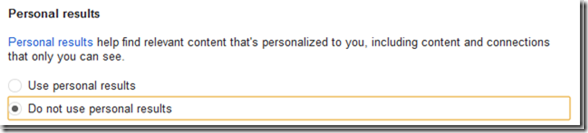
    Rather than using this soap box as a place to join in the amassing mob that is rallying against Google for this “horrific and tragic misstep” I will suggest that you do what I did and change your search settings to “Do not use personal results”.  This simply changes the default position of the toggle pictured above.  It does not remove the ability to see the personal results on the fly. The process is very simple:

    1. Go to the top right hand corner of your Google window:

      4

    2. Change the Personal results setting:
      5
    3. Hit the save button

    If that isn’t enough, switch to Bing.com (which I have found to be better lately anyway).

    Hope this was helpful.  smile

    One last thought: by setting the default behavior to not include the personal results you are in essence just having a new search facet available to you…

  • 1941 days later: Gilad Schalit is finally home

    gilad

    I normally keep my personal views on world happenings and politics out of this medium, but today is a very special day, so please feel free to disregard this post if you want but I feel that I must share my views on this topic.

    At the beginning of June 2006 I ended my time as a USY Advisor after more than 10 years of working with Jewish teenagers.  Much like my passion for technology, my passion for informal Jewish education was all consuming.  I am proud to say that I have watched many of my former USYers, affectionately known as my kids, go on to do amazing things: join the Marines, become doctors & lawyers, get married, have children of their own, start successful companies, start their own clothing lines, become teachers, and most amazing of all become informal Jewish educators themselves and dedicate some of their time to give back.  I was honored to allowed to participate in helping them learn and grow as young Jewish men and women and still keep in contact with many of them today.

    A few short weeks after Jill and I attended what was to be our last SWUSY Regional Convention as advisors we heard the news that Gilad Schalit had been captured.  At not even 20 years old it was impossible not to draw correlation between Gilad and some of my kids, especially since one of them who I consider to be family had just enlisted in the United States Marine Corp.

    It was heart wrenching and as the days and weeks went on news would periodically come out about Gilad, but the hopes were dwindling as the days went by.  Jill and I moved to Massachusetts and our synagogue had a picture of Gilad as a reminder.  Even without that, we have never forgotten.  We are a people of remembrances.

    In my lifetime I have seen some awe inspiring things: the Berlin Wall fell, the mapping of the human genome, the electing an African American President (whether you like/agree with/hate him or not, this was still a ground breaking thing for this country) ,Tiananmen Square, the invention of the personal computer, NASA, and the end of Apartheid but few things have touched me the way that the freeing of Gilad Schalit has. 

    The Marines have a mantra: Never leave a man behind.  Israel has freed 450 prisoners and will free a total of 1,027 prisoners at the end of 2 months, in exchange for 1 Israeli soldier. 

    In truth and honestly, I never expected to see the day when Gilad would be coming home.  I never believed that Hamas would allow him to see his home again. 

    It is my hope and prayer that the Israel/Palestinian conflict will come to a peaceful end.  My question & concern is what will that peace cost.  When reasonable people come to a negotiation table they generally are willing to compromise in some way.  To date, we have not seen that on both sides of the table with this conflict. 

    Bottom line here, after 1941 days it gives me goose bumps to finally be able to write the words “Welcome Home Gilad”.

  • SQL Server 2012 Announcements & a new Blogger

    The big news of the day in the technology world… no, not the Blackberry outage… no, not iOS 5 being released…  the big news about SQL Server Code Name: “Denali” becoming official SQL Server 2012!  Product release is slated for the first half of 2012 (not specifically Q1 as many of us had hoped)

    Project Crescent has been rebranded as Power View and announced that there will be a browser based version that will work on iOS & Android devices, but will not be full function.  The other great thing is that the story board to PowerPoint functionality was stated to be in the RTM release.

    Project Juneau has been rebranded as SQL Server Data Tools as well.

    The other big news is that my great friend, Dave Feldman, that I have quoted here on a number of occasions, is a co-creator of SPFLogger, and one of the smarter Microsoft BI & general troubleshooters that I know has finally started a blog.  Check out his take on the announcements from SQL PASS as well as some videos that he was able to get posted from the keynote.  His new blog is http://bostonmusicdave.blogspot.com

    Lastly, you can check out the Official Press Release from Microsoft, the SQL Server 2012 Analysis Services information, the SQL Server 2012 Reporting Services info, and the SQL Server 2012 Enterprise Information Management info for updated information.  SQL Pass’s site is also a resource, but I have found that following @MicrosoftBI and @SQLServer on twitter have been more useful thus far.

    More BI goodness when I hear it!