Tag: SharePoint 2010

  • How to: Get your Managed Account passwords when they are changed automatically by SharePoint 2010

    Scenario:

    Using Managed Accounts the way that SharePoint 2010 is designed you allow SharePoint 2010 to manage your password changes automatically for you. Your farm gets into an inconsistent state, or you allow SharePoint 2010 to change your farm admin account and you realize that you cannot start the UPS without knowing the farm account password. What do you do?

    Resolution:

    Run the following PowerShell command from the SharePoint 2010 Management Shell as a Farm Administrator:

    function Bindings()
    
    {
    
    return [System.Reflection.BindingFlags]::CreateInstance -bor
    
    [System.Reflection.BindingFlags]::GetField -bor
    
    [System.Reflection.BindingFlags]::Instance -bor
    
    [System.Reflection.BindingFlags]::NonPublic
    
    }
    
    function GetFieldValue([object]$o, [string]$fieldName)
    
    {
    
    $bindings = Bindings
    
    return $o.GetType().GetField($fieldName, $bindings).GetValue($o);
    
    }
    
    function ConvertTo-UnsecureString([System.Security.SecureString]$string)
    
    {
    
    $intptr = [System.IntPtr]::Zero
    
    $unmanagedString = [System.Runtime.InteropServices.Marshal]::SecureStringToGlobalAllocUnicode($string)
    
    $unsecureString = [System.Runtime.InteropServices.Marshal]::PtrToStringUni($unmanagedString)
    
    [System.Runtime.InteropServices.Marshal]::ZeroFreeGlobalAllocUnicode($unmanagedString)
    
    return $unsecureString
    
    }


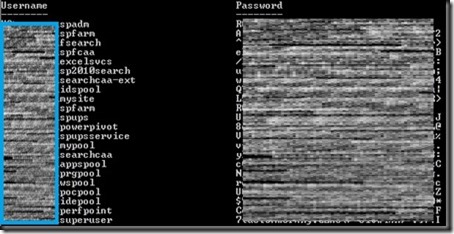
    Get-SPManagedAccount | select UserName, @{Name="Password"; Expression={ConvertTo-UnsecureString (GetFieldValue $_ "m_Password").SecureStringValue}}
    
    The output will look similar to:
    screenshot1
    Special Thanks:
    Huge thanks to Microsoft for unveiling this nugget to us during a recent call to SharePoint CritSit support. Derek Martin, of Slalom Consulting, and my jaws collectively hit the floor when they showed us this one and we knew we couldn’t keep it to ourselves.
    Update: Thanks to Todd Klindt for pointing out that the Live Writer Add-in that I have been using makes the code easily readable, but horrible to copy. Download the .ps1 file from here or the text file version from here rather than trying to copy from above and save yourself some time.
    powershell notepad
  • What are the PowerShell cmdlets that correspond to STSADM commands?

    Now that SharePoint 2010 is intertwined with PowerShell have you been looking for that cipher that tells you what PowerShell command you can run to do all of the STSADM commands that you know and love from SharePoint 2007 in SharePoint 2010?  I was too!  Here is the list that I have come up with (combined with our good friends at TechNet):

    PowerShell cmdlets STSADM Commands
    Enable-SPFeature Activatefeature
    Enable-SPInfoPathFormTemplate Activateformtemplate
    New-SPAlternateUrl Addalternatedomain
    Mount-SPContentDatabase Addcontentdb
     
    New-SPContentDatabase
    Install-SPDataConnectionFile Adddataconnectionfile
    New-SPExcelFileLocation Add-ecsfiletrustedlocation
    New-SPExcelDataProvider Add-ecssafedataprovider
    New-SPExcelDataConnectionLibrary Add-ecstrusteddataconnectionlibrary
    New-SPExcelUserDefinedFunction Add-ecsuserdefinedfunction
    Add-SPInfoPathUserAgent Addexemptuseragent
    New-SPManagedPath Addpath
    None Addpermissionpolicy
    Add-SPSolution Addsolution
    Install-SPWebTemplate Addtemplate
    New-SPUser Adduser
    Install-SPWebPartPack Addwppack
    New-SPAlternateUrl Addzoneurl
    Set-SPInfoPathWebServiceProxy Allowuserformwebserviceproxy
     
    Use the AllowForUserForms and Identity parameters.
    Set-SPInfoPathWebServiceProxy Allowwebserviceproxy
     
    Use the AllowWebServiceProxy and Identity parameters.
    Set-SPWebApplication Authentication
     
    Use the AuthenticationMethod or AuthenticationProvider parameters.
    Backup-SPConfigurationDatabase Backup
     
    Backup-SPFarm
     
    Backup-SPSite
    Get-SPBackupHistory Backuphistory
    New-SPCentralAdministration Createadminvs
    New-SPSite Createsite
    New-SPSite Use the ContentDatabase parameter. Createsiteinnewdb
     
    New-SPContentDatabase
    New-SPWeb Createweb
    Disable-SPFeature Deactivatefeature
    Disable-SPInfoPathFormTemplate Deactivateformtemplate
    Remove-SPAlternateUrl Deletealternatedomain
    Remove-SPConfigurationDatabase Deleteconfigdb
    Dismount-SPContentDatabase Deletecontentdb
    Remove-SPManagedPath Deletepath
    Remove-SPSite Deletesite
    Remove-SPSolution Deletesolution
    Uninstall-SPWebTemplate Deletetemplate
    Remove-SPUser Deleteuser
    Remove-SPWeb Deleteweb
    Uninstall-SPWebPartPack Deletewppack
    Remove-SPAlternateUrl Deletezoneurl
    Install-SPSolution Deploysolution
    Install-SPWebPartPack Deploywppack
    Get-SPSolution Displaysolution
    Set-SPContentDeploymentPath Editcontentdeploymentpath
    Get-SPAlternateURL Enumalternatedomains
    Get-SPContentDatabase Enumcontentdbs
    Get-SPDataConnectionFileDependent Enumdataconnectionfiledependants
    Get-SPDataConnectionFile Enumdataconnectionfiles
    Get-SPInfoPathUserAgent Enumexemptuseragents
    Get-SPInfoPathFormTemplate Enumformtemplates
    Get-SPServiceInstance Enumservices
    Get-SPSiteAdministration (To run this cmdlet, you must be a member of the Farm Administrators group.) Enumsites
     
    Get-SPSite (To run this cmdlet, you must be a local administrator on the computer where SharePoint 2010 Products is installed.)
    Get-SPSolution Enumsolutions
    Get-SPWeb Enumsubwebs
    Get-SPWebTemplate Enumtemplates
    Get-SPUser Enumusers
    Get-SPWebPartPack Enumwppacks
    Get-SPAlternateURL Enumzoneurls
    Start-SPAdminJob Execadmsvcjobs
    Export-SPWeb Export
    New-SPWebApplication Extendvs
    New-SPWebApplicationExtension Extendvsinwebfarm
    Get-SPWebApplication Getadminport
     
    Use the following syntax:
     
    Get-SPWebApplication -IncludeCentralAdministration | ? {$_.IsAdministrationWebApplication -eq $true}
     
    Get-SPDataConnectionFile Getdataconnectionfileproperty property
     
    Use the following syntax:
     
    Get-SPDataConnectionFile | where {$_.Name -eq “dataConFileName”} | format-list
     
    Get-SPInfoPathFormTemplate Getformtemplateproperty property
     
    Use the following syntax:
     
    Get-SPInfoPathFormTemplate | where {$_.DisplayName -eq “formTemplateName”} | format-list
     
    Get-SPFarmConfig Getproperty
     
    Get-SPTimerJob
     
    Disable-SPTimerJob
     
    Enable-SPTimerJob
     
    Set-SPTimerJob
     
    Start-SPTimerJob
    Get-SPSiteAdministration Getsitelock
    Get-SPAlternateURL Geturlzone
    Import-SPWeb Import
    Install-SPFeature Installfeature
    Get-SPLogLevel Listlogginglevels
    Get-SPEnterpriseSearchSecurityTrimmer Listregisteredsecuritytrimmers
    Move-SPSite Mergecontentdbs
    Move-SPUser Migrateuser
    For the Osearch parameters farmcontactemail, farmperformancelevel, farmserviceaccount, and farmservicepassword, use the Get-SPEnterpriseSearchService and Set-SPEnterpriseSearchService cmdlets. Osearch
     
    For the Osearch parameters start and stop, use the Start-SPEnterpriseSearchServiceInstance and Stop-SPEnterpriseSearchServiceInstance cmdlets, respectively.
     
    For the Osearch parameter defaultindexlocation, use the Get-SPEnterpriseSearchServiceInstance and Set-SPEnterpriseSearchServiceInstance cmdlets.
    Use the Get-SPEnterpriseSearchServiceApplication cmdlet to retrieve the specific Search service application, and then use DiacriticSensitive parameter from the Set-SPEnterpriseSearchServiceApplication cmdlet. Osearchdiacriticsensitive
    Start-SPServiceInstance Provisionservice
    Stop-SPInfoPathFormTemplate Quiesceformtemplate
    Update-SPInfoPathFormTemplate Reconvertallformtemplates
    New-SPEnterpriseSearchSecurityTrimmer Registersecuritytrimmer
    Uninstall-SPDataConnectionFile Removedataconnectionfile
    Remove-SPExcelFileLocation Remove-ecsfiletrustedlocation
    Remove-SPExcelDataProvider Remove-ecssafedataprovider
    Remove-SPExcelDataConnectionLibrary Remove-ecstrusteddataconnectionlibrary
    Remove-SPExcelFileLocation Remove-ecsuserdefinedfunction
    Remove-SPInfoPathUserAgent Removeexemptuseragent
    Uninstall-SPInfoPathFormTemplate Removeformtemplate
    Rename-SPServer Renameserver
    Set-SPSite Renamesite
     
    Use the Url parameter.
    Set-SPWeb Renameweb
     
    Use the RelativeUrl parameter.
    Restore-SPFarm Restore
     
    Restore-SPSite
    Uninstall-SPSolution Retractsolution
    Start-SPContentDeploymentJob Runcontentdeploymentjob
    Install-SPFeature Scanforfeatures
     
    Use the Scanforfeatures parameter.
    Set-SPCentralAdministration Setadminport
    Connect-SPConfigurationDatabase Setconfigdb
    Set-SPContentDeploymentJob Setcontentdeploymentjobschedule
    Set-SPDataConnectionFile Setdataconnectionfileproperty
    Set-SPExcelFileLocation Set-ecsexternaldata
    Set-SPExcelServiceApplication Set-ecsloadbalancing
     
    Use the LoadBalancingScheme parameter.
    Set-SPExcelServiceApplication Set-ecsmemoryutilization
     
    Use the MemoryCacheThreshold and PrivateBytesMax parameters.
    Set-SPExcelServiceApplication Set-ecssecurity
     
    Use the CrossDomainAccessAllowed, EncryptedUserConnectionRequired, and FileAccessMethod parameters.
    Set-SPExcelServiceApplication Set-ecssessionmanagement
     
    Use the SessionsPerUserMax and SiteCollectionAnonymousSessionsMax parameters.
    Set-SPExcelServiceApplication Set-ecsworkbookcache
     
    Use the Workbookcache and WorkbookCacheSizeMax parameters.
    Set-SPInfoPathFormTemplate Setformtemplateproperty
    Set-SPLogLevel Setlogginglevel
    Set-SPFarmConfig Setproperty
     
    Get-SPTimerJob
     
    Disable-SPTimerJob
     
    Enable-SPTimerJob
     
    Set-SPTimerJob
     
    Start-SPTimerJob
    Set-SPSiteAdministration Setsitelock
     
    Use the LockState parameter.
    Get-SPSiteSubscription Setsiteuseraccountdirectorypath
     
    New-SPSiteSubscription
     
    Remove-SPSiteSubscription
    Set-SPWorkflowConfig Setworkflowconfig
    Set-SPSiteAdministration Siteowner
    Install-SPSolution Syncsolution
     
    Use the Synchronize parameter.
    Remove-SPWebApplication Unextendvs
    Uninstall-SPFeature Uninstallfeature
    Start-SPInfoPathFormTemplate Unquiesceformtemplate
    Remove-SPEnterpriseSearchSecurityTrimmer Unregistersecuritytrimmer
    Set-SPManagedAccount Updateaccountpassword
    Install-SPInfoPathFormTemplate Upgradeformtemplate
    Update-SPSolution Upgradesolution
    Install-SPInfoPathFormTemplate Uploadformtemplate
    Get-SPUser Userrole
     
    Move-SPUser
     
    New-SPUser
     
    Remove-SPUser
     
    Set-SPUser
    Test-SPInfoPathFormTemplate Verifyformtemplate
       
    Not made into PowerShell cmdlets  
    Binddrservice  
    Blockedfilelist  
    Canceldeployment  
    Changepermissionpolicy  
    Copyappbincontent  
    Creategroup  
    Databaserepair  
    Deleteadminvs  
    Deletegroup  
    Deletepermissionpolicy  
    Disablessc  
    Email  
    Enablessc  
    Enumdeployments  
    Enumgroups  
    Enumroles  
    Forcedeletelist  
    Getosearchsetting  
    Getsiteuseraccountdirectorypath  
    Listqueryprocessoroptions  
    Localupgradestatus  
    Managepermissionpolicylevel  
    Quiescefarm  
    Quiescefarmstatus  
    Refreshdms  
    Refreshsitedms  
    Registerwsswriter  
    Removedrservice  
    Removesolutiondeploymentlock  
    Retractwppack  
    Setapppassword  
    Setosearchsetting  
    Setqueryprocessoroptions  
    Unquiescefarm  
    Unregisterwsswriter  
    Updatealerttemplates  
    Updatefarmcredentials  
    Upgrade  
    Upgradetargetwebapplication
     

    As I was more than halfway through putting my list together for this blog I ran across the TechNet article where I sourced the links and some of the content for this posting: http://technet.microsoft.com/en-us/library/ff621084.aspx

    Just 3 articles away I ran across the Stsadm to Windows PowerShell mapping (SharePoint Foundation 2010) article which calls out the subset of commands that are available in SharePoint Foundation.

  • SharePoint 2010 and the Site Directory

    My colleague and friend, Derek Martin of Slalom Consulting, just posted about a bug that we found with SharePoint 2010 and the Site Directory. 

    The short story is when you enable the Site Directory and you are using SharePoint 2010 in Claims mode for your web apps (including the site that houses the site directory) Central Administration is in Classic mode (the default and recommended way) and actions that call a web service from CA that touch back to the Site Directory will fail with errors that do not give you any real clues as to what is going on.

    The bug has been logged with Microsoft and we are awaiting the Product Team’s acceptance the they will fix this with a patch, service pack or QFE.  More when we hear it.

    For the full details please check out Derek’s blog.

  • SharePoint 2010 Farm Service Account passwords expired?!?!?!?

    Scenario:

    Managed service accounts passwords expired.  Access to part of Central Administration are no longer accessible.  Sites are starting to go down because app pool passwords are managed accounts and have expired.

    Soapbox moment:

    Firstly, there is NO real excuse for this in SharePoint 2010 because the ability to have this done automagically for you is BUILT-IN, so either your farm admin is so over taxed (usually the case) or incompetent (the two aren’t mutually exclusive). 
    I take the liberty to say all of this as someone who has had this happen to them, otherwise I wouldn’t be able to write about it, right?

    Resolution:

    To start, you aren’t going to be able to do anything with SharePoint until you can get the Timer Job Service running again because everything is driven by timer jobs. 
    Using a credential that has full admin rights to the box and is a Farm admin, change the account the Timer Job Service runs as and start the service.  This must be done on all servers in the farm. 
    Don’t fret, the next things you are going to do is fix this back to the way it should be but you can’t do the next steps without the timer job service running, so just play along.

    Go to http://www.yourserver.com/_admin/ManagedAccounts.aspx and edit your farm service account and tell it to change the password now.

    Go to http://www.yourserver.com/_admin/FarmCredentialManagement.aspx and select Farm Account.  You will see your registered service account (the one that you just changed the password for) and click ok.  This will go reset your Timer Job Service account to the registered account which now is active and working.
    Next, create a text file called on your server which will be a list, one account per line, of service accounts that you are going to have auto-updated.

    Then using the SharePoint 2010 Management Shell interface change the passwords and set to auto change run using this variable script:

    foreach ($account in Get-Content driveletter:filename.txt)
    {
    Set-SPManagedAccount -Identity $account -AutoGeneratePassword -PreExpireDays n#days -Schedule “monthly between n#dayofthemonthvalue hh:mm:ss and n#dayofthemonthvalue hh:mm:ss” -confirm:$false
    }

    The script that I actually used, without the variables looks like this:

    foreach ($account in Get-Content c:managedaccounts.txt)
    {
    Set-SPManagedAccount -Identity $account -AutoGeneratePassword -PreExpireDays 30 -Schedule “monthly between 7 02:00:00 and 7 03:00:00” -confirm:$false
    }

    Once this command has completed successfully you will see that your last password change just happened and that your next password change is scheduled.  Make sure that if your next scheduled password change isn’t in conflict with a password change minimum group policy that won’t allow passwords to be changed before a minimum number of days or you will end up with some errors in your ULS Logs and some misfired password change attempts.

    Lastly, go to http://www.yourserver.com/_admin/FarmCredentialManagement.aspx and walk through all of the farm credentials and let the accounts get synced up.  This should re-spin up the app pools and get your users back into the site, but if not, do an IISRESET and things should be back online.

    Shout outs

    Huge thanks to my partners in crime on this one, Derek Martin and Trent Foley of Slalom Consulting, for helping with the out of the gate perfect PowerShell scripts that are referenced above.

    While I was busy figuring out how to break back in to Central Admin, they figured out the proper script to reset the passwords and set the auto change programmatically.  This script can be used in advance of this type of shenaniganal activity to ensure that while you are building your farm you get this set right the first time and not have to do it manually (which is often the excuse when you are using 30+ managed accounts in a farm).