Month: February 2011

  • Set-SPManagedAccount syntax for password resets

    Working with the PowerShell command for Set-SPManagedAccount this morning I found that the TechNet bulletin for this command has an inaccuracy with regard to password changes. 

    When trying to reset a password from PowerShell I followed the syntax and used:

    Set-SPManagedAccount –Identity domainaccount –AutoGeneratePassword true

    I got the following error:

    Set-SPManagedAccount : A positional parameter cannot be found that accepts argument ‘true’.
    At line:1 char:21
    + Set-SPManagedAccount <<<<  -Identity domainaccount -AutoGeneratePassword true
        + CategoryInfo          : InvalidArgument: (:) [Set-SPManagedAccount], ParameterBindingException
        + FullyQualifiedErrorId : PositionalParameterNotFound,Microsoft.SharePoint.PowerShell.SPCmdletSetManagedAccount

    Turns out that the command has been changed and there is now no need for the “true” flag as the default is now “true” but you get the opportunity to choose (unless you pass the -confirm:$false flag)

    The result of passing the command without the “true” looks like this:

    Confirm
    Are you sure you want to perform this action?
    Performing operation “Set-SPManagedAccount” on Target “USsvc-ssaspfarm”.

    [Y] Yes  [A] Yes to All  [N] No  [L] No to All  [S] Suspend  [?] Help
    (default is “Y”):


    If you select “Y” the system will change the password for you with an automatically generated password.  If you want to validate the change an easy way to do it is to follow my previous blog post, https://bifocal.llc/how-to-get-your-managed-account-passwords-when-they-are-changed-automatically-by-sharepoint-2010/, to view the passwords before and after you run the command.
  • SharePoint 2010’s Visio Graphics Services: EventIDs 8061 & 8046 unmasked

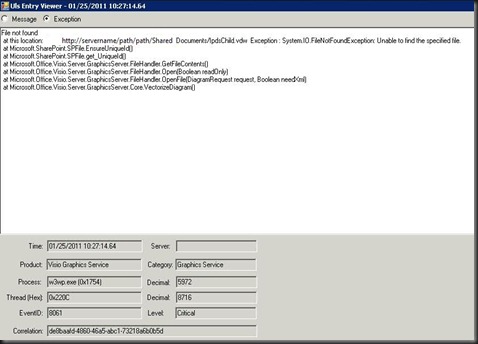
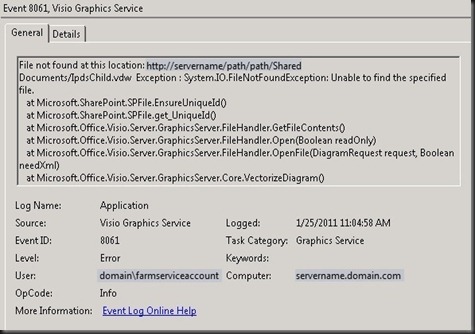
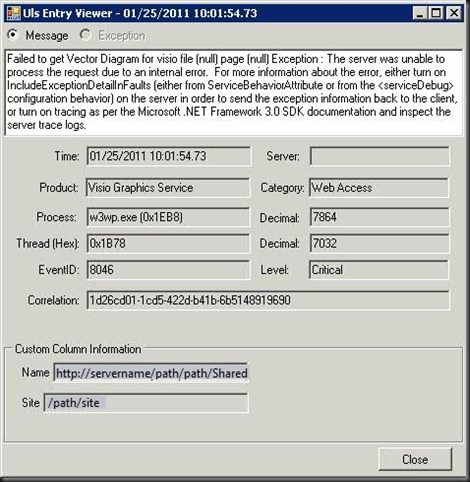
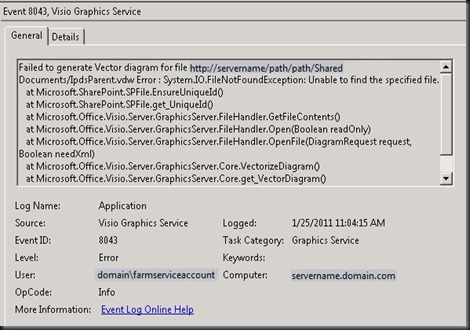
    Getting EventIDs 8061 & 8046 in your ULS Logs and Event Logs on your application server?  Having trouble figuring out exactly what they are trying to tell you?  Finding inconsistent results between site collections?  Let’s dive in…

    Here are the offending errors:
    2

    screenshot.142

    1

    screenshot.143

    TechNet tells us: quoting directly from the article linked here

    Symptoms:   One or more of the following symptoms might appear:

    • A file or files might not load.
    • This event appears in the event log: Event ID: 8061 Description: File not found at this location: <file location>.
    • This event appears in the event log: Event ID: 8051 Description: Unable to parse file at location: <file location>.

    Cause:   One or more of the following might be the cause:

    • A user might try to load a page that contains a Web Part that references a file that no longer exists or is invalid.
    • A user might try to view a Visio diagram that is corrupted.
    • A user might try to view an invalid Visio diagram.

    Unfortunately this really doesn’t help you identify what the problem is or how to resolve it.

    Here is what I discovered:

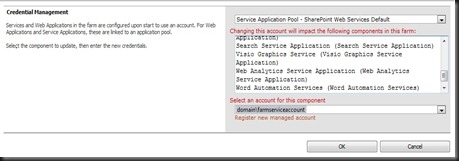
    The common thread is the app pool.  Validate that the app pool that is being reported in the error is the same app pool that is hosting the Visio Graphics Services service. 

    screenshot.136

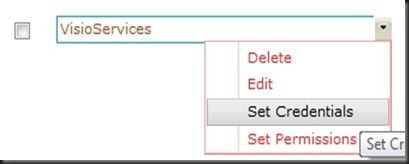
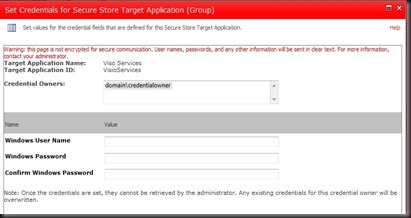
    Next using the visit using the PowerShell script provided in my previous blog article, How to: Get your Managed Account passwords when they are changed automatically by SharePoint 2010, get the password for the account running your Visio Graphic Services and head over to your Manage Service Applications and manage the Secure Store Service.  Find your Visio SSS entry and reset the credentials.

    screenshot.139

    screenshot.140

    Once you have set the credentials you need to recycle the Application Pool on the application server.  In a standard OOB install look in SharePoint Web Services for the site that contains VisioGraphicsService.svc and view the basic settings to determine which app pool is being used by the site and recycle it.

    After this is complete you should see all of your Visio Graphics Services rendering correctly.

    Why the inconsistent behavior mentioned at the beginning of this article?  If you create a site after the SSS credential is invalid and you have a site that is still holding a valid SSS token then you will see one site (the new) be broken and one site (the old) working perfectly.  Just one of the fun anomalies we get to experience in the field.  

    Once again, another issue finds it’s root cause in credentials management.  While SharePoint 2010 has brought us leaps and bounds further than any product previously released, we still must remain vigilant in our credentials management as Admins and Architects.  IMHO, Planning for proper credentials management is almost as critical as DR planning, and often time more far more complex.