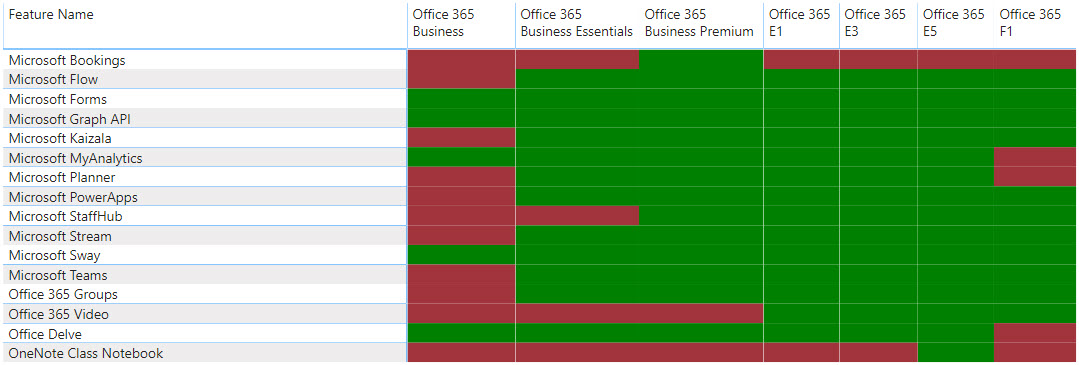
I did a thing tonight that I swore I would never do. I used the “Publish to web” feature in Power BI. I had a good reason and I followed the guidelines I always tell people to follow, but I still feel a bit icky about it.
I was writing a document for a customer this afternoon and once again I ran into a situation where I wished that I could have the old Service Description Excel workbook that Microsoft used to put out. It was a really cool pivot table that allowed you to quickly see what features aligned to which Office 365 & Server based licenses. Unfortunately they stopped publishing it a few years ago. It is a giant pain in the ass to drill through all of the features across all of the SKUs to make sure that you are giving customers the best recommendations when it comes to licensing.
To be honest what I really missed was the ability to use conditional formatting on the thing and create a REALLY easy to consume version of the document for “at a glance” use. The goal is to be able to look at the features list and see which Microsoft SKUs they are available in.
This afternoon I ran across a nice table that does just that in the Office 365 Service Description part of Docs.microsoft.com for SharePoint, but the layout makes it relatively unusable. I got excited thinking that this was the answer to my old Excel workbook and immediately attempted to copy & paste into Excel, which failed miserably because of formatting. Then I got mad. I swore a ton. I called and yelled at Mark Rackley because that is one of the things I do when I get mad at SharePoint stuff. I believe that my last words on that call were “going to have to go PBID on their shit to get what I want”. Sorry for the colorful language gentle reader, but I warned you I was mad and swearing…
I grabbed the Web connector and pulled in the data that I wanted, wrote a bunch of queries, unpivoted some columns, hacked away for about 2 hours and ended up with a passable version of my old favorite tool. Then I went a bit nuts and decided to do the same thing for the Office 365 Platform Service Description which is considerably more complex and lengthy.
Finally I created a new Power BI Workspace and published it to the web. I still feel icky, but hopefully people will find this useful and that will make up for it. I have embedded the report below or you can visit https://jasehimm.online/servicedescriptions to access it directly.
In the coming days I plan to add more to this. Let me know if you feel this is useful & what you would like to see added in the comments below or you can tweet at me @jasehimm.
I wrote an article back in 2016 about things to think about for Microsoft Ignite in Atlanta. I decided that it is time to refresh that with some things I have learned over the years and specifically some learnings from the past four Microsoft Ignites, many TechEds & SharePoint Conferences, etc.
Wear comfortable shoes
The Orange County Convention Center, affectionately known as
the OCCC, is HUGE. You are going walk a ton. In previous years I have averaged
around 18k steps per day. Wearing comfortable shoes is CRITICAL. Even though
the extended forecast puts the highs in the low 80s (upper 20s in Celsius) with
lows in the upper 60s (upper teens in Celsius) personally I will be avoiding
sandals and going with well supported tennis shoes all week.
Plan backup sessions
There are several reasons for doing this. Let’s get the ugly one out of the way first: you just want to get out of the session you are in. At some point it’s going to happen. You will be sitting there thinking to yourself “I want to get out of here”. Not every presenter is going to hit home for you. Maybe the topic is too deep, to narrow, not deep enough, or you just don’t like the presenter’s style.
On behalf of all Speaker’s at all conference
everywhere: PLEASE GET UP AND GO. If you do it politely & quietly most
presenters won’t even notice that you are going. Do not sit there miserable
wishing you could leave and wasting your time & money being in a session
you are not enjoying. Nobody wants that. You will be unhappy, give the speaker
bad session scores, and not get anything out of that time block.
Instead, make sure that you have backup
sessions ready to go so that you can jump out of session and go to another.
The session you wanted to get into is full. You
registered. You expected there would be a seat for you as a result, but fire
code says they cannot let you in or the theater is just overflowing. This is a
very real scenario at this event. One of my theater sessions has over 1500
people registered for it. The theaters are on the expo hall floor and do not
hold that many people. Last year they had seating for about 100. If you walk up
to one of these sessions late it may be time to jump to a backup session.
The session you wanted to go to is ¾ of a mile
from the last session you just went to. There is no easy way for you to get
there without sprinting across the OCCC and the seas of people don’t make that
easy.
Almost all the sessions are being live streamed
& recorded. Putting multiple sessions on your calendar can help you later when
you want to go find sessions that you want to watch. You are already reading
all the session abstracts; you may as well build your backlog to watch later.
Engage in the Hub & show floor
There are 25 rows of vendors. The place is massive. That is
before you come to the Community areas. You are going to get lost. Make the
most of it. Some of the most fun conversations at vendors booth’s I have had
over the years are the ones that I just stumbled on because I was lost or just
wandering.
Make sure that you spend plenty of time in the Microsoft
zones peppering the Product Teams with questions. That’s why they are there. You
aren’t bothering them (most of the time). Booth duty at these events I can tell
you that it is BORING when no one is there to talk to. You are on a shift with
folks that you may know and like, but after the first hour you know how their
kids, dog, wife, cat, bird, in-laws, tomato plant, and PTA President are and
you want attendees to talk to. They want
to talk to you. Bring your questions.
Be sure to find Community Central, the Global Diversity
& Inclusion zone, Experts Connect, the Microsoft Store, and the Hub
Hangout. This is where you will find people like you who are dying to talk
about that geeky thing you just learned about and need to discuss.
Hydrate
This seems intuitive, but every year I run into people who
are dehydrated because they are used to a different pace of life than the
conference world. They forget that they are in Florida where it is going to be
hot, even though it is supposedly almost winter in this hemisphere. Also, it is
going to rain every day around 5p. Bring a small umbrella or expect that you
are going to get wet. Don’t worry, it will be warm enough that you will dry out
relatively quickly.
Be out-of-office (OOO)
We all put up our “Automatic Reply” or OOO message, but how
often do we actually follow through on the “I won’t be looking at email during
this period of time” statement? Email is accessible everywhere nowadays, so it
is hard to ignore. There are some things that you can do to help yourself avoid
this black hole that will pull you away from being present at the event. Here is
what I am doing:
Boomerang
This is an awesome add-in for Outlook & Outlook on the Web
that allows you to pause email delivery into your inbox while turning on an
Auto-Responder so that people know that you aren’t seeing their email. This is
REALLY handy for when you want to be in the moment without the constant distractions.
The Pro version, if you are lucky enough to be licensed for
it, has many other awesome features but sticking with the pause feature on
email delivery it allows you to get emails delivered on a schedule, meaning you
could get email at 6a, noon, and 6p so that you are able to disposition your
email when it is most convenient for you.
Microsoft Flow
I use this anytime I have Automatic Replies turned on. I
believe that the OOO message is a social contract that people should respect. If
what they are emailing about is truly important enough to get a response while
you are OOO or something that they want to make sure sits at the top of the
pile for when you return, they should be willing to take 1 extra step.
I put the following in my OOO messages: “You can also
forward me your original message and use the subject of “Customer Flagged”
and Microsoft Flow will put your email in my priority list to respond to when I
look at my email.”
Here is what the Flow looks like:
I submitted this as a template to the Flow Gallery, but I don’t
know if or when they will publish it. Check for “Out-of-office message enhancement”.
USB battery pack
This is CRITICAL. Even if you are on the newest, brand new phone
that has amazing battery power the OCCC is going to suck the life right out of
it. The building is made of concrete and reception is generally mediocre,
however your phone is trying desperately to please you by delivering as many
bars as it can. This results in rapid battery drain. I have never made it a
full day at the OCCC, or most other conference centers like it, without needing
a charge up. Wall plugs are at a premium, mostly because people didn’t take the
last piece of advice and are sitting on their laptops trying to work instead of
engaging. Being portable is key. You still have time to pick up one of these wonderful
devices. Here is a link to some options: https://smile.amazon.com/s?k=usb+battery+pack.
I am personally partial to the Anker & RAVPower brands as they have served
me well in the past.
FYI, I don’t profit from the things I have recommended
above. Even the Amazon link is just to the generic AmazonSmile search page. If
you don’t know about AmazonSmile please go check it out. It is a way that you
can help a charity just by doing the shopping you normally do. There is no
impact to you.
Conclusion
This was way more longwinded than I was planning, but
hopefully it helps you. There are many posts out there like this that will tell
you about parties galore and how to have fun at the event. Go read all of them
and drain every ounce of good from the event that you can. It is a crazy, fun,
exhausting, massive event.
Feel free to stop by the Rackspace booth #1631 where the “Rack Gives Back” committee is contributing $1 to the American Heart Association, up to $3000 for the week, for everyone scanned at the Rackspace booth. When you get scanned you will get a badge ribbon like this:
I will be hanging around the booth some, but if you don’t
see me there just the Rackers at the booth as they will know how to track me
down.
One last thing that we just announced tonight: John White & I are hosting a #MSIgnitePowerPint along with Treb Gatte from Marquee Insights & Adam Saxton from Guy in a Cube at Marlow’s Tavern on Tuesday from 4-6p. In order to attend you need to grab a pin from one of us, so find me at the event!
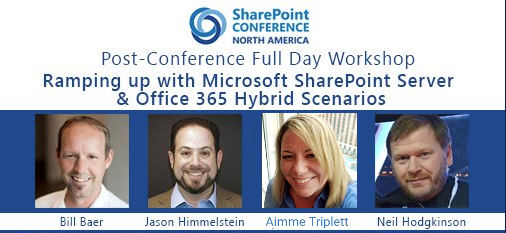
I’ve been talking about SharePoint Conference North America seemingly forever & it is now less than 2 weeks away, and barreling down on us like a freight train. Yesterday I was meeting with Bill Baer & Dr. Neil Hodgkinson about our Hybrid post-conference session in Vegas, which is going to be AWESOME in case you were wondering, and they informed me that we can finally announce the bigger details of our session.
The goal of the workshop is for you to take what you learned about hybrid scenarios with SharePoint and Office 365 & put it to practical use in a full day, post-conference workshop so that you have experience when you go back to work. Complete with detailed hands-on labs & expert instructors that will be able to help you as you go, this workshop is designed to get you up to speed quickly.
As an attendee of this workshop you’ll receive an Azure Pass that is good for $500.00 per month for 3 months, a complete SharePoint Server 2016 environment, and an Office 365 test tenant with 25 E3 accounts for 3 months that you can use to build your skills and complete hands-on labs, both while at the workshop and even after the event.
…and if that all wasn’t enough, workshop attendees are going to get an exclusive bonus as well. Included in the Azure environment will be a SharePoint Server 2019 VM for you to work with as well! This is not available anywhere else, outside of the official TAP.
PLUSif you’ve already registered for the conference you can add the workshop by calling the conference office at (203) 264-8220. Since this is such a late change there isn’t a way to do it online, but if you register for this workshop before May 21st, you’ll receive an additional $200.00 off of the workshop registration when using the discount code HYBRID for the inconvenience. If you haven’t registered for the conference, there’s still time left. Visit https://www.sharepointna.com for details and use the discount code HYBRID to save $200.00 off of the conference pass.
To recap you get:
A lab that has $1500 worth of Azure credit, $1500 worth of Office 365 credit
Step-by-step labs of how to set up the hybrid configuration
Experts to help you make the most of the day
AND an exclusive SharePoint Server 2019 VM!
Space is limited to 100 people, so add this to your existing registration or register today!
I will see you, and 2000+ other SharePoint people, in Vegas!
SharePoint Conference North America (SPCNA) is poised to be the place to be to learn what’s new, next & top of mind from Microsoft. This event will contain the most sessions delivered by Microsoft about Office 365, SharePoint & OneDrive during 2018 and split across 3 main tracks of Developer, ITPro, & Business User.
There are 2 sides to this event that are worthy of note:
1.) Microsoft delivered content
2.) Community delivered content
The Microsoft content is being delivered by the Product teams and will focus on the latest, greatest, bleeding edge features & functionality that they are releasing AND what is still to come. Many of the sessions are roadmap sessions that lay the future foundation for what you can expect to see Microsoft deliver over the next 18 months. Add to that the SPCNA keynote will be headlined by Jeff Teper to start the show and you can be assured of some surprises & fireworks like the SPCs of old.
The Community delivered content, put together by track chairs like me, are focused on what we know you want to learn about how to keep up with the new wave of Office 365 features. Many of the top speakers in the space have been tapped to deliver brand new sessions at SPCNA. The session catalog has been ever evolving as Microsoft slowly drops clues to what they are going to be sharing with us in May.
This will be the first time since 2014 that the SharePoint Community (with the addition of the broader Collab communities of OneDrive & Yammer) is coming together in Vegas the way that we used to for the SharePoint Conference. The message we have heard out of the Microsoft is that they are “All IN” & are “doing this because the people have been demanding that they go back to Vegas to deliver their latest update in person, because the magic is in the Community”.
On a personal note I am lucky to participate in the major conferences in the US, plus some in other parts of the world, and for me this is a cannot miss event. With that said, you can bet your last chip that I will be at SharePoint Fest & SPTechCon this year as well to take part in those unique conferences & engage with the community as I always have. This one event does not define our community, but we hope that as SPC always did in the past, it can provide an additional spark that lights the fire of excitement for the year to come and all the other events that help to strengthen our amazing community.
Seth Patton started the event today by saying that today we are here to celebrate customers who are using using Office 365 to accelerate their digital transformations. He highlighted the Microsoft mission of empowering every person and every organization on the planet to achieve more. I was lucky enough to be invited, along with my fellow Racker & Microsoft MVP Randy Drisgill and several other community friends, to take part in the filming of this event. In addition to the excitement around all of the announcements I was especially thrilled that Microsoft had chosen to highlight Rackspace as a customer taking part in the aforementioned digital transformation.
As a part of the big announcement blog post that Jeff Teper put out today Rackspace was listed as one of the 9 customer success stories. This has been a labor of love here at Rackspace for me and I see our transformation daily in the way that we work together. From the migration to OneDrive, to our limited use of Microsoft Teams, and including our latest efforts to migrate to Exchange Online there is so much benefit to the people using the new functionality being brought to them via Office 365. You can read our Customer Story here: https://customers.microsoft.com/en-us/story/rackspace-professional-services-office-365
As for all of the amazing new things that Seth, Jeff and the Microsoft team share with us today, here is my recap:
OneDrive for Business
There were 3 big areas of highlight today:
OneDrive Admin Center
New Sharing Experience
OneDrive Files OnDemand
OneDrive Admin Center
There are several really cool things that they showed today about the new OneDrive Admin Center, specifically the ability to set the default sharing policy for links. This will make it so that users do not have the ability to share a link that has no governance around it. The Admin Center controls override for all users and allow Admins to better control what is happening with their data.
The other great new feature that was demoed was the ability to limit sharing by domain. You now have the ability to either whitelist or blacklist domains. This will allow Admins to ensure that sharing can be done, however it gives them the ability to keep their users from accidentally opening access to the wrong element.
New Sharing Experience
I have written quite a bit on this for Microsoft, so I am going to limit my prose here and simply say that the new sharing experience is elegant, clean, and easy to use. I am a big fan. Once my article gets published and is out of embargo from being posted to my blog I will be sure to update this section and link it.
OneDrive Files OnDemand
My previous statement about embargoed content goes for this section too. My screenshot here shows a bit of the user experience we are expecting to see in the coming months once the Fall Creators Update for Windows 10 hits.
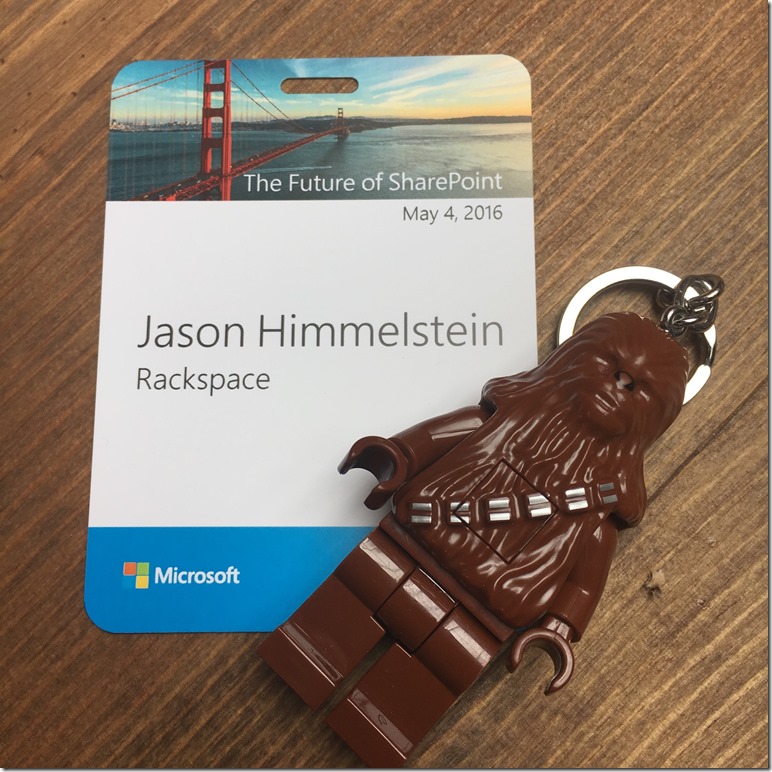
It is 1130p on May 4th, 2016 and I have just returned to my hotel room in San Francisco from an amazing day. Today was the Microsoft “Future of SharePoint” launch event. Here is my recap of the day:
Before the event we all gathered excitedly to get into the venue and check out what was in store for the day. A gaggle of MVPs and Microsoft customers loitered on the sidewalk outside the Village at 969 Market anxiously awaiting “go time”.
Once inside the unique, but cozy venue, we all found our seats, mingled with customers, chattered about what we were excited about hearing today, and Christian started taking selfies.
Getting to see Dan Holme kick off the event as a part of his new role at Microsoft was a pretty huge thrill. Dan has been a friend & mentor for many years and to see him in this position is hugely exciting, not only for what it means for him personally as my friend, but also for what it means for the SharePoint community. Dan has been a force in this community long before I found it, and his voice on the inside at Microsoft really highlights the changes that have been happened over the past few years.
Satya was heard from, but not seen in person. This was a bummer, but ultimately it lead to more of other great folks, so we will happily take it.
Jeff Teper came out strong explaining some of the new changes that are coming and sharing his excitement with the live audience. It was infectious.
All of the demos landed well. The ones that I thought were most impactful were:
Roadmaps
This is the first time I can recall that Microsoft has given us a roadmap of features that are coming. There was a roadmap slide for each of the 4 areas that were discussed. The key to notice is that Microsoft is telling you what they are working on today, and what they think they are going to plan to work on for the rest of the year. Lots of things can happen to change, but Microsoft is finally showing us what to expect and roughly when. Dates may slip based upon a number of factors, however we now have a real roadmap from Microsoft.
Intranet in your pocket
One of the core themes of the day was “Your Intranet in your Pocket”. Microsoft is due to release (in the next few weeks ) its SharePoint Mobile app to iOS. Welcome to the new Microsoft! Adam Harmetz demo’ed the mobile app. I have had a chance over the past few weeks and am encouraged by what I have seen.
It is worth noting that the mobile app will support multiple SPO and commercial OneDrives.
SharePoint Home
SharePoint Home is the replacement for the half cared about (if that) Sites page in SharePoint Online. This experience is getting a completely new look and feel, backed against the Office Graph to show users sites that they are members of and following.
Fast site provisioning
With a completely overhauled site provisioning process, Team Sites can be created in 5 seconds or less in the new UI. The ability to set the restriction polices during the site creation time is a huge win for Governance.
FastTrack
Microsoft has recognized one of its key barriers to adoption and is now offering free migration services to SharePoint Online and OneDrive from not only Google Drive but from Box too. Previously it required massive dev or a third party tool. Customers over 150 seats are eligible for a free engineer lead migration from Microsoft. Until now I have steered somewhat clear of FastTrack, but now I am going to have to go revisit it.
Feature Packs
It was stated that Feature Packs will be coming to SharePoint onPrem starting in 2017. This was the only real mention of this MASSIVE new feature that I will cover off in a future post.
Here is an excerpt from the “SharePoint Server 2016 – your foundation for the future” post from Microsoft:
While our innovation will be delivered to Office 365 first, we will provide many of the new experiences and frameworks to SharePoint Server 2016 customers with Software Assurance through Feature Packs. This means you won’t have to wait for the next version of SharePoint Server to take advantage of our cloud-born innovation in your datacenter.
I am going to cover Feature Packs in a future article that I will link here when I am done. This to me was the biggest piece of news at the event. This opens doors for Rackpace.use SPLA licensing as our users are going to be able to update using a Public Update since SPLA inclues Software Assurance.
Analytics fun
John, Dave & I kept up with the events of the day, however we were also playing with our dashboards and scheming for how to improve the overall experience.
Here is a snapshot of the event:
After the event and lunch, John & I pulled out our laptop and get to playing with all of our new data in the SQL Azure Database. It was such a hit that even Jeff Teper couldn’t resist the pull of data about this event. That is pretty hot wouldn’t yall say?
Resources
If you haven’t yet had the opportunity to go watch all of the demo videos. Here is a central list of articles and blog post:
Good morning from 34k feet somewhere over New Mexico! I am currently flying out to San Francisco to take part in the Future of SharePoint event tomorrow. I have been lucky enough to have spent time out in Redmond over the past few weeks and have had a chance to see some of what Jeff Teper and the SharePoint Team are going to share with us tomorrow and I can tell you that it is some game changing, super exciting stuff
If you haven’t already registered for the Live Stream you should stop reading and do it right now… I will wait… http://aka.ms/FutureOfSharePoint
Want to keep up with what is trending on Twitter around the event? Check out the Twitter Analytics Power BI dashboard that Dave Feldman, John White & I put together below.
Last night as we were playing with our Twitter Analytics I saw someone tweet the question: “Can the future of SharePoint really live up to all the hype?”. I am hopeful & optimistic for the first time in quite a while that it can, however only time will tell. I for one am betting heavily that it will as I have chosen to tie my career to SharePoint & Office 365. From everything that I have seen from Microsoft recently they are doing 3 things very right in my opinion:
1.) They are listening. Whether it is via User Voice, direct interactions with them, or the telemetry that they are using coming from the service they are listening to what we are telling them with our words and our actions.
2.) They are getting fresh blood into the right seats on the bus and keeping the world moving forward.
3.) They are investing in innovation. This is something that they had stopped for a while, but they are back with a vengeance. There is nothing more exciting in the tech world to me than innovation.
I am excited to see what they have to say tomorrow and I hope you are too. May the 4th be with you!
-jase
I was sitting in the speaker room at SharePoint Fest Seattle having a Skype chat with John White. We were collaborating on some Business Intelligence content that we could deliver at conferences either together or independently, but still ensure that we were providing a consistent message. At some point during this chat one of us suggested that this amusing & informational back and forth that we were having would make for a pretty decent podcast. Dan Holme, CEO of ITUnity, overheard the comment and said “It would make an even better web show on ITUnity!” Thus an idea was born.
I am excited to announce that a mere 5 months later we are ready to go live with our new monthly web show, BI Focal. We are going to keep you up to date on all of the latest news in the BI space, provide Tips & Tricks, have interesting guests, take viewer questions, and even do some cool demos.
We hope that you will join us for our inaugural show “Select * from Hosts” on January 28th, 2016 at 1:30PM Eastern Time on ITUnity. Check out our promo below:
I spent a bunch of time with my buddy Kirk Evans while at DevConnections in Las Vegas last month, some drinking and watching football, but mostly learning about running SharePoint on Azure. Azure IaaS has come a long way, but is still confusing & troublesome at times. I have written a few PowerShell tools that help me and I will share them in some future posts.
I started playing with SharePoint on Azure IaaS on my own without doing much reading. My goal in this was to see how intuitive it was to get things setup and going for the average person. Once in the console creating a VM was very quick and simple. I was up and running on a pre-built Windows Server image in no time. This was great.
Then I decided that I wanted to build a SharePoint farm. I deployed out 2 addtional VMs. I built an Active Directory and attempted to join the other 2 servers to the domain. This is where I ran into problems.
There are some building blocks that need to first be put in place before you start building servers if you want them to be able to communicate with one another.
The first is the Affinity Group (AG). An AG is required before you can create a Virtual Network. The way that Kirk explained it, the AG is a container to keep your Virtual Network in a single data center. To create an AG you will either use PowerShell or go to Settings at the bottom of the Management Portal and find Affinity Groups as the fourth of five options.
Next create the Virtual Network and assign it ot the AG.
After the Virtual Network is created you will be able to setup a Cloud Service. The Cloud Service is going to be the container for your VMs.
This process sounds uber simple, but the order of things matters here. Now you can create your VMs. Once you have your VMs and your DNS server built you can go in and specify the Domain Controller as a DNS server.
This is where you will hit a snag. In the normal course of events you would be running a domain controller on a static IP address. Unfortunately this is not something that you can do on Azure IaaS. Every time you deprovision a VM, which you have to do unless you want to get charged, your IP address reservation can get taken by another machine.
My solutions to this problem was fairly simple:
1.) Create a virtual network for each of my environments
2.) Always start the VMs in the same order so that they pick up the same IP address each time
The first part was easy, however the second part is difficult when you get beyond one or two people using the same Azure subscription. I needed an easier way to ensure that my VMs would start in a specific order. After a late night with one of my favorite single malts I came up with a fairly simple PowerShell solution.
set-AzureVMs.ps1 As a result of my conversations with Kirk, and some annoyance at the inconsistent nature of shutting down VMs using the Management Portal, I decided to look into how I could shutdown my VMs using PowerShell. There is a nice cmdlet for doing this called stop-AzureVM.
Since I want to do this for a set of VMs I needed to be able to run a for-each loop, so I wrote a start and stop function into the script.
I started to use a CSV or text file method for loading the VMs that I wanted to start and stop together when I realized that I didn’t want to have to maintain a series of files on every environment that I create and then distribute that to my team. Not to mention that I have multiple Azure subscriptions that I am using for clients and personal use. The management of that would get cumbersome quickly.
Then I remembered that all of the VMs that I will want to use together are going to be a part of the same Azure Cloud Service (ACS) and that each farm or group of servers that I want to use will have their own unique ACS. There is a cmdlet to get all of the ACS in an Azure Subscription called get-AzureService. I have opted to get the Service Name, Affinity Group, and status of the ACS in my script.
The status field is not overly useful, but if something other than “Created” is returned it is worth investigating since that is the expected value.
Once you have the correct ACS the script will list the VMs that exist within and ask if you want to start or stop them.
The obvious question at this point is “How does this solve the IP address problem that you set out to solve?”
The answer is that the script will always start and stop the VMs in a specific order. Starting the VMs using this script will ensure that the same IP addresses are obtained every time.
The script was originally designed to solve this problem however I have been using it to ensure that my VMs get shutdown cleanly rather than using the Management Portal which, as I mentioned earlier, is inconsiestent at best.
For a long time I have been meaning to rewrite the PowerShell script that I have been using to do my SharePoint farm creation and just haven’t gotten around to completing the necessary effort to make it all that I want it to be. I have leveraged the work of others, borrowing a piece here and a snippet there but to honest I haven’t been satisfied.
What I really wanted was a script that I can use in my consulting practice as a normalized practice of how a farm should be deployed as well as a script that I could use in the highly repetitive process of doing ITPro dev work. I wanted something that was flexible enough to use for client installs, but repeatable enough that I could use it in my dozens of farm builds that I do in my spare time for troubleshooting and fun.
Here are the key points of what I did differently with this script:
use temporary variables that can be accepted or overridden at the PowerShell command-line when the script is called
validate if the pieces have been implemented correctly & gives information about what piece failed, not just throwing the ugly PowerShell errors that we are used to seeing
validate that you are using PowerShell running as Administrator to ensure that you won’t fail for that silly reason
pulls the system & domain variables rather than having to set those parameters manually
I am happy to report that I was able to accomplish all of these things in my script and am happy to offer it up for others to use if you see fit. I highly recommend that you consider using the PowerShell profile that I laid out in my previous article “How to: Automatically log your PowerShell session everytime” so that you can, among other things, capture the output of building your farm.
There are very few people who can honestly say that they created their PowerShell scripts completely from scratch, and I am certainly not among them. Credit is due for snippets & reference to Shannon Bray, Gary LaPointe, Brian Lalancette, Todd Klindt, & I’m sure others. Special appreciation to Evan Riser for helping me QA this script.
One last thing to note about this script… it does just what it says it does. It creates a SharePoint farm. This is not an all inclusive build your farm & configure every setting script. If you are looking for the all inclusive, über build & configure script please go visit Brian’s codeplex project: AutoSPInstaller. There is no need for anyone to recreate the amazing work that he has done.
The reason I create this scripts like this is that I prefer to break my scripts down into pieces and keep them highly modular. This is partly because I consult on such a wide variety of projects that it makes my life easier to be able to deploy pieces at a time using different scripts. It also could be that I am a neurotic, lunatic control freak who is a bit over obsessed with developing in PowerShell for fun. Hopefully it’s more the first thing than the second thing… 🙂