Tag: PowerShell

  • How to: Run PowerShell ISE as Administrator under alternate credentials

    Coming from a security focused AD background I prefer to have the Managed Service Accounts OU locked down with a GPO restricting interactive logon to a server. This helps avoid service accounts becoming compromised and being taken advantage of in attacks.

    Having an ISE is especially helpful when you are doing SharePoint work on the farm and while I am a big fan of PowerShell, running straight at the command line is often a pain. Rather than installing one of the terrific third party solutions out there for an Integrated Shell Environment I try to only install the PowerShell ISE.

    As we know, there are something that you cannot do unless you are running in the context of the Farm Administrator account. There is code out there that will let you elevate your PowerShell script and run in the context of a different user, but I really wanted to be able to open PowerShell ISE as the farm account so that I can run parts of a script at a time, or rerun specific lines.

    Here is the code that I compiled that allows me to launch PowerShell ISE as the Farm Admin account:

    Add-PSSnapin Microsoft.SharePoint.PowerShell -EA 0

    # Farm account name
    $farmAccountname =
    “domainservice_account”

    # Load the Farm Account Creds
    $cred = Get-Credential
    $farmAccountname

    # Create a new process with UAC elevation S
    tart-Process
    $PsHomepowershell.exe -Credential $cred -ArgumentList “-Command Start-Process $PSHOMEpowershell_ise.exe -Verb Runas -Wait

    Once your PowerShell ISE window is launched you can run the following code to validate that you are running as the user that you are expecting:

    [Security.Principal.WindowsIdentity]::GetCurrent().Name

    Great you learned some more neato PowerShell, but why do I need to use a PowerShell command for this?

    You may be asking why wouldn’t I just do a simple “SHIFT+Right Click” and “Run as different user” rather than resorting to a PowerShell solution. The answer is that doing that does not give you the runAs Administrator privileges that we need to do so many of SharePoint’s PowerShell Functions.

    Smarty Pants.

    powershell PowerShell launch code on GitHub

    notepad Text launch code

    powershell User Context validation code on GitHub

  • PowerShell Account Creation Script

    When building repeatable SharePoint farms I need to quickly create new service accounts. Since there is no need for a SharePoint Farm to be built using a Domain Admin account, there is really no need for a SharePoint Consultant to ask for or be granted Domain Admin rights.

    I spent a good portion of my career prior to SharePoint as a Domain Admin/AD Architect, and a good portion of that role is knowing that most people who ask for Domain Admin rights don’t actually need them.

    If you want to start off on the right foot with the AD team in any company, tell them you do not want or need Domain Admin rights. Immediately you have more credibility with them than most other people.

    As a result of this, I have put together an account creation script that I use and turn that over to the Domain Admins so that they can handle the creation for me. I simply list out the accounts that I want and then populate them into the following PowerShell:

    $domainName = $env:USERDOMAIN
    $LDAP
    = “LDAP://CN=Managed Service Accounts,DC=$domainName, DC=%local%
    $objCN = [ADSI]$LDAP
    $objUser
    = $objCN.Create(“user”,“CN=%Friendly Name%)
    $objUser.Put(“sAMAccountName”,“%SAMAccountName%)
    $objUser.Setinfo()
    $objUser.psbase.invokeset(“AccountDisabled”, “False”)
    $objUser.SetPassword(“pass@word1”)
    $objUser.setinfo()

    Using the $env:USERDOMAIN I am able to grab the current logged in domain context rather than having to specify it. Make sure that you change the last DC to the correct domain suffix (.com, .net, .org, etc). You will need to specify the %Friendly Name% & %SAMAccountName% that you are trying to create.

    The code above will allow you to create accounts that are active immediately without additional intervention.

    There are additional steps that need to be taken to grant rights for the User Profile Sync account and local Administrator rights that need to be granted to the Farm Admin account, but those will get covered in later posts.

    Sample scripts: powershell notepad

  • When was the last time I deployed that SharePoint solution?

    Ever have trouble remembering when you last deployed a specific solution?  Now, none of us would ever allow an environment to be uncontrolled and let people willy-nilly install solutions, but in the real world sometimes things slip through our well controlled documentation and we need a hand.

    For those of us with more than 5 farm solutions hunting and pecking for the last installed date can be problematic.  One of my colleagues (at this point I am forgetting who, so if it was you take a bow) helped me write a script to grab the information from SharePoint.

    Here is the script:

    a

    This will output the information to a text file on your C: called solutionlog.txt.  Remove the “ >> c:solutionlog.txt “ and it will display onscreen like this:

    b

    If you are in an environment that has continuous integration coming out of TFS or another like service, you can schedule this and have it email you the output on a regular basis. 


    spflogging

  • What is MaximumFileSize limit set to on all of my Web Apps? Now that I know, how do I change it?

    I ran into an issue today where I needed to quickly pull the MaximumFileSize setting for every web application across my farms.  I found lots of blogs that told me how to change the setting, but none that told me how to pull the information from the farm before I change it.

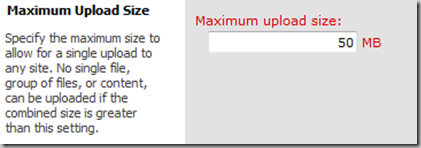
    The UI method for this is simple, but cumbersome if you have multiple web apps and multiple farms.  Simply go to Central Administration|Application Management|Manage Web Application and select the Web Application you want to look at.  In the ribbon the General Settings button will light up and when you click on it you will get the menu that includes:

    a

    That great for single scenarios.  I wanted a PowerShell option that would loop through every one of my web applications and give me a list that I can store, and also will give me a quick way to audit if someone has made an unauthorized change.  Here is what I came up with:

    b

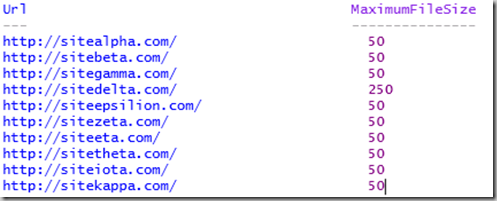
    The output looks like:

    c

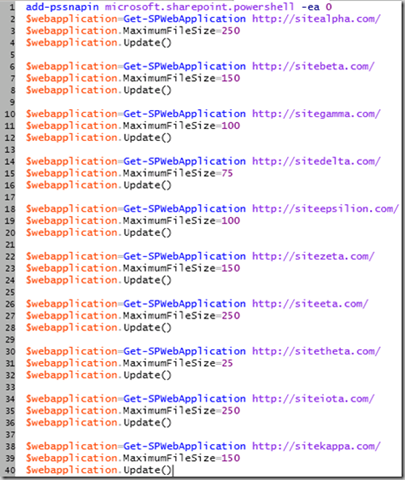
    In a DevQA want all of my sites to have the same file upload size limit, so I can use the following script to set them all the same:

    d

    In a Production environment I want to have different upload size limits based upon what the function of the Web App is, so I will use a script that allows me to change the limit on each specific web app:

    e

    Why all the “add-pssnapin microsoft.sharepoint.powershell –ea 0”?

    Easy answer to this is that I am generally the numbskull who forgets to pop open the correct PowerShell console (SharePoint 2010 Management Shell) on a server that I don’t usually log into, or I am using PowerShell ISE and haven’t configured a profile.  The –EA 0 flag allows me to throw the command to load the snap-ins without errors showing up if they are already loaded.  Makes for a cleaner overall experience.

  • How to use PowerShell to get quota information in a usable way

    There are many good resources out there about how to create, modify, & set quotas using PowerShell, that isn’t an issue. Zach Rosenfield has a good post on Managing Bulk Site Collection Quotas in PowerShell and there are dozens of others out there who can give you all of the information about making changes to quotas that you want. My problem was how do I tell what a site’s quota template assignment is and how close they are to the limits using PowerShell rather than having to do a one by one click through the UI?

    The Painful Process

    You have a number of different quota templates and a reasonable number of site collections in your farm. In order to stay ahead of the curve you want to be able to monitor the growth of your site collections and know when they are heading toward their quota limits. In the UI you will go to Central Administration and visit the Application Management Section where you will find “Configure quotas and locks” as seen below:
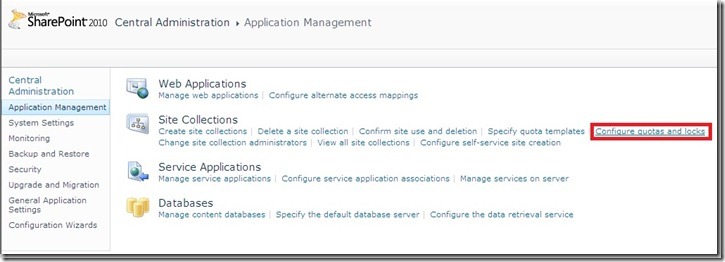
    a

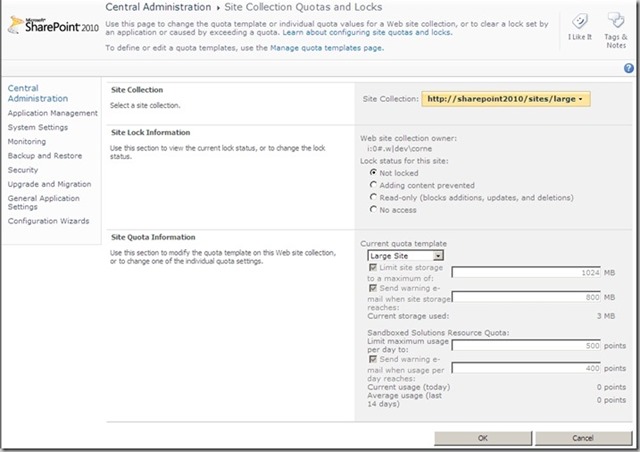
    Next you will change the Site Collection selector to the site you want and that site’s information will be displayed like this:
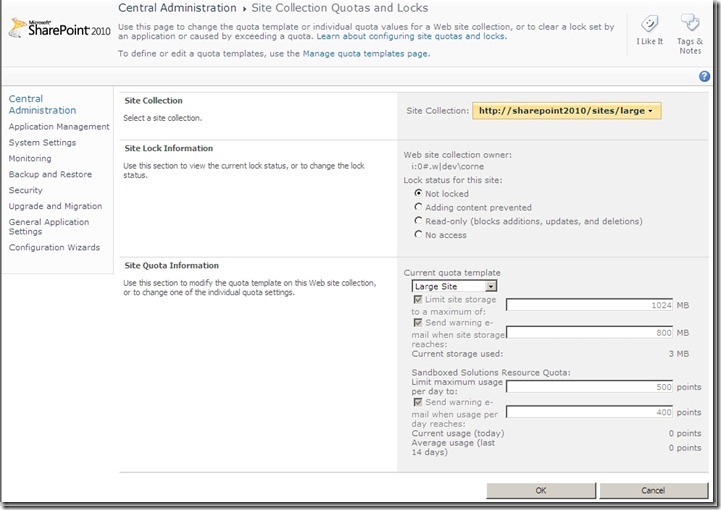
    b

    Valuable information & the ability to change the quota all in one place. Simple, easily, elegant. Only one problem: you have to do walk through this for EVERY site collection to get the information if you are simply trying to do an audit of the information.

    The PowerShell Solution

    I searched the blogosphere high and low looking for an answer to this problem. I pinged experts and friends who I expected would have had to solve this solution. The response I got in most cases was “there are pay products that have that functionality” or “I really hadn’t thought about that yet. Let me know when you find an answer”.

    Here is what I came up with: (download a copy as a text or PowerShell from GitHub)

    code

    The output of this script looks like this:

    Url : http://sharepoint2010
    Storage Used/1MB : 3
    Storage Available Warning/1MB : 0
    Storage Available Maximum/1MB : 0
    Sandboxed Resource Points Warning : 100
    Sandboxed Resource Points Maximum : 300
    Quota Name : No Template Applied

    Url : http://sharepoint2010/my/personal/spadmin
    Storage Used/1MB : 3
    Storage Available Warning/1MB : 80
    Storage Available Maximum/1MB : 100
    Sandboxed Resource Points Warning : 200
    Sandboxed Resource Points Maximum : 300
    Quota Name : Personal Site

    Url : http://sharepoint2010/sites/large
    Storage Used/1MB : 0
    Storage Available Warning/1MB : 800
    Storage Available Maximum/1MB : 1024
    Sandboxed Resource Points Warning : 400
    Sandboxed Resource Points Maximum : 500
    Quota Name : Large Site

    Url : http://sharepoint2010/sites/medium
    Storage Used/1MB : 0
    Storage Available Warning/1MB : 400
    Storage Available Maximum/1MB : 500
    Sandboxed Resource Points Warning : 200
    Sandboxed Resource Points Maximum : 300
    Quota Name : Medium Site

    This script loops through ALL of your web applications and retrieves information about ALL of your sites.

    You can specify a web application to run this against in line 3 just before the pipe. Additionally, if you want to use the script as is you will need to create the text file quotaoutput.txt in your C: root. You can change the name and location of that output file or just remove the “>> c:quotaoutput.txt“ all together and it will merely print to the screen.

    This is the information that I found useful. If you want to tweak the script to fit your needs please check out the MSDN articles about SPQuota Members and SPQuotaTemplate Members

    Caveat: If you have lots of sites, you might want to consider specifying a web application or a site collection. While I have a dispose statement in here, the script is loading the quotatemplate and spsite information into memory for every site in order to give you the information. This can be a long running operation and take up some significant resources on your server while it is happening. Know your environment and don’t allow this to cause you an issue. I send this information out to a file because I run this over night on my app server and can then look at the information later. The information can be shared with the team who handles support and customer relations so that we can work with the customer to either reduce the size of their site, or raise their quota as needed (usually comes with an additional cost).

    Does Storman.aspx solve this issue in SP1?

    As of this blog post I have not yet played with SP1 as I am methodically, to my detriment, walking through a complete new build of SharePoint 2010 SP1 on top of SQL 2008 R2 SP1 and Denali CTP3 side by side to do a comparative article (hint on future content). As a result I have been delayed in getting to validate and test this, so the honest answer is I am just not sure yet. Regardless, I know that there are going to be lots of people who will take months to upgrade to SP1 and hopefully this script will be able to help them in the mean time.

    Even if Storman.aspx does give a better UI interface, having the text file output of this information is going to be vitally important for better customer support in my opinion.

    Credit where credit is due

    Shannon Bray, the co-author of one of my current favorite tech books, Automating SharePoint 2010 with Windows PowerShell 2.0, pointed me to a lead in his book that started me on a path and numerous unnamed blog articles each lent a bit to the final answer which you see above. Additionally, two of my co-workers were instrumental in getting me over the last hurdles of this process, Jim Rearick & JJ Willette (supplied the nifty code to get the quota name). Thanks for all of your contributions.

    powershell PowerShell Get-QuotaInfo Script from GitHub

    notepad Text Get-QuotaInfo file

  • What’s new in SQL Server Code Name “Denali” CTP3

    Be sure to check out the What’s New (SQL Server “Denali”) site for full details, but here are the highlights in this PUBLIC release (no TAP NDA material here!) are:

    SQL Server Installation

    1. Installing Prerequisites During SQL Server Code-Named “Denali” Setup
      1. Windows PowerShell 2.0 is a prerequisite, but not installed by the SQL Server Setup wizard
      2. .NET Framework 3.5 SP1 is a requirement, but is not installed by the SQL Server Setup wizard, it  requires you to download and install manually
      3. .NET Framework 4 is a prerequisite and is installed as a part of the SQL Server Setup wizard
      4. Minimum OS configuration is now Windows 7 SP1 & Windows Server 2008 R2 SP1
        1. check out the Hardware and Software Requirements for Installing SQL Server “Denali”
    2. You can now install Data Quality Services (DQS) using the SQL Server Setup wizard
    3. Product Update is a new setup feature which allows you to download the latest updates and apply them during install
    4. Server Core Installation is now supported
    5. SQL Server multi-subnet clustering makes it so that you can have failover nodes on different subnets
    6. Local Disk is now a supported storage option for tempdb for SQL Server failover cluster installations
    7. BUILTINadministrators and Local System (NT AUTHORITYSYSTEM) are not automatically provisioned in the sysadmin fixed server role
    8. Setup now offers default accounts for the SQL Server services whenever possible
    9. The Active Directory Helper service is no longer installed because it is no longer needed
    10. SQL Server Itanium editions are no longer supported

    Database Engine (too much here to list all of the good ones, this is a MUST READ)

    1. AlwaysOn SQL Server Failover Cluster Instances
    2. AlwaysOn Availability Groups
    3. Indirect Checkpoints

    Manageability Enhancements

    1. The Database Engine Query Editor introduces enhanced functionality for Transact-SQL debugging and IntelliSense.
    2. The Upgrade a Data-Tier Application wizard has been updated to perform an in-place upgrade, which replaces the side-by-side upgrade process
    3. Users import the sqlps module into PowerShell, and the module then loads the SQL Server snap-ins.
    4. The bcp Utility and sqlcmd Utility utilities now have the -K switch, which allows you to specify read-only access to a secondary replica in an AlwaysOn availability group.
    5. Database Engine Tuning Advisor Enhancements allow you to use the query plan cache to avoid having to create manual workloads from a script or trace.

    Programmability Enhancements

    1. You can no longer use CREATE ENDPOINT or ALTER ENDPOINT to add or modify SOAP/HTTP endpoints
    2. The FileTable feature leverages FILESTREAM to allow files and documents to be stored in special tables and accessed using Windows applications, as though they were stored on the file system without making changes to the applications
    3. Semantic search builds upon the existing full-text search feature in SQL Server but enables new scenarios that extend beyond syntactical keyword searches
    4. Full Text Search now supports property-scoped searching on properties emitted by IFilters, Customizable NEAR option of the CONTAINS predicate or the CONTAINSTABLE function
    5. New Word Breakers and Stemmers (this one has a a bit baffled, I thought I was doing well understanding the Programmability stuff until I got to this one…)
    6. The EXECUTE statement can now specify the metadata returned from the statement by using the WITH RESULT SETS argument
    7. You can specify a range of rows returned by a SELECT statement based on row offset and row count values that you provide
    8. Three new sub-data types for geometry and geography data types can be used to store circular arc segments, CircularString,CompoundCurve, and CurvePolygon. (and my ITPro brain just imploded…)
    9. A sequence object is a user-defined schema-bound object that generates a sequence of numeric values according to the specification with which the sequence was created. It operates similar to an identity column, but sequence numbers are not restricted to use in a single table.
      • I know lots of Oracle DBAs who are excited by this one, personally I haven’t wrapped my head around  it completely yet…  Going to have to read more on Sequence Numbers
    10. The THROW statement can be used to raise an exception and transfer execution to a CATCH block of a TRY…CATCH construct
    11. 14 new functions:
    12. 1 changed function:
    13. New and Enhanced Query Optimizer Hints
    14. New XEvent Enhancements
    15. New Analytic Functions:

    Scalability and Performance Enhancements

    1. New data warehouse query acceleration feature called columnstore indexes
    2. Indexes containing varchar(max), nvarchar(max), and varbinary(max) columns can now be rebuilt as an online operation
    3. 15k partitions are now supported by default instead of 1k

    Security Enhancements

    1. User-defined server roles are now available.  This allows a role to be defined at the server level and grant or deny access across all databases
    2. You can now define a default schema for a Windows group
    3. Significant SQL Server Audit Enhancements
    4. Access to contained databases is permitted through contained database users which do not require logins
    5. The HASHBYTES function now supports the SHA2_256, and SHA2_512 algorithms
    6. The RC4 algorithm is only supported for backward compatibility
    7. The maximum length of private keys imported from an external source is expanded from 3,456 to 4,096 bits
    8. SMK and DMK encryption changes from 3DES to AES
  • Developer Dashboard activation and parameters… up to the elbow…

    Activating through PowerShell

    In doing some research I have had some difficultly finding a single good resource for how to turn on the Developer Dashboard using PowerShell and what the parameters are for doing so.  Here is what several hours or pouring through numerous resources has turned up, and I am sure it is not 100% complete:

    Code to turn on the Developer Dashboard

    image

    This will turn on the icon at the top right hand corner of your masterpage for anyone with Designer or higher rights. 

    devdashboard_icon

    Optional Parameters

    Who can see it?

    image

    Some Mask Settings

    EmptyMask = allows everyone to see the developer dashboard
    FullMask = requires full control policy or site owner permissions to see the developer dashboard
    AddAndCustomizePages = default mask setting

    There are many more options for Mask Settings which can be found by reviewing the SPBasePermissions list on MSDN.

    Options:

    1.) Allow everyone to see the Developer Dashboard
        a.) set EmptyMask and remove icon from Masterpage
        b.) append ‘?Developer Dashboard=true‘ to the end of any page you want to see the developer dashboard on
    2.) Allow only people with Full Control (policy holders or site owners) to see the Developer Dashboard
        a.) set FullMask
        b.) give the supporting team a full control policy or grant one-off permissions
    3.) Leave this setting alone and anyone with Designer or higher rights will see the icon

    Is there any more data I can get than this?

    image
     

    TraceEnabled gives the additional section at the bottom of the developer dashboard which gives you:
        1.) Request Details
        2.) Trace Information
        3.) Control Tree
        4.) Session State
        5.) Application State
        6.) Request Cookies Collection
        7.) Response Cookies Collection
        8.) Headers Collection
        9.) Response Headers Collection
        10.) Form Collection
        11.) Query String Variables
        12.) Server Variables

    There is a TON of data here that you might not see otherwise, and you only see it if you expand the section at the bottom called:

    trace info

    If you aren’t interested in seeing any of this data or allowing your users to see any of this data, just do not execute this option as the default is set to false.

    If you are still stuck in 2007 mindset

    Here is the corresponding STSADM Command:

    image

    A Quick Note from the Author

    All of the above examples have used OnDemand as I believe that is best option, however you can replace OnDemand with Off or On as you see fit, this is just how I am writing it.

    Grab a copy of the PowerShell code referenced about from my SkyDrive here.

  • How to: Get your Managed Account passwords when they are changed automatically by SharePoint 2010

    Scenario:

    Using Managed Accounts the way that SharePoint 2010 is designed you allow SharePoint 2010 to manage your password changes automatically for you. Your farm gets into an inconsistent state, or you allow SharePoint 2010 to change your farm admin account and you realize that you cannot start the UPS without knowing the farm account password. What do you do?

    Resolution:

    Run the following PowerShell command from the SharePoint 2010 Management Shell as a Farm Administrator:

    function Bindings()
    
    {
    
    return [System.Reflection.BindingFlags]::CreateInstance -bor
    
    [System.Reflection.BindingFlags]::GetField -bor
    
    [System.Reflection.BindingFlags]::Instance -bor
    
    [System.Reflection.BindingFlags]::NonPublic
    
    }
    
    function GetFieldValue([object]$o, [string]$fieldName)
    
    {
    
    $bindings = Bindings
    
    return $o.GetType().GetField($fieldName, $bindings).GetValue($o);
    
    }
    
    function ConvertTo-UnsecureString([System.Security.SecureString]$string)
    
    {
    
    $intptr = [System.IntPtr]::Zero
    
    $unmanagedString = [System.Runtime.InteropServices.Marshal]::SecureStringToGlobalAllocUnicode($string)
    
    $unsecureString = [System.Runtime.InteropServices.Marshal]::PtrToStringUni($unmanagedString)
    
    [System.Runtime.InteropServices.Marshal]::ZeroFreeGlobalAllocUnicode($unmanagedString)
    
    return $unsecureString
    
    }


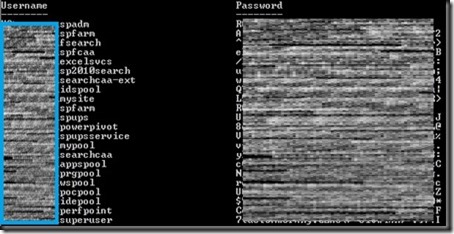
    Get-SPManagedAccount | select UserName, @{Name="Password"; Expression={ConvertTo-UnsecureString (GetFieldValue $_ "m_Password").SecureStringValue}}
    
    The output will look similar to:
    screenshot1
    Special Thanks:
    Huge thanks to Microsoft for unveiling this nugget to us during a recent call to SharePoint CritSit support. Derek Martin, of Slalom Consulting, and my jaws collectively hit the floor when they showed us this one and we knew we couldn’t keep it to ourselves.
    Update: Thanks to Todd Klindt for pointing out that the Live Writer Add-in that I have been using makes the code easily readable, but horrible to copy. Download the .ps1 file from here or the text file version from here rather than trying to copy from above and save yourself some time.
    powershell notepad
  • What are the PowerShell cmdlets that correspond to STSADM commands?

    Now that SharePoint 2010 is intertwined with PowerShell have you been looking for that cipher that tells you what PowerShell command you can run to do all of the STSADM commands that you know and love from SharePoint 2007 in SharePoint 2010?  I was too!  Here is the list that I have come up with (combined with our good friends at TechNet):

    PowerShell cmdlets STSADM Commands
    Enable-SPFeature Activatefeature
    Enable-SPInfoPathFormTemplate Activateformtemplate
    New-SPAlternateUrl Addalternatedomain
    Mount-SPContentDatabase Addcontentdb
     
    New-SPContentDatabase
    Install-SPDataConnectionFile Adddataconnectionfile
    New-SPExcelFileLocation Add-ecsfiletrustedlocation
    New-SPExcelDataProvider Add-ecssafedataprovider
    New-SPExcelDataConnectionLibrary Add-ecstrusteddataconnectionlibrary
    New-SPExcelUserDefinedFunction Add-ecsuserdefinedfunction
    Add-SPInfoPathUserAgent Addexemptuseragent
    New-SPManagedPath Addpath
    None Addpermissionpolicy
    Add-SPSolution Addsolution
    Install-SPWebTemplate Addtemplate
    New-SPUser Adduser
    Install-SPWebPartPack Addwppack
    New-SPAlternateUrl Addzoneurl
    Set-SPInfoPathWebServiceProxy Allowuserformwebserviceproxy
     
    Use the AllowForUserForms and Identity parameters.
    Set-SPInfoPathWebServiceProxy Allowwebserviceproxy
     
    Use the AllowWebServiceProxy and Identity parameters.
    Set-SPWebApplication Authentication
     
    Use the AuthenticationMethod or AuthenticationProvider parameters.
    Backup-SPConfigurationDatabase Backup
     
    Backup-SPFarm
     
    Backup-SPSite
    Get-SPBackupHistory Backuphistory
    New-SPCentralAdministration Createadminvs
    New-SPSite Createsite
    New-SPSite Use the ContentDatabase parameter. Createsiteinnewdb
     
    New-SPContentDatabase
    New-SPWeb Createweb
    Disable-SPFeature Deactivatefeature
    Disable-SPInfoPathFormTemplate Deactivateformtemplate
    Remove-SPAlternateUrl Deletealternatedomain
    Remove-SPConfigurationDatabase Deleteconfigdb
    Dismount-SPContentDatabase Deletecontentdb
    Remove-SPManagedPath Deletepath
    Remove-SPSite Deletesite
    Remove-SPSolution Deletesolution
    Uninstall-SPWebTemplate Deletetemplate
    Remove-SPUser Deleteuser
    Remove-SPWeb Deleteweb
    Uninstall-SPWebPartPack Deletewppack
    Remove-SPAlternateUrl Deletezoneurl
    Install-SPSolution Deploysolution
    Install-SPWebPartPack Deploywppack
    Get-SPSolution Displaysolution
    Set-SPContentDeploymentPath Editcontentdeploymentpath
    Get-SPAlternateURL Enumalternatedomains
    Get-SPContentDatabase Enumcontentdbs
    Get-SPDataConnectionFileDependent Enumdataconnectionfiledependants
    Get-SPDataConnectionFile Enumdataconnectionfiles
    Get-SPInfoPathUserAgent Enumexemptuseragents
    Get-SPInfoPathFormTemplate Enumformtemplates
    Get-SPServiceInstance Enumservices
    Get-SPSiteAdministration (To run this cmdlet, you must be a member of the Farm Administrators group.) Enumsites
     
    Get-SPSite (To run this cmdlet, you must be a local administrator on the computer where SharePoint 2010 Products is installed.)
    Get-SPSolution Enumsolutions
    Get-SPWeb Enumsubwebs
    Get-SPWebTemplate Enumtemplates
    Get-SPUser Enumusers
    Get-SPWebPartPack Enumwppacks
    Get-SPAlternateURL Enumzoneurls
    Start-SPAdminJob Execadmsvcjobs
    Export-SPWeb Export
    New-SPWebApplication Extendvs
    New-SPWebApplicationExtension Extendvsinwebfarm
    Get-SPWebApplication Getadminport
     
    Use the following syntax:
     
    Get-SPWebApplication -IncludeCentralAdministration | ? {$_.IsAdministrationWebApplication -eq $true}
     
    Get-SPDataConnectionFile Getdataconnectionfileproperty property
     
    Use the following syntax:
     
    Get-SPDataConnectionFile | where {$_.Name -eq “dataConFileName”} | format-list
     
    Get-SPInfoPathFormTemplate Getformtemplateproperty property
     
    Use the following syntax:
     
    Get-SPInfoPathFormTemplate | where {$_.DisplayName -eq “formTemplateName”} | format-list
     
    Get-SPFarmConfig Getproperty
     
    Get-SPTimerJob
     
    Disable-SPTimerJob
     
    Enable-SPTimerJob
     
    Set-SPTimerJob
     
    Start-SPTimerJob
    Get-SPSiteAdministration Getsitelock
    Get-SPAlternateURL Geturlzone
    Import-SPWeb Import
    Install-SPFeature Installfeature
    Get-SPLogLevel Listlogginglevels
    Get-SPEnterpriseSearchSecurityTrimmer Listregisteredsecuritytrimmers
    Move-SPSite Mergecontentdbs
    Move-SPUser Migrateuser
    For the Osearch parameters farmcontactemail, farmperformancelevel, farmserviceaccount, and farmservicepassword, use the Get-SPEnterpriseSearchService and Set-SPEnterpriseSearchService cmdlets. Osearch
     
    For the Osearch parameters start and stop, use the Start-SPEnterpriseSearchServiceInstance and Stop-SPEnterpriseSearchServiceInstance cmdlets, respectively.
     
    For the Osearch parameter defaultindexlocation, use the Get-SPEnterpriseSearchServiceInstance and Set-SPEnterpriseSearchServiceInstance cmdlets.
    Use the Get-SPEnterpriseSearchServiceApplication cmdlet to retrieve the specific Search service application, and then use DiacriticSensitive parameter from the Set-SPEnterpriseSearchServiceApplication cmdlet. Osearchdiacriticsensitive
    Start-SPServiceInstance Provisionservice
    Stop-SPInfoPathFormTemplate Quiesceformtemplate
    Update-SPInfoPathFormTemplate Reconvertallformtemplates
    New-SPEnterpriseSearchSecurityTrimmer Registersecuritytrimmer
    Uninstall-SPDataConnectionFile Removedataconnectionfile
    Remove-SPExcelFileLocation Remove-ecsfiletrustedlocation
    Remove-SPExcelDataProvider Remove-ecssafedataprovider
    Remove-SPExcelDataConnectionLibrary Remove-ecstrusteddataconnectionlibrary
    Remove-SPExcelFileLocation Remove-ecsuserdefinedfunction
    Remove-SPInfoPathUserAgent Removeexemptuseragent
    Uninstall-SPInfoPathFormTemplate Removeformtemplate
    Rename-SPServer Renameserver
    Set-SPSite Renamesite
     
    Use the Url parameter.
    Set-SPWeb Renameweb
     
    Use the RelativeUrl parameter.
    Restore-SPFarm Restore
     
    Restore-SPSite
    Uninstall-SPSolution Retractsolution
    Start-SPContentDeploymentJob Runcontentdeploymentjob
    Install-SPFeature Scanforfeatures
     
    Use the Scanforfeatures parameter.
    Set-SPCentralAdministration Setadminport
    Connect-SPConfigurationDatabase Setconfigdb
    Set-SPContentDeploymentJob Setcontentdeploymentjobschedule
    Set-SPDataConnectionFile Setdataconnectionfileproperty
    Set-SPExcelFileLocation Set-ecsexternaldata
    Set-SPExcelServiceApplication Set-ecsloadbalancing
     
    Use the LoadBalancingScheme parameter.
    Set-SPExcelServiceApplication Set-ecsmemoryutilization
     
    Use the MemoryCacheThreshold and PrivateBytesMax parameters.
    Set-SPExcelServiceApplication Set-ecssecurity
     
    Use the CrossDomainAccessAllowed, EncryptedUserConnectionRequired, and FileAccessMethod parameters.
    Set-SPExcelServiceApplication Set-ecssessionmanagement
     
    Use the SessionsPerUserMax and SiteCollectionAnonymousSessionsMax parameters.
    Set-SPExcelServiceApplication Set-ecsworkbookcache
     
    Use the Workbookcache and WorkbookCacheSizeMax parameters.
    Set-SPInfoPathFormTemplate Setformtemplateproperty
    Set-SPLogLevel Setlogginglevel
    Set-SPFarmConfig Setproperty
     
    Get-SPTimerJob
     
    Disable-SPTimerJob
     
    Enable-SPTimerJob
     
    Set-SPTimerJob
     
    Start-SPTimerJob
    Set-SPSiteAdministration Setsitelock
     
    Use the LockState parameter.
    Get-SPSiteSubscription Setsiteuseraccountdirectorypath
     
    New-SPSiteSubscription
     
    Remove-SPSiteSubscription
    Set-SPWorkflowConfig Setworkflowconfig
    Set-SPSiteAdministration Siteowner
    Install-SPSolution Syncsolution
     
    Use the Synchronize parameter.
    Remove-SPWebApplication Unextendvs
    Uninstall-SPFeature Uninstallfeature
    Start-SPInfoPathFormTemplate Unquiesceformtemplate
    Remove-SPEnterpriseSearchSecurityTrimmer Unregistersecuritytrimmer
    Set-SPManagedAccount Updateaccountpassword
    Install-SPInfoPathFormTemplate Upgradeformtemplate
    Update-SPSolution Upgradesolution
    Install-SPInfoPathFormTemplate Uploadformtemplate
    Get-SPUser Userrole
     
    Move-SPUser
     
    New-SPUser
     
    Remove-SPUser
     
    Set-SPUser
    Test-SPInfoPathFormTemplate Verifyformtemplate
       
    Not made into PowerShell cmdlets  
    Binddrservice  
    Blockedfilelist  
    Canceldeployment  
    Changepermissionpolicy  
    Copyappbincontent  
    Creategroup  
    Databaserepair  
    Deleteadminvs  
    Deletegroup  
    Deletepermissionpolicy  
    Disablessc  
    Email  
    Enablessc  
    Enumdeployments  
    Enumgroups  
    Enumroles  
    Forcedeletelist  
    Getosearchsetting  
    Getsiteuseraccountdirectorypath  
    Listqueryprocessoroptions  
    Localupgradestatus  
    Managepermissionpolicylevel  
    Quiescefarm  
    Quiescefarmstatus  
    Refreshdms  
    Refreshsitedms  
    Registerwsswriter  
    Removedrservice  
    Removesolutiondeploymentlock  
    Retractwppack  
    Setapppassword  
    Setosearchsetting  
    Setqueryprocessoroptions  
    Unquiescefarm  
    Unregisterwsswriter  
    Updatealerttemplates  
    Updatefarmcredentials  
    Upgrade  
    Upgradetargetwebapplication
     

    As I was more than halfway through putting my list together for this blog I ran across the TechNet article where I sourced the links and some of the content for this posting: http://technet.microsoft.com/en-us/library/ff621084.aspx

    Just 3 articles away I ran across the Stsadm to Windows PowerShell mapping (SharePoint Foundation 2010) article which calls out the subset of commands that are available in SharePoint Foundation.