Tag: Microsoft Ignite

  • Home Automation life hacks – Part 4

    Home Automation life hacks – Part 4

    Alright folks, this is what drove me to write this entire series in the first place. I finally get to geek out about home automation! In part 3 of this series I talked about ergonomics & overall wellness which is worth a read if you jumped straight to this because it is geeky and about gear too.

    When we moved into our house 5 years ago I decided that I wanted to start making the shift to leverage home automation as much as we could. My wife is more old school than I am, so there is a delicate balance that we have found between what I want and what she will allow. I have no illusions about it, she is the boss. If the boss isn’t happy, nobody is going to be happy no matter how cool their geek toys are.

    I am not going to go into all of the aspects of our home automation partly because they don’t relate directly to optimization of working from home, and partly because there are sickos out there that I don’t want to have details about my home defense posture… which is rigid. Imagine Pitfall with bigger 8-bit alligators. Just don’t try it…

    Lighting in general

    Everyone in the world is in love with light rings… except for me. I hate them. Like Golum hates Hobbits, I hate light rings. Toss in any light that shines directly IN my face to that category. I know how popular key lights and light rings are right now, but I have been light sensitive my entire life and I cannot look directly into lights or suffer intense pain. I wear sunglasses on cloudy days not because I think it makes me look cool, but because otherwise I literally cannot see.

    So what do you do when you need to be on camera most of your working day but cannot tolerate the “optimal lighting”? The issue really is when it comes to web cams it is ALL about the lighting. The best webcam in bad lighting is most often worse than a terrible webcam with great lighting. People use light rings because they make you look fantastic not because they like them.

    My home automation setup

    Cut to my home automation project. I did my research and found that Philips Hue was the brand that I was going to standardize my house on. The link I just gave is to a search page because there are lots of options in the Hue line. When I was just starting this there was a rebate going on and prices were at the floor for LED bulbs, but occasionally you can find deals on these because they are not cheap.

    Smart Hub

    You need 1 Philips Hue Smart Hub in your network that can control everything. The Smart Hub integrates with both Amazon Alexa and Apple Home Kit, as well as other platforms like home security systems.

    There are alternatives to Philips Hue such as Samsung SmartThings and others. If that is the path you decide to take or just want to hear more on the topic, I encourage you to go check out my friends AC & CJ’s podcast, The Microsoft Cloud Show, in the episode where they geek out on home automation using these kinds of alternatives. Their show is great overall so you should check it out even if you go follow my path.

    The smart hub concept allows me to tie into the lights from many controlling devices such as the Echo Dot that sits on my desk or in the kitchen, the Flic button I got for speaking at the SharePoint Conference a few years ago, and even the widgets on my iPhone and iPad.

    Office & Camera lighting

    I have a ceiling fan in my office with a lighting kit that contains 4 bulbs. At first I went with 4 Philips Hue White A19 60W bulbs, but I didn’t care for the whites for the duration that I spend in the office. I tried a pair of Philips Hue White and Color Ambiance A19 LED Smart Bulb with 2 of the white bulbs and found it to be better. Over time I switched out for all color bulbs and have added a bit of blue into the white to get the desired effect.

    That solved the ambient light riddle but not the camera lighting issue. Since I cannot stand looking into lights I went with an old school solution that Jilly suggested: overhead track lighting.
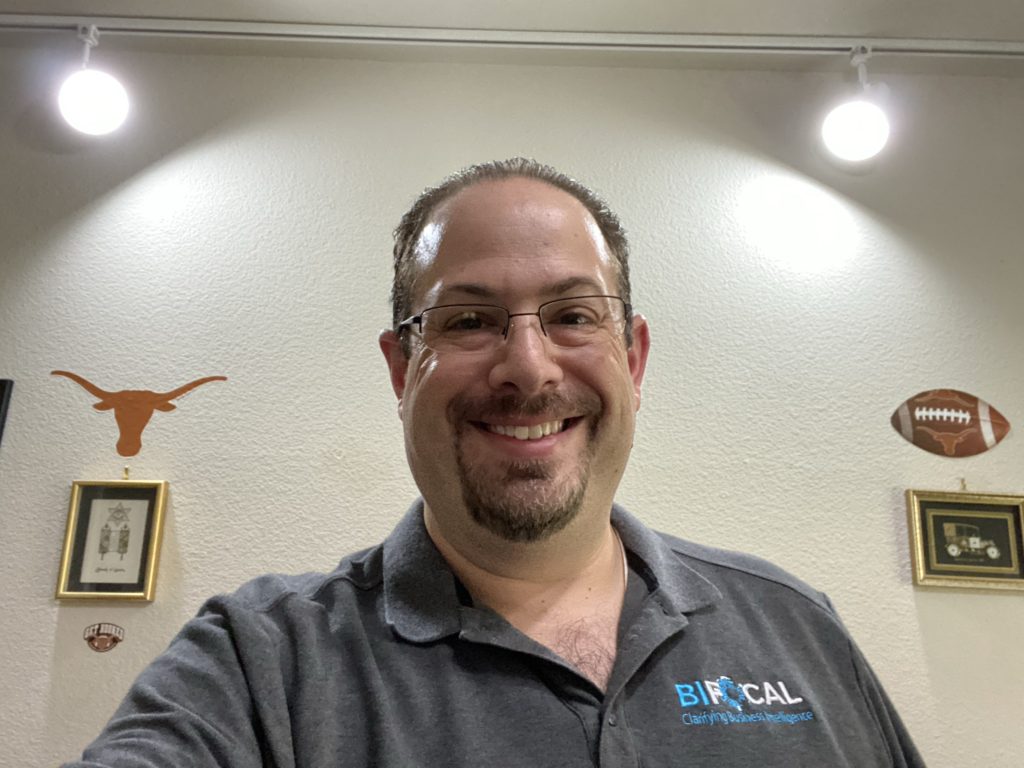
    my overhead track lighting

    The cost was considerably lower than most of the fancy light ring & key light solutions I looked at with the added benefit of being out of my vision. With the smart bulbs I am able to get the brightness just right.After a trip to Home Depot & a purchasing pair of Philips Hue White and Color Ambiance BR30 LED Smart Bulb from smile.amazon.com I was all set.

    Free / Busy lighting

    There is a song by Crosby, Stills, Nash & Young called Teach Your Children that plays in my head when we get to this topic. Having worked from home for so long and having kids there is a game that you have to play around free/busy. I have found that you cannot always be busy when they are around or else you can never be truly busy.

    There are many awesome community folks out there that have created project that connect to the Skype/Zoom/Teams APIs and get Free/Busy to set home automation lighting so that you can alert the others in your house to your status. I found this to be a complete failure for me because my calendar is always full and the red light was always on. The kids therefore didn’t respect it and would just walk right in regardless.

    For the past couple of years I have manually set my “alerting” lights to indicate when I cannot be disturbed and need the house to be quieter than normal. This has worked out fabulously.

    The only bathroom on the first floor of our house is just outside my office door and the hall light contains 2 Philips Hue White and Color Ambiance A19 LED Smart Bulbs. The light stays off until I set the widget on my iPhone to on-air. The light is visible from the living room, kitchen, and breakfast room.
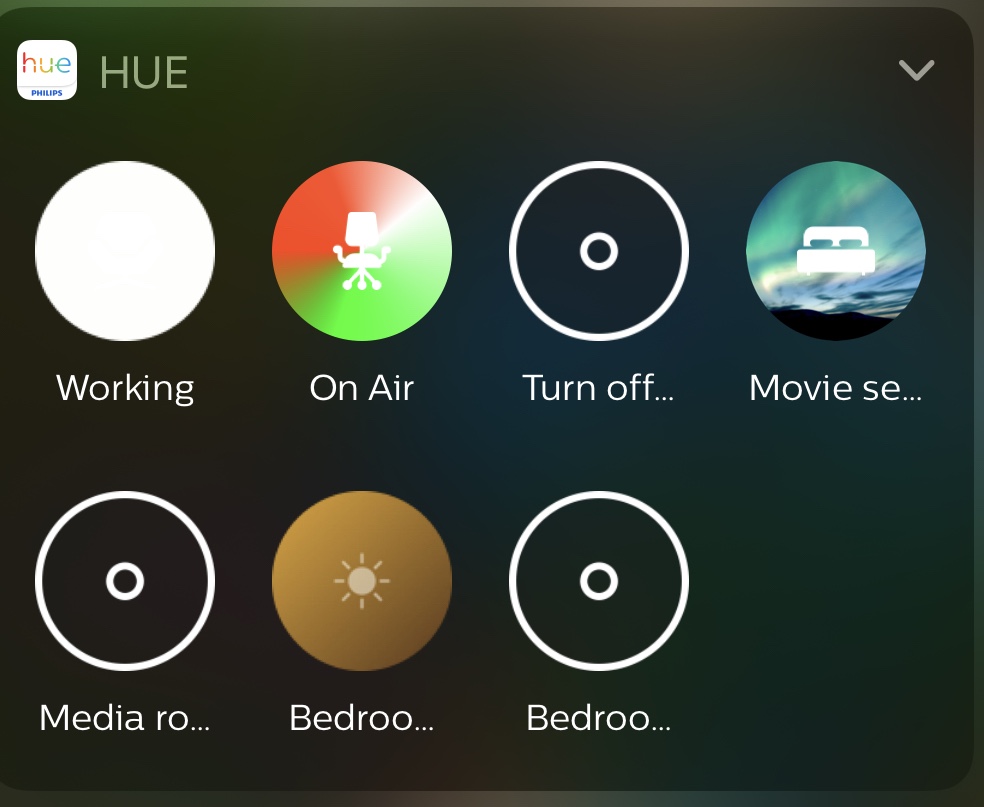
    The iPhone widgets

    There is also a light outside the kids playroom/classroom upstairs that turns red when I set the widget to on-air. This makes sure that no matter where in the house you are it is obvious that I need it to be quiet.
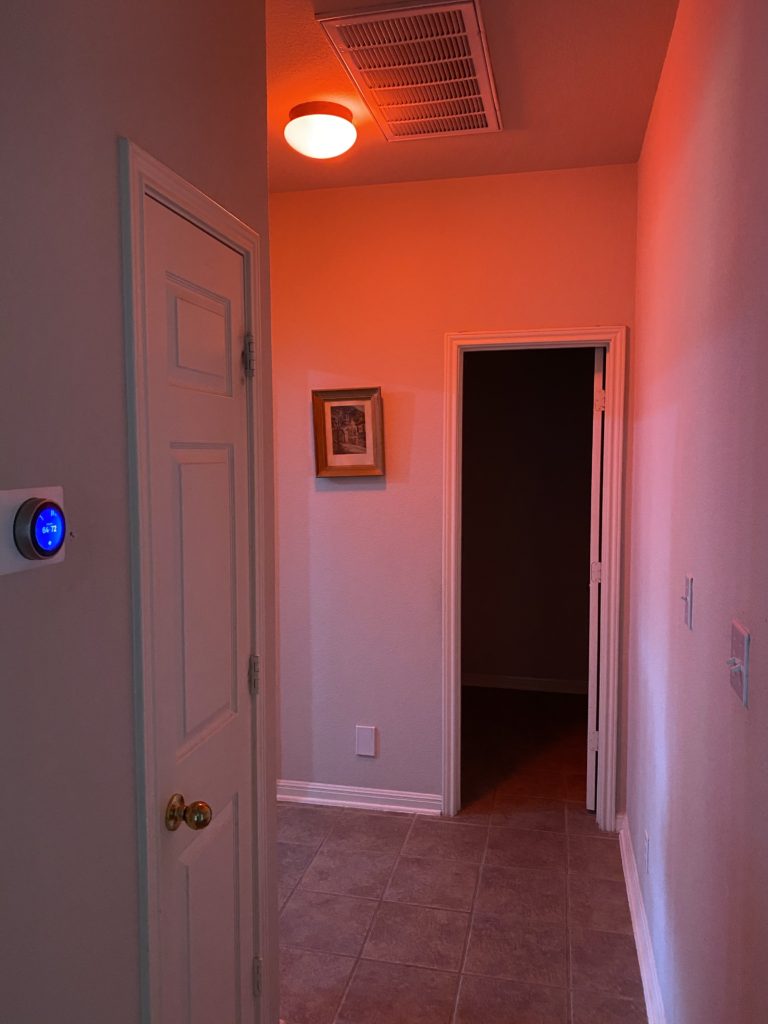
    By using this setting expeditiously I am able to get the other occupants, save the cats, to respect the on-air light and my need for quiet.
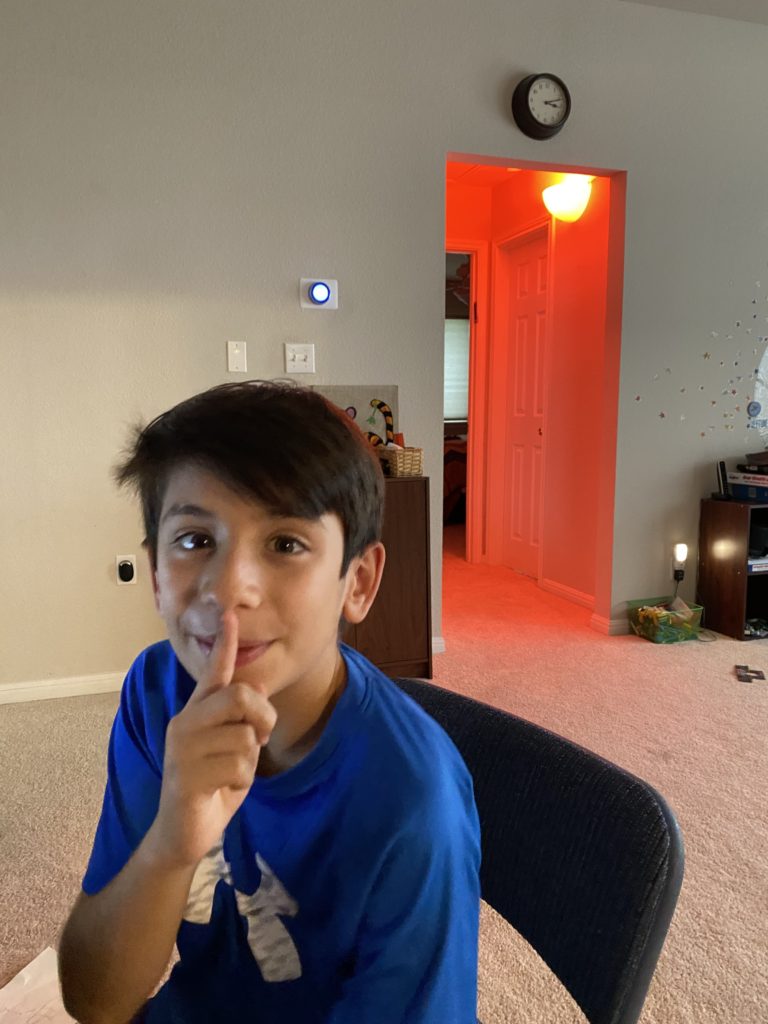
    The younger dude gets it

    Wrapping it up

    Since we are just a few minutes to go live on the Microsoft Ignite Table Talk that caused me to finally write this up I am going to have to put a bow on this series for now. I am sure that there are things that I forgot to mention, but hopefully you have found this all useful.

    Everyone finds their own optimal set up for working from home eventually. The key is tweaking things until you get yourself most comfortable. I look forward to hearing your thoughts and your tips down in the comments.

  • Thinking about ergonomics & overall wellness – Part 3

    Thinking about ergonomics & overall wellness – Part 3

    In part 2 of this series I talked about making work & life balance which I think is a good lead in to this topic of ergonomics & wellness. This has been a concern of mine for many years because I started having pains that were eventually linked to repetitive stress. Since I am not going to stop spending 12 to 20 hours a day in front of a screen I needed to figure out some ways to manage my self better.

    I mentioned some of the gear that I use in part 2, specifically the Logitech Ergo K860 keyboard and MX Master 3 mouse which are both ergonomic, but I did not talk much about the rest of my ergonomic setup. Let’s dive into some of those details now.

    Desk stuff

    For years I used a glass top, L-shaped desk which served me well but was not very ergo friendly. I retired it 3 years ago but kept it as a storage table for my home servers until COVID turned my house into the Himmelstein Academy of Home Based Academia and my older Dude claimed it for his bedroom based classroom.

    When I retired that desk I searched far and wide for the work space I wanted. I had long envisioned myself sitting behind a beautiful desk of rich mahogany surrounded by many leather bound books… wait that was a butchered line from Anchorman… in all reality I had no idea what I wanted but I figured I would know it when I saw it. I had a few criteria:

    • sturdy & would last a long time
    • no drawers to hide clutter in
    • no keyboard tray under the desk
    • ability to use as a standing desk
    • no reflective surface

    I ended up getting a Jarvis standing desk from Fully. I chose the 78 x 30″ Bamboo desk and it has been serving me very well. I opted against the swooped curve at the front and take full advantage of the surface.

    Standing at my desk vs sitting

    I get antsy if I sit for too long. The idea of a standing desk was very appealing to me, but everyone around me told me that it was a fad thing and that I would not use it nearly as much as I thought I would. Cut to 3 years later when I stand at my desk numerous times a day and I am thrilled with my decision.

    I find that I sit when I am doing highly focused activities such as writing, creating, learning, or coding. The times that I consistently stand are for meetings where I am going to be leading discussions, 1-on-1s with team members, and when I am trying to get something done in a shorter period of time than I think it will take. I flex between sitting and standing during longer meetings or when my Apple Watch buzzes to tell me to get up off my ass because I have been sitting for too long.

    It is important to think when you want to be standing vs sitting so that you drive yourself to those behaviors. At the beginning it is not a natural shift so you have to be mindful about the action. These days I do it and don’t really notice that I am doing it. My team members used to comment when I would shift in the middle of a meeting but after a while they got used to it and it is just a normal thing now.

    Helping with my standing

    When I bought my desk I opted to purchase a standing mat at the same time. I did my research and was pleasantly surprised to find that my desk vendor also sold the Topo Comfort Mat by Ergodriven which was my top choice. This mat has different terrains that I use on a daily basis to stretch my legs & feet on.

    I can say that half of the reason I switch to standing mode is to help stretch my legs & back. I struggle with back pain & as a runner my legs are always problematic. Getting up and using my Topo mat is something I look forward to because it helps relieve pain & get some of the lactic acid out of my muscles.

    Add to all of this that with the wireless headset that I use I find that I can easily pace around my office to keep myself stimulated without needing to go back to the kitchen for an afternoon coffee.

    The Chair

    DISCLAIMER: I am super fortunate to have a wonderfully supportive & patient wife, Jilly, who puts up with my need to over engineer my world which inevitably means I spend way too much on gear. She is amazing and I appreciate her more than I can ever say.

    I burn through home office desk chairs. The longest I have ever had a home office desk chair is about 2 years. Keep in mind for the past 5 years I was on the road roughly half the time and working from home half the time. This does not say good things about the chairs that I have owned.

    Yes, I am a big guy. I stand 6’2″ and weigh between 250 & 270 depending upon the quantity of candy & carbs in the house during any given season. Luckily I have stayed on the lower end for the past 2 years thanks to being more active, but that is another blog post. I put stress on seating and I like comfy chairs. My one big requirement over the years is has been the ability to recline and set the angle of the recline at any point.

    My last chair finally became no longer viable for me because Nate the Cat had ruined the seat with his claws. Just a side note, it is now his chair in my office as I don’t have the heart to take it away from him since he is getting older and less mobile. I told my awesome wife that I was going to finally invest “real money” in a replacement. I am pretty sure that she was only half listening when she said ok, but I ran away and ordered my new chair.

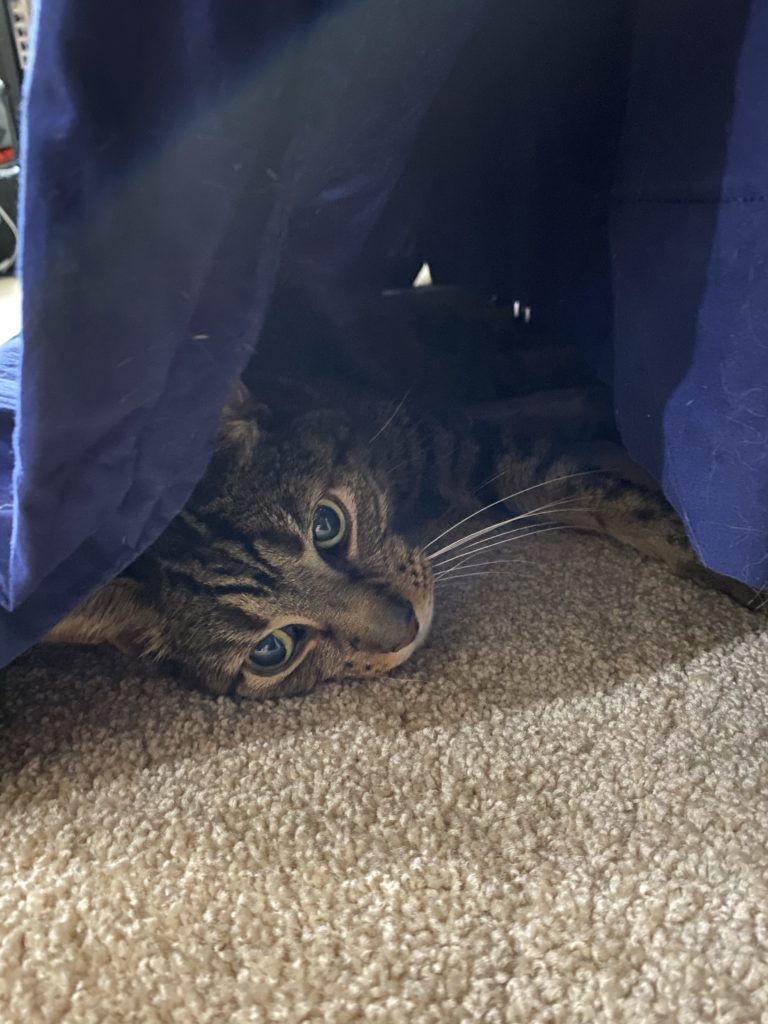
    Nate the Cat
    This is Nate. How could I be mad at that face?

    I got the Herman Miller Aeron. When you look up ergonomics in the dictionary I think that this chair is what comes up in the picture. I have had the good fortune of having one for my desk in the offices I have worked at in the past and missed it terribly. There is no comparison to it, but it is horribly overpriced. I am not putting a link to it here because I do not want to be the reason anyone else gets in trouble for spending this much on a desk chair. I justified my purchase because the Herman Miller warranty is 12 years and with how I burn through chairs, I will come out ahead… right?

    Mouse ergonomic aid

    I used to use a mouse pad with an wrist rest built in, but everything seems to have moved to fabric for the wrist rests nowadays and I severely dislike them. I found the Innovera Softskin Gel Wrist Rest to be just the right thing for me. So much so that I own 3 of them. One is on my desk and the other 2 are in the backpacks that I most frequently travel with to ensure I am never without one. I also keep extra mice in those bags as well because I am far more efficient with a mouse than a trackpad.

    One thing about these wrist rests is that TSA is not quite sure what to make of them. After years of getting questioned by the same TSA agents at my local airport I started pulling it out of my bag and putting it with my cell phone and keys so that I don’t have to deal with the extra screening time, even though I am TSA-Pre. 1 out of 3 times the agent picks it up out of the bin, looks at it, gives it a squeeze, I tell them what it is and they let me go without a fuss. The other 2 times they don’t even bother picking it up. Huge time saver.

    Wellness

    This is a very personal topic area because it is all about what makes & keeps you well, not just physically but mentally also. Getting up and moving around is part of how I keep myself well.

    Pre-COVID I was going to Orangetheory Fitness 3-5 days per week regardless of where I was in the world. I was feeling great, sore but great, and then the pandemic hit. My last class was March 16th, until the weekend before Labor Day but I haven’t been back again… yet.

    I started running outside when COVID hit but I knew that wasn’t sustainable because I live in Texas and during the summer it is almost like running on the surface of the sun if you try to run outside. I invested my company health benefit in a NordicTrack 1950 treadmill and have put 250 miles on it between May and the first week in September.

    I schedule my day around getting to run before family dinner, and it is the best thing for my wellness. I put in my AirPod Pros and just run. The rest of the world disappears for 45 minutes to an hour as I clear my head, get a feeling of accomplishment, and am generally a happier human when I sit down to dinner with Jilly & the Dudes after I run.

    Finding that mental and physical outlet is critical and you won’t find it sitting at your desk. Make time for you, it doesn’t cost anything which is the only time I can say that in these recommendations 🙂

    Wrapping it up

    In this post I talked about ergonomics & wellness both through gear & self care. Remember that you are investing in yourself with all of this and you get out what you put in. That was clichĂŠ I know, but truth is truth.

    On to the last post in this series!

  • Making Work & Life balance – Part 2

    Making Work & Life balance – Part 2

    In part 1 of this series I talked about the upcoming Microsoft Ignite conference and the Table Talk that I will be participating in. I gave my “bona fides” around the evolution of my remote working background. In this part I will to focus on the factors that have helped me find success over the years and achieve an acceptable balance of life & work in the same space.

    When I started my new job with EY and knew that I was going to be home for the rest of 2020 I decided to make sure that my home office was as optimized as humanly possible and allow me to disconnect from work when I should. I have ordered and returned a number of different devices to get things how I have them today and what follows in this post are some of the things I have done & gotten that I have found to be useful.

    blueprints

    Define your working space

    Trying to work from the couch means you never get to relax on the couch. Subconsciously you are in your working space and will shift back to it way too easily.

    17+ years ago when I was a bachelor I realized early on that a one bedroom home situation was not conducive to me ever leaving the work behind and just being a homebody… or a person who could bring dates back to my place because my roommate (work) was ever present. I quickly moved into a place that allowed for me to have a separate work space from living space and never looked back. Even when I was living in a one bedroom home situation I eventually had to define my working space until I was able to get into a multi-bedroom situation.

    I understand that not everyone is able to simply move into the apartment next door with 2 bedrooms at a nominal upcharge on rent the way I was able to back then. I didn’t even have to hire movers. The landlords just let me have a week of overlap and I moved everything with one friend. I was really lucky.

    If you are in a situation where you do not have the ability to expand your home space, clearly define your working space. It can be as simple as sitting in a different chair at the kitchen table than you normally do, but do something to help you distinguish between work time and home life.

    I am fortunate to have a home office that has been clearly defined since we bought our house 5 years ago. The space is 100% mine and it is laid out for work. I used to play games on my home PC in the office, but over time I stopped doing that for the same reasons I listed above. It felt like I was at work rather than at play.

    Optimizing your home workstation

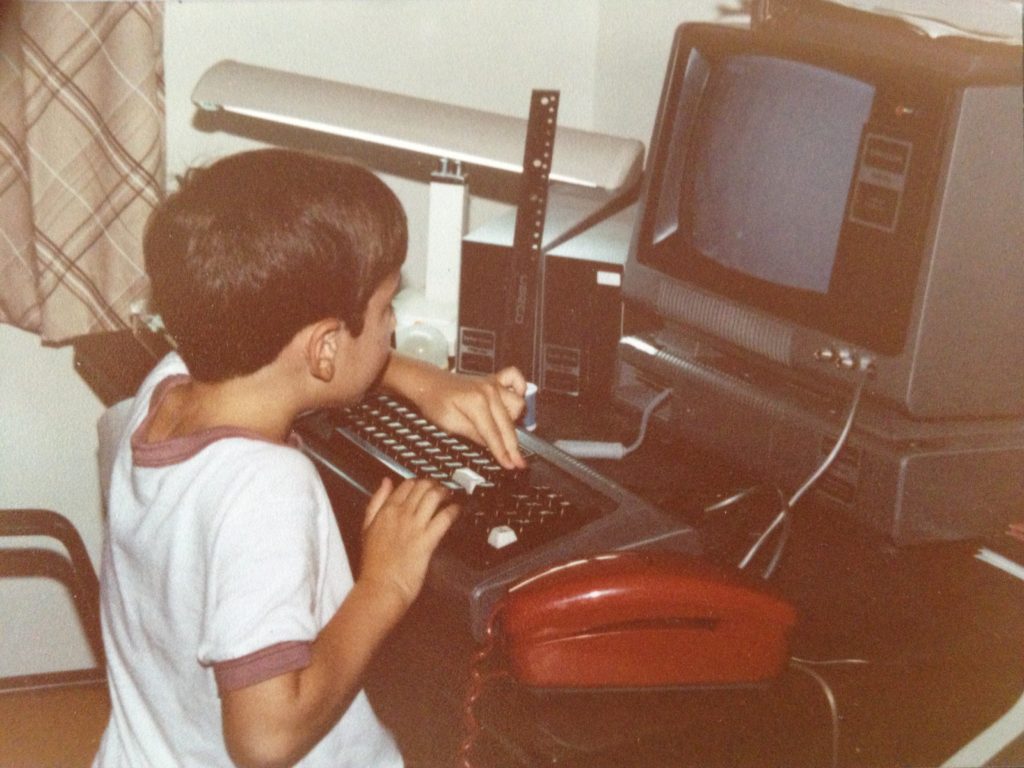
    My first home office
    One of my first workstations

    In my office I have 1 computer. HAHAHA. Who am I kidding? There are anywhere from 4-6 machines in here depending upon what I am doing. If you asked my kids however, they would likely tell you that I only use 1 computer in my office.

    Part of the problem I faced was over complication. As with most things, the KISS method works well for optimizing your home workstation.

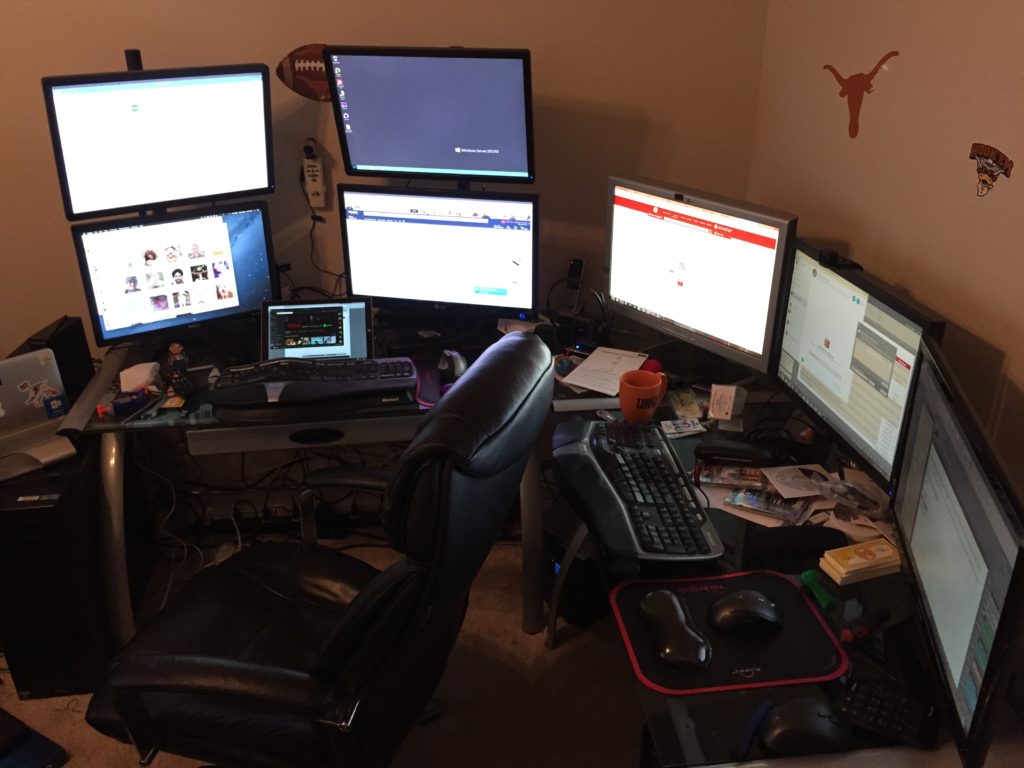
    A few years ago I had a 4 monitor rig (2 monitors stack mounted on pole stands) PLUS 3 horizontal monitors. This is what that looked like:

    My old home office
    forgive the messy desk… its an OLD picture

    I have had multiple machines hooked up to this setup and I always had multiple keyboards and mice I had to switch between. When I was on the road 200 nights and only working in my home office periodically this was acceptable, but not anymore. It was WAY too complicated and overly distracting for a long term scenario.

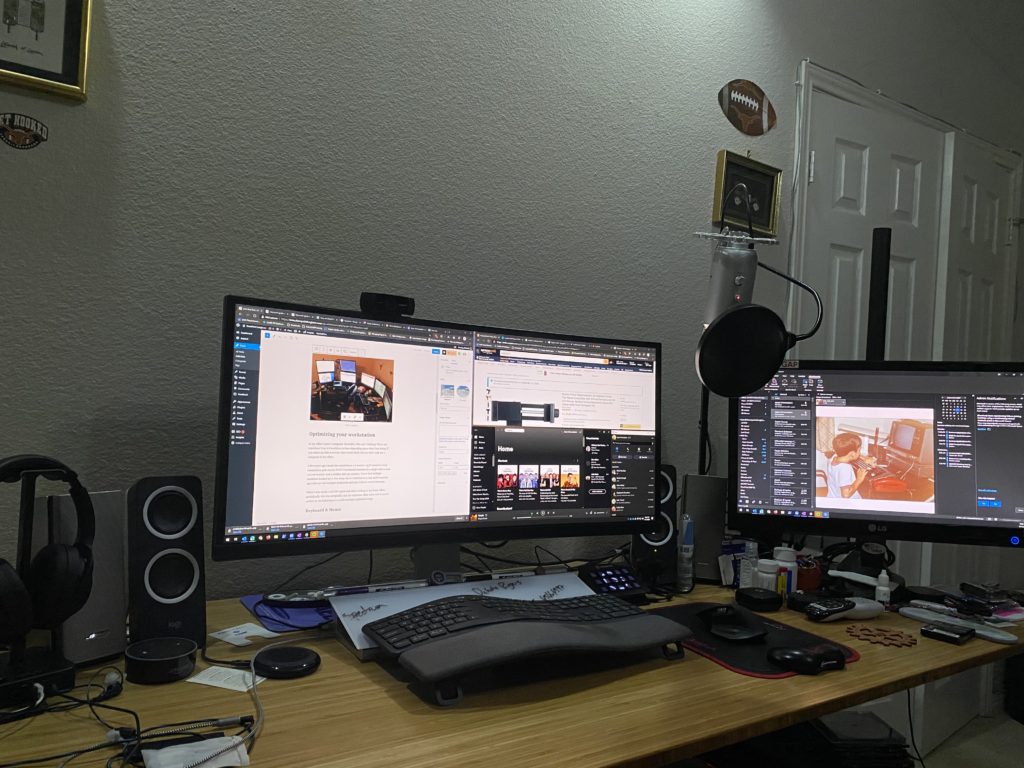
    After some trial & error I settled on the a cleaner, simpler multi-machine setup. Here is what my desk looks like today:

    My home office
    Much less messy now

    This set up has more horsepower than the old one, less light & heat coming from all of those monitors, and allows me to be WAY more focused and effective.

    What comes next is a discussion about the the gear that I decided on for my home workstation. I don’t go into the PC hardware or anything, only the peripherals which is what makes the setup work best for me.

    Keyboard & Mouse

    I landed on the Logitech Ergo K860. Ergonomics is critical for someone who spends 10-16 hours a day in front of a computer. I always used the Microsoft Elite line in the past partly because I really enjoyed the simplicity of the extra function keys and the split keyboard layout. I found that Ergo K860 had the same style to it.

    The mouse I chose is the MX Master 3 (this link is to the Logitech site as it appears that most vendors are out of stock on smile.amazon.com and I don’t want to recommend a used mouse). I’ve long been a Logitech mouse fan and my old MX Master had started to fail me a bit after 5+ years of faithful service.

    Both of these devices leverage the Logitech Unifying receivers, which is key because it allows me to pair the receiver with multiple Logitech devices and then chose which machine I want to be connecting to at the touch of a button. They both have the ability to pair with up to 3 computers, both PC and Mac.

    Sound

    It took me a while to figure out that I was really missing out by only having a single pair of speakers that I would move the input between machines. I was using my personal machine less frequently so it felt like less of a big deal at first, but after 2 months I was fed up.

    I invested in a set of Bose Companion 20s a couple of years back and LOVE them. They are great & I cannot say enough good things about them, so much so that I was willing to move the input between machines for months. However since I did not want to have to wear headphones all the time I decided that I needed more flexibility.

    As a second set of speakers I invested in a set of Logitech Z200s for around $25. They work just fine for listening to Microsoft PGI calls and general conference calling purposes.

    Listening to calls on speakers is nice, and easy when the house is empty. Not so easy when the house is not only my office but the Dudes school & living space. I need to make sure that I am not being distracted by the animals that live in my house (both cats and the Dudes qualify in this) and the general noises that go on when the house is occupied.

    I have had a set of Bose on-ear noise cancelling headphones for years and a second set of Bose in-ear noise cancelling headphones that I highly recommend. They are older models but they still serve me well. My younger Dude took over my on-ear set when school started up and I recently started wearing hearing aids which means that my in-ear set require a shift. I also moved away from my Mac which means that my awesome AirPod Pros do not help with this situation as much.

    That lead me to the new Sony MX4s. I am still tinkering with the Bluetooth settings to get the music audio to sound great, but for my work calls they have FANTASTIC sound quality and are comfortable while wearing my hearing aids.

    Microphone & Camera input

    The Blue Yeti USB mic is what I use for recording the podcast or doing streaming activities. I thought about upgrading and getting a Focusrite Scarlett mic preamp to attach one of my higher quality microphones to my machine, but the Yeti has served me well for the past few years.

    I am a fan of the Logitech C920 web cam. At one point I had one setup on each of my PCs, until my older Dude needed it to have a better audio and video setup for doing Middle School Band remotely this year.

    Once again I was left in a situation where I was shifting USB devices between machines. I decided to search for a solution and got recommended the UGREEN USB 3.0 Sharing Switch from my friend fellow Microsoft Ignite Speaker, Adam Saxton, since he does so much with his setup for Guy In A Cube.

    <INSERT SHAMELESS SESSION PLUG HERE>

    He & I are doing an Ask the Experts session together on Wednesday September 22nd at 7a Central Time… to be fair it is his session, I’m just helping him out. We are also doing an Ignite Social Hour that afternoon at 4:30p Central Time.

    <CLOSE SHAMELESS SESSION PLUG>

    The Sharing Switch was exactly what I needed. This device does a good job with a slow switch operation. By this I mean I use it to move from one PC to the other and don’t try to flip right back. I tried this once and the PCs both got confused and didn’t want to recognize the devices.

    One life hack I have been recommending to people who have asked me for webcam recommendations in the past 6 months is to not use a webcam at all. Instead to use their cell phone as a webcam via Teams or Zoom. Teams handles this extremely well because it allows you to be on multiple devices under the same login.

    It is not slanderous to say that web conferencing software is a resource hog on your PC. It is especially bad when you turn video on. Both of my PCs are high powered systems and the GPU spikes on both of them when I turn video on in Teams, and I always have video on. I find that it personalizes meetings and when people see that I am doing it, they do too. The internal monologue they are having sounds something like “If that funny looking guy can be on video I guess I can too”.

    I spent less than $20 and got myself a mini tripod and a very solid smart phone mount that I use to do video calls on when I am doing resource intensive operations on my PC. Often I am in Teams screen sharing Power BI Desktop from my PC and have audio and video on my iPhone 11 Pro. This allows me to use my AirPod Pro headphones as well. I show up in the call only one time too.

    I just sent this tripod & mount solution I linked to above to my awesome niece. That tripod came with a cell phone mount, but I prefer the one I linked to separately because it felt more sturdy while being very inexpensive.

    Closing

    In this post I shared some details about how I balance my life and separate my work. The key to everything above is finding the comfort zone for you and those around you.

    The core message I am trying to convey is that if you can find a way to simplify your work space you can make more room for your life. That separating is key. When we work where we live it can be difficult to put the work away. If you can simplify and carve out that space, you will have an easier time walking away.

    You don’t have to spend a ton to get there either, I am just a geek and like my toys. There are lots of low cost options that you can find to do everything I have talked about.

    In the next part of this series I will share my experiences with ergonomics and then wrap up the last part of the series with a post about lighting & home automation. I’m going to save the best geeky stuff for last 😉

  • Working from home – How are other people doing it? – Part 1

    Working from home – How are other people doing it? – Part 1

    Microsoft Ignite is just around the corner and I am excited to be a part of the event once again. I have been honored to be a speaker for the past 5 years after being on staff for the first one. This year is obviously going to look very different from those previous 6 events, but this virtual event will still be rife with valuable information and great connection opportunities.

    This year the “shiny new stuff” technical sessions that I have always been involved in are all being done by Microsoft Employees which lead to the big question “What is left for community members to do?”. Anna Chu & the community team had out backs, as always, giving us an opportunity to submit and be selected to deliver sessions that we felt were valuable to the community in this time.

    One of the areas that I have been focused on helping people with over the past 6 months has been how to get a sense of normalcy in this isolated world.

    My dudes & I ran a web series bringing people from around the globe together to hear about cool places from awesome speakers who were willing to share their time & their passion for their special places. You can find some of the stories on the Story Telling About Cool Places YouTube channel. I still need to get the rest of the videos uploaded there. #slacker

    I spent dozens of hours working with teachers who needed help coming up with how they were going to teach kids in a remote world when they didn’t even know how to get started thinking about it.

    I also have had dozens of conversations with community friends about my current home office configuration which I continue to tweak, tune, and evolve. My goal is to ensure that I provide myself with a comfortable working environment but to also make my working world low impact on my family while enabling my work to be uninterrupted when required. It is a delicate balance but we have made it work very well.

    I am very fortunate in that I have been working in a remote fashion for some period of time since 2005 (yes, I had to go to LinkedIn to remind myself of how long I’ve been doing this for). My “work-from-home” setup has changed dramatically over the years and evolved multiple times as I went from work-from-home to work-from-anywhere and back to work-from-home.

    The evolution also happened multiple times because of the changes that have happened in my life over the past 15 years. I went from a single guy in a bachelor house, to a married guy, to a married guy with little kids, and now a married guy with tween-aged kids. Each evolution came with different settings, scenarios I needed to account for, and levels of interaction with others.

    This is the first in a series of posts that I will be doing between now and Microsoft Ignite which is happening September 22-24, 2020 online and COMPLETELY FREE. This means that you should be going to the https://ignite.microsoft.com site and registering for the event as soon as you finish reading this, if you haven’t already done it.

    I am helping moderate a 30 minute table talk called “Working from home – How are other people doing it?” in the Americas time block with Iasia Brown, Loni French, Matthew Hudson, and Matt Wade on Wednesday September 23rd from 3:45p-4:15p. I am excited to hear what my co-moderators have to say, as well as all the folks from around the community. This blog post series is my way of putting some of my personal tips and tricks from my latest evolution down in a way that I can easily refer people to without monopolizing the live conversation.

    Immediately after the table talk I will be going live with Adam Saxton & Patrick Leblanc from Guy in a Cube and John White, my co-host of the BIFocal Podcast, on the Guy in a Cube YouTube channel to discuss all of the Power BI announcements that have happened at Microsoft Ignite. You can find us here: https://guyinacu.be/ignite2020

    I hope that you find this series useful. I will share links to all of the gear, however I am not using affiliate links because I am not looking to profit on my recommendations. There is nothing wrong with doing this, but I prefer to share via Amazon Smile links, which I sincerely hope you all will use to benefit your own favorite organizations. If you haven’t set up your Amazon Profile with smile.amazon.com please consider doing so and help your favorite non-profit organization when you buy stuff on Amazon.

    That’s all for today. I am excited to write this series and would love to hear what you think about each part in the comments below, on Twitter, or via email.

  • 6 more tips & tricks for Microsoft Ignite 2019

    6 more tips & tricks for Microsoft Ignite 2019

    I wrote an article back in 2016 about things to think about for Microsoft Ignite in Atlanta. I decided that it is time to refresh that with some things I have learned over the years and specifically some learnings from the past four Microsoft Ignites, many TechEds & SharePoint Conferences, etc.

    Wear comfortable shoes

    The Orange County Convention Center, affectionately known as the OCCC, is HUGE. You are going walk a ton. In previous years I have averaged around 18k steps per day. Wearing comfortable shoes is CRITICAL. Even though the extended forecast puts the highs in the low 80s (upper 20s in Celsius) with lows in the upper 60s (upper teens in Celsius) personally I will be avoiding sandals and going with well supported tennis shoes all week.

    Plan backup sessions

    There are several reasons for doing this. Let’s get the ugly one out of the way first: you just want to get out of the session you are in. At some point it’s going to happen. You will be sitting there thinking to yourself “I want to get out of here”. Not every presenter is going to hit home for you. Maybe the topic is too deep, to narrow, not deep enough, or you just don’t like the presenter’s style.

    On behalf of all Speaker’s at all conference everywhere: PLEASE GET UP AND GO. If you do it politely & quietly most presenters won’t even notice that you are going. Do not sit there miserable wishing you could leave and wasting your time & money being in a session you are not enjoying. Nobody wants that. You will be unhappy, give the speaker bad session scores, and not get anything out of that time block.

    Instead, make sure that you have backup sessions ready to go so that you can jump out of session and go to another.

    • The session you wanted to get into is full. You registered. You expected there would be a seat for you as a result, but fire code says they cannot let you in or the theater is just overflowing. This is a very real scenario at this event. One of my theater sessions has over 1500 people registered for it. The theaters are on the expo hall floor and do not hold that many people. Last year they had seating for about 100. If you walk up to one of these sessions late it may be time to jump to a backup session.
    • The session you wanted to go to is ž of a mile from the last session you just went to. There is no easy way for you to get there without sprinting across the OCCC and the seas of people don’t make that easy.
    • Almost all the sessions are being live streamed & recorded. Putting multiple sessions on your calendar can help you later when you want to go find sessions that you want to watch. You are already reading all the session abstracts; you may as well build your backlog to watch later.

    Engage in the Hub & show floor

    There are 25 rows of vendors. The place is massive. That is before you come to the Community areas. You are going to get lost. Make the most of it. Some of the most fun conversations at vendors booth’s I have had over the years are the ones that I just stumbled on because I was lost or just wandering.

    Make sure that you spend plenty of time in the Microsoft zones peppering the Product Teams with questions. That’s why they are there. You aren’t bothering them (most of the time). Booth duty at these events I can tell you that it is BORING when no one is there to talk to. You are on a shift with folks that you may know and like, but after the first hour you know how their kids, dog, wife, cat, bird, in-laws, tomato plant, and PTA President are and you want attendees to talk to.  They want to talk to you. Bring your questions.

    Be sure to find Community Central, the Global Diversity & Inclusion zone, Experts Connect, the Microsoft Store, and the Hub Hangout. This is where you will find people like you who are dying to talk about that geeky thing you just learned about and need to discuss.

    Hydrate

    This seems intuitive, but every year I run into people who are dehydrated because they are used to a different pace of life than the conference world. They forget that they are in Florida where it is going to be hot, even though it is supposedly almost winter in this hemisphere. Also, it is going to rain every day around 5p. Bring a small umbrella or expect that you are going to get wet. Don’t worry, it will be warm enough that you will dry out relatively quickly.

    Be out-of-office (OOO)

    We all put up our “Automatic Reply” or OOO message, but how often do we actually follow through on the “I won’t be looking at email during this period of time” statement? Email is accessible everywhere nowadays, so it is hard to ignore. There are some things that you can do to help yourself avoid this black hole that will pull you away from being present at the event. Here is what I am doing:

    Boomerang

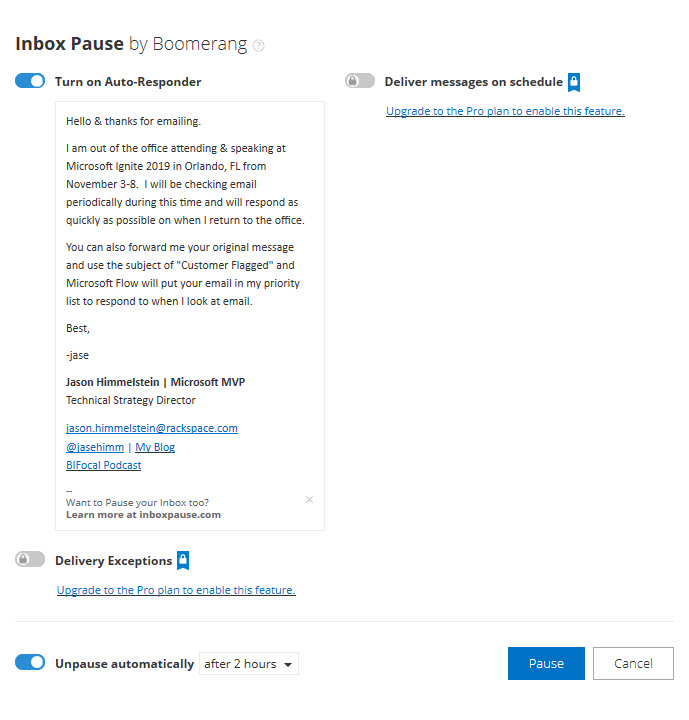
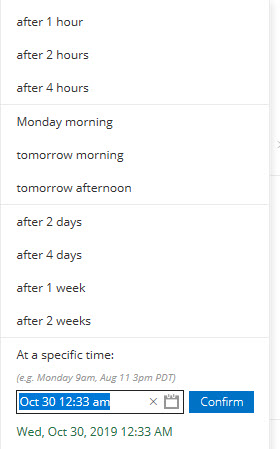
    This is an awesome add-in for Outlook & Outlook on the Web that allows you to pause email delivery into your inbox while turning on an Auto-Responder so that people know that you aren’t seeing their email. This is REALLY handy for when you want to be in the moment without the constant distractions.

    The Pro version, if you are lucky enough to be licensed for it, has many other awesome features but sticking with the pause feature on email delivery it allows you to get emails delivered on a schedule, meaning you could get email at 6a, noon, and 6p so that you are able to disposition your email when it is most convenient for you.

    Microsoft Flow

    I use this anytime I have Automatic Replies turned on. I believe that the OOO message is a social contract that people should respect. If what they are emailing about is truly important enough to get a response while you are OOO or something that they want to make sure sits at the top of the pile for when you return, they should be willing to take 1 extra step.

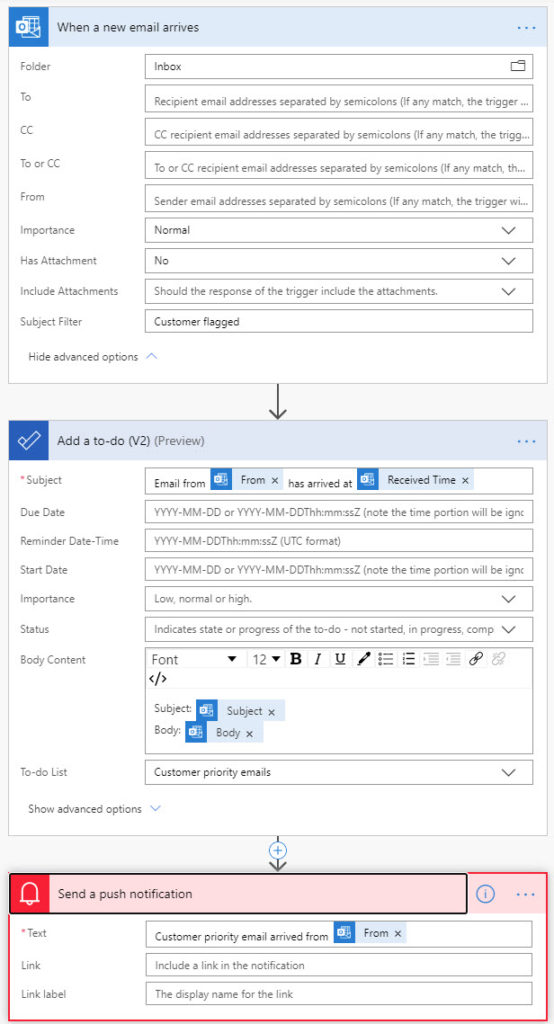
    I put the following in my OOO messages: “You can also forward me your original message and use the subject of “Customer Flagged” and Microsoft Flow will put your email in my priority list to respond to when I look at my email.”


    Here is what the Flow looks like:

    I submitted this as a template to the Flow Gallery, but I don’t know if or when they will publish it. Check for “Out-of-office message enhancement”.

    USB battery pack

    This is CRITICAL. Even if you are on the newest, brand new phone that has amazing battery power the OCCC is going to suck the life right out of it. The building is made of concrete and reception is generally mediocre, however your phone is trying desperately to please you by delivering as many bars as it can. This results in rapid battery drain. I have never made it a full day at the OCCC, or most other conference centers like it, without needing a charge up. Wall plugs are at a premium, mostly because people didn’t take the last piece of advice and are sitting on their laptops trying to work instead of engaging. Being portable is key. You still have time to pick up one of these wonderful devices. Here is a link to some options: https://smile.amazon.com/s?k=usb+battery+pack. I am personally partial to the Anker & RAVPower brands as they have served me well in the past.

    FYI, I don’t profit from the things I have recommended above. Even the Amazon link is just to the generic AmazonSmile search page. If you don’t know about AmazonSmile please go check it out. It is a way that you can help a charity just by doing the shopping you normally do. There is no impact to you.

    Conclusion

    This was way more longwinded than I was planning, but hopefully it helps you. There are many posts out there like this that will tell you about parties galore and how to have fun at the event. Go read all of them and drain every ounce of good from the event that you can. It is a crazy, fun, exhausting, massive event.

    If you are interested in seeing me at Ignite please check out my profile on the Ignite Speaker Directory at https://myignite.techcommunity.microsoft.com/speaker/564517.

    Feel free to stop by the Rackspace booth #1631 where the “Rack Gives Back” committee is contributing $1 to the American Heart Association, up to $3000 for the week, for everyone scanned at the Rackspace booth. When you get scanned you will get a badge ribbon like this:

    I will be hanging around the booth some, but if you don’t see me there just the Rackers at the booth as they will know how to track me down.

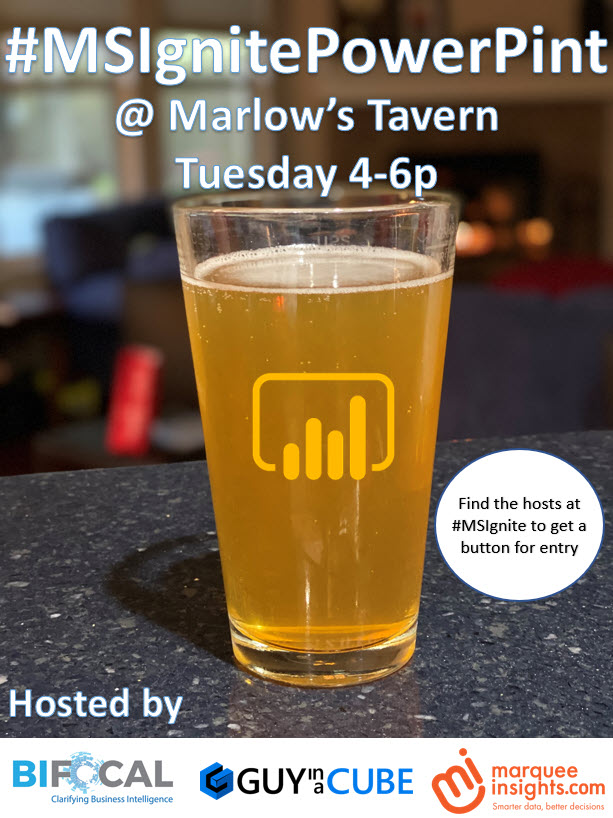
    One last thing that we just announced tonight: John White & I are hosting a #MSIgnitePowerPint along with Treb Gatte from Marquee Insights & Adam Saxton from Guy in a Cube at Marlow’s Tavern on Tuesday from 4-6p. In order to attend you need to grab a pin from one of us, so find me at the event!

  • Ignite 2018 Scheduling tips

    Ignite 2018 Scheduling tips

    There are SO many sessions to try to reasonably sort through for Ignite this year & WAY too many topic areas that I care about. Happily, everything happening at Ignite, other than the social events, is being recorded and will be made free via TechCommunity. Microsoft is actually streaming all of the sessions live for people who are members of TechCommunity as well, so this post doesn’t just apply to those attending in person because the issue is how to figure out what to see live.

    This post may not be the most popular with the Ignite Events team, because they use the registration numbers to ensure that they plan the rooms appropriately, but here is the workflow that I have figured out for me. Since we are less than a week away from the event I figure they won’t be too fussed over it, so here goes:

    1. Login to the Schedule Builder
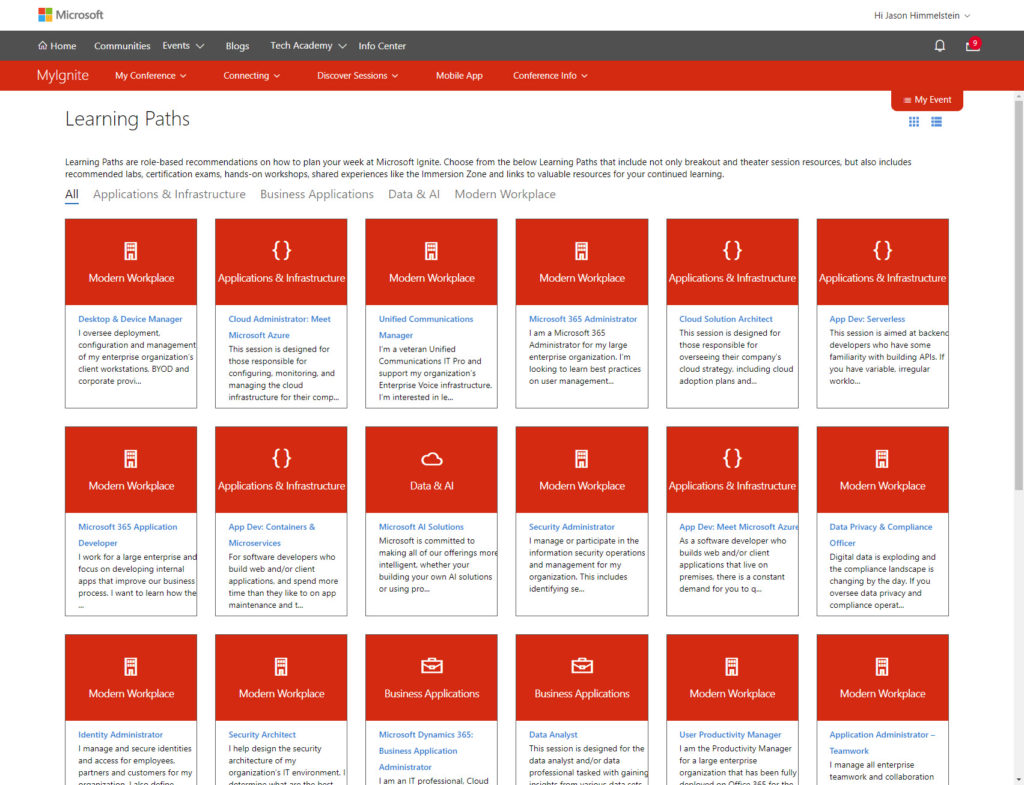
    2. Use the Learning Paths to find sessions
      • Addendum: It is useful to use multiple Learning Paths to ensure that you are finding all of the sessions that Microsoft is recommending for you in these areas. I walked through more than a dozen and found valuable sessions in almost all of them to add, even after going through so many.
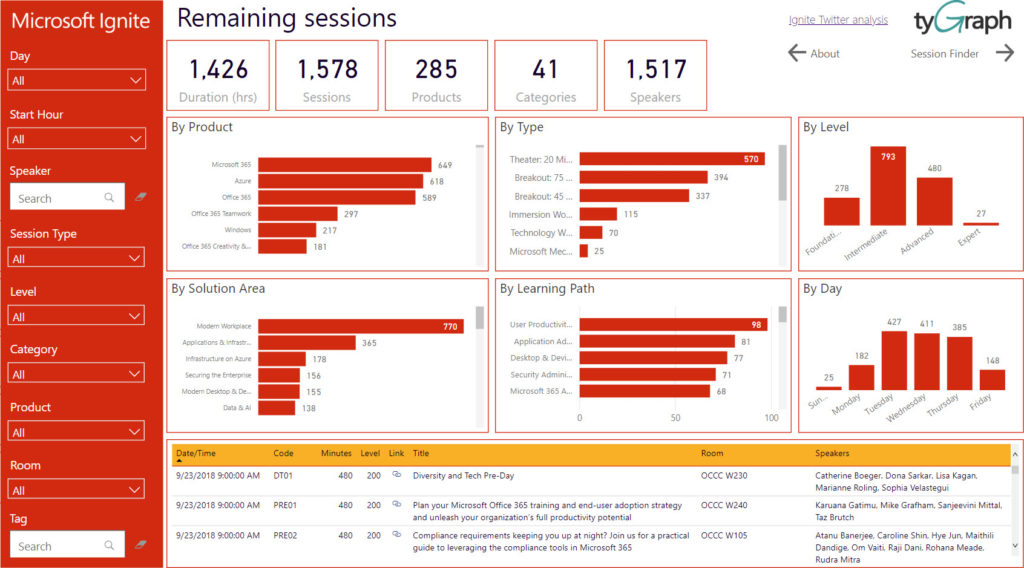
    3. Visit the TyGraph Ignite Power BI Schedule viewer and find the rest of the sessions that you will want to attend. This is MUCH easier to use than the regular schedule builder. The only downside is that you may end up clicking on things that you are already registered for.
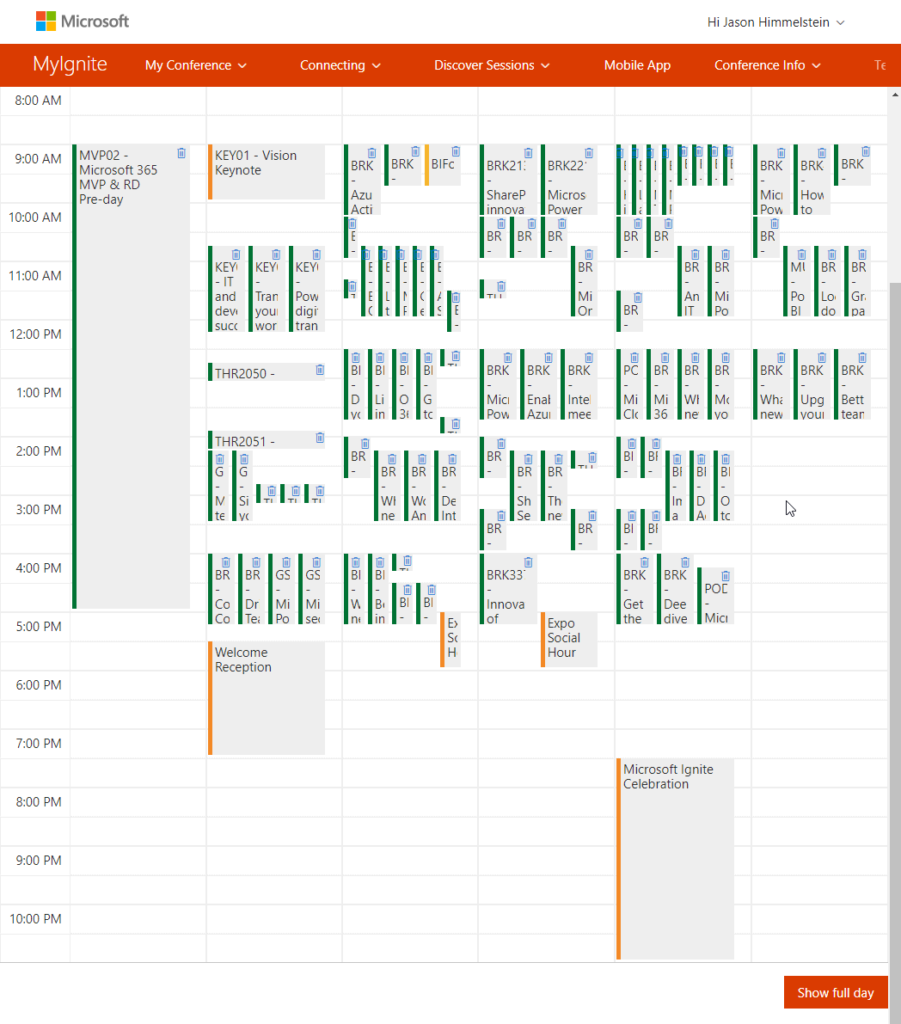
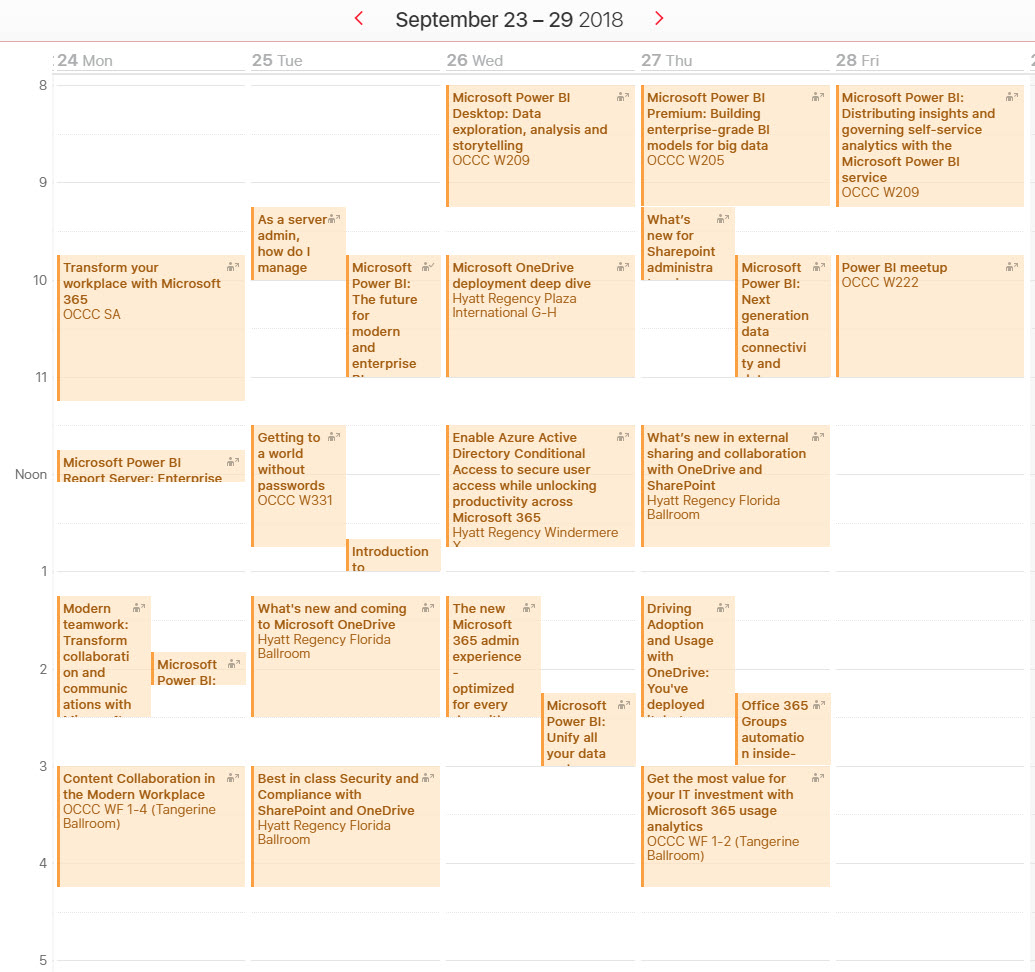
    4. Go take a look at My Schedule in the week view. It will likely look like mine. This step is just for funsies btw…
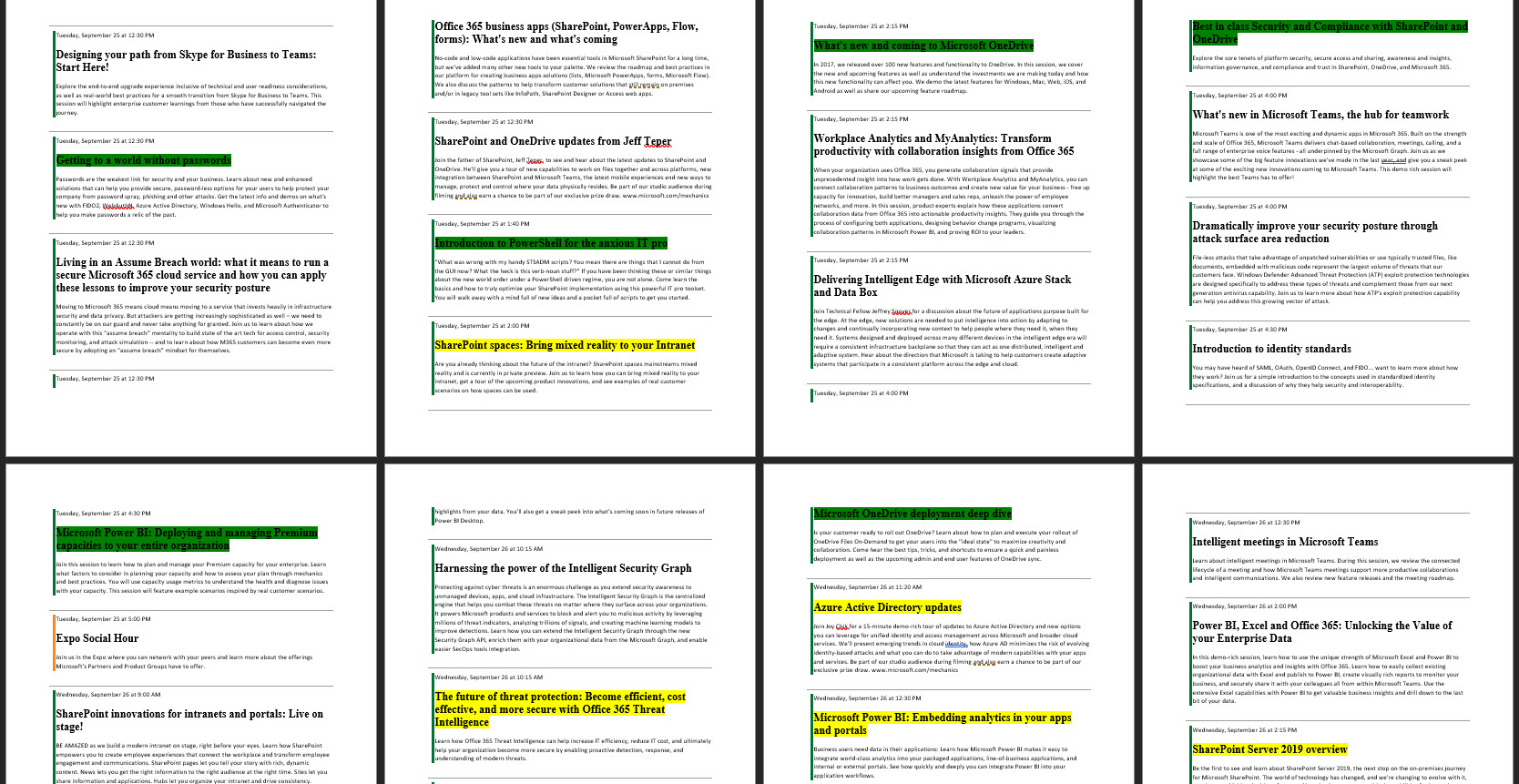
    5. Click on the Trip Report at the top left of the week view. This will download a massive Word doc that will let you review all of your sessions. Put this in OneDrive and then go through and review the sessions. I personally highlight in green the sessions I am going to go to as primary and in yellow as the backup in case a session is full or just turns out not to be good for me 10 minutes in.
    6. Download the MSFT Events mobile app and then watch Daniel Glenn’s tutorial about the app. At 2 minutes and 10 seconds into the video, Daniel is going to give you the GOLDEN TIP on how to add things to your calendar from the mobile app with just a click. This is per session, but it is a helluva lot better than having to add a ton of stuff to your calendar manually.
      • **WARNING** This only works if you are using the native calendar. 
      • I use two-factor auth in Exchange Online and the native iOS calendar doesn’t support it. I had to do this ugly workaround, but it worked:
        • Sync the item in the MSFT Events app
        • Open the item in the native iOS calendar and switch the calendar it belonged to over to my Google Calendar
        • Subscribe to the .ical for my Google Calendar in Outlook
        • Copy the items onto my Exchange Online calendar
    7. Put on your comfy walking shoes and enjoy the show! My post before Ignite 2016 in Atlanta still has some good points about prepping for the conference as an attendee: https://bifocal.llc/7-things-to-think-about-when-attending-microsoft-ignite-2016/

    Be sure to come to see me on Tuesday at 140p in Expo Theater #1 for “THR1067 – Introduction to PowerShell for the anxious IT pro” & on Friday at 1045a in OCCC W222 for “MUP2003 – Power BI meetup” with me, John White, & Reza Rad. You can also stop & visit Rackspace at Booth #140 for your chance to unlock the box and win a prize.

    See y’all in a week in Orlando!

    UPDATE: (09/18/2018)

    After a bit of tweaking I found that if I choose to invite myself to the event when I open the item, rather than changing the calendar it belongs to, I get a calendar invite that I have to edit the title of to remove the Jason Himmelstein invited you to “Session X” part of the session title and I have a valid calendar invite that will get updated if the app pushes changes to my iOS native calendar. It also stores your email address after the first time typing it, so it makes a boring, repetitive task pretty quick. In the end, I used the web-based version to make this even easier. Thanks, Anna Chu for pointing out that the mobile app can update the event!

    Wondering what I ended up picking? Here is a quick view: