Category: Uncategorized

  • Home Automation life hacks – Part 4

    Home Automation life hacks – Part 4

    Alright folks, this is what drove me to write this entire series in the first place. I finally get to geek out about home automation! In part 3 of this series I talked about ergonomics & overall wellness which is worth a read if you jumped straight to this because it is geeky and about gear too.

    When we moved into our house 5 years ago I decided that I wanted to start making the shift to leverage home automation as much as we could. My wife is more old school than I am, so there is a delicate balance that we have found between what I want and what she will allow. I have no illusions about it, she is the boss. If the boss isn’t happy, nobody is going to be happy no matter how cool their geek toys are.

    I am not going to go into all of the aspects of our home automation partly because they don’t relate directly to optimization of working from home, and partly because there are sickos out there that I don’t want to have details about my home defense posture… which is rigid. Imagine Pitfall with bigger 8-bit alligators. Just don’t try it…

    Lighting in general

    Everyone in the world is in love with light rings… except for me. I hate them. Like Golum hates Hobbits, I hate light rings. Toss in any light that shines directly IN my face to that category. I know how popular key lights and light rings are right now, but I have been light sensitive my entire life and I cannot look directly into lights or suffer intense pain. I wear sunglasses on cloudy days not because I think it makes me look cool, but because otherwise I literally cannot see.

    So what do you do when you need to be on camera most of your working day but cannot tolerate the “optimal lighting”? The issue really is when it comes to web cams it is ALL about the lighting. The best webcam in bad lighting is most often worse than a terrible webcam with great lighting. People use light rings because they make you look fantastic not because they like them.

    My home automation setup

    Cut to my home automation project. I did my research and found that Philips Hue was the brand that I was going to standardize my house on. The link I just gave is to a search page because there are lots of options in the Hue line. When I was just starting this there was a rebate going on and prices were at the floor for LED bulbs, but occasionally you can find deals on these because they are not cheap.

    Smart Hub

    You need 1 Philips Hue Smart Hub in your network that can control everything. The Smart Hub integrates with both Amazon Alexa and Apple Home Kit, as well as other platforms like home security systems.

    There are alternatives to Philips Hue such as Samsung SmartThings and others. If that is the path you decide to take or just want to hear more on the topic, I encourage you to go check out my friends AC & CJ’s podcast, The Microsoft Cloud Show, in the episode where they geek out on home automation using these kinds of alternatives. Their show is great overall so you should check it out even if you go follow my path.

    The smart hub concept allows me to tie into the lights from many controlling devices such as the Echo Dot that sits on my desk or in the kitchen, the Flic button I got for speaking at the SharePoint Conference a few years ago, and even the widgets on my iPhone and iPad.

    Office & Camera lighting

    I have a ceiling fan in my office with a lighting kit that contains 4 bulbs. At first I went with 4 Philips Hue White A19 60W bulbs, but I didn’t care for the whites for the duration that I spend in the office. I tried a pair of Philips Hue White and Color Ambiance A19 LED Smart Bulb with 2 of the white bulbs and found it to be better. Over time I switched out for all color bulbs and have added a bit of blue into the white to get the desired effect.

    That solved the ambient light riddle but not the camera lighting issue. Since I cannot stand looking into lights I went with an old school solution that Jilly suggested: overhead track lighting.

    my overhead track lighting

    The cost was considerably lower than most of the fancy light ring & key light solutions I looked at with the added benefit of being out of my vision. With the smart bulbs I am able to get the brightness just right.After a trip to Home Depot & a purchasing pair of Philips Hue White and Color Ambiance BR30 LED Smart Bulb from smile.amazon.com I was all set.

    Free / Busy lighting

    There is a song by Crosby, Stills, Nash & Young called Teach Your Children that plays in my head when we get to this topic. Having worked from home for so long and having kids there is a game that you have to play around free/busy. I have found that you cannot always be busy when they are around or else you can never be truly busy.

    There are many awesome community folks out there that have created project that connect to the Skype/Zoom/Teams APIs and get Free/Busy to set home automation lighting so that you can alert the others in your house to your status. I found this to be a complete failure for me because my calendar is always full and the red light was always on. The kids therefore didn’t respect it and would just walk right in regardless.

    For the past couple of years I have manually set my “alerting” lights to indicate when I cannot be disturbed and need the house to be quieter than normal. This has worked out fabulously.

    The only bathroom on the first floor of our house is just outside my office door and the hall light contains 2 Philips Hue White and Color Ambiance A19 LED Smart Bulbs. The light stays off until I set the widget on my iPhone to on-air. The light is visible from the living room, kitchen, and breakfast room.
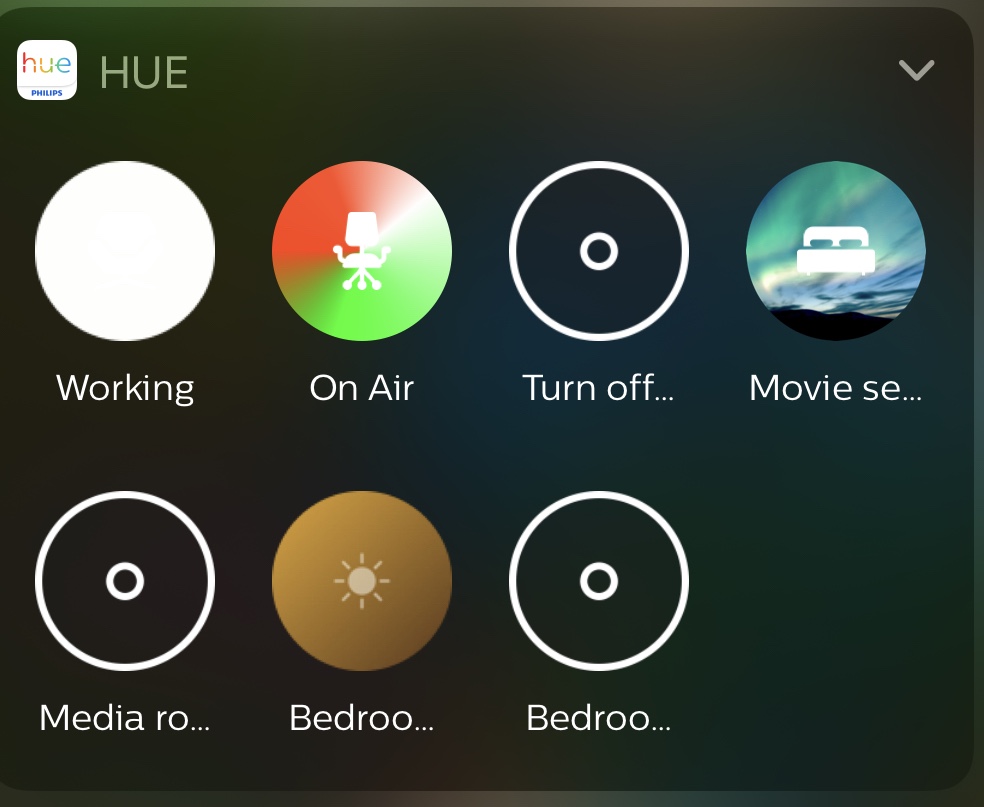
    The iPhone widgets

    There is also a light outside the kids playroom/classroom upstairs that turns red when I set the widget to on-air. This makes sure that no matter where in the house you are it is obvious that I need it to be quiet.
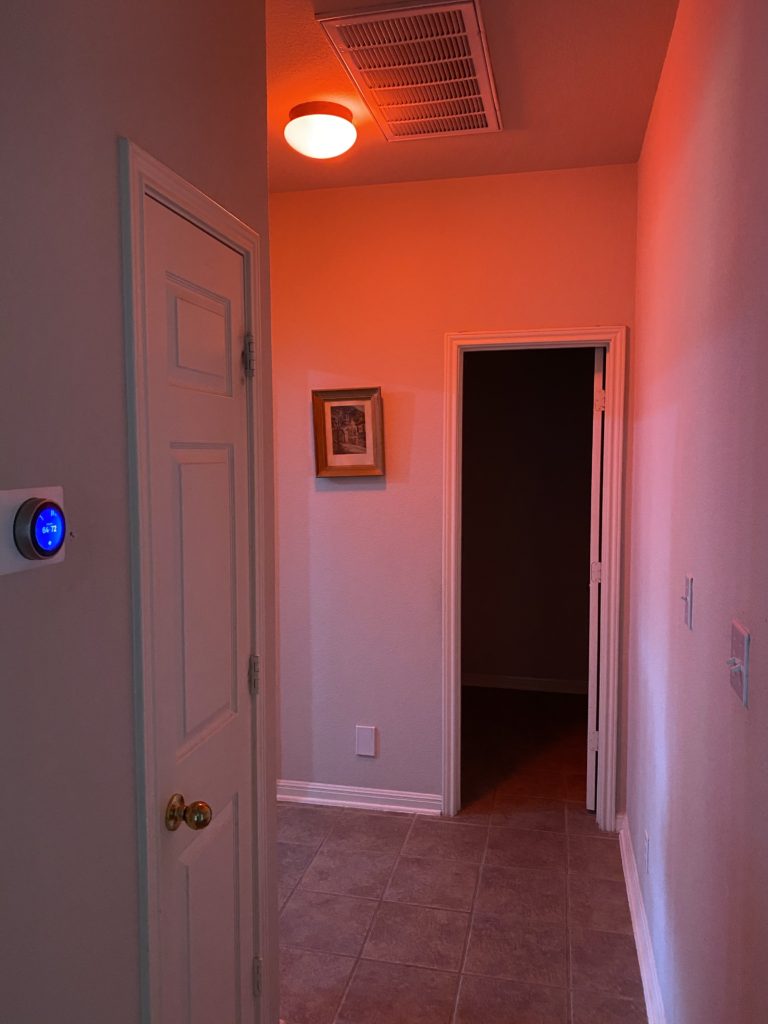
    By using this setting expeditiously I am able to get the other occupants, save the cats, to respect the on-air light and my need for quiet.

    The younger dude gets it

    Wrapping it up

    Since we are just a few minutes to go live on the Microsoft Ignite Table Talk that caused me to finally write this up I am going to have to put a bow on this series for now. I am sure that there are things that I forgot to mention, but hopefully you have found this all useful.

    Everyone finds their own optimal set up for working from home eventually. The key is tweaking things until you get yourself most comfortable. I look forward to hearing your thoughts and your tips down in the comments.

  • Working from home – How are other people doing it? – Part 1

    Working from home – How are other people doing it? – Part 1

    Microsoft Ignite is just around the corner and I am excited to be a part of the event once again. I have been honored to be a speaker for the past 5 years after being on staff for the first one. This year is obviously going to look very different from those previous 6 events, but this virtual event will still be rife with valuable information and great connection opportunities.

    This year the “shiny new stuff” technical sessions that I have always been involved in are all being done by Microsoft Employees which lead to the big question “What is left for community members to do?”. Anna Chu & the community team had out backs, as always, giving us an opportunity to submit and be selected to deliver sessions that we felt were valuable to the community in this time.

    One of the areas that I have been focused on helping people with over the past 6 months has been how to get a sense of normalcy in this isolated world.

    My dudes & I ran a web series bringing people from around the globe together to hear about cool places from awesome speakers who were willing to share their time & their passion for their special places. You can find some of the stories on the Story Telling About Cool Places YouTube channel. I still need to get the rest of the videos uploaded there. #slacker

    I spent dozens of hours working with teachers who needed help coming up with how they were going to teach kids in a remote world when they didn’t even know how to get started thinking about it.

    I also have had dozens of conversations with community friends about my current home office configuration which I continue to tweak, tune, and evolve. My goal is to ensure that I provide myself with a comfortable working environment but to also make my working world low impact on my family while enabling my work to be uninterrupted when required. It is a delicate balance but we have made it work very well.

    I am very fortunate in that I have been working in a remote fashion for some period of time since 2005 (yes, I had to go to LinkedIn to remind myself of how long I’ve been doing this for). My “work-from-home” setup has changed dramatically over the years and evolved multiple times as I went from work-from-home to work-from-anywhere and back to work-from-home.

    The evolution also happened multiple times because of the changes that have happened in my life over the past 15 years. I went from a single guy in a bachelor house, to a married guy, to a married guy with little kids, and now a married guy with tween-aged kids. Each evolution came with different settings, scenarios I needed to account for, and levels of interaction with others.

    This is the first in a series of posts that I will be doing between now and Microsoft Ignite which is happening September 22-24, 2020 online and COMPLETELY FREE. This means that you should be going to the https://ignite.microsoft.com site and registering for the event as soon as you finish reading this, if you haven’t already done it.

    I am helping moderate a 30 minute table talk called “Working from home – How are other people doing it?” in the Americas time block with Iasia Brown, Loni French, Matthew Hudson, and Matt Wade on Wednesday September 23rd from 3:45p-4:15p. I am excited to hear what my co-moderators have to say, as well as all the folks from around the community. This blog post series is my way of putting some of my personal tips and tricks from my latest evolution down in a way that I can easily refer people to without monopolizing the live conversation.

    Immediately after the table talk I will be going live with Adam Saxton & Patrick Leblanc from Guy in a Cube and John White, my co-host of the BIFocal Podcast, on the Guy in a Cube YouTube channel to discuss all of the Power BI announcements that have happened at Microsoft Ignite. You can find us here: https://guyinacu.be/ignite2020

    I hope that you find this series useful. I will share links to all of the gear, however I am not using affiliate links because I am not looking to profit on my recommendations. There is nothing wrong with doing this, but I prefer to share via Amazon Smile links, which I sincerely hope you all will use to benefit your own favorite organizations. If you haven’t set up your Amazon Profile with smile.amazon.com please consider doing so and help your favorite non-profit organization when you buy stuff on Amazon.

    That’s all for today. I am excited to write this series and would love to hear what you think about each part in the comments below, on Twitter, or via email.

  • Get the Power BI Desktop External tools tab to show up

    Get the Power BI Desktop External tools tab to show up

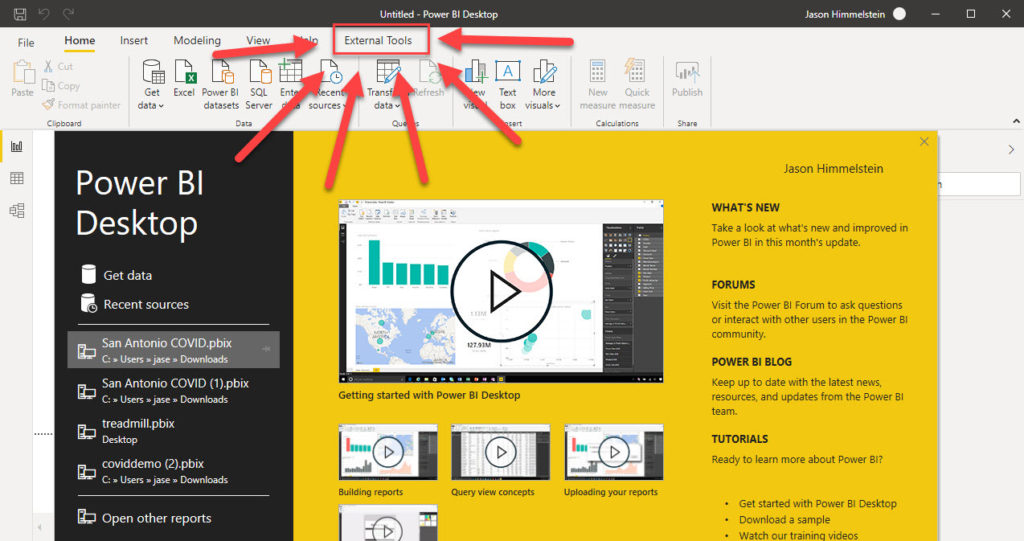
    The July 2020 release of Power BI Desktop brings some awesome new functionality with it: integration of external tools in the ribbon! There have been external tools written by community member and tools vendors for quite a while now, but they have never integrated with the product and shown up inside of the Power BI Desktop experience until now.

    This is exciting stuff because many of these tools are highly useful today and will continue to grow in importance as the product continues to mature. Microsoft does a great job of advancing its products, far better today than 5 years ago when Power BI first showed up on the scene, but they are never going to be able to do everything. That leaves white space for vendors and community members to contribute.

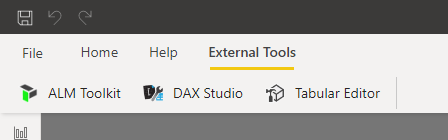
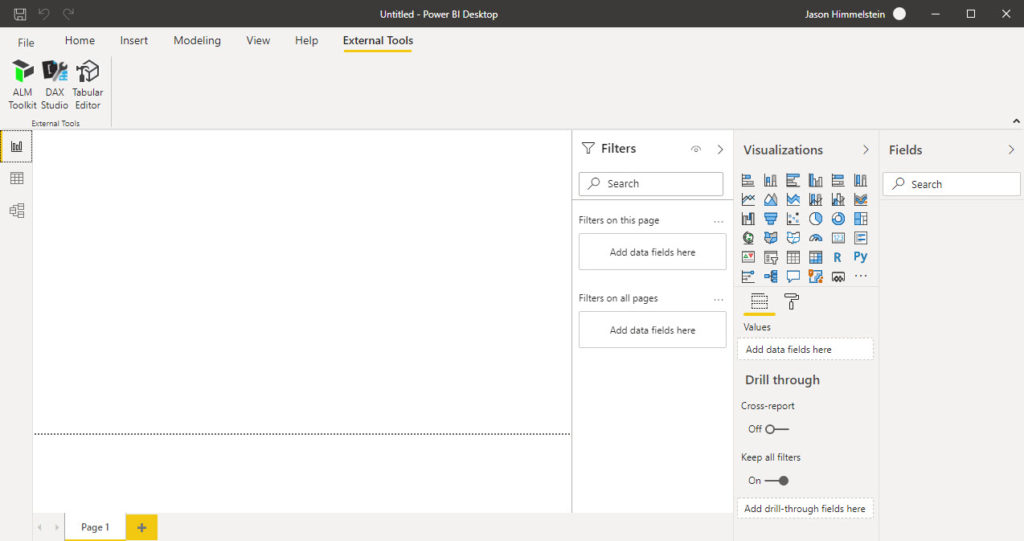
    The first 3 tools that are being made available through the External Tools pane in the ribbon are: ALM Toolkit, DAX Studio, and Tabular Editor. We have been told that Power BI Report Builder will show up in this space eventually as well.

    Here is an excerpt from the blog post on the Power BI blog site explaining a bit more about this:

    The External Tools ribbon contains buttons for external tools installed on the machine and registered with Power BI Desktop. External tools launched from Power BI Desktop are automatically connected to the Analysis Services engine running behind Power BI Desktop providing a seamless experience for users.

    https://powerbi.microsoft.com/en-us/blog/power-bi-desktop-july-2020-feature-summary/#_Launch_external_tools

    As I said, this is great news so why am I bothering to write a post about something that was clearly covered in the Power BI blog and I talked about on the BIFocal.show podcast? The answer is that I updated my work PC to the July 2020 version of Power BI Desktop using the Microsoft Store method and didn’t get the new External Tools ribbon. I was a bit perplexed.

    I checked the Preview features dialog under Options in the Options and settings menu and there was no option for turning it on. I remember that this feature went right to General Availability, so it shouldn’t have shown up there anyway.

    Then it hit me: I didn’t have any of the External Tools installed on my work machine yet. I had them installed on my VM that I use for demos and on my home PC rig, but I haven’t used any of them in my day-to-day for work yet (I’ve only been at EY for 4 months now). These are External Tools meaning they are not a part of the product, so logic says that you have to install them separately to get them to show up and why have a tab if there isn’t anything there to see?

    Once I installed the tools the Tab showed up without an issue, although I had a few hiccups getting them installed. I decided it was probably a good idea to share my experience installing the tools now that a broader group of people are going to be looking at using them.

    Here is my how-to with a few Gotchas along the way. Enjoy!

    The walk-through

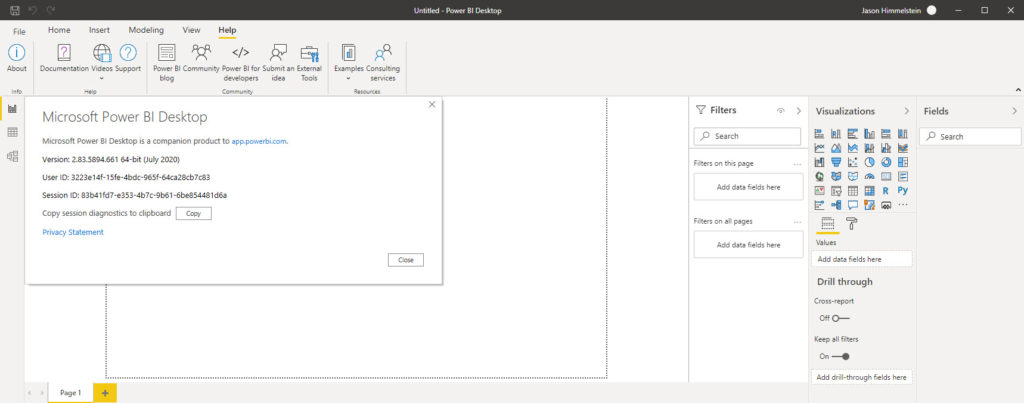
    July 2020 Power BI Desktop

    First validate that you are running the July 2020 version of Power BI Desktop. I highly recommend using the Microsoft Store version if you are able to.

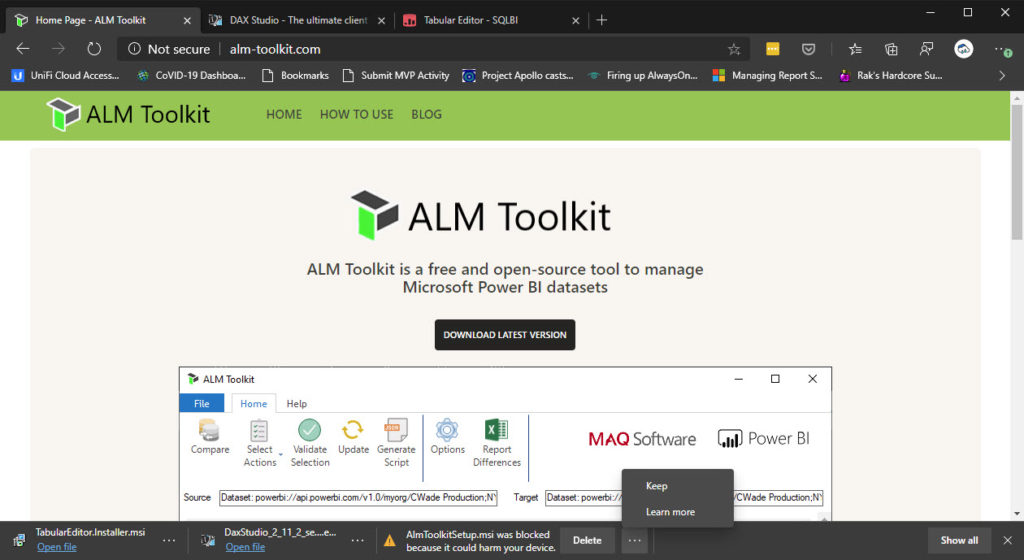
    Your next step is to download the tool or tools that you want to use from the list I gave above.

    SmartScreen tries to protect you from yourself… and malicious code

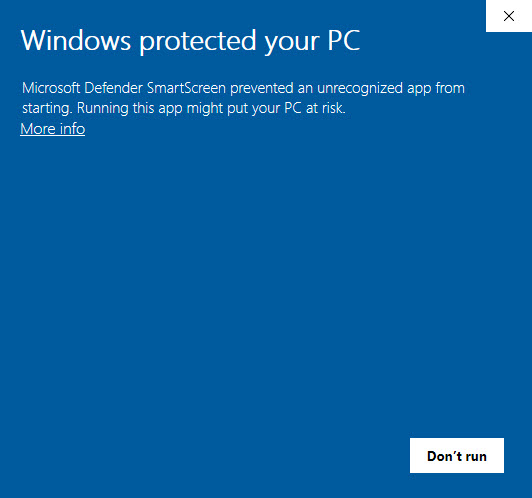
    The first snag that you will likely experience is that the built in Microsoft SmartScreen protection is going to block one or more of the downloads.

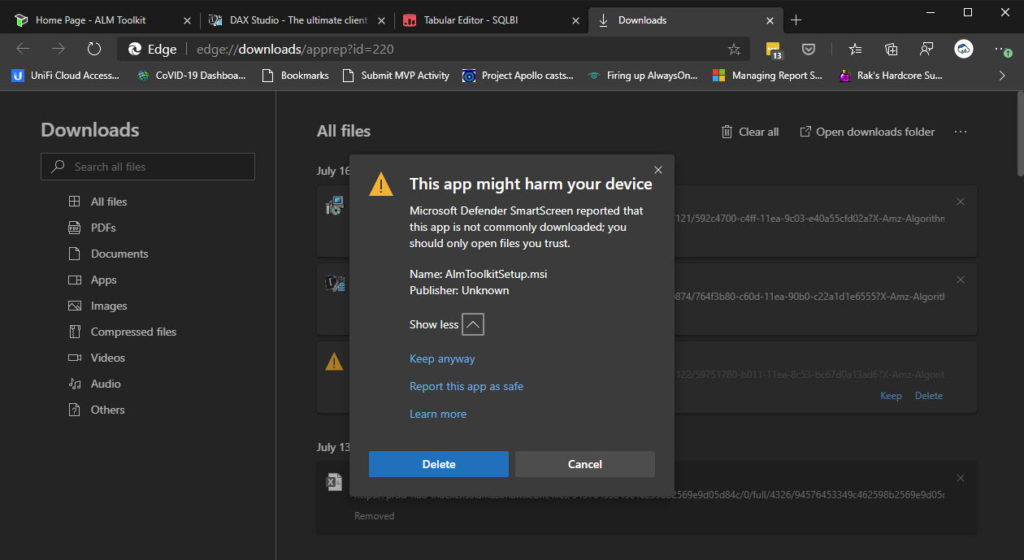
    If you chose to go forward, as I did, you need to click on Keep and then go to Downloads.

    Warning! Consult a PC physician if virus symptoms arise. Computers can’t get COVID though…

    You will need to expand the Show more option and choose to Keep anyway so that you can execute the msi package.

    CAVEAT: I am not advocating you install random stuff on your computer. I am showing you what I did, as I personally trust the folks who created these packages. Hopefully they will get signed certificates at some point, 
    but today they are unsigned and that is why this happens.

    Finally you are ready to execute the installer and you get this message:

    Insert corny “you lose” sound effect here… whap whap whappppppp….

    Ok… now you start rethinking what you are doing, not just with this installation but your whole life… maybe I should have been a painter or a chef?

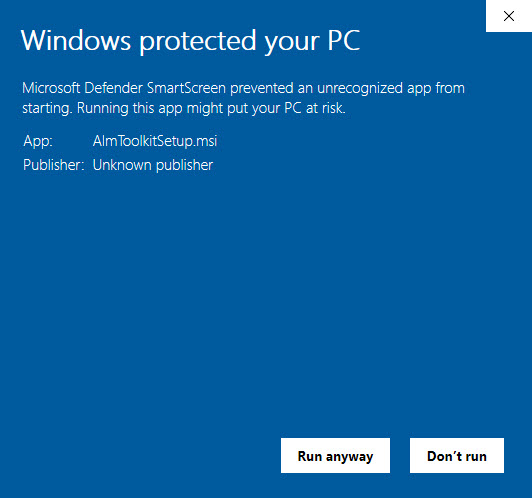
    You finally decide that you really do want to install these super useful tools so you go back to the installer msi and right click then choose to Install as Administrator.

    Then you get this screen:

    I turned around 3 times & spit, splashed holy water, & fed a chicken… do I Run anyway?

    This time you get the option to Run anyway. If you choose to move forward at this point, like I did, you will walk through the normal Install Wizard screens for the software as you would for any other commercial product. Once complete you are ready to go with the tools.

    You will need to restart Power BI Desktop if you happen to still have it open and then…

    Tada!

    You now have the External Tools section of the Ribbon! Congrats.

    If you did everything I listed above you should see this:

    SO PRETTY!

    Your experience may differ from mine, as my own experiences did working across 3 different machines with different levels of access. The scenario I outlined above was in my most restrictive environment and therefore I felt was the most reasonable one to document. There was a step I didn’t document about how I had to elevate permissions differently because of corporate restrictions on my work PC. Every company is going to be different so I left my company specific step out.

    If you have one or some of the External Tools showing up but not all, you may have older versions of the tools installed that need to be updated or you might find that are wondering why don’t have all 3 of the tools showing up you should go watching Adam Saxton‘s Guy in a Cube video explaining that scenario is super useful. If nothing else you should see how he adds in Patrick Leblanc‘s NoSums tool into the Ribbon. That was insane amazing and Patrick is super stoked about it.

    Hope you found this useful. Stay safe & healthy folks!

  • Updates from isolation

    Updates from isolation

    When I last wrote an update on my blog I shared news about life changes in the Himmelstein household and described how I was looking forward to making deliberate decisions about our future. Little did I know how the world was going to change between then and now.

    The impact of COVID-19 on our lives has been profound. We were in Houston at the start of the dudes Spring Break at the Rodeo when the Mayor shut it down. We came home to San Antonio and the city started to go on lockdown. The school district shutdown the schools and the dudes did not go back after Spring Break. We celebrated my birthday on the back deck with takeout in a socially distanced way with my Parents but we had decided that we wouldn’t even hug because of the potential risks.

    The next morning I accepted an offer for employment knowing that my on-boarding would be 100% remote and the beginning of this new career path would be a trailblazing experience not only for me as an employee, but for the company as it transitioned from an in-person world to being remote.

    That same night my Bubby passed away. While it wasn’t a shock we had to come to grips with the fact that we were not going to be able to be in person to bury her or mourn her passing in the way that our faith has always prescribed.

    We attended her funeral virtually and were able to gather as a family nightly to take part in services so that we could collectively say the Mourner’s Kaddish. I started my new career with EY the next day as a Senior Manager in Financial Services Tax Technology and Transformation.

    I know life is a crazy ride sometimes, but everything I just told you about happened in the span of 12 days. My on boarding at EY was a blur and I immediately got right to work. It has been just over 3 months now and I am loving what I am doing, architecting Power Platform & Collaboration solutions for our customers. I have an amazing team of people that I get to work with on a day to day basis and we are coming up with amazing ways to modernize traditional business processes using the latest and greatest technology.

    The world has been upside-down for all of 2020, but there have been a few bright spots. The pain that we are feeling from isolation, racism, personal loss, and the toxic politics have just compounded the situation. We strive to make the best of all of things and I am proud that I joined a company that has taken a hard line anti-racism stance. It feels right to be a part of discussions that aren’t comfortable right now and learning how to get comfortable being uncomfortable. Sounds very paradoxical, but it is what is needed right now.

    I spend time listening to people’s experiences, their pain over the systemic problems in our society, and their ideas for how we can try to change the world. I am trying to digest what I hear and ask questions so that I can try to be a part of a solution rather than perpetuating the problem with my own ignorance.

    Before 2020 we never sat down with our Dudes (how I refer to my sons in the plural) and talked about politics, current events, or racial issues. For years I have abhorred the US News media because of their unbalanced story telling and lack of truth. I refused to watch the News on TV because of this, but since the murder of George Floyd & the way that our Mayor & County judge have handled the pandemic updates we are watching daily. We are talking to the Dudes about what has happened and what is happening.

    We are seeing the world change in front of our eyes and struggling daily with how best to handle it. I know that sitting silently and not talking about what is going is not something that I am going to do any longer. I don’t need to hold a picket sign and march to make a difference. I am going to make sure that I raise the next generation of my family to be Dugmaot (role models in hebrew) and good human beings that care for others.

    This brings me to tomorrow. Poppa’s Yartzeit (anniversary of his death) is on Monday, so my father & uncles decided to do an Unveiling for both Bubby & Poppa together. If you are wondering what these things are you can read up on them here: https://www.myjewishlearning.com/article/the-tombstone-the-unveiling-and-visiting-the-grave/. Unfortunately because of COVID-19 we will not be attending in person, but will be able to witness the ceremony remotely. It is a reflective evening as I think back on the lives of my Grandparents.

    One thing that the Dudes always loved about going to visit GG (what they called my Bubby) & Poppa was that during the visit we would eventually go out in the back of the house and Poppa would take the Dudes fishing. They have been asking when we could go fishing for a few months now, knowing that Poppa had sent me home from one of our many visits with fishing gear. We are going to a lake this coming week to do some fishing to honor Poppa & Bubby’s memory. Ok… more Poppa’s memory than Bubby’s because she was never a fan of fishing, but she did love her Fisherman.

    I took Max with me today when I needed to get some of the supplies for the trip and we had a conversation with my Mom. She was going through and watching old reel to reel movies from her parents and we ended up mentioning inheritance. After we got off the phone I explained to Max that I used to tell my Grandparents, as I tell my Parents still to this day, that I want them to spend every last cent they have having adventures and making memories with us. Max looked at me and said “I would rather have a pile of memories as my inheritance than a pile of money any day”.

    Isolation sucks. As you can tell from the above craziness that has been 2020 we have missed out on so very much this year because of the risks associate with the virus. At the end of the day we are doing what we need to in order to keep safe and healthy, but I keep coming back to a comment my Mom always makes to me when I am leaving to go anywhere that I am driving away from her. She always says “Drive safe.” to which I respond “I always do” and she says “it’s not you I’m really worried about, its all the crazies you will be sharing the road with that make me worry.” There are tons of memes out there around life in the time of COVID-19 but the simple statement that I hope people keep in mind that reminds me of that frequent conversation with Mom: If you hate wearing a mask, you are really not going to like the ventilator. If not for yourself, do for those that you share the world with, you self-centered narcissistic asshole. (I may have added that last line myself)

    I recognize that this post is long, rambling, and likely doesn’t make a ton of sense. Let’s see if I can sum it up: Standing by in silence with what is happening in today’s world is failing. Even though we remain in isolation we are still doing what we can to educate ourselves, help others, and bring light into the world. My grandparents left behind a wonderful legacy and I intend to make sure that it lives on to do good in the world for a long time to come.

    That’s all for tonight. Stay safe, stay healthy, and wear a mask.

  • Office 365 Service Description Power BI report

    Office 365 Service Description Power BI report

    I did a thing tonight that I swore I would never do. I used the “Publish to web” feature in Power BI. I had a good reason and I followed the guidelines I always tell people to follow, but I still feel a bit icky about it.

    I was writing a document for a customer this afternoon and once again I ran into a situation where I wished that I could have the old Service Description Excel workbook that Microsoft used to put out. It was a really cool pivot table that allowed you to quickly see what features aligned to which Office 365 & Server based licenses. Unfortunately they stopped publishing it a few years ago. It is a giant pain in the ass to drill through all of the features across all of the SKUs to make sure that you are giving customers the best recommendations when it comes to licensing.

    To be honest what I really missed was the ability to use conditional formatting on the thing and create a REALLY easy to consume version of the document for “at a glance” use. The goal is to be able to look at the features list and see which Microsoft SKUs they are available in.

    This afternoon I ran across a nice table that does just that in the Office 365 Service Description part of Docs.microsoft.com for SharePoint, but the layout makes it relatively unusable. I got excited thinking that this was the answer to my old Excel workbook and immediately attempted to copy & paste into Excel, which failed miserably because of formatting. Then I got mad. I swore a ton. I called and yelled at Mark Rackley because that is one of the things I do when I get mad at SharePoint stuff. I believe that my last words on that call were “going to have to go PBID on their shit to get what I want”. Sorry for the colorful language gentle reader, but I warned you I was mad and swearing…

    I grabbed the Web connector and pulled in the data that I wanted, wrote a bunch of queries, unpivoted some columns, hacked away for about 2 hours and ended up with a passable version of my old favorite tool. Then I went a bit nuts and decided to do the same thing for the Office 365 Platform Service Description which is considerably more complex and lengthy.

    Finally I created a new Power BI Workspace and published it to the web. I still feel icky, but hopefully people will find this useful and that will make up for it. I have embedded the report below or you can visit https://jasehimm.online/servicedescriptions to access it directly.

    In the coming days I plan to add more to this. Let me know if you feel this is useful & what you would like to see added in the comments below or you can tweet at me @jasehimm.

  • Ignite 2018 Scheduling tips

    Ignite 2018 Scheduling tips

    There are SO many sessions to try to reasonably sort through for Ignite this year & WAY too many topic areas that I care about. Happily, everything happening at Ignite, other than the social events, is being recorded and will be made free via TechCommunity. Microsoft is actually streaming all of the sessions live for people who are members of TechCommunity as well, so this post doesn’t just apply to those attending in person because the issue is how to figure out what to see live.

    This post may not be the most popular with the Ignite Events team, because they use the registration numbers to ensure that they plan the rooms appropriately, but here is the workflow that I have figured out for me. Since we are less than a week away from the event I figure they won’t be too fussed over it, so here goes:

    1. Login to the Schedule Builder
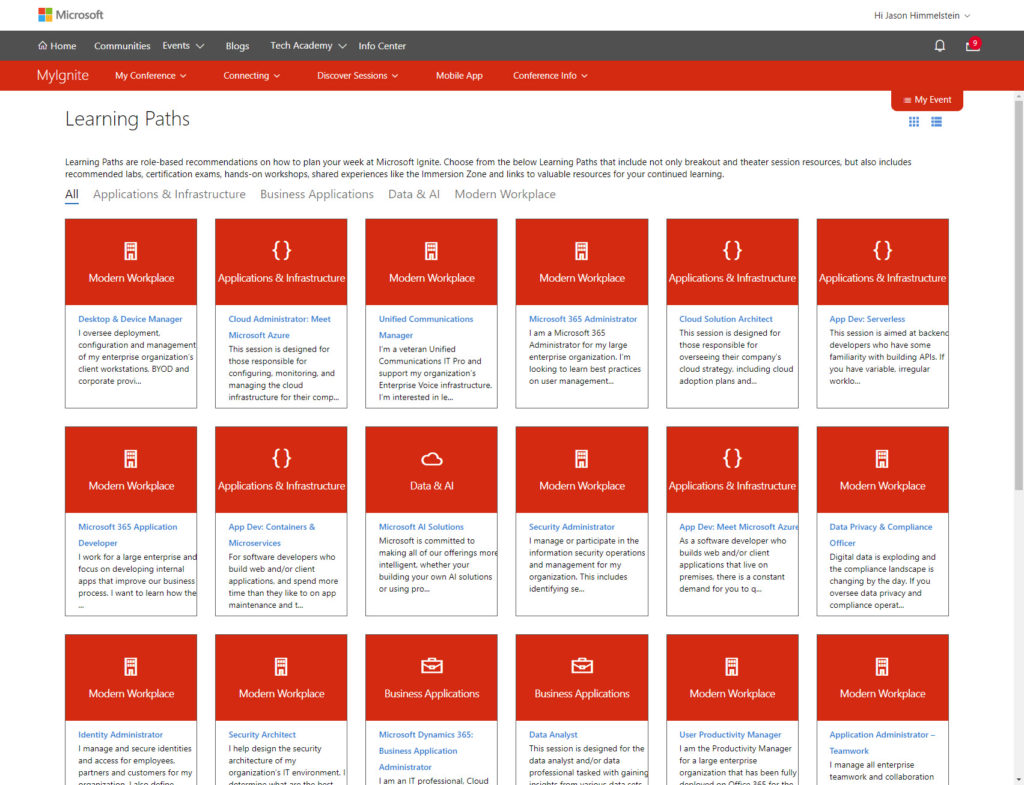
    2. Use the Learning Paths to find sessions
      • Addendum: It is useful to use multiple Learning Paths to ensure that you are finding all of the sessions that Microsoft is recommending for you in these areas. I walked through more than a dozen and found valuable sessions in almost all of them to add, even after going through so many.
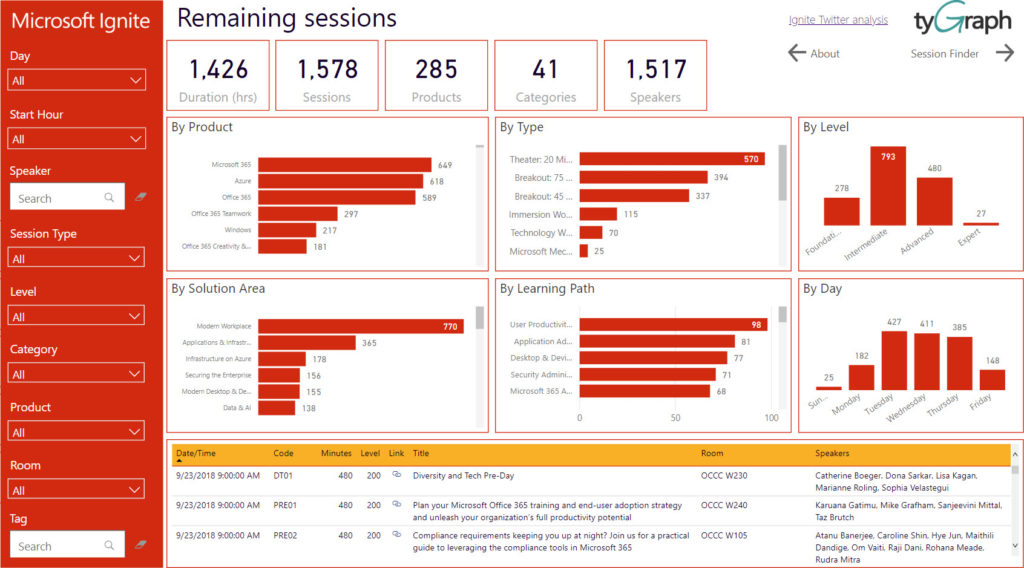
    3. Visit the TyGraph Ignite Power BI Schedule viewer and find the rest of the sessions that you will want to attend. This is MUCH easier to use than the regular schedule builder. The only downside is that you may end up clicking on things that you are already registered for.
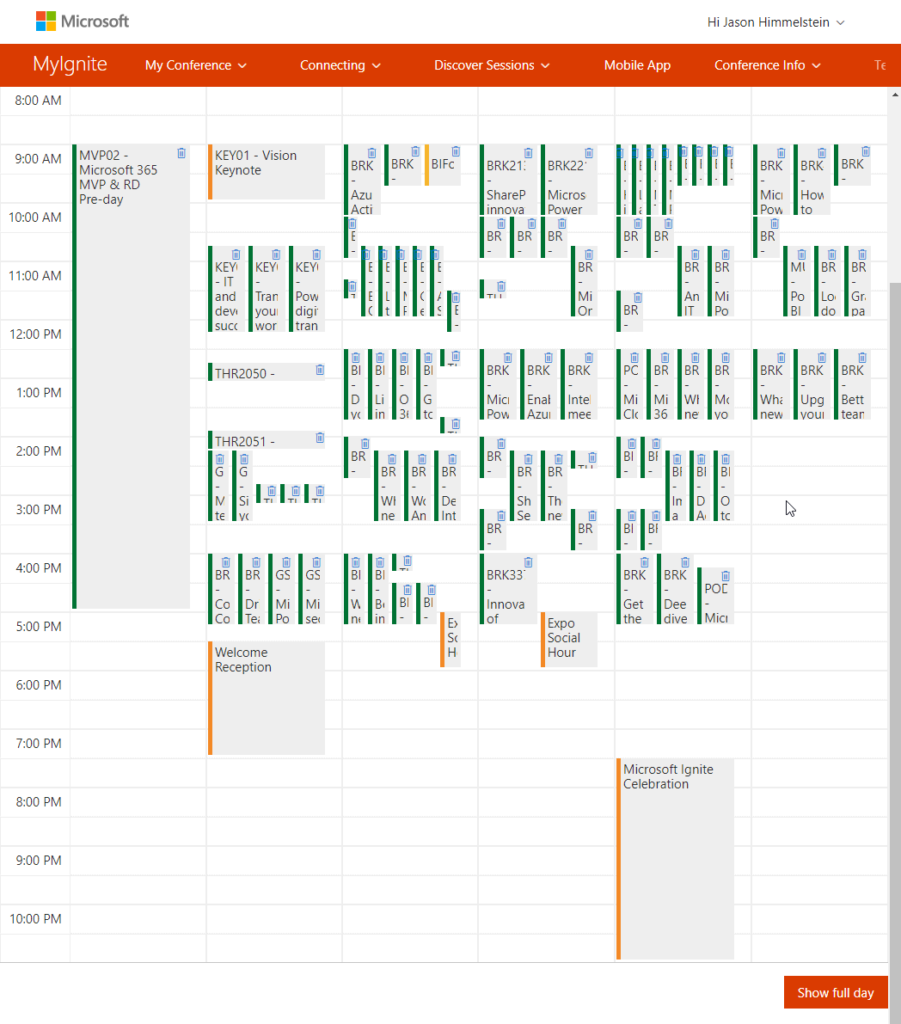
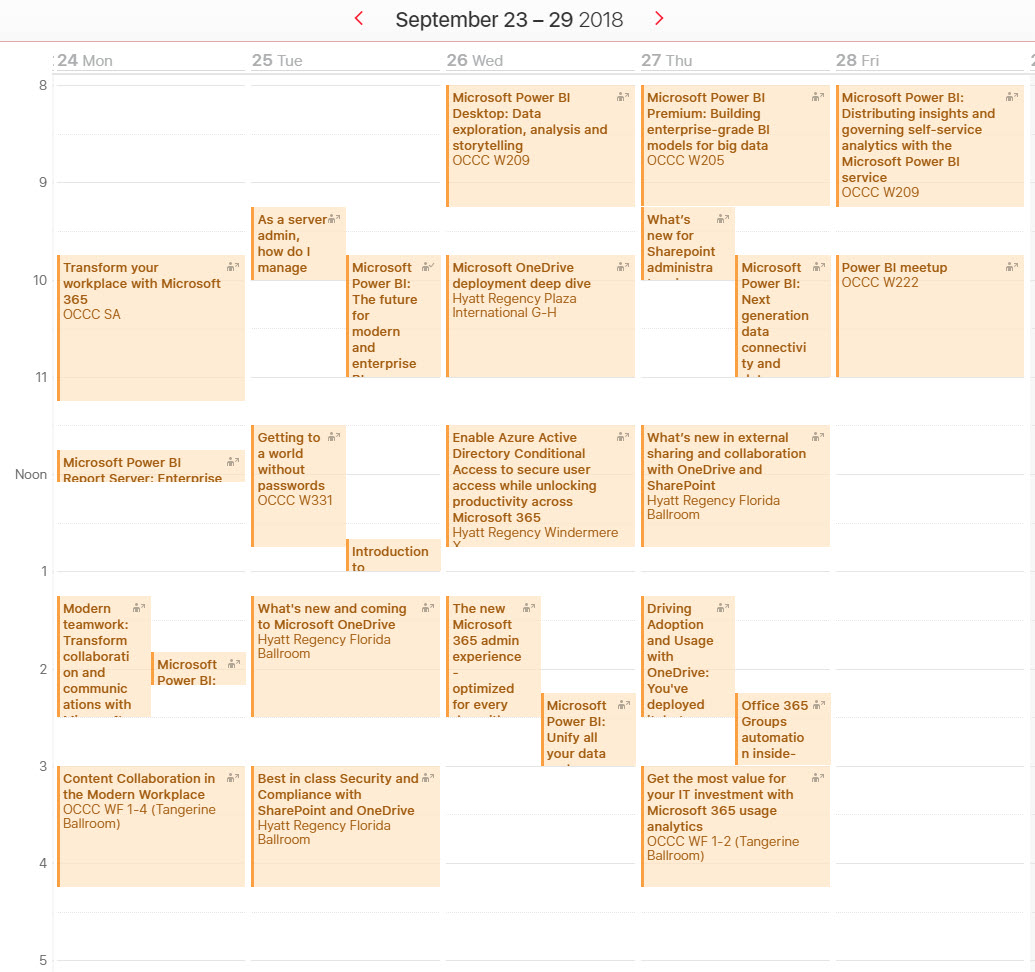
    4. Go take a look at My Schedule in the week view. It will likely look like mine. This step is just for funsies btw…
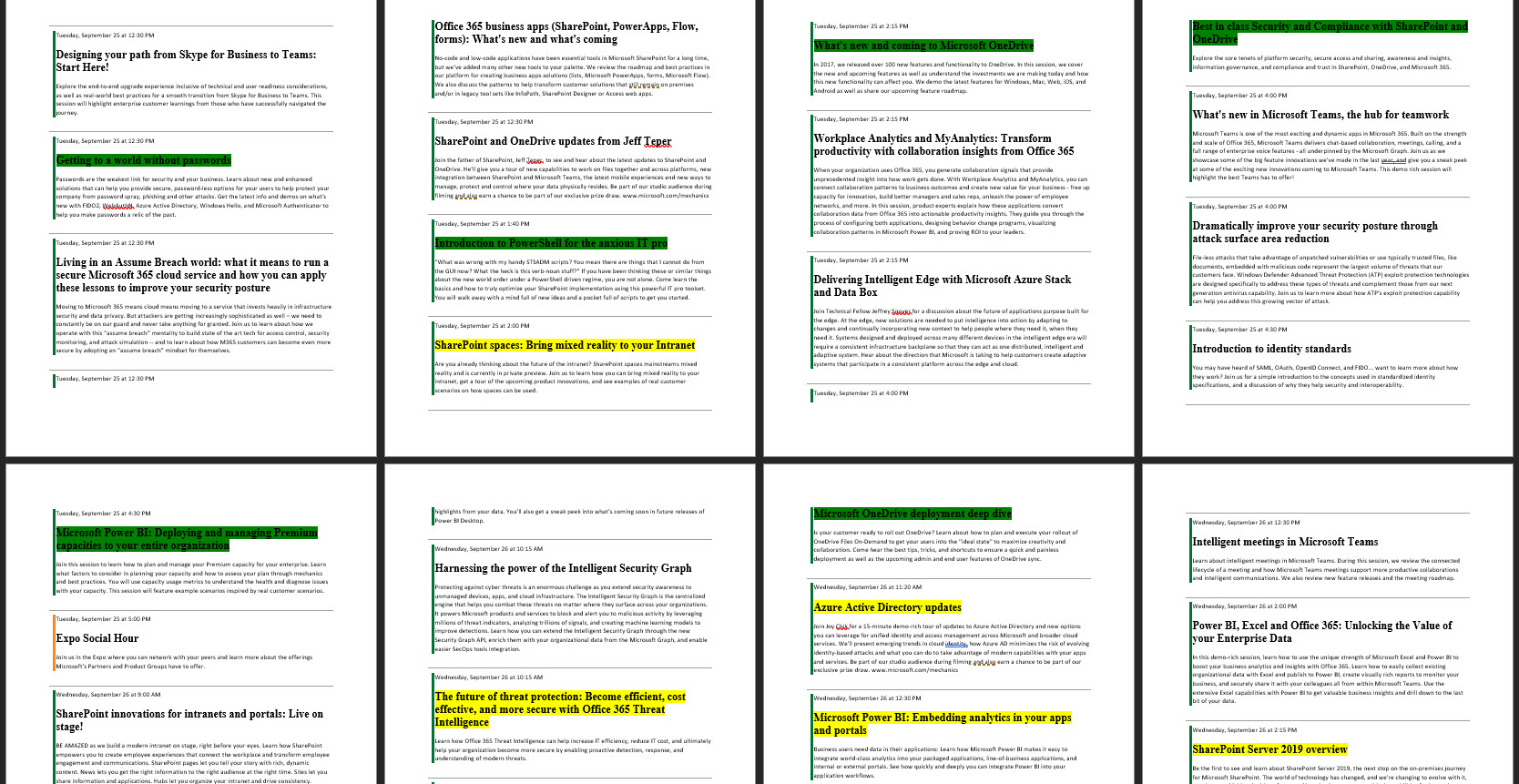
    5. Click on the Trip Report at the top left of the week view. This will download a massive Word doc that will let you review all of your sessions. Put this in OneDrive and then go through and review the sessions. I personally highlight in green the sessions I am going to go to as primary and in yellow as the backup in case a session is full or just turns out not to be good for me 10 minutes in.
    6. Download the MSFT Events mobile app and then watch Daniel Glenn’s tutorial about the app. At 2 minutes and 10 seconds into the video, Daniel is going to give you the GOLDEN TIP on how to add things to your calendar from the mobile app with just a click. This is per session, but it is a helluva lot better than having to add a ton of stuff to your calendar manually.
      • **WARNING** This only works if you are using the native calendar. 
      • I use two-factor auth in Exchange Online and the native iOS calendar doesn’t support it. I had to do this ugly workaround, but it worked:
        • Sync the item in the MSFT Events app
        • Open the item in the native iOS calendar and switch the calendar it belonged to over to my Google Calendar
        • Subscribe to the .ical for my Google Calendar in Outlook
        • Copy the items onto my Exchange Online calendar
    7. Put on your comfy walking shoes and enjoy the show! My post before Ignite 2016 in Atlanta still has some good points about prepping for the conference as an attendee: https://bifocal.llc/7-things-to-think-about-when-attending-microsoft-ignite-2016/

    Be sure to come to see me on Tuesday at 140p in Expo Theater #1 for “THR1067 – Introduction to PowerShell for the anxious IT pro” & on Friday at 1045a in OCCC W222 for “MUP2003 – Power BI meetup” with me, John White, & Reza Rad. You can also stop & visit Rackspace at Booth #140 for your chance to unlock the box and win a prize.

    See y’all in a week in Orlando!

    UPDATE: (09/18/2018)

    After a bit of tweaking I found that if I choose to invite myself to the event when I open the item, rather than changing the calendar it belongs to, I get a calendar invite that I have to edit the title of to remove the Jason Himmelstein invited you to “Session X part of the session title and I have a valid calendar invite that will get updated if the app pushes changes to my iOS native calendar. It also stores your email address after the first time typing it, so it makes a boring, repetitive task pretty quick. In the end, I used the web-based version to make this even easier. Thanks, Anna Chu for pointing out that the mobile app can update the event!

    Wondering what I ended up picking? Here is a quick view:


  • Microsoft Ignite WiFi “issue” fix

    Have you been to Microsoft Ignite or another of their large show’s before & now that you’ve gotten to the OCCC raring to go for Microsoft Ignite 2017 but you cannot get online using the code on the back of your badge? You clicked on the MSFTWIFI network and it didn’t prompt you for the passcode? Follow these steps to forget the network & re-add it in Windows 10.

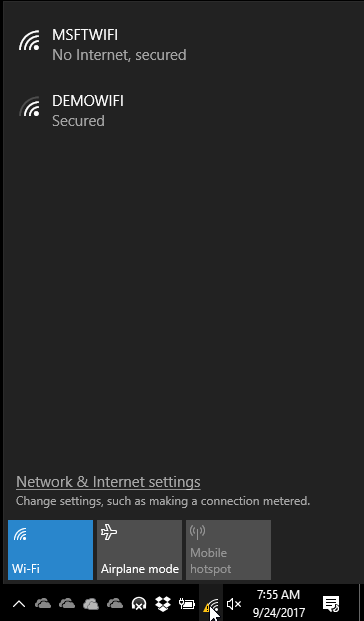
    1.) Click the WiFi icon in your system tray & click “Network & Internet Settings”

    image

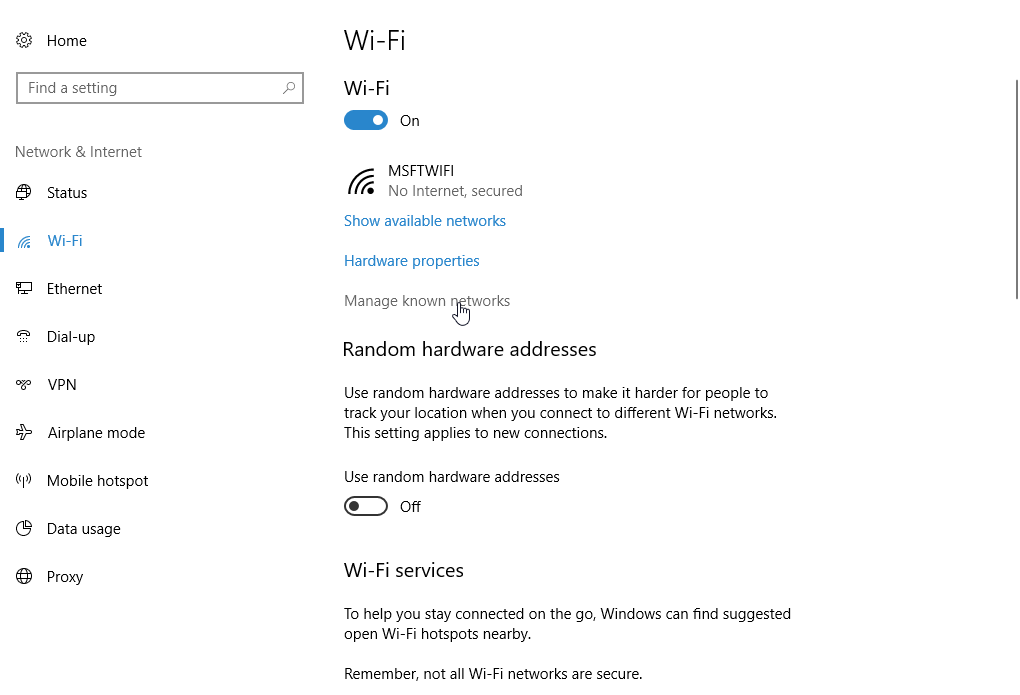
    2.) Choose the WiFi tab & then “Managed known networks”

    image

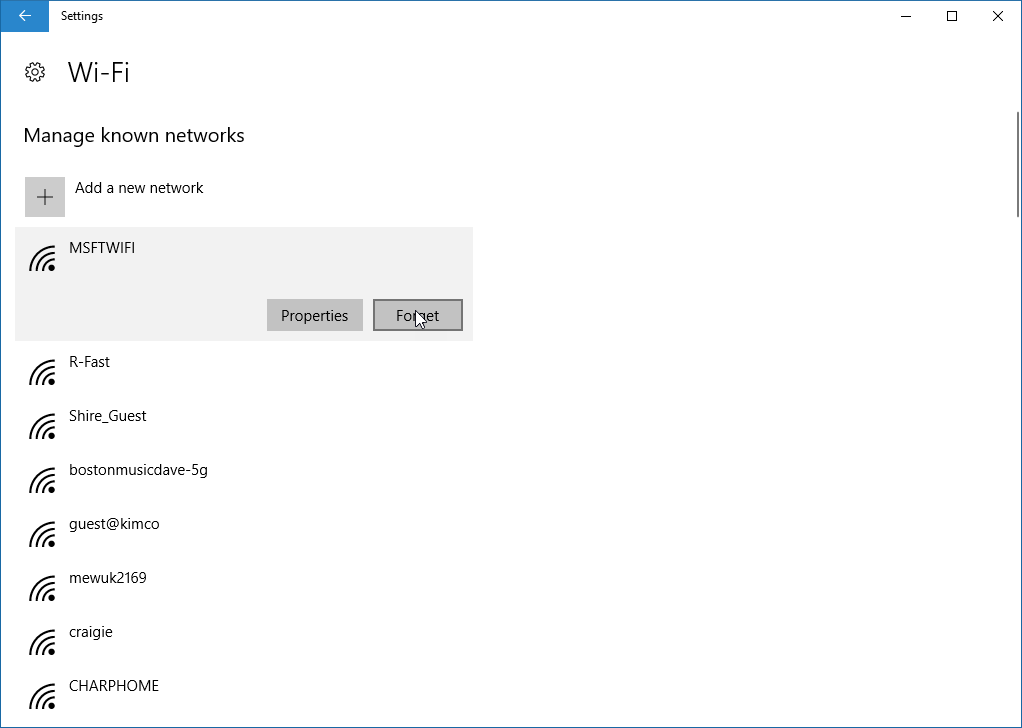
    3.) Find the MSFTWIFI network & Forget it

    image

    Now reconnect to the MSFTWIFI and it will prompt you for this year’s password.

    My initial speed test this morning is showing AWESOME speeds!

    image

    Enjoy the conference Smile

  • Rackspace and the Microsoft ProServe Partner Network

    I have been a Racker for more than 2 years now and during this time I have found that Rackspace has always strived to maintain an amazing group of Microsoft Partners that do Professional Services (ProServe) work. We have phenomenal partners that we send work to today, however we want to broaden our knowledge base of who is out there doing great things in the Microsoft ProServe space. We no longer have teams that do ProServe work, save some migration efforts, but as their trusted advisors our customers ask us for recommendations of who they turn to in order to get their ProServe work done. This is where my ask of you comes in.

    Are you interested in Rackers mentioning your company as a potential ProServe provider to our customers? If the answer is yes, then we need to know about you. My ask is that you fill out our 2 minute survey to let us know who you are and what is in your sweet spot.

    A couple of caveats:
    1.) This is the first of 2 surveys that we will ask you to fill out. The second will come after you have self identified and we have a reasonable number of responses. Additionally, we will reach out at least annually to validate that you are still pursing the same work as that which you have identified in the survey(s).
    2.) Filling out the survey(s) does not guarantee that you will be referred business. It simply gives us an opportunity to do so and possibly reach out for additional partner conversations.
    3.) We are not selling this list or doing anything nefarious with it. We just want to know who we can send our customers to when they ask for referrals and this is the best way I can think of doing that.
    4.) PLEASE do not reach out to me asking (yelling at me about) why we haven’t done anything with your company yet. I will have no control over who our customers choose to reach out to. Think of this as a Rackspace ProServe Yellow Pages effort.
    5.) Rackspace has a very well defined Partner Network Program which can be found at https://partners.rackspace.com/.  We will be providing some inputs from this effort to the team that runs that program, but this effort is independent of that. We are looking to identify (and keep fresh) a list of referral partners that we can tell our customers about when they ask. Plus the Partner Network is more focused on you help to sell our stuff than us sending you business, so feel free to go do that too! We would love for you to make money for referring us to your customers…

    Closing thoughts, Rackspace loves Community. We went into hibernation for a while but are stirring back it life. Keep an eye out for us… in the meantime, please fill out this form: http://bit.ly/rackspace-msftpartners

  • May 16th is the new May 4th in SharePoint land

    May 16th is the new May 4th in SharePoint land

    Seth Patton started the event today by saying that today we are here to celebrate customers who are using using Office 365 to accelerate their digital transformations. He highlighted the Microsoft mission of empowering every person and every organization on the planet to achieve more. I was lucky enough to be invited, along with my fellow Racker & Microsoft MVP Randy Drisgill and several other community friends, to take part in the filming of this event. In addition to the excitement around all of the announcements I was especially thrilled that Microsoft had chosen to highlight Rackspace as a customer taking part in the aforementioned digital transformation.

    As a part of the big announcement blog post that Jeff Teper put out today Rackspace was listed as one of the 9 customer success stories. This has been a labor of love here at Rackspace for me and I see our transformation daily in the way that we work together. From the migration to OneDrive, to our limited use of Microsoft Teams, and including our latest efforts to migrate to Exchange Online there is so much benefit to the people using the new functionality being brought to them via Office 365. You can read our Customer Story here: https://customers.microsoft.com/en-us/story/rackspace-professional-services-office-365

    As for all of the amazing new things that Seth, Jeff and the Microsoft team share with us today, here is my recap:

    OneDrive for Business

    There were 3 big areas of highlight today:

    1. OneDrive Admin Center
    2. New Sharing Experience
    3. OneDrive Files OnDemand

    OneDrive Admin Center

    admin center

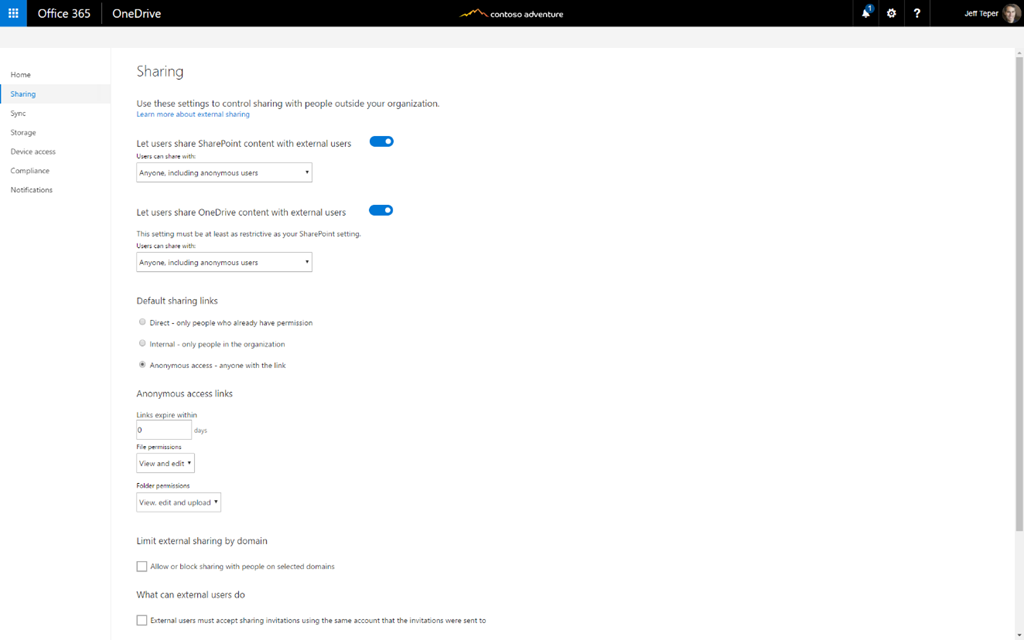
    There are several really cool things that they showed today about the new OneDrive Admin Center, specifically the ability to set the default sharing policy for links. This will make it so that users do not have the ability to share a link that has no governance around it. The Admin Center controls override for all users and allow Admins to better control what is happening with their data.

    The other great new feature that was demoed was the ability to limit sharing by domain. You now have the ability to either whitelist or blacklist domains. This will allow Admins to ensure that sharing can be done, however it gives them the ability to keep their users from accidentally opening access to the wrong element.

    New Sharing Experience

    sharing

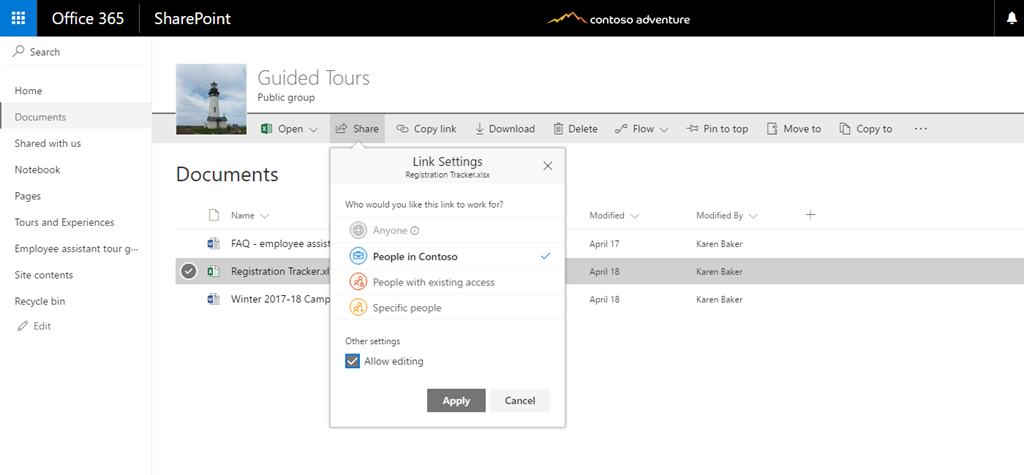
    I have written quite a bit on this for Microsoft, so I am going to limit my prose here and simply say that the new sharing experience is elegant, clean, and easy to use. I am a big fan. Once my article gets published and is out of embargo from being posted to my blog I will be sure to update this section and link it.

    OneDrive Files OnDemand

    files ondemand

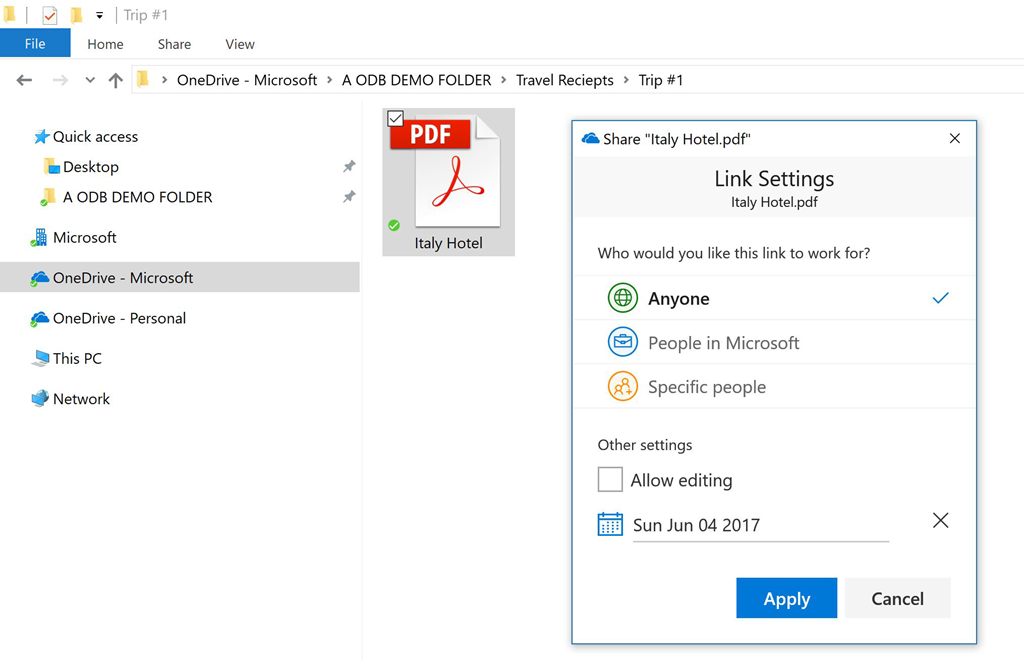
    My previous statement about embargoed content goes for this section too. My screenshot here shows a bit of the user experience we are expecting to see in the coming months once the Fall Creators Update for Windows 10 hits.

  • 7 things to think about when attending Microsoft Ignite 2016

    7 things to think about when attending Microsoft Ignite 2016

    Ignite top banner - 03-17-16

    Hard to believe that yesterday was the first day of Fall. It was 93degrees for the high here in San Antonio and there is no appearance of a season other than HOT anywhere.

    Tomorrow I fly out to Atlanta for the Microsoft Ignite 2016 Conference and I couldn’t be more stoked. We are all primed to hear TONS of awesome new announcements from Microsoft this week and learn all about them from the folks responsible for bringing them to market. From Windows Server to Office 365, this week promises to be chock full of excellent stuff.

    In addition all of the live breaking news, there are more than official 1400 sessions taking place throughout the week, including the 6 sessions that I am presenting,  PLUS hundreds of in booth sessions that companies like Rackspace are doing on their own.

    For those of you who are lucky enough to have gotten a ticket before it sold out here are a few pointers that hopefully will help you make the most of your experience at this year’s event. Since my co-workers in Corporate Marketing tell me that its best to have a click-baity title with an odd numbered list, here are my “7 things to think about for Microsoft Ignite 2016”:

    1.) Keep an eye on the weather before you go

    Atlanta is not nicknamed HOTlanta for nothin’. While much of the US is starting to see cooler temperatures, the South is still pretty toasty. That said, at this time of year evenings can get cooler PLUS conference rooms are either boiling hot or iceberg cold, so bringing a light jacket is not a terrible idea.

    2.) Hydrate, hydrate, hydrate!

    Whether you are a wild child going out to every party that the week offers you or you are a hard studying, attend every session event goer this truth is universal. We never drink enough water. There is a reason that Microsoft is going to give you a water bottle. Yes, there are sodas EVERYWHERE but H20 is still critical to you surviving the week. This is a normal thing that we all think about at home, but when we get to big conferences our brains sometimes get left in our checked luggage.

    3.) Have session backups

    Pick multiple sessions for each time slot. Find that you are not enjoying a session that you have stumbled into? Make your exit and find your way into another session that might suit you better. As a presenter the last thing I want is for you to sit through an entire session of mine FUMING because I am not covering something the way you need to hear it. We all learn different ways and my if my style of teaching is like nails on a chalk board to you, PLEASE find a session that is going to be a better fit. Neither of us benefit from you being overly polite to a complete stranger. Our ego will recover from losing you in the room. Ok, maybe Todd Klindt’s, won’t but most presenters will survive. He is kinda needy, which is why he needs so many hugs.

    …and oh by the way, if you end up not going to those other sessions in your list, they are a perfect play list for you to start with when the videos come online for watching after the event, thus making this a good practice no matter what.

    4.) Get out there and meet people

    The Microsoft Technology community is a fun one. We have some unique characters, especially in the SharePoint & SQL Communities. Don’t be shy, get out there and make some connections. For the most part people are open and looking to share & learn from each other. There are lots of opportunities, you just have to step up and take advantage of them.

    5.) Visit the vendors

    This is not just for the SWAG that you will inevitably fill your suitcase with, but more importantly to learn about what is going on in the ecosystem that you might not be aware of. Down every aisle there are gems of information, not just sales pitches (although there are plenty of those too), just waiting for you to discover. Worried that you are going to get Spammed? Stop worrying… it is GOING TO HAPPEN. That’s why there is Clutter & Junk mail filtering. There is also the “unsubscribe button”.

    6.) PAR-TAY

    There are events, cocktail hours, shindigs, parties, and merriment happening every night during Microsoft Ignite. See #5 to find out how to get on the invite list to most of them. If you aren’t being invited to things, you aren’t talking to enough vendors!

    7.) Hassle the Microsofties!

    Spend time in the Microsoft area of the Expo Hall. Microsoft spends a TON of money on this event with the intention of simply breaking even financially (which they don’t always do). They fly in experts from around the world to staff their dozens of booths with experience in everything that they sell. Bring your questions and find your expert. There will be an “Ask the Experts” session where all of the speakers are required to be on the floor and we are always happy to answer your questions, especially when there is free booze Smile

    …a bonus #8:

    There are going to be TONS of Microsoft MVPs of all backgrounds in attendance. In general we MVPs are a friendly bunch… its kinda required with the whole community award thing. As a breed we are about engaging with & helping people. When you see us stop & say hi. From Hillbillies to CatPainters, BinaryBrewers to DiveDowners, Wonder Women to podcasting *ick* Florida Gators*ick* there will be plenty of us kicking around this week.

    Hopefully while you are there you can stop by the Rackspace booth (#521) and say hi. If you don’t find me there you can always come to one of my sessions during the week. Find all of those details here on the Microsoft Ignite site.

    Last thing to remember, when you fly home at the end of the week with your brain all filled with awesome new knowledge and you don’t think you can take any more, the sessions (and decks) are all being recorded and posted to Channel 9 for consumption later.

    Enjoy!