I did a thing tonight that I swore I would never do. I used the “Publish to web” feature in Power BI. I had a good reason and I followed the guidelines I always tell people to follow, but I still feel a bit icky about it.
I was writing a document for a customer this afternoon and once again I ran into a situation where I wished that I could have the old Service Description Excel workbook that Microsoft used to put out. It was a really cool pivot table that allowed you to quickly see what features aligned to which Office 365 & Server based licenses. Unfortunately they stopped publishing it a few years ago. It is a giant pain in the ass to drill through all of the features across all of the SKUs to make sure that you are giving customers the best recommendations when it comes to licensing.
To be honest what I really missed was the ability to use conditional formatting on the thing and create a REALLY easy to consume version of the document for “at a glance” use. The goal is to be able to look at the features list and see which Microsoft SKUs they are available in.
This afternoon I ran across a nice table that does just that in the Office 365 Service Description part of Docs.microsoft.com for SharePoint, but the layout makes it relatively unusable. I got excited thinking that this was the answer to my old Excel workbook and immediately attempted to copy & paste into Excel, which failed miserably because of formatting. Then I got mad. I swore a ton. I called and yelled at Mark Rackley because that is one of the things I do when I get mad at SharePoint stuff. I believe that my last words on that call were “going to have to go PBID on their shit to get what I want”. Sorry for the colorful language gentle reader, but I warned you I was mad and swearing…
I grabbed the Web connector and pulled in the data that I wanted, wrote a bunch of queries, unpivoted some columns, hacked away for about 2 hours and ended up with a passable version of my old favorite tool. Then I went a bit nuts and decided to do the same thing for the Office 365 Platform Service Description which is considerably more complex and lengthy.
Finally I created a new Power BI Workspace and published it to the web. I still feel icky, but hopefully people will find this useful and that will make up for it. I have embedded the report below or you can visit https://jasehimm.online/servicedescriptions to access it directly.
In the coming days I plan to add more to this. Let me know if you feel this is useful & what you would like to see added in the comments below or you can tweet at me @jasehimm.
I wrote an article back in 2016 about things to think about for Microsoft Ignite in Atlanta. I decided that it is time to refresh that with some things I have learned over the years and specifically some learnings from the past four Microsoft Ignites, many TechEds & SharePoint Conferences, etc.
Wear comfortable shoes
The Orange County Convention Center, affectionately known as
the OCCC, is HUGE. You are going walk a ton. In previous years I have averaged
around 18k steps per day. Wearing comfortable shoes is CRITICAL. Even though
the extended forecast puts the highs in the low 80s (upper 20s in Celsius) with
lows in the upper 60s (upper teens in Celsius) personally I will be avoiding
sandals and going with well supported tennis shoes all week.
Plan backup sessions
There are several reasons for doing this. Let’s get the ugly one out of the way first: you just want to get out of the session you are in. At some point it’s going to happen. You will be sitting there thinking to yourself “I want to get out of here”. Not every presenter is going to hit home for you. Maybe the topic is too deep, to narrow, not deep enough, or you just don’t like the presenter’s style.
On behalf of all Speaker’s at all conference
everywhere: PLEASE GET UP AND GO. If you do it politely & quietly most
presenters won’t even notice that you are going. Do not sit there miserable
wishing you could leave and wasting your time & money being in a session
you are not enjoying. Nobody wants that. You will be unhappy, give the speaker
bad session scores, and not get anything out of that time block.
Instead, make sure that you have backup
sessions ready to go so that you can jump out of session and go to another.
The session you wanted to get into is full. You
registered. You expected there would be a seat for you as a result, but fire
code says they cannot let you in or the theater is just overflowing. This is a
very real scenario at this event. One of my theater sessions has over 1500
people registered for it. The theaters are on the expo hall floor and do not
hold that many people. Last year they had seating for about 100. If you walk up
to one of these sessions late it may be time to jump to a backup session.
The session you wanted to go to is ¾ of a mile
from the last session you just went to. There is no easy way for you to get
there without sprinting across the OCCC and the seas of people don’t make that
easy.
Almost all the sessions are being live streamed
& recorded. Putting multiple sessions on your calendar can help you later when
you want to go find sessions that you want to watch. You are already reading
all the session abstracts; you may as well build your backlog to watch later.
Engage in the Hub & show floor
There are 25 rows of vendors. The place is massive. That is
before you come to the Community areas. You are going to get lost. Make the
most of it. Some of the most fun conversations at vendors booth’s I have had
over the years are the ones that I just stumbled on because I was lost or just
wandering.
Make sure that you spend plenty of time in the Microsoft
zones peppering the Product Teams with questions. That’s why they are there. You
aren’t bothering them (most of the time). Booth duty at these events I can tell
you that it is BORING when no one is there to talk to. You are on a shift with
folks that you may know and like, but after the first hour you know how their
kids, dog, wife, cat, bird, in-laws, tomato plant, and PTA President are and
you want attendees to talk to. They want
to talk to you. Bring your questions.
Be sure to find Community Central, the Global Diversity
& Inclusion zone, Experts Connect, the Microsoft Store, and the Hub
Hangout. This is where you will find people like you who are dying to talk
about that geeky thing you just learned about and need to discuss.
Hydrate
This seems intuitive, but every year I run into people who
are dehydrated because they are used to a different pace of life than the
conference world. They forget that they are in Florida where it is going to be
hot, even though it is supposedly almost winter in this hemisphere. Also, it is
going to rain every day around 5p. Bring a small umbrella or expect that you
are going to get wet. Don’t worry, it will be warm enough that you will dry out
relatively quickly.
Be out-of-office (OOO)
We all put up our “Automatic Reply” or OOO message, but how
often do we actually follow through on the “I won’t be looking at email during
this period of time” statement? Email is accessible everywhere nowadays, so it
is hard to ignore. There are some things that you can do to help yourself avoid
this black hole that will pull you away from being present at the event. Here is
what I am doing:
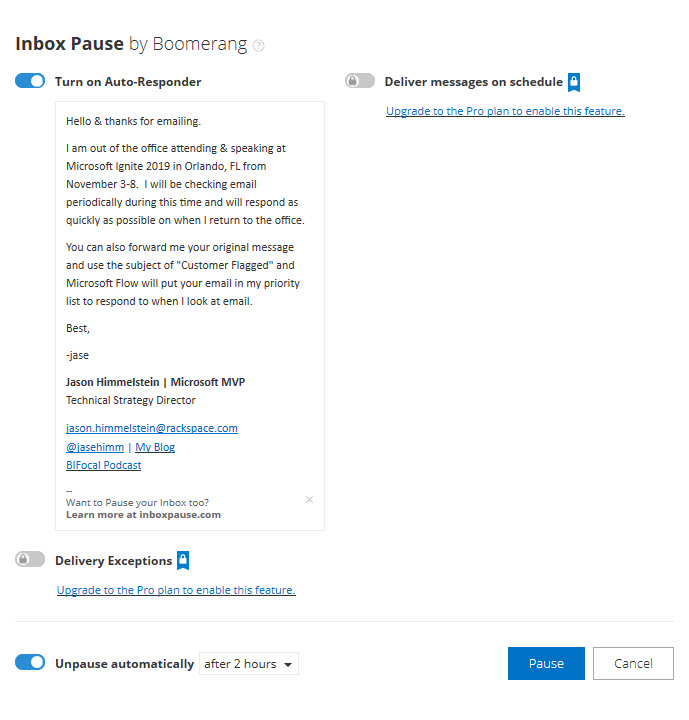
Boomerang
This is an awesome add-in for Outlook & Outlook on the Web
that allows you to pause email delivery into your inbox while turning on an
Auto-Responder so that people know that you aren’t seeing their email. This is
REALLY handy for when you want to be in the moment without the constant distractions.
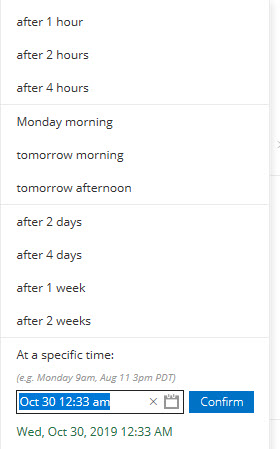
The Pro version, if you are lucky enough to be licensed for
it, has many other awesome features but sticking with the pause feature on
email delivery it allows you to get emails delivered on a schedule, meaning you
could get email at 6a, noon, and 6p so that you are able to disposition your
email when it is most convenient for you.
Microsoft Flow
I use this anytime I have Automatic Replies turned on. I
believe that the OOO message is a social contract that people should respect. If
what they are emailing about is truly important enough to get a response while
you are OOO or something that they want to make sure sits at the top of the
pile for when you return, they should be willing to take 1 extra step.
I put the following in my OOO messages: “You can also
forward me your original message and use the subject of “Customer Flagged”
and Microsoft Flow will put your email in my priority list to respond to when I
look at my email.”
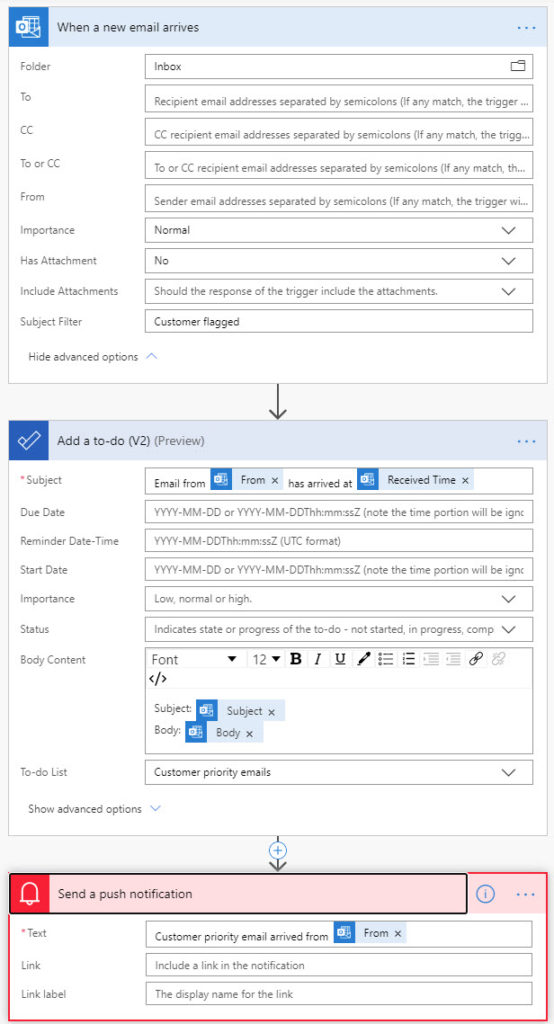
Here is what the Flow looks like:
I submitted this as a template to the Flow Gallery, but I don’t
know if or when they will publish it. Check for “Out-of-office message enhancement”.
USB battery pack
This is CRITICAL. Even if you are on the newest, brand new phone
that has amazing battery power the OCCC is going to suck the life right out of
it. The building is made of concrete and reception is generally mediocre,
however your phone is trying desperately to please you by delivering as many
bars as it can. This results in rapid battery drain. I have never made it a
full day at the OCCC, or most other conference centers like it, without needing
a charge up. Wall plugs are at a premium, mostly because people didn’t take the
last piece of advice and are sitting on their laptops trying to work instead of
engaging. Being portable is key. You still have time to pick up one of these wonderful
devices. Here is a link to some options: https://smile.amazon.com/s?k=usb+battery+pack.
I am personally partial to the Anker & RAVPower brands as they have served
me well in the past.
FYI, I don’t profit from the things I have recommended
above. Even the Amazon link is just to the generic AmazonSmile search page. If
you don’t know about AmazonSmile please go check it out. It is a way that you
can help a charity just by doing the shopping you normally do. There is no
impact to you.
Conclusion
This was way more longwinded than I was planning, but
hopefully it helps you. There are many posts out there like this that will tell
you about parties galore and how to have fun at the event. Go read all of them
and drain every ounce of good from the event that you can. It is a crazy, fun,
exhausting, massive event.
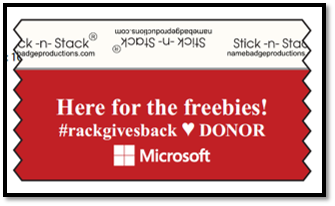
Feel free to stop by the Rackspace booth #1631 where the “Rack Gives Back” committee is contributing $1 to the American Heart Association, up to $3000 for the week, for everyone scanned at the Rackspace booth. When you get scanned you will get a badge ribbon like this:
I will be hanging around the booth some, but if you don’t
see me there just the Rackers at the booth as they will know how to track me
down.
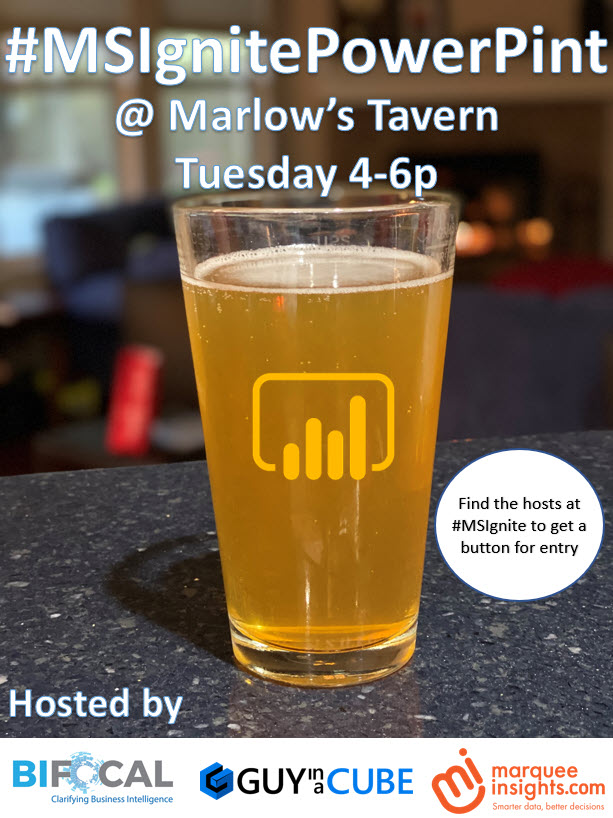
One last thing that we just announced tonight: John White & I are hosting a #MSIgnitePowerPint along with Treb Gatte from Marquee Insights & Adam Saxton from Guy in a Cube at Marlow’s Tavern on Tuesday from 4-6p. In order to attend you need to grab a pin from one of us, so find me at the event!
This past week Microsoft announced that SharePoint pages & news articles will be able to be added to Microsoft Teams channels via their own tab using the new SharePoint button in the “Add a Tab” functionality. While it is great to see more ways to integrate the user experiences of SharePoint & Teams because users are really starting to like Teams and having a single place to go is making life easier. Here is my problem: It doesn’t work for SharePoint Lists. I know that this is something that people want because I have had numerous customers asking for it myself, plus Sherman Woo posted in Tech Community about it that has over 3.3k views, AND there is an User Voice that is Under Review on this with 28 comments & 222 votes as of this writing.
So why can I still not visualize a SharePoint List in Teams? The answer is very simple: You can, you just don’t know it. The functionality rolled out VERY quietly recently and Microsoft is waiting to do a major post about it until the official button shows up in Teams, but I got permission to share this information now because I keep getting asked for it.
A key point before I continue: This is not a hack. This is supported by Microsoft. If you have issues and call them, they will support you. It is simply functionality that they have released that they haven’t claimed victory for because they want the best user experience available for the announcement so that people are delighted rather than disappointed.
With all of that said, here is the simple process for adding a SharePoint List as a Tab in Microsoft Team.
How to:
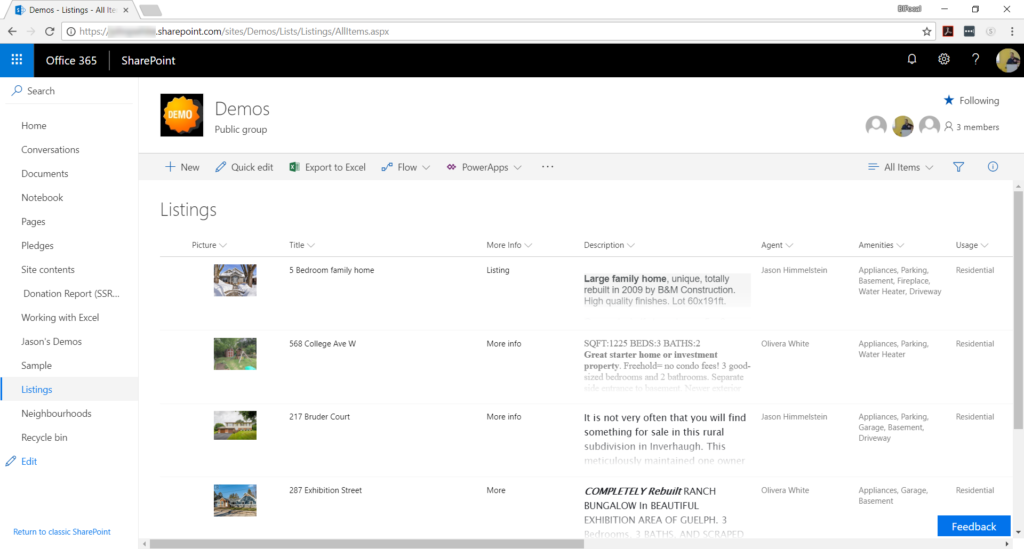
Step 1: Visit your SharePoint List page & select the view you want displayed
SharePoint list on the Demos site
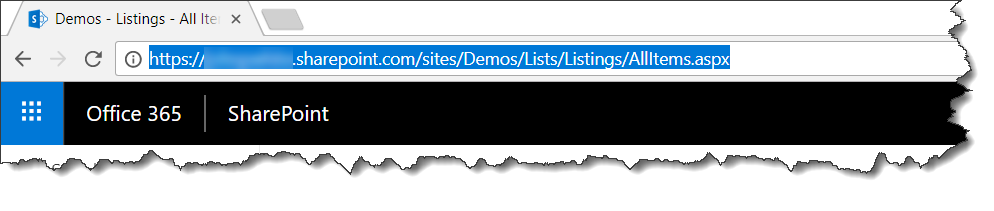
Step 2: Copy your list URL
The Demos site’s SharePoint list URL
Step 3: Open Microsoft Teams to the Channel you want to have the list show in
Microsoft Teams team for the Demos site
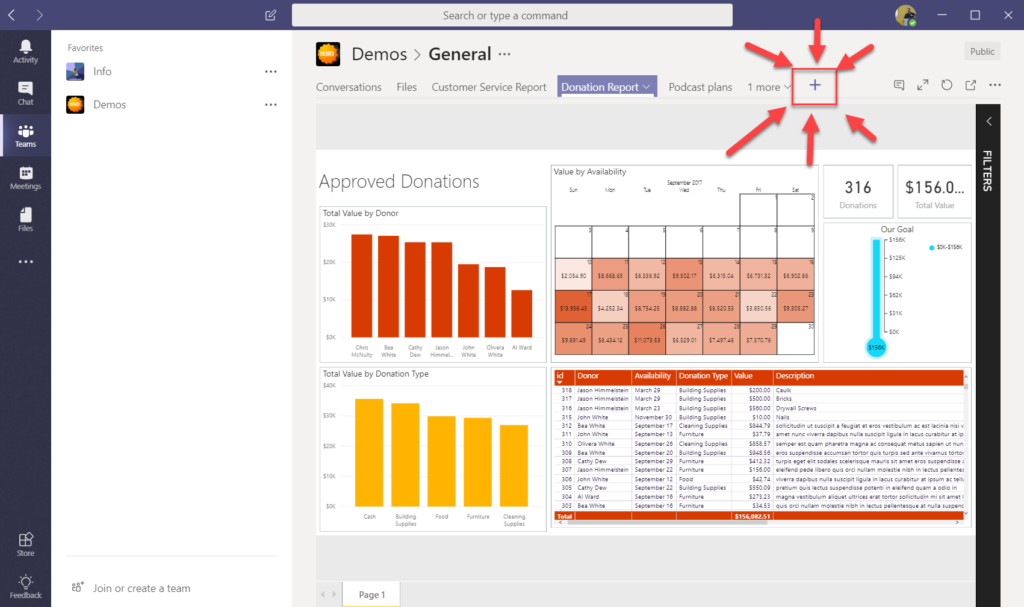
Step 4: Click the “Add a Tab” button
Add a Tab button in Microsoft Teams
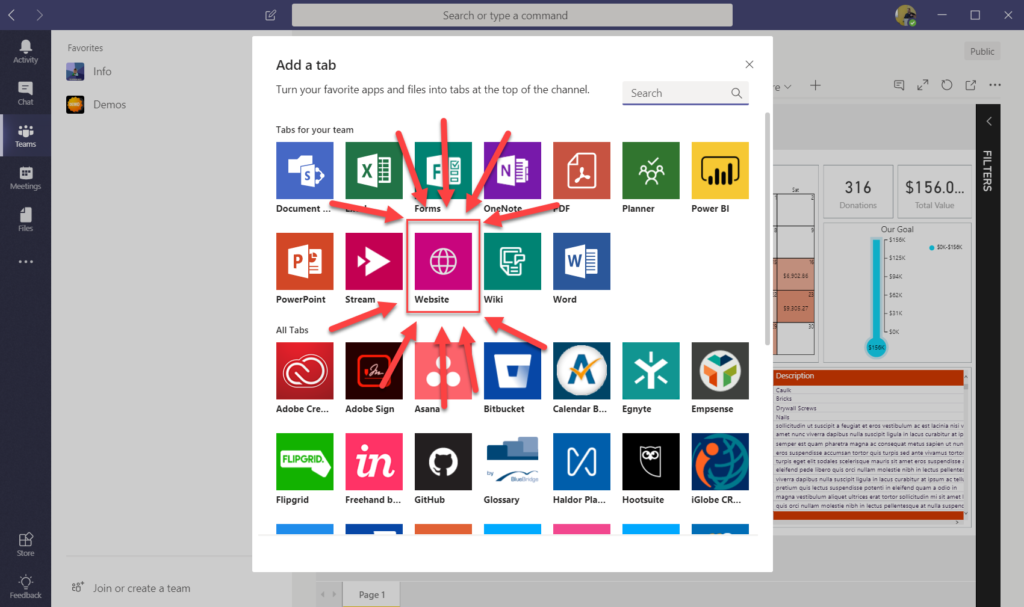
Step 5: Select “Website” as the Tab
Website button in Add a tab
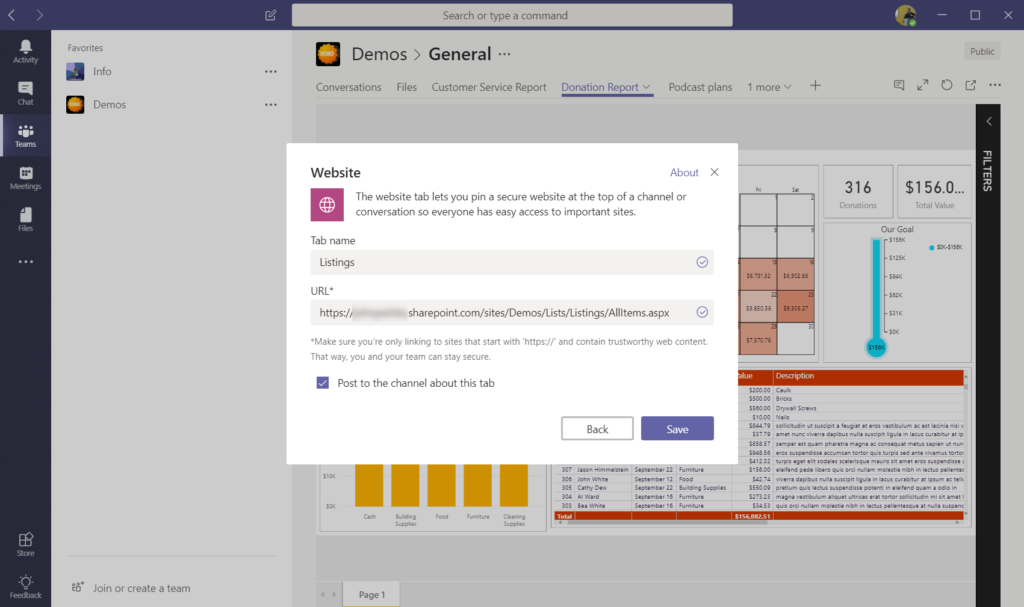
Step 6: Name your tab and paste the URL from your buffer
Adding a Website to Microsoft Teams
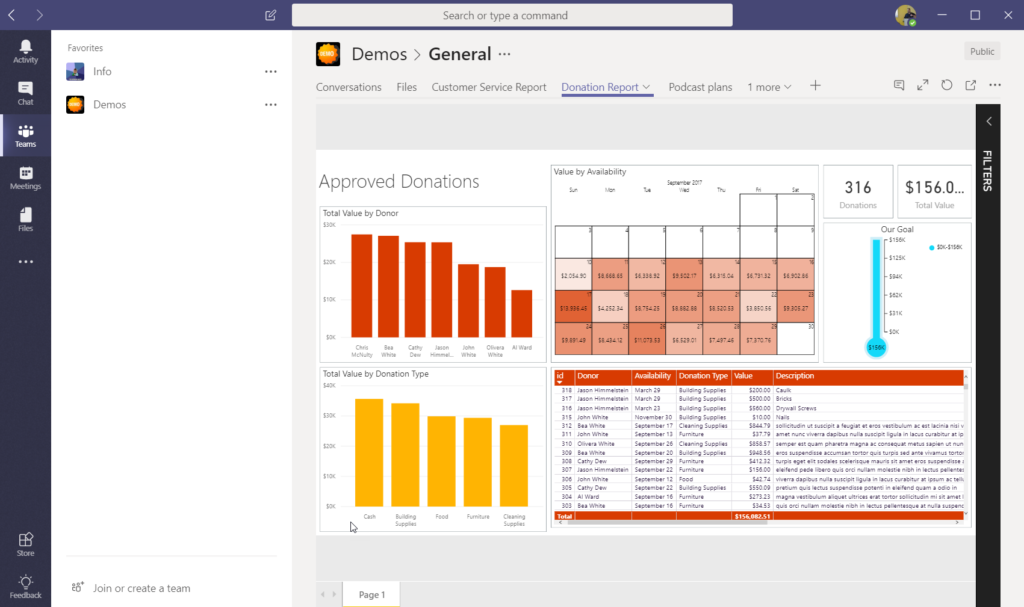
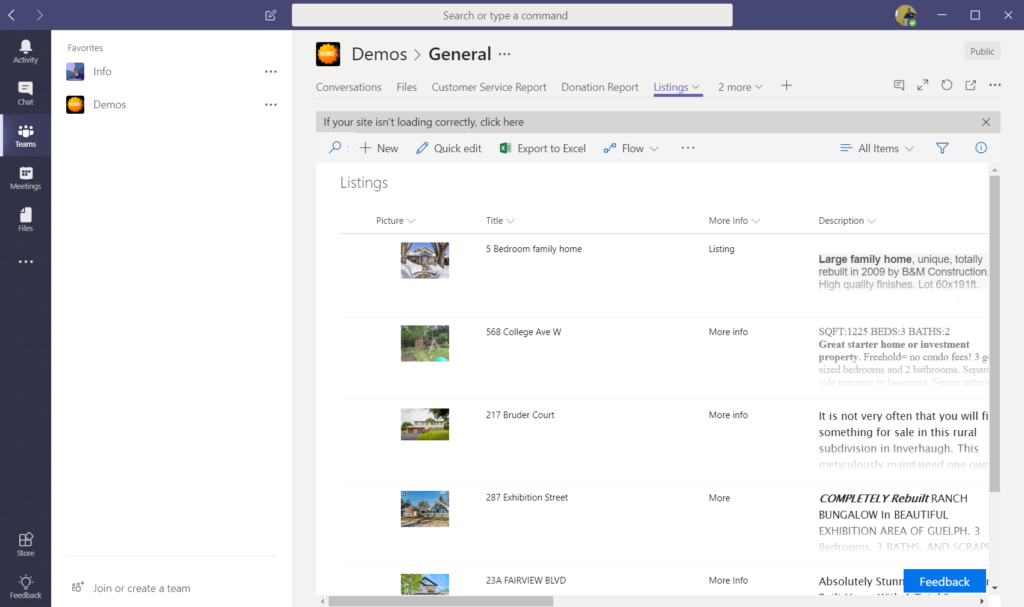
Step 7: Click on the Tab… and log in (if you are in the app). You are going to have to authenticate if you are in the Teams app because you are leaving the Teams framework and going to the website, which is a different authentication mechanism from the Teams app. If you are using the web experience for Teams you should not have to re-authenticate. When you have authenticated you will see the list visualized in Teams.
SharePoint list viewed in Microsoft Teams
It is worthy of note that the only thing that you see in the Tab you have just created is the List View from the page. You don’t get any of the Chrome or other nonsense. They did a great job on the implementation of this feature and I cannot wait to see it widely used. Everyone that I have shared this with thus far has had nothing but positive reactions and interactions with it.