Category: Office 365

  • Ignite is sold out?!? Now what?

    For the past 2 years I have been honored to be the Speaker co-chair for the SharePoint Intersections Conference with Dan Holme. This year SharePoint Intersections is in Scottsdale, Arizona, May 18-21and the line up is epic. We have Ruven Gotz, Asif Rehmani, Scott Hillier, Mike Fitzmaurice, Brian Alderman, Mark Rackley, Michelle Caldwell, and Andrew Connell to name a few.

    DevIntersection is co-located with SharePoint Intersection. This means that developers can take advantage of sessions not only about SharePoint, but also about Visual Studio, ASP.NET, HTML, SQL and open web standards like angular, from the absolute best speakers on those topics.

    SharePoint Intersection features great content for Developers, IT Pros, and business owners of SharePoint and Office 365. We’ll be covering hybrid, security, governance, workflow and business process automation, and much, much more.

    There will be dozens of awesome presenters including Microsoft’s own Jeremy Thake, Scott Hanselman, Scott Guthrie and Steve Guggenheimer so you’ll get to hear both the “Microsoft” and the “independent” perspective on todays’ and tomorrow’s technologies, including all of the big news from Ignite.

    And a Surface for Free…

    SharePoint Intersection just announced a ridiculously cool package. If you register for the Complete Package, which includes the event and 2 workshops, you will get the recently-announced Surface 3, for free!

    Shirley Brothers and her team work tirelessly to ensure a great event experience, with delicious food and a gorgeous venue–the five-star Fairmont Scottsdale Princess resort. All that, with a price tag lower than Ignite and a Surface on your desk to build your next SharePoint or Office 365 project!

    Register today at http://www.spintersection.com/Sharepoint-Office365-Conference/!
  • Announcing the new PowerBI

    Over the course the past few years, Microsoft has slowly been upping its game with regard to business intelligence. In February 2014 Microsoft announced PowerBI for Office 365 and has slowly but surely been improving the offering over the course the passing year. With yesterday’s announcements Microsoft firmly planted its flag in the business intelligence space.

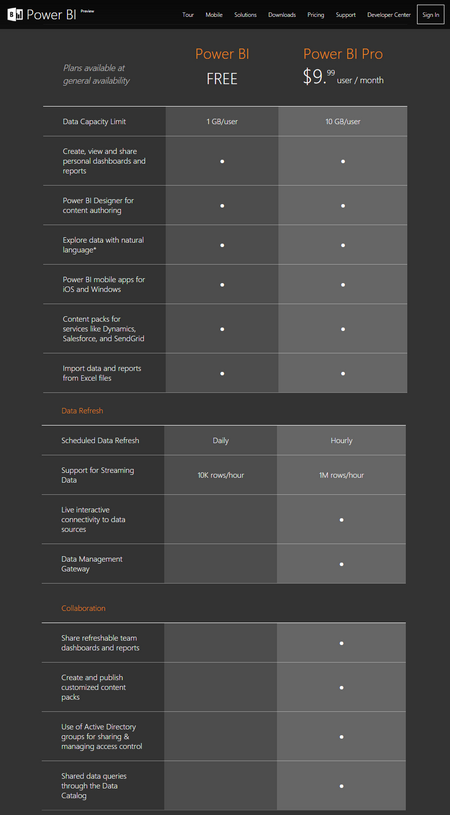
    Previously the offering was an add-on to Office 365 E3 License ($20 per user per month) that cost an additional $20 per user per license. The new PowerBI has been stated to be a 75% percent reduction in price which suggests that PowerBI licensing will be stand-alone from Office 365.

    In addition to the dramatic change of decoupling PowerBI from Office 365, Microsoft has also rolled out to flow will also be rolling out two flavors of the service called PowerBI & PowerBI Pro. The base version will be free general availability while the Pro version will cost $10 per month.

    1

    The major differences between the two offerings is in exist in the premium features such as live interactive connectivity to data sources, ability to leverage the data management gateway, and the collaboration features. Both plans have data capacity limits, quantity of streaming data, and frequency of scheduled data refresh however there different tiers of access to those features.

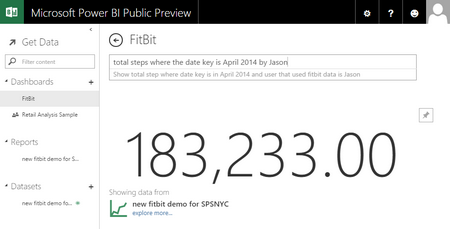
    There are lots of exciting new features that come to the new PowerBI is a part of this new release such as mobile apps for both iOS and Windows content pack services for dynamic, sales force, and send grid as well as the ability to explore data with natural language queries.

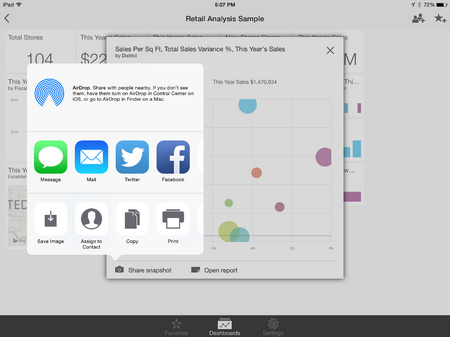
    Having played with the iOS app for iPad over the past several months I can say that the improvements to the mobile experience is dramatic. The new graphs and charts the Microsoft has been working on bring the data to life and give you a true dashboard like experience. One of the awesome features of the mobile app is the ability to share snapshot right from the app.

    2

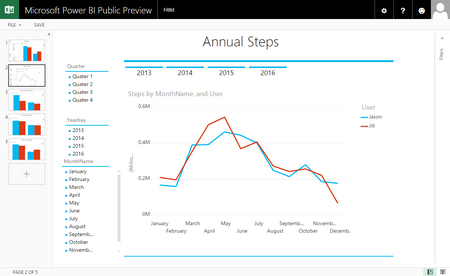
    Uploading an existing workbook with Power Views makes them rapidly available and even indexes them to be available in Power Q&A, referred to as Dashboards, in a matter of minutes. Prebuilt Power Views pop in under Reports and are easily viewed right on the web and in the mobile app.

    3

    4

    More to come on the creating PowerBI models using the new PowerBI Designer, which as of this post is currently working however the upload function is disabled, and connecting to data sources Analysis Services using the new PowerBI Analysis Services Connector.

  • SharePoint Intersections wrap up

    We just closed out the first SharePoint Intersections show in Las Vegas and I am enroute to SPSDFW but wanted to share my decks from the show:

    Business Intelligence in SharePoint 2013

    SharePoint 2013 Admin in the Hybrid World

    This was a very enjoyable show during which I got to sit in on a recording of Andrew Connell (@andrewconnell) & Chris Johnson’s (@LoungeFlyZ) new podcast “MICROSOFT CLOUD SHOW“. I’m not sure when our episode will drop, but it will be worth a listen. Most of the speakers from the show stopped by and we had a bit of fun with the AC & CJ during the show.

  • New in Office 365: Power View in HTML5 Preview

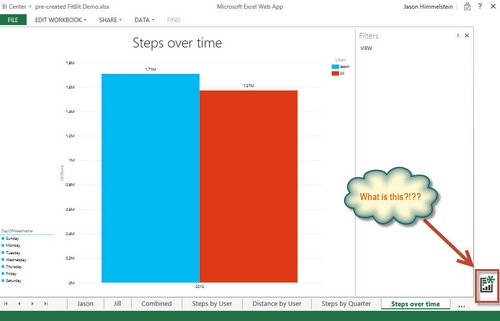
    During my final session of SharePoint Fest Chicago on Wednesday I was doing a demo of Power View using my Office 365 E3 tenant & came across something new, that I had only previously seen in Power BI. The new feature in question is the Power View using HTML5.

    Here is what we saw:

    2

    Naturally this caused some immediate excitement, referred to by one in attendance as a nerdgasm, as this feature had been promised to us since PASS last year. Here is what we found as we walked through the preview…

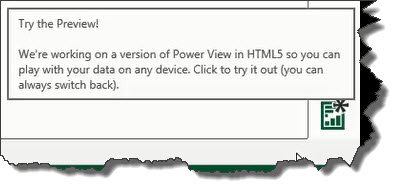
    First, I hovered over the icon the following tool tip showed up:

    a

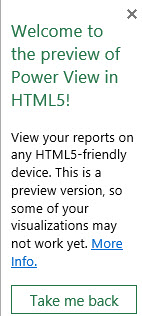
    Once clicked, we flipped over to the new HTML5 preview and the following announcement showed up in the lower left hand corner of the screen:

    3

    The “More Info” link here takes you over to a support article on the Microsoft site that contains a list of what is and is not supported under the preview as well as some great FAQs, the highlights I will list at the close of this article.

    The first thing that happened when I clicked into the new HTML5 preview was that I got a failure message. Currently the preview does not support hierarchies or drilldown, both of which were present in the Power View that I was attempting to demo.

    4

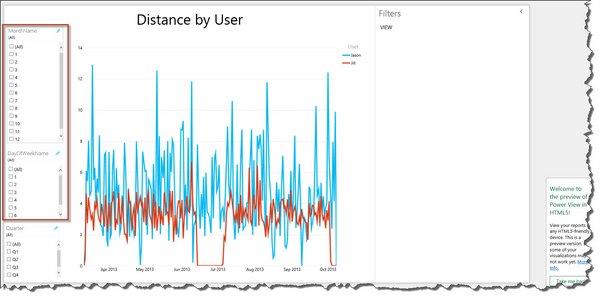
    I switched to a different Power View to demo that was simply a line graph with some slicers and this is what I got:

    5

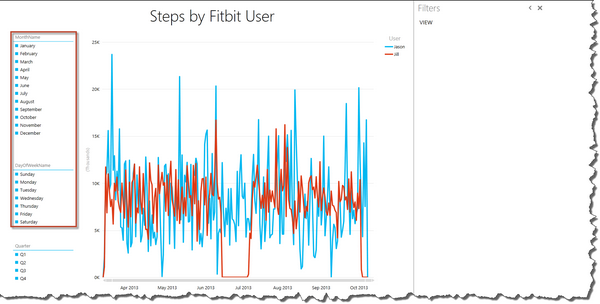
    It looked pretty great to me at first, until I stopped and looked at the slicers. I flipped out of the HTML5 preview to validate that my Power View was built correctly and it was.

    6

    The fields that were represented incorrectly in the slicers were text fields, not numeric fields. Specifically what is supposed to show here is the text of month & day of the week names. Intestingly, the “Quarter” field is a concatenated field using the DAX equation of =Concatenate(“Q”,[QuarterofYear]). Not yet sure why this is happening, but as we are dealing with a preview here there is an expectation of bugs.

    Here are a couple of important things from the Microsoft Support FAQ regarding the Power View for HTML5 Preview:

    1.) Currently only IE 10 & higher are supported. Other browsers may work, but are not supported at this time.
    2.) The preview is only available in English today.
    3.) The only way to make the HTML5 Preview the default view for Power View is to uninstall Silverlight
    4.) There is still not support for embedding a Power View into an app or page, though they state they know this is a big one and are considering it for a future release.

    The bottom line here is that this is a preview, not the final product. Regardless, I am über excited that it is finally here.

  • Setting up SharePoint Online collaboration with external users

    One of the key enhancement in SharePoint 2013 is the ease of sharing. Being able to share a site, library, or piece of content is as easy as clicking on the Share button and specifying a user and assigning the rights you want them to have. This, along with the new licensing model that allows non-organizational users to use your SharePoint environment without requiring a CAL or FIS licensing for the farm, have made SharePoint 2013 target for extranets.

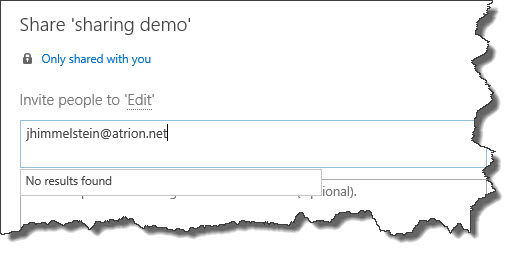
    Once a site collection is established sharing with external users is quick and easy. The one thing that is that upon intial setup of a private site collection in SharePoint Online is to setup sharing with external parties. By default sharing is set to “Don’t allow sharing outside your organization”. When you attempt to share with outside people from a site collection that still has this set you get a message that no results are found when typing in an email address.

    no sharing

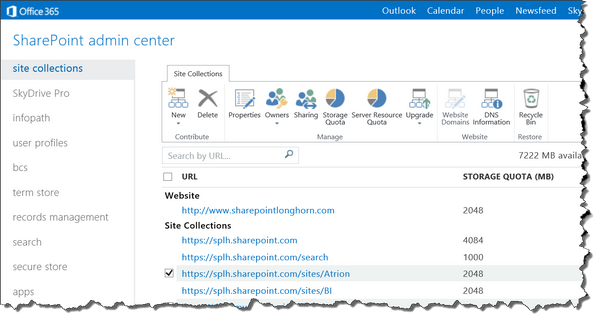
    To change this you need to log into the SharePoint admin center select the site collections tab on the left nav and then select the site collection you wish to enable external sharing for.

    O365 Site Collections

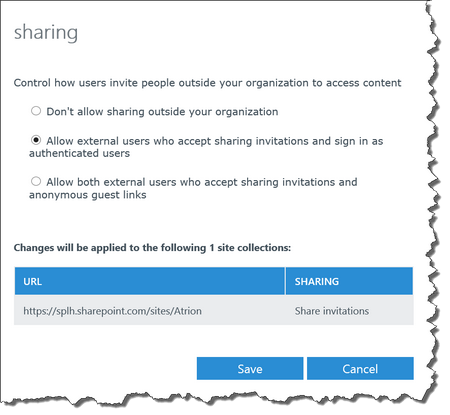
    Once selected click on the Sharing option in the ribbon and set the option to “Allow external users who accept sharing invitations and sign in as authenticated users”. This will allow you to share securely with specified users.

    SPO External sharing

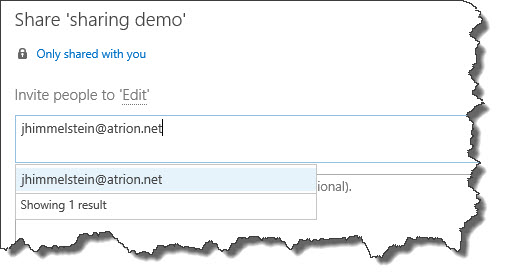
    Once this is set return to your site collection and attempt to share again. You should find a result based upon the email address that you entered now.

    yes sharing

    If you prefer to allow users to share links and allow external parties to access the site collection without having to authenticate you can chose the “Allow both external users who accept sharing invitations and anonymous guest links”.

  • Setting up open Lync Federation in Office 365

    When I made the decision to use Office 365 one of the drivers for this decision was getting to use Lync under my own domain. The benefit of being able to use a single account for ease of reach now that Lync and Skype are federated along with the ability to archive conversations in my Exchange account were just too good to pass up.

    Setting up Lync was a seemless process, but I was not able to communicate with anyone outside of my own domain, and talking to myself tends to get boring after a while. Not being a Lync guy I had to do so

    me digging to figure out what the right settings were to enable the federation with external domain.

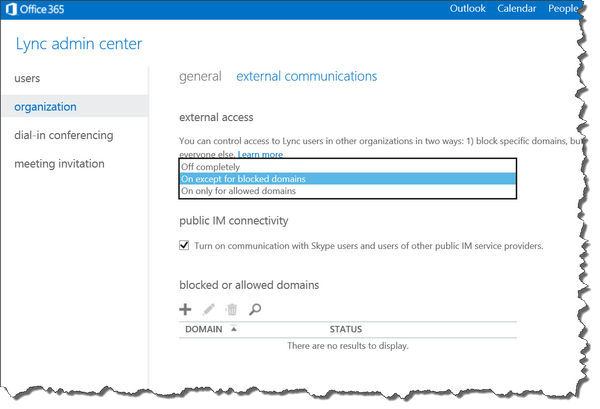
    From the Admin drop down select the Lync menu. Once in the Lync admin center select the organization menu on the left nav. Once in the organization menu you will select the external communication tab. Here you will be able to set external access. For my purposes I have opted to enable “On except for blocked domains” as I want to be able to communicat with anyone. If I were in an organization that I wanted to limit communications between specific domains I would select the “On only for selected domains”.

    The other option that can be set here is the public IM connectivity setting that will allow Lync users to communicate with Skype users and other public Instant Message providers supported by Office 365.

    The set of options here is what domains you want to block if following the open model, or what domains to allow communications with if you are using the restrictive model.

    nc federation

    Once these options are set active users should log out and log back to take advantage of the new permissions.

    Happy Lync’ing!