Author: jhimmel

  • 6 more tips & tricks for Microsoft Ignite 2019

    6 more tips & tricks for Microsoft Ignite 2019

    I wrote an article back in 2016 about things to think about for Microsoft Ignite in Atlanta. I decided that it is time to refresh that with some things I have learned over the years and specifically some learnings from the past four Microsoft Ignites, many TechEds & SharePoint Conferences, etc.

    Wear comfortable shoes

    The Orange County Convention Center, affectionately known as the OCCC, is HUGE. You are going walk a ton. In previous years I have averaged around 18k steps per day. Wearing comfortable shoes is CRITICAL. Even though the extended forecast puts the highs in the low 80s (upper 20s in Celsius) with lows in the upper 60s (upper teens in Celsius) personally I will be avoiding sandals and going with well supported tennis shoes all week.

    Plan backup sessions

    There are several reasons for doing this. Let’s get the ugly one out of the way first: you just want to get out of the session you are in. At some point it’s going to happen. You will be sitting there thinking to yourself “I want to get out of here”. Not every presenter is going to hit home for you. Maybe the topic is too deep, to narrow, not deep enough, or you just don’t like the presenter’s style.

    On behalf of all Speaker’s at all conference everywhere: PLEASE GET UP AND GO. If you do it politely & quietly most presenters won’t even notice that you are going. Do not sit there miserable wishing you could leave and wasting your time & money being in a session you are not enjoying. Nobody wants that. You will be unhappy, give the speaker bad session scores, and not get anything out of that time block.

    Instead, make sure that you have backup sessions ready to go so that you can jump out of session and go to another.

    • The session you wanted to get into is full. You registered. You expected there would be a seat for you as a result, but fire code says they cannot let you in or the theater is just overflowing. This is a very real scenario at this event. One of my theater sessions has over 1500 people registered for it. The theaters are on the expo hall floor and do not hold that many people. Last year they had seating for about 100. If you walk up to one of these sessions late it may be time to jump to a backup session.
    • The session you wanted to go to is ¾ of a mile from the last session you just went to. There is no easy way for you to get there without sprinting across the OCCC and the seas of people don’t make that easy.
    • Almost all the sessions are being live streamed & recorded. Putting multiple sessions on your calendar can help you later when you want to go find sessions that you want to watch. You are already reading all the session abstracts; you may as well build your backlog to watch later.

    Engage in the Hub & show floor

    There are 25 rows of vendors. The place is massive. That is before you come to the Community areas. You are going to get lost. Make the most of it. Some of the most fun conversations at vendors booth’s I have had over the years are the ones that I just stumbled on because I was lost or just wandering.

    Make sure that you spend plenty of time in the Microsoft zones peppering the Product Teams with questions. That’s why they are there. You aren’t bothering them (most of the time). Booth duty at these events I can tell you that it is BORING when no one is there to talk to. You are on a shift with folks that you may know and like, but after the first hour you know how their kids, dog, wife, cat, bird, in-laws, tomato plant, and PTA President are and you want attendees to talk to.  They want to talk to you. Bring your questions.

    Be sure to find Community Central, the Global Diversity & Inclusion zone, Experts Connect, the Microsoft Store, and the Hub Hangout. This is where you will find people like you who are dying to talk about that geeky thing you just learned about and need to discuss.

    Hydrate

    This seems intuitive, but every year I run into people who are dehydrated because they are used to a different pace of life than the conference world. They forget that they are in Florida where it is going to be hot, even though it is supposedly almost winter in this hemisphere. Also, it is going to rain every day around 5p. Bring a small umbrella or expect that you are going to get wet. Don’t worry, it will be warm enough that you will dry out relatively quickly.

    Be out-of-office (OOO)

    We all put up our “Automatic Reply” or OOO message, but how often do we actually follow through on the “I won’t be looking at email during this period of time” statement? Email is accessible everywhere nowadays, so it is hard to ignore. There are some things that you can do to help yourself avoid this black hole that will pull you away from being present at the event. Here is what I am doing:

    Boomerang

    This is an awesome add-in for Outlook & Outlook on the Web that allows you to pause email delivery into your inbox while turning on an Auto-Responder so that people know that you aren’t seeing their email. This is REALLY handy for when you want to be in the moment without the constant distractions.
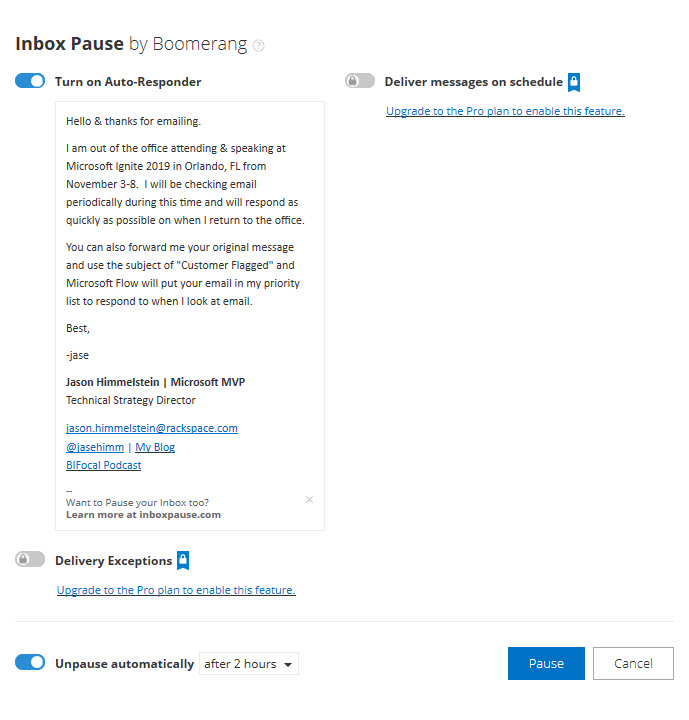
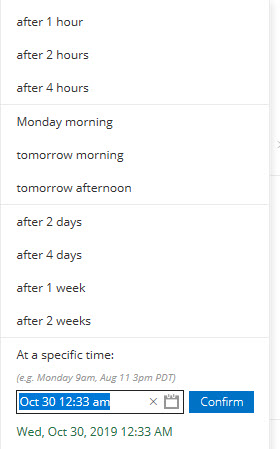
    The Pro version, if you are lucky enough to be licensed for it, has many other awesome features but sticking with the pause feature on email delivery it allows you to get emails delivered on a schedule, meaning you could get email at 6a, noon, and 6p so that you are able to disposition your email when it is most convenient for you.

    Microsoft Flow

    I use this anytime I have Automatic Replies turned on. I believe that the OOO message is a social contract that people should respect. If what they are emailing about is truly important enough to get a response while you are OOO or something that they want to make sure sits at the top of the pile for when you return, they should be willing to take 1 extra step.

    I put the following in my OOO messages: “You can also forward me your original message and use the subject of “Customer Flagged” and Microsoft Flow will put your email in my priority list to respond to when I look at my email.”


    Here is what the Flow looks like:
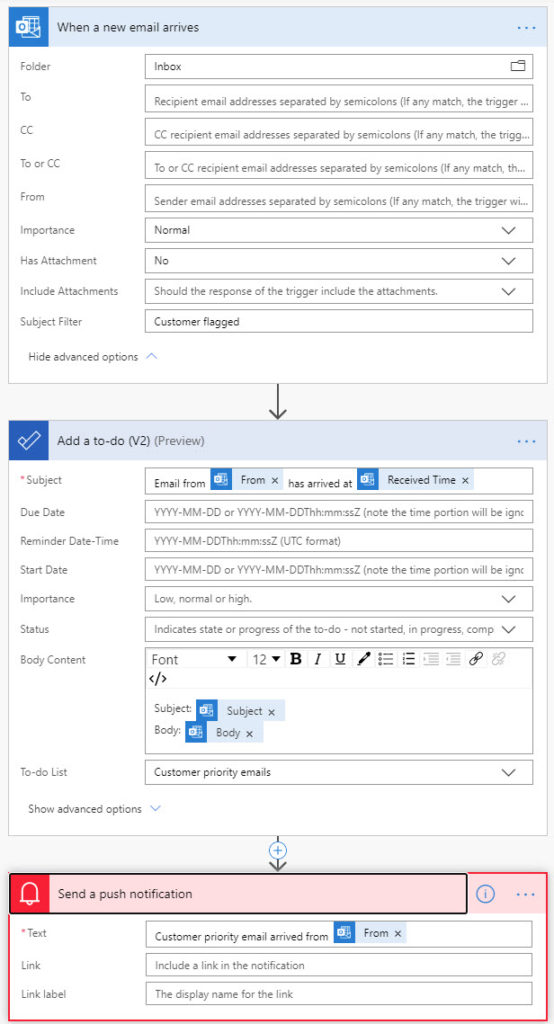
    I submitted this as a template to the Flow Gallery, but I don’t know if or when they will publish it. Check for “Out-of-office message enhancement”.

    USB battery pack

    This is CRITICAL. Even if you are on the newest, brand new phone that has amazing battery power the OCCC is going to suck the life right out of it. The building is made of concrete and reception is generally mediocre, however your phone is trying desperately to please you by delivering as many bars as it can. This results in rapid battery drain. I have never made it a full day at the OCCC, or most other conference centers like it, without needing a charge up. Wall plugs are at a premium, mostly because people didn’t take the last piece of advice and are sitting on their laptops trying to work instead of engaging. Being portable is key. You still have time to pick up one of these wonderful devices. Here is a link to some options: https://smile.amazon.com/s?k=usb+battery+pack. I am personally partial to the Anker & RAVPower brands as they have served me well in the past.

    FYI, I don’t profit from the things I have recommended above. Even the Amazon link is just to the generic AmazonSmile search page. If you don’t know about AmazonSmile please go check it out. It is a way that you can help a charity just by doing the shopping you normally do. There is no impact to you.

    Conclusion

    This was way more longwinded than I was planning, but hopefully it helps you. There are many posts out there like this that will tell you about parties galore and how to have fun at the event. Go read all of them and drain every ounce of good from the event that you can. It is a crazy, fun, exhausting, massive event.

    If you are interested in seeing me at Ignite please check out my profile on the Ignite Speaker Directory at https://myignite.techcommunity.microsoft.com/speaker/564517.
    Feel free to stop by the Rackspace booth #1631 where the “Rack Gives Back” committee is contributing $1 to the American Heart Association, up to $3000 for the week, for everyone scanned at the Rackspace booth. When you get scanned you will get a badge ribbon like this:
    I will be hanging around the booth some, but if you don’t see me there just the Rackers at the booth as they will know how to track me down.

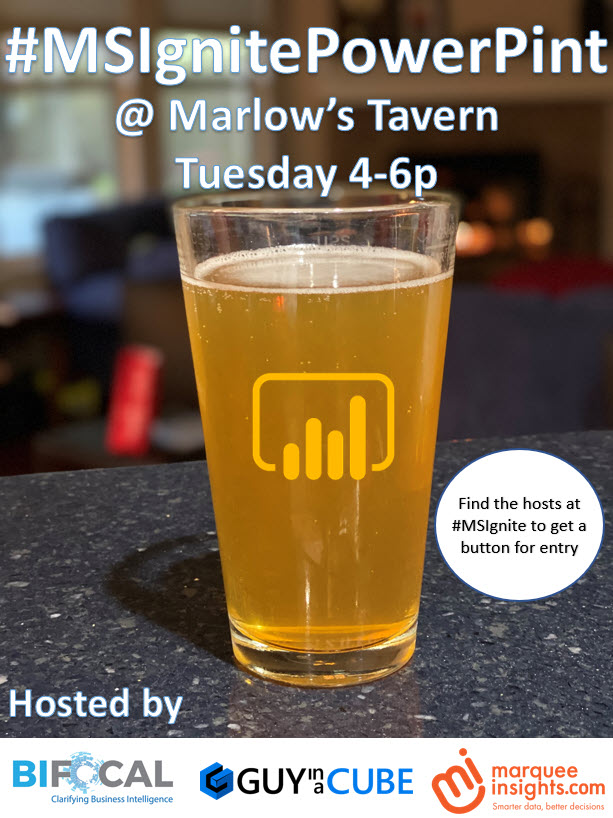
    One last thing that we just announced tonight: John White & I are hosting a #MSIgnitePowerPint along with Treb Gatte from Marquee Insights & Adam Saxton from Guy in a Cube at Marlow’s Tavern on Tuesday from 4-6p. In order to attend you need to grab a pin from one of us, so find me at the event!
  • Ignite 2018 Scheduling tips

    Ignite 2018 Scheduling tips

    There are SO many sessions to try to reasonably sort through for Ignite this year & WAY too many topic areas that I care about. Happily, everything happening at Ignite, other than the social events, is being recorded and will be made free via TechCommunity. Microsoft is actually streaming all of the sessions live for people who are members of TechCommunity as well, so this post doesn’t just apply to those attending in person because the issue is how to figure out what to see live.

    This post may not be the most popular with the Ignite Events team, because they use the registration numbers to ensure that they plan the rooms appropriately, but here is the workflow that I have figured out for me. Since we are less than a week away from the event I figure they won’t be too fussed over it, so here goes:

    1. Login to the Schedule Builder
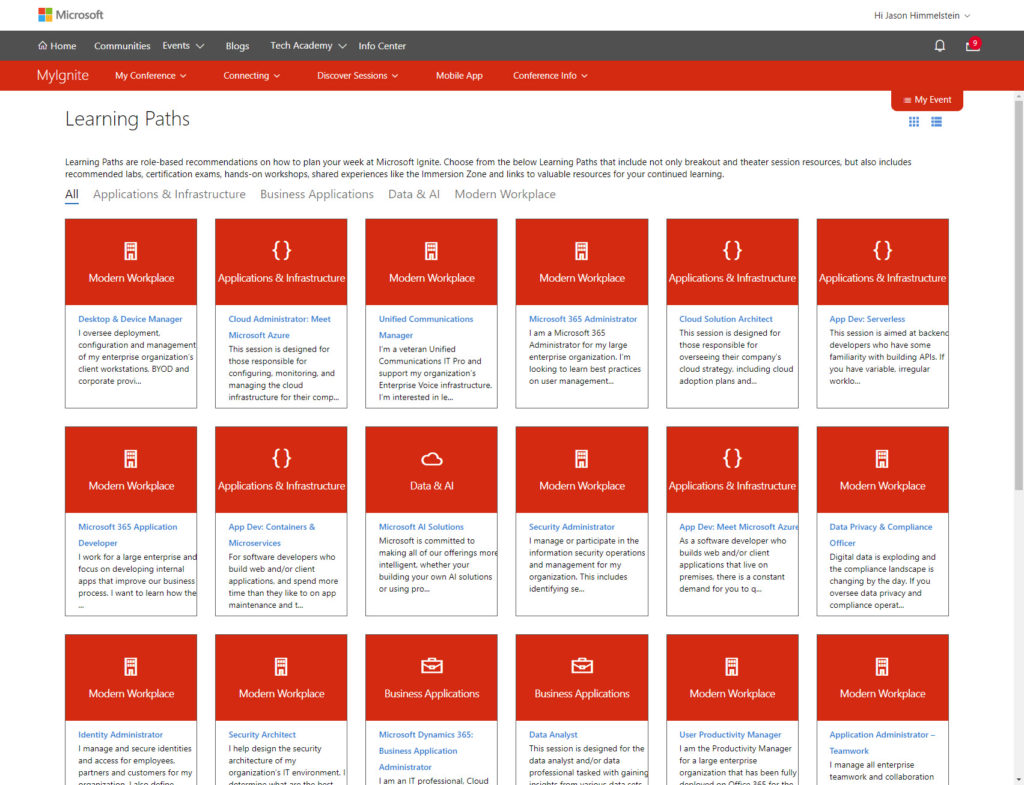
    2. Use the Learning Paths to find sessions
      • Addendum: It is useful to use multiple Learning Paths to ensure that you are finding all of the sessions that Microsoft is recommending for you in these areas. I walked through more than a dozen and found valuable sessions in almost all of them to add, even after going through so many.
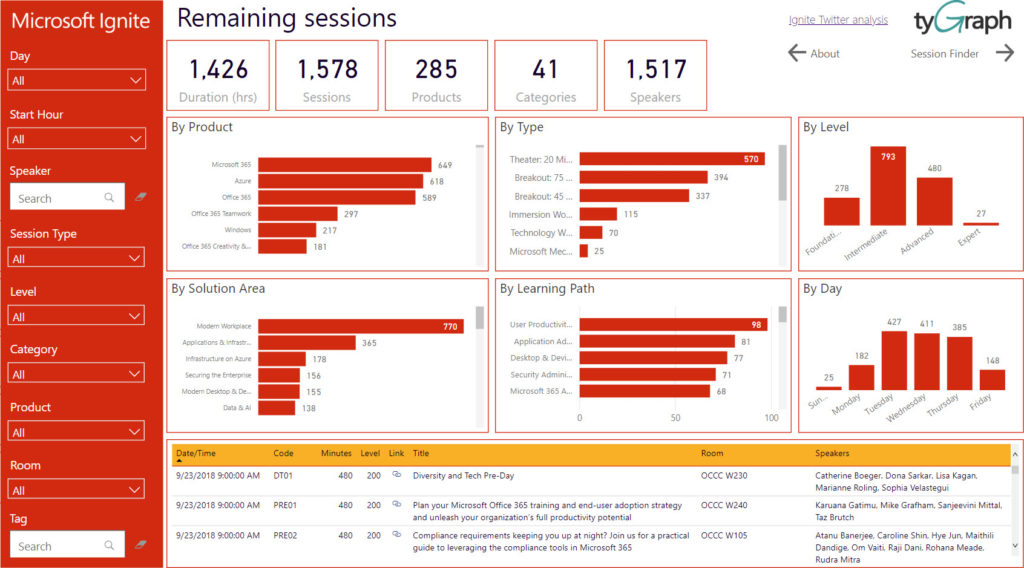
    3. Visit the TyGraph Ignite Power BI Schedule viewer and find the rest of the sessions that you will want to attend. This is MUCH easier to use than the regular schedule builder. The only downside is that you may end up clicking on things that you are already registered for.
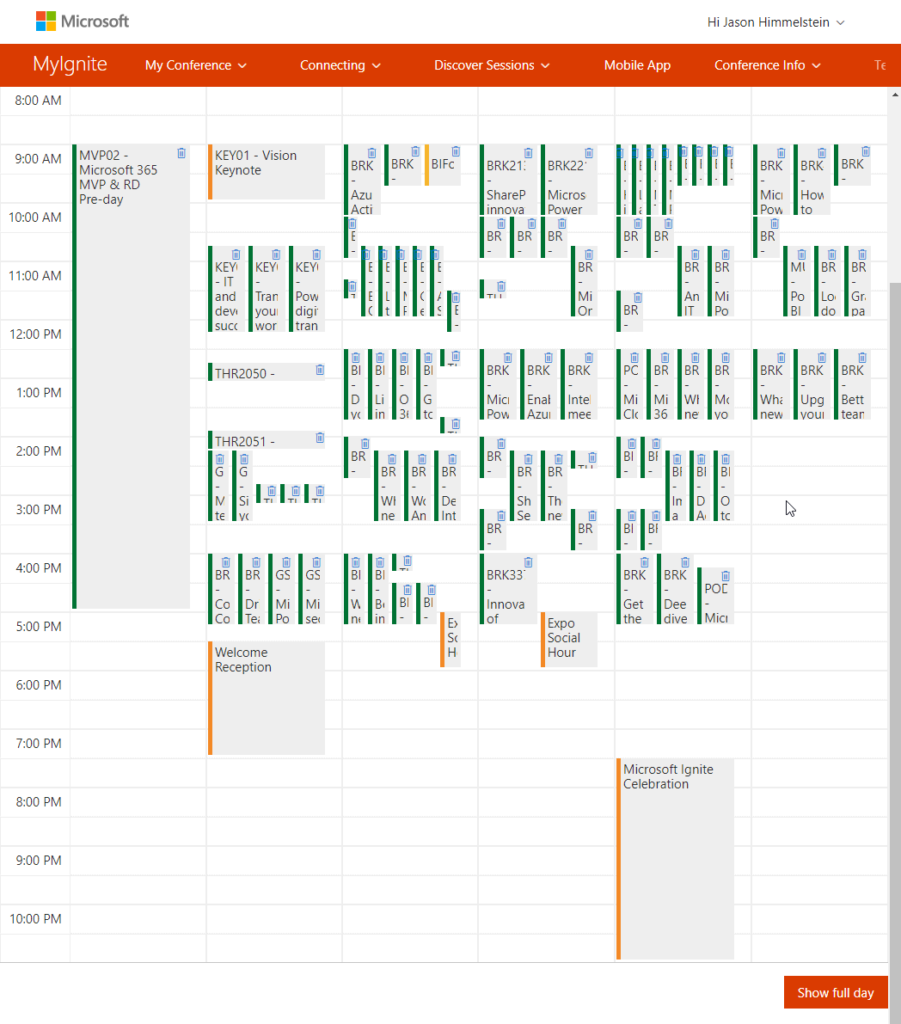
    4. Go take a look at My Schedule in the week view. It will likely look like mine. This step is just for funsies btw…
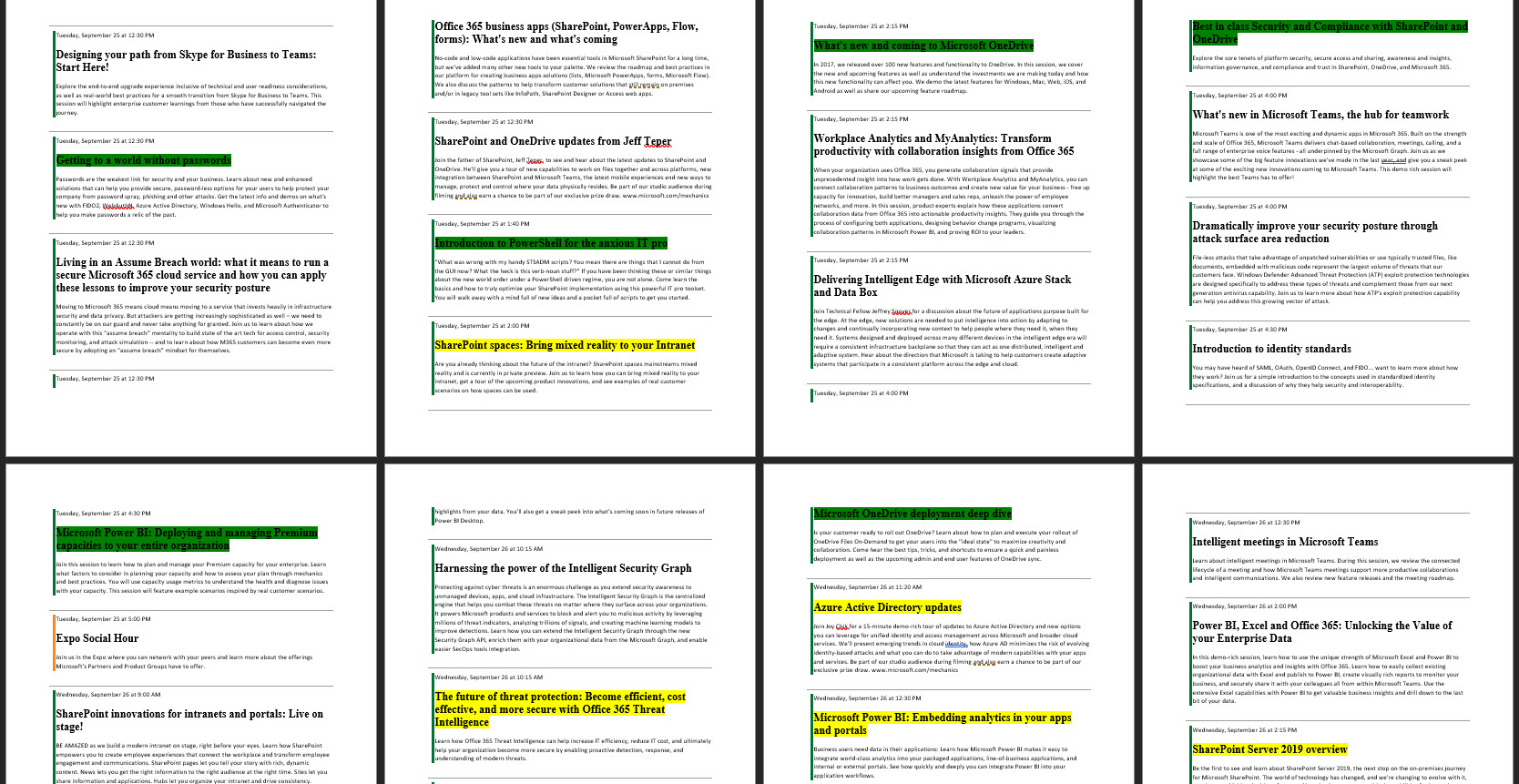
    5. Click on the Trip Report at the top left of the week view. This will download a massive Word doc that will let you review all of your sessions. Put this in OneDrive and then go through and review the sessions. I personally highlight in green the sessions I am going to go to as primary and in yellow as the backup in case a session is full or just turns out not to be good for me 10 minutes in.
    6. Download the MSFT Events mobile app and then watch Daniel Glenn’s tutorial about the app. At 2 minutes and 10 seconds into the video, Daniel is going to give you the GOLDEN TIP on how to add things to your calendar from the mobile app with just a click. This is per session, but it is a helluva lot better than having to add a ton of stuff to your calendar manually.
      • **WARNING** This only works if you are using the native calendar. 
      • I use two-factor auth in Exchange Online and the native iOS calendar doesn’t support it. I had to do this ugly workaround, but it worked:
        • Sync the item in the MSFT Events app
        • Open the item in the native iOS calendar and switch the calendar it belonged to over to my Google Calendar
        • Subscribe to the .ical for my Google Calendar in Outlook
        • Copy the items onto my Exchange Online calendar
    7. Put on your comfy walking shoes and enjoy the show! My post before Ignite 2016 in Atlanta still has some good points about prepping for the conference as an attendee: https://bifocal.llc/7-things-to-think-about-when-attending-microsoft-ignite-2016/

    Be sure to come to see me on Tuesday at 140p in Expo Theater #1 for “THR1067 – Introduction to PowerShell for the anxious IT pro” & on Friday at 1045a in OCCC W222 for “MUP2003 – Power BI meetup” with me, John White, & Reza Rad. You can also stop & visit Rackspace at Booth #140 for your chance to unlock the box and win a prize.

    See y’all in a week in Orlando!

    UPDATE: (09/18/2018)

    After a bit of tweaking I found that if I choose to invite myself to the event when I open the item, rather than changing the calendar it belongs to, I get a calendar invite that I have to edit the title of to remove the Jason Himmelstein invited you to “Session X part of the session title and I have a valid calendar invite that will get updated if the app pushes changes to my iOS native calendar. It also stores your email address after the first time typing it, so it makes a boring, repetitive task pretty quick. In the end, I used the web-based version to make this even easier. Thanks, Anna Chu for pointing out that the mobile app can update the event!
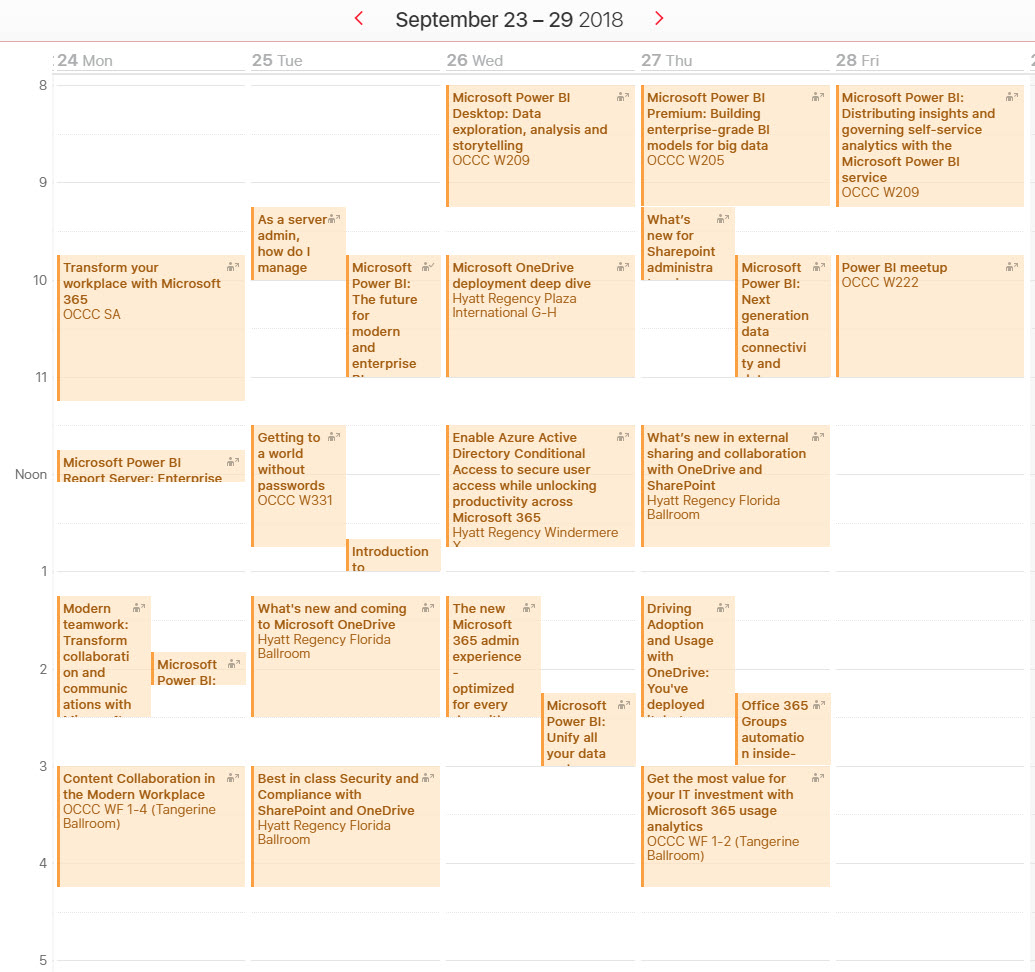
    Wondering what I ended up picking? Here is a quick view:


  • SPC18 Post-con update!

    SPC18 Post-con update!

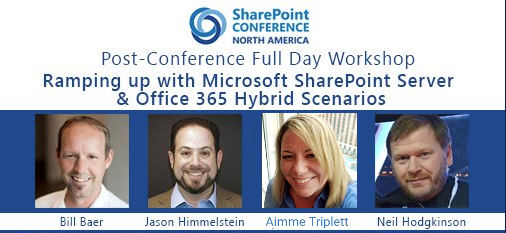
    I’ve been talking about SharePoint Conference North America seemingly forever & it is now less than 2 weeks away, and barreling down on us like a freight train. Yesterday I was meeting with Bill Baer & Dr. Neil Hodgkinson about our Hybrid post-conference session in Vegas, which is going to be AWESOME in case you were wondering, and they informed me that we can finally announce the bigger details of our session.

    The goal of the workshop is for you to take what you learned about hybrid scenarios with SharePoint and Office 365 & put it to practical use in a full day, post-conference workshop so that you have experience when you go back to work. Complete with detailed hands-on labs & expert instructors that will be able to help you as you go, this workshop is designed to get you up to speed quickly.

    As an attendee of this workshop you’ll receive an Azure Pass that is good for $500.00 per month for 3 months, a complete SharePoint Server 2016 environment, and an Office 365 test tenant with 25 E3 accounts for 3 months that you can use to build your skills and complete hands-on labs, both while at the workshop and even after the event.

    …and if that all wasn’t enough, workshop attendees are going to get an exclusive bonus as well. Included in the Azure environment will be a SharePoint Server 2019 VM for you to work with as well! This is not available anywhere else, outside of the official TAP.

    PLUS if you’ve already registered for the conference you can add the workshop by calling the conference office at (203) 264-8220. Since this is such a late change there isn’t a way to do it online, but if you register for this workshop before May 21st, you’ll receive an additional $200.00 off of the workshop registration when using the discount code HYBRID for the inconvenience. If you haven’t registered for the conference, there’s still time left. Visit https://www.sharepointna.com for details and use the discount code HYBRID to save $200.00 off of the conference pass.

    To recap you get:

    1. A lab that has $1500 worth of Azure credit, $1500 worth of Office 365 credit
    2. Step-by-step labs of how to set up the hybrid configuration
    3. Experts to help you make the most of the day
    4. AND an exclusive SharePoint Server 2019 VM!

    Space is limited to 100 people, so add this to your existing registration or register today!

    I will see you, and 2000+ other SharePoint people, in Vegas!

  • Using SharePoint Lists in Microsoft Teams

    Using SharePoint Lists in Microsoft Teams

    This past week Microsoft announced that SharePoint pages & news articles will be able to be added to Microsoft Teams channels via their own tab using the new SharePoint button in the “Add a Tab” functionality. While it is great to see more ways to integrate the user experiences of SharePoint & Teams because users are really starting to like Teams and having a single place to go is making life easier. Here is my problem: It doesn’t work for SharePoint Lists. I know that this is something that people want because I have had numerous customers asking for it myself, plus Sherman Woo posted in Tech Community about it that has over 3.3k views, AND there is an User Voice that is Under Review on this with 28 comments & 222 votes as of this writing.

    So why can I still not visualize a SharePoint List in Teams? The answer is very simple: You can, you just don’t know it. The functionality rolled out VERY quietly recently and Microsoft is waiting to do a major post about it until the official button shows up in Teams, but I got permission to share this information now because I keep getting asked for it.

    A key point before I continue: This is not a hack. This is supported by Microsoft. If you have issues and call them, they will support you. It is simply functionality that they have released that they haven’t claimed victory for because they want the best user experience available for the announcement so that people are delighted rather than disappointed.

    With all of that said, here is the simple process for adding a SharePoint List as a Tab in Microsoft Team.

    How to:

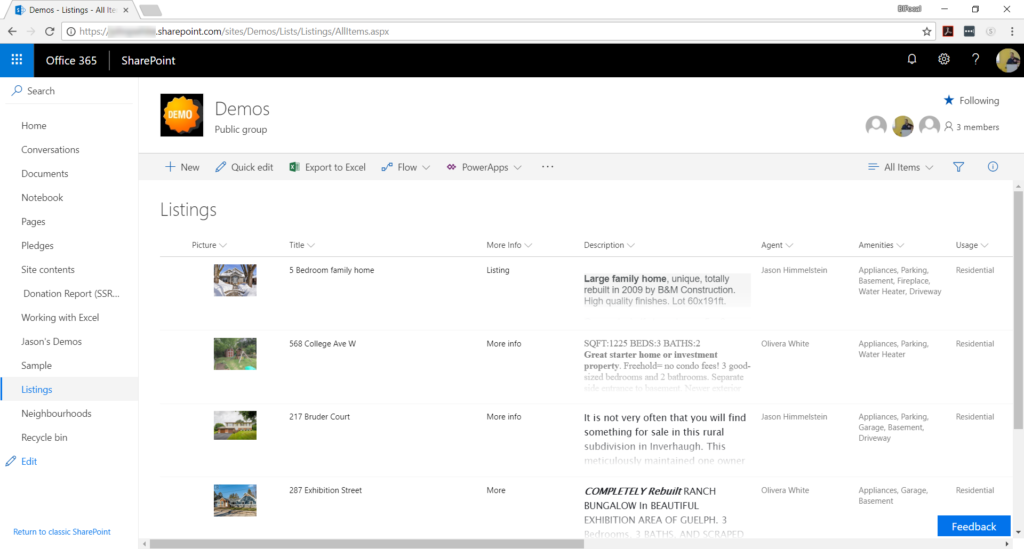
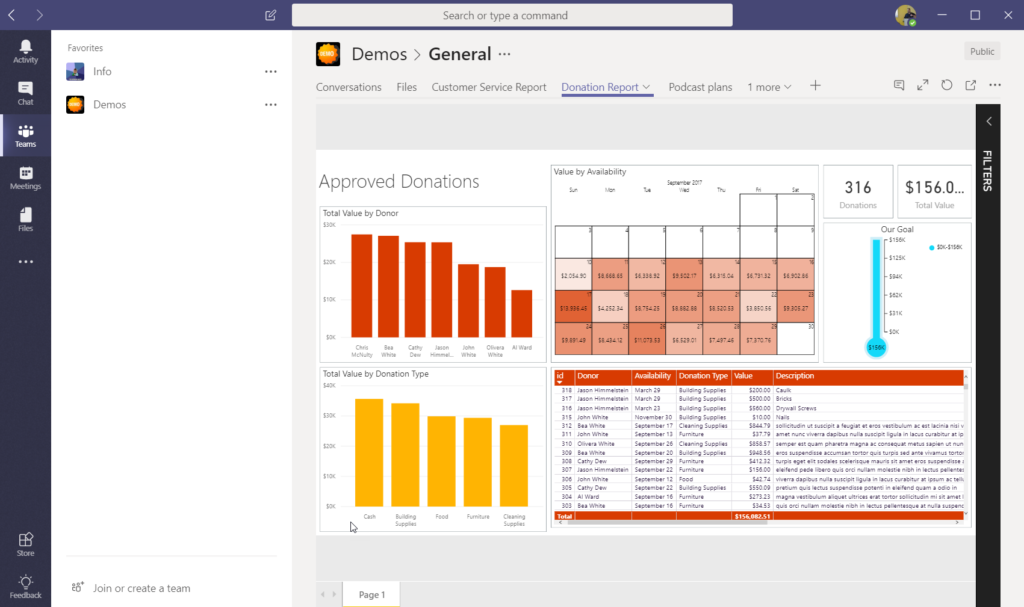
    Step 1: Visit your SharePoint List page & select the view you want displayed

    SharePoint list on the Demos site

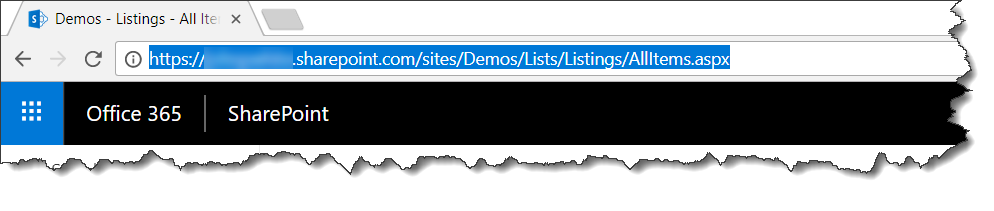
    Step 2: Copy your list URL

    The Demos site’s SharePoint list URL

    Step 3: Open Microsoft Teams to the Channel you want to have the list show in

    Microsoft Teams team for the Demos site

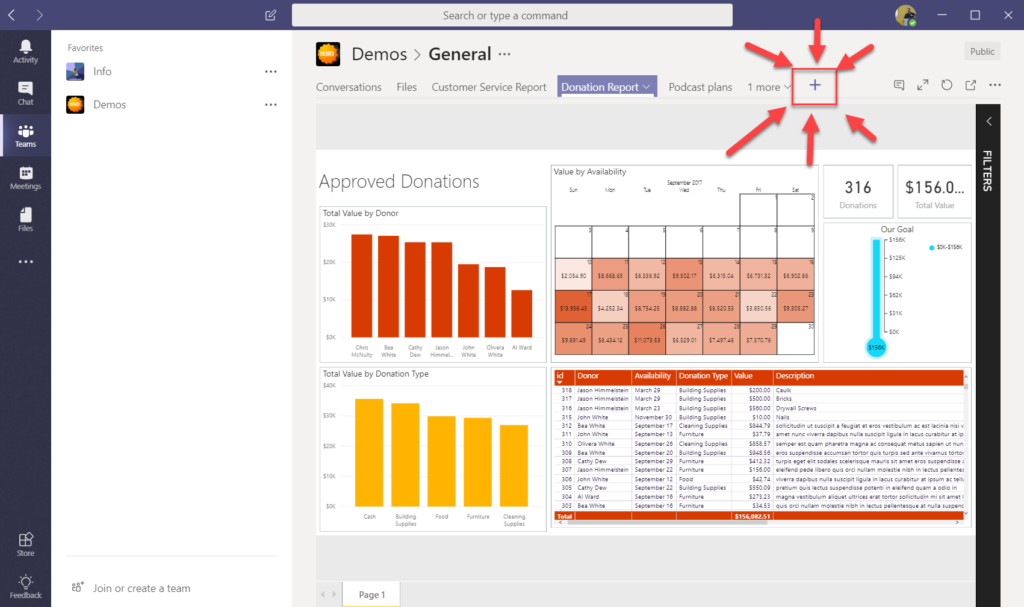
    Step 4: Click the “Add a Tab” button

    Add a Tab button in Microsoft Teams

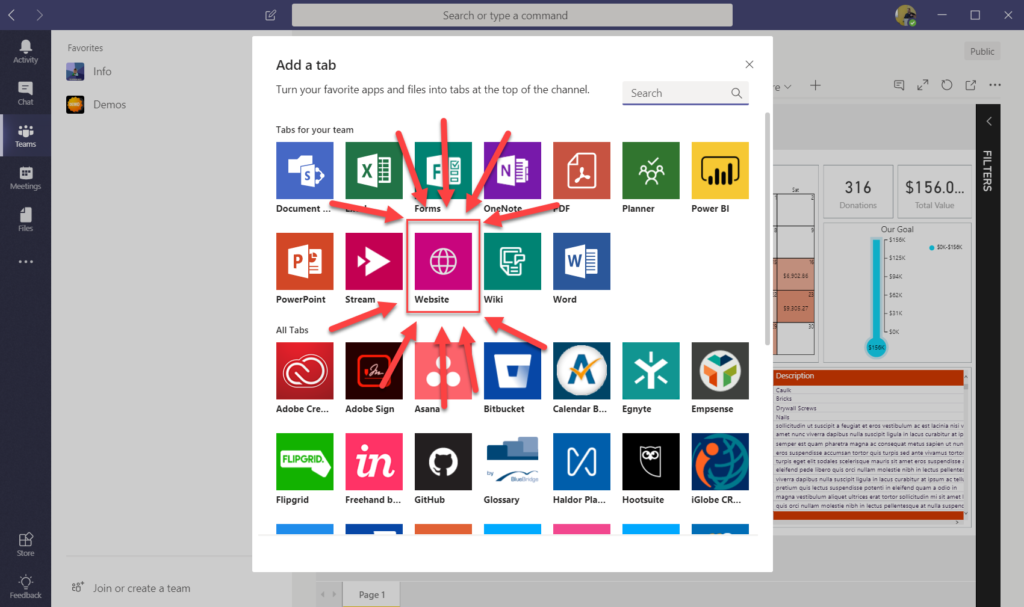
    Step 5: Select “Website” as the Tab

    Website button in Add a tab

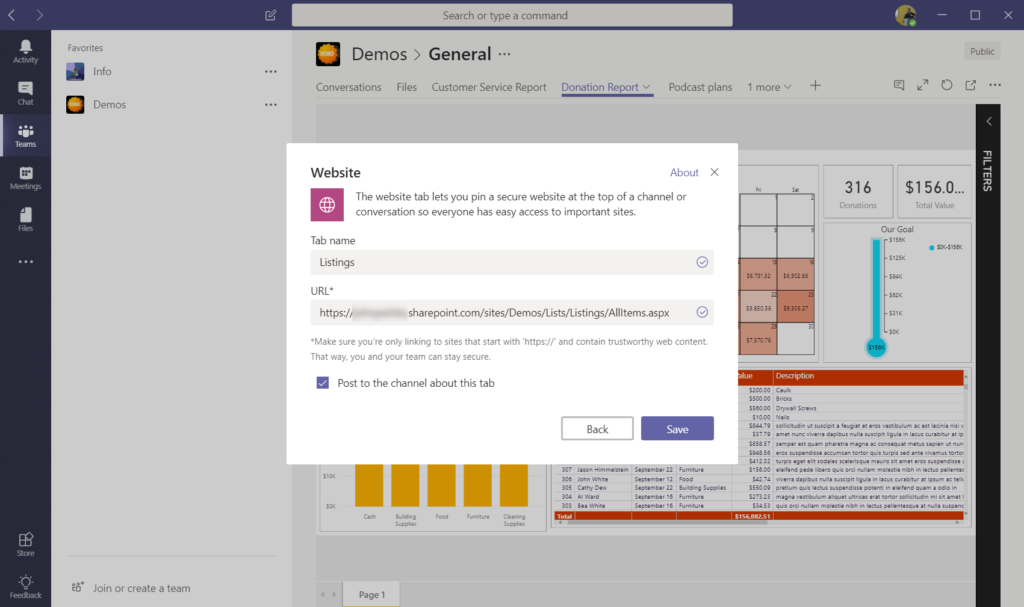
    Step 6: Name your tab and paste the URL from your buffer

    Adding a Website to Microsoft Teams

    Step 7: Click on the Tab… and log in (if you are in the app). You are going to have to authenticate if you are in the Teams app because you are leaving the Teams framework and going to the website, which is a different authentication mechanism from the Teams app. If you are using the web experience for Teams you should not have to re-authenticate. When you have authenticated you will see the list visualized in Teams.

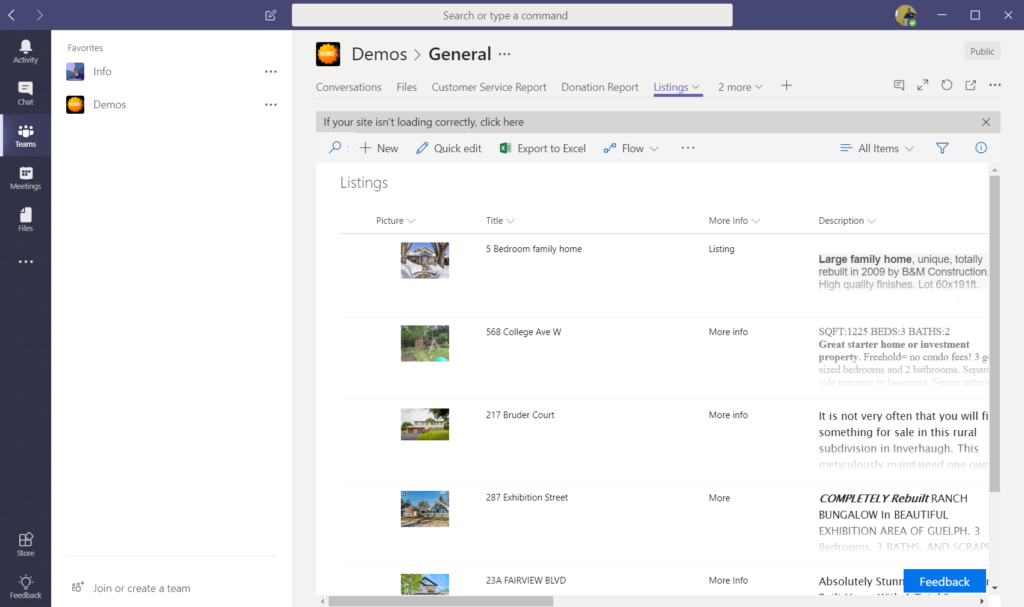
    SharePoint list viewed in Microsoft Teams

    It is worthy of note that the only thing that you see in the Tab you have just created is the List View from the page. You don’t get any of the Chrome or other nonsense. They did a great job on the implementation of this feature and I cannot wait to see it widely used. Everyone that I have shared this with thus far has had nothing but positive reactions and interactions with it.

    Hopefully this is helpful to you!

  • What you should know about SharePoint Conference North America

    What you should know about SharePoint Conference North America

    SharePoint Conference North America (SPCNA) is poised to be the place to be to learn what’s new, next & top of mind from Microsoft. This event will contain the most sessions delivered by Microsoft about Office 365, SharePoint & OneDrive during 2018 and split across 3 main tracks of Developer, ITPro, & Business User.

    There are 2 sides to this event that are worthy of note:

    1.) Microsoft delivered content
    2.) Community delivered content

    The Microsoft content is being delivered by the Product teams and will focus on the latest, greatest, bleeding edge features & functionality that they are releasing AND what is still to come. Many of the sessions are roadmap sessions that lay the future foundation for what you can expect to see Microsoft deliver over the next 18 months. Add to that the SPCNA keynote will be headlined by Jeff Teper to start the show and you can be assured of some surprises & fireworks like the SPCs of old.

    The Community delivered content, put together by track chairs like me, are focused on what we know you want to learn about how to keep up with the new wave of Office 365 features. Many of the top speakers in the space have been tapped to deliver brand new sessions at SPCNA. The session catalog has been ever evolving as Microsoft slowly drops clues to what they are going to be sharing with us in May.

    This will be the first time since 2014 that the SharePoint Community (with the addition of the broader Collab communities of OneDrive & Yammer) is coming together in Vegas the way that we used to for the SharePoint Conference. The message we have heard out of the Microsoft is that they are “All IN” & are “doing this because the people have been demanding that they go back to Vegas to deliver their latest update in person, because the magic is in the Community”.

    On a personal note I am lucky to participate in the major conferences in the US, plus some in other parts of the world, and for me this is a cannot miss event. With that said, you can bet your last chip that I will be at SharePoint Fest & SPTechCon this year as well to take part in those unique conferences & engage with the community as I always have. This one event does not define our community, but we hope that as SPC always did in the past, it can provide an additional spark that lights the fire of excitement for the year to come and all the other events that help to strengthen our amazing community.

    See you in Las Vegas where I will be delivering a Power BI pre-con with my BIFocal.show co-host John White & a hybrid SharePoint & Office 365 post-con with Neil Hodgkinson, Bill Baer, & Spencer Harbar!

  • Microsoft Ignite WiFi “issue” fix

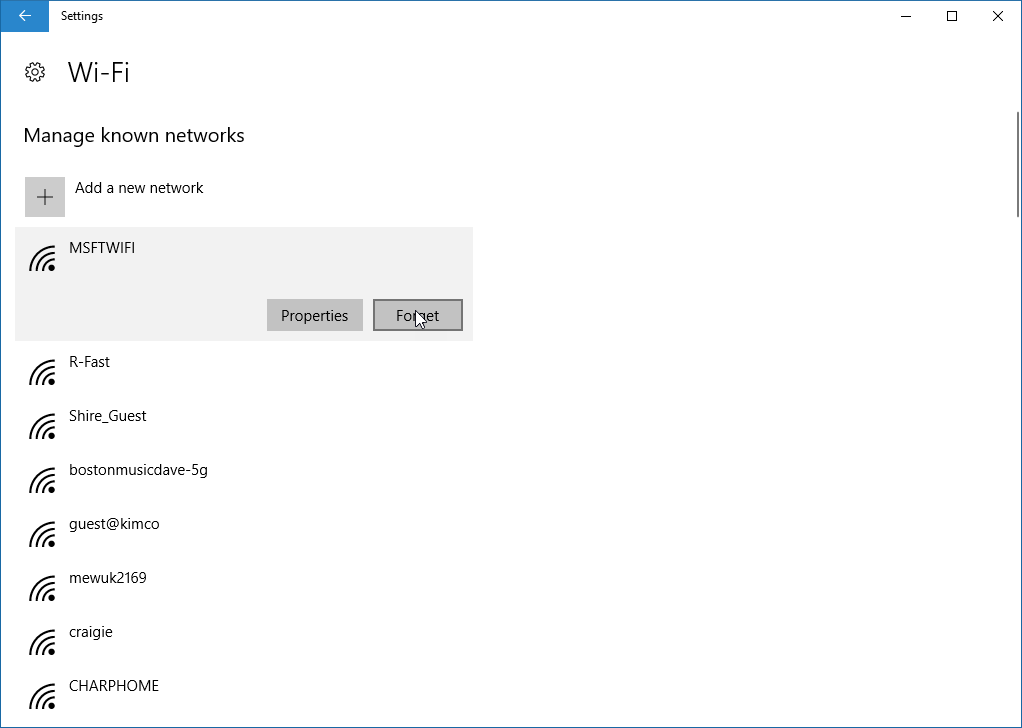
    Have you been to Microsoft Ignite or another of their large show’s before & now that you’ve gotten to the OCCC raring to go for Microsoft Ignite 2017 but you cannot get online using the code on the back of your badge? You clicked on the MSFTWIFI network and it didn’t prompt you for the passcode? Follow these steps to forget the network & re-add it in Windows 10.

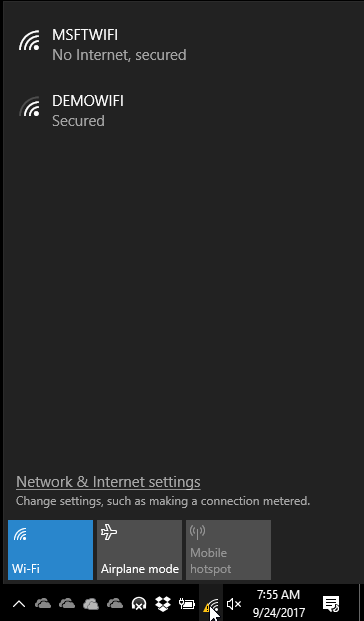
    1.) Click the WiFi icon in your system tray & click “Network & Internet Settings”

    image

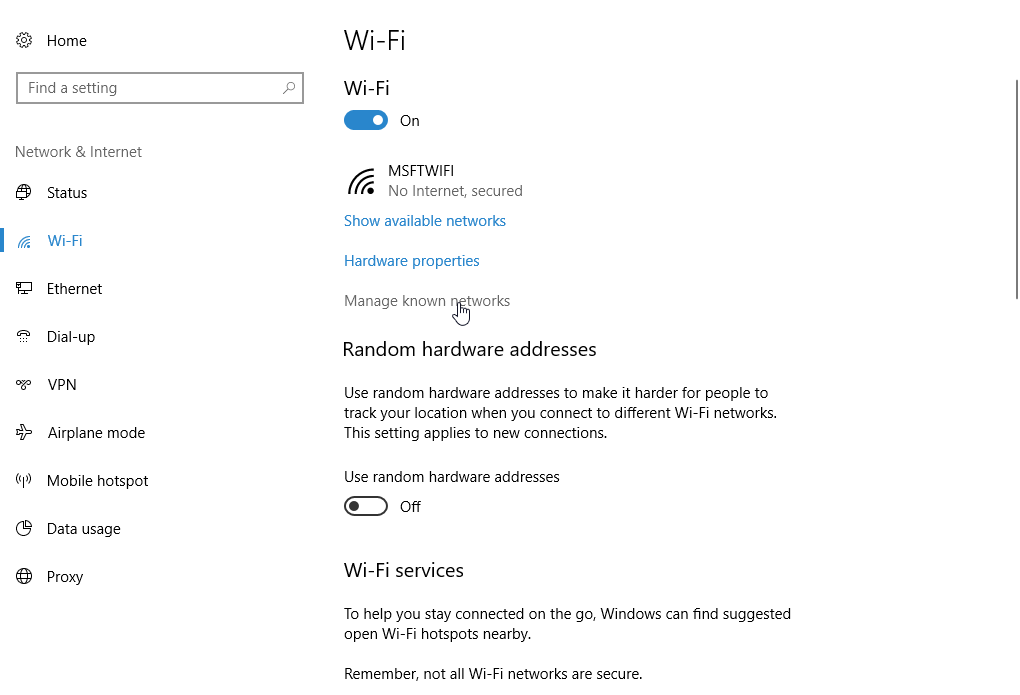
    2.) Choose the WiFi tab & then “Managed known networks”

    image

    3.) Find the MSFTWIFI network & Forget it

    image

    Now reconnect to the MSFTWIFI and it will prompt you for this year’s password.

    My initial speed test this morning is showing AWESOME speeds!

    image

    Enjoy the conference Smile

  • Hurricane Harvey and the SharePoint Community

    Hurricane Harvey and the SharePoint Community

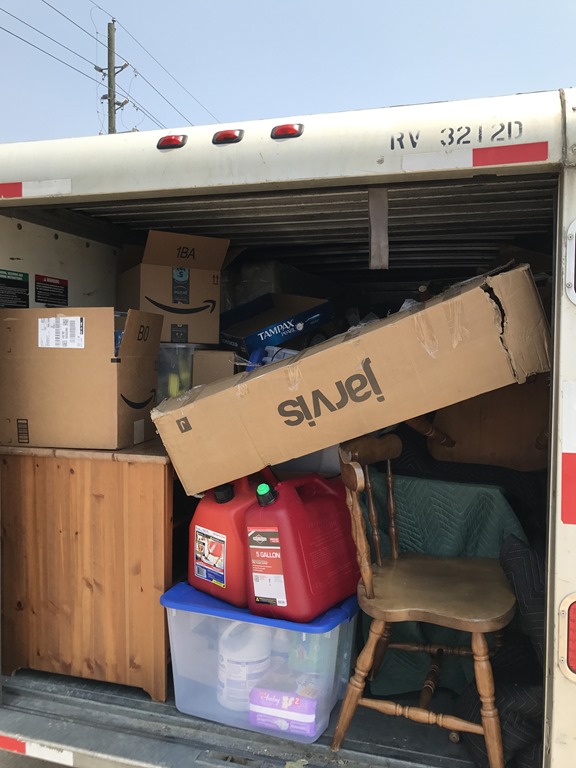
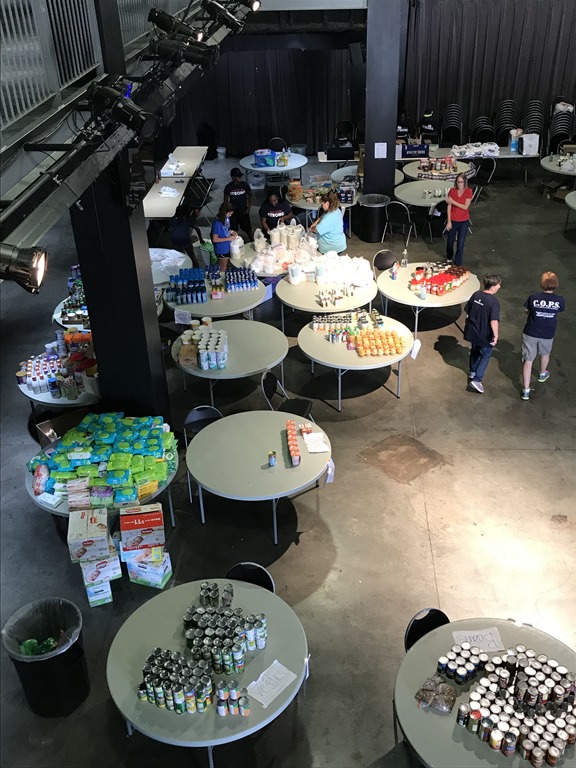
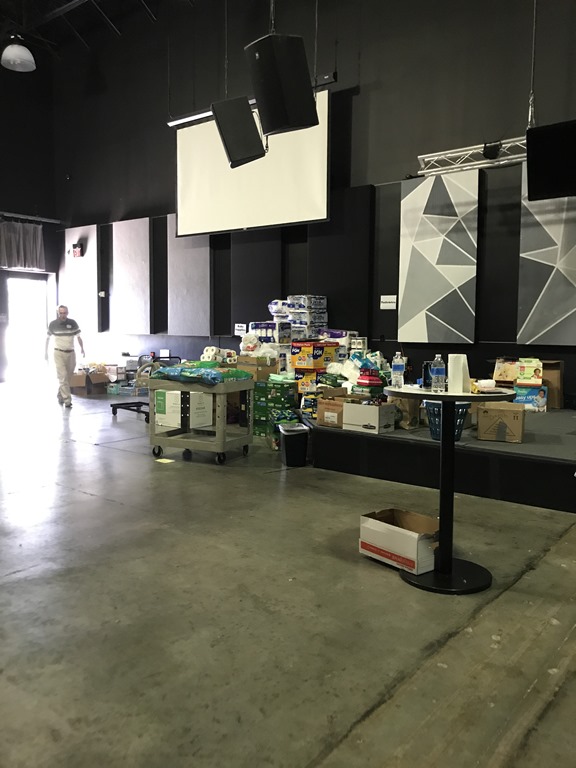
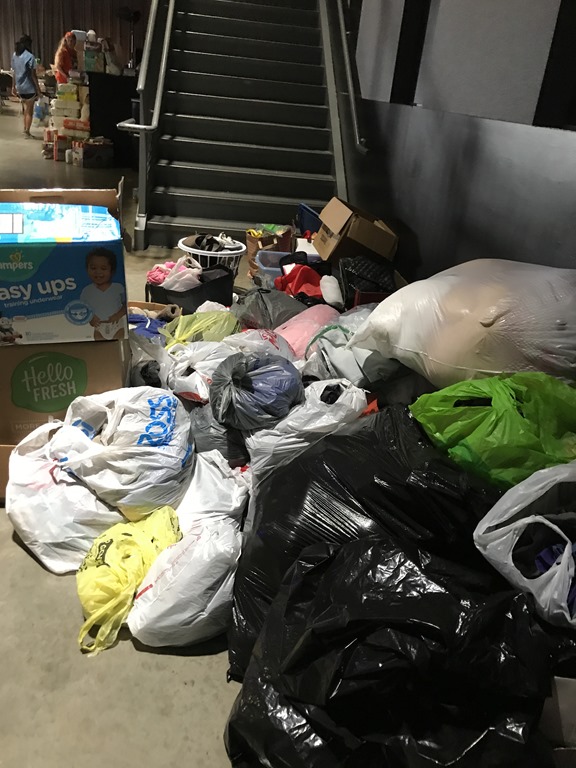
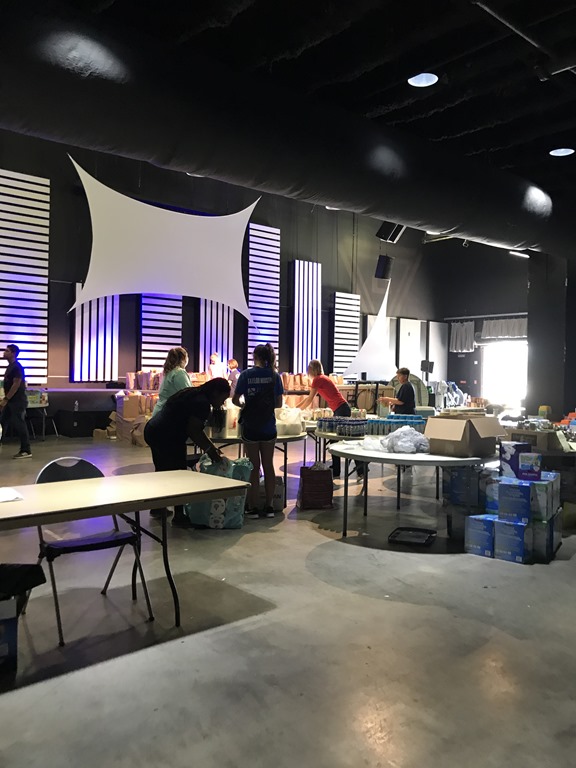
    We are home safe & sound from our trip to Houston. More than $1500 of donation money, dozens of items from Amazon, plus local drop offs were sent from our amazing friends… mostly from the SharePoint Community. We spent several days making runs to Costco, Home Depot, Walmart, Target, and more. You entrusted us with your donations and we needed to make sure that it went to good use. We asked people in Houston what was needed & bought everything that we could get our hands on that was asked for.

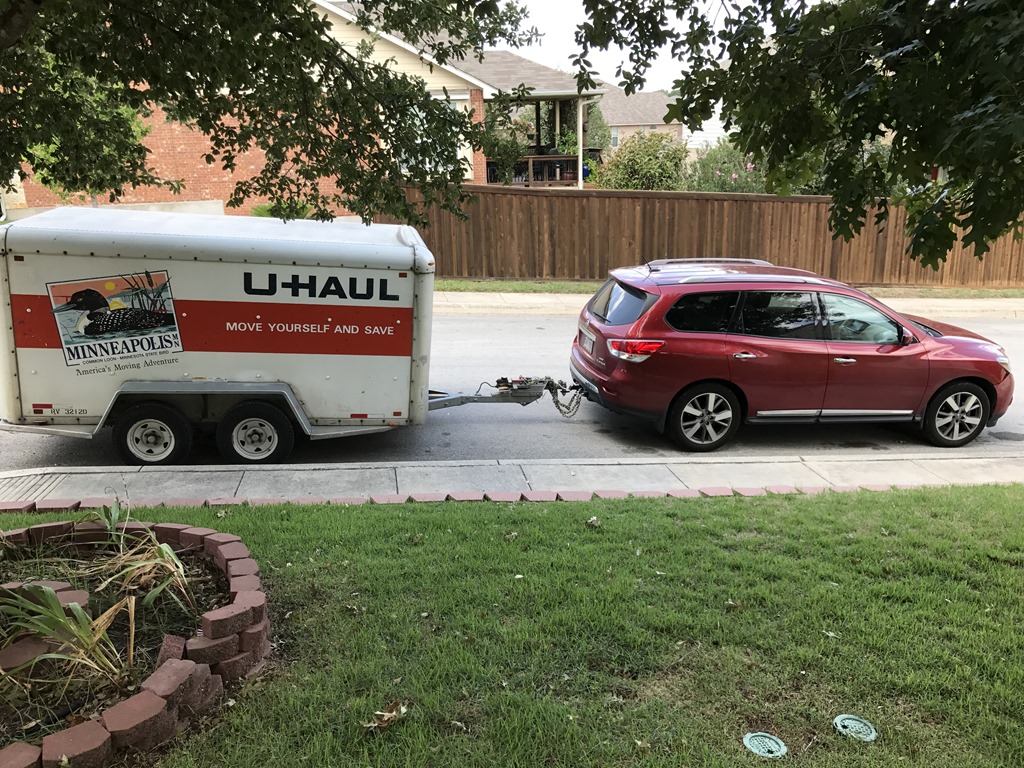
    With the help of local friends we were able to load everything, including furniture for Jill’s folks, onto the trailer I affectionately nicknamed “Rolling Thunder” due to the sounds that we made as we rolled through the neighborhoods.

    Rolling Thunder is hitched and ready to roll!All packed up and ready to goThankful for Buc-ees!Military convoy taking aid supplies to people in need

    By the time we got to Houston many of the charity locations had stopped accepting donations because they had to turn their focus to their own operations and trying to recover so that they could get back to providing services desperately needed by the local community now that the imminent danger had passed.

    We found that the Second Baptist Church was still taking donations & so we set out for there. When we arrived the volunteers poured out of the building and helped us unload the truck. They had just decided to stopped operation for the day as they hadn’t had many drop offs that afternoon. We were thanked over and over for all of the donation items as what we brought were things that they had mostly run out of. Their operation is very focused on feeding people, however they are sending crews of people to help people remediate their homes in the local area.

    Staging areaEach bag will feed 2 people for a dayinbound supplies from donations including oursdonated clean clothes for people who lost everythingprepping supplies for those in need

    After we dropped the donation items we went to furnish Jill’s folks apartment. They were some of the lucky few that have been able to find new housing quickly. We were able to bring enough essentials to make the apartment livable for them.

    Unfortunately their home had more than a foot of water and all of their furniture, save a few pieces of antique & precious furniture that were expertly cared for during the storm by Jill’s Dad, were a total loss. Both of their cars were totaled. Jill’s Dad was able to get a crew of people to come in and rip out the drywall, the carpet, and almost everything that could have mold grow on it.

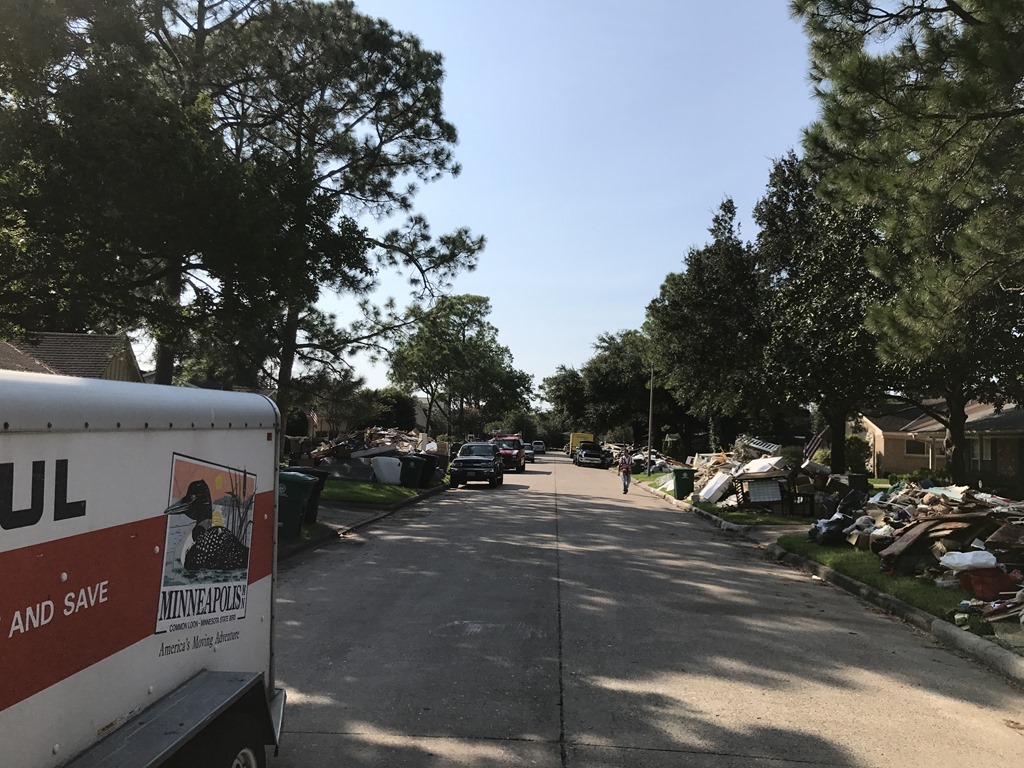
    The neighborhood is in shambles. Basically everything that used to be inside the houses, plus the insulation & drywall, is now on the lawns but the homes look intact from the outside. Kind like a giant yard sale from hell.

    my inlaws neighborhoodmy inlaws neighborhood

    Many of the stores are reopened. We found food, essentials and gas in reasonable supply but places that flooded will likely be closed for months.

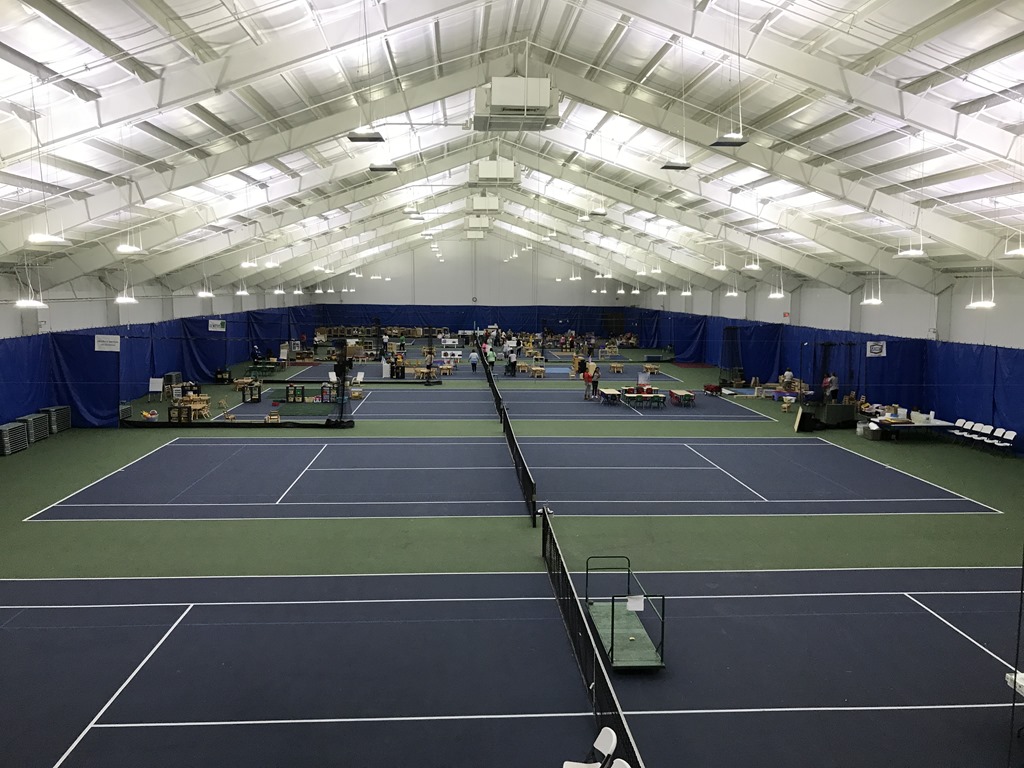
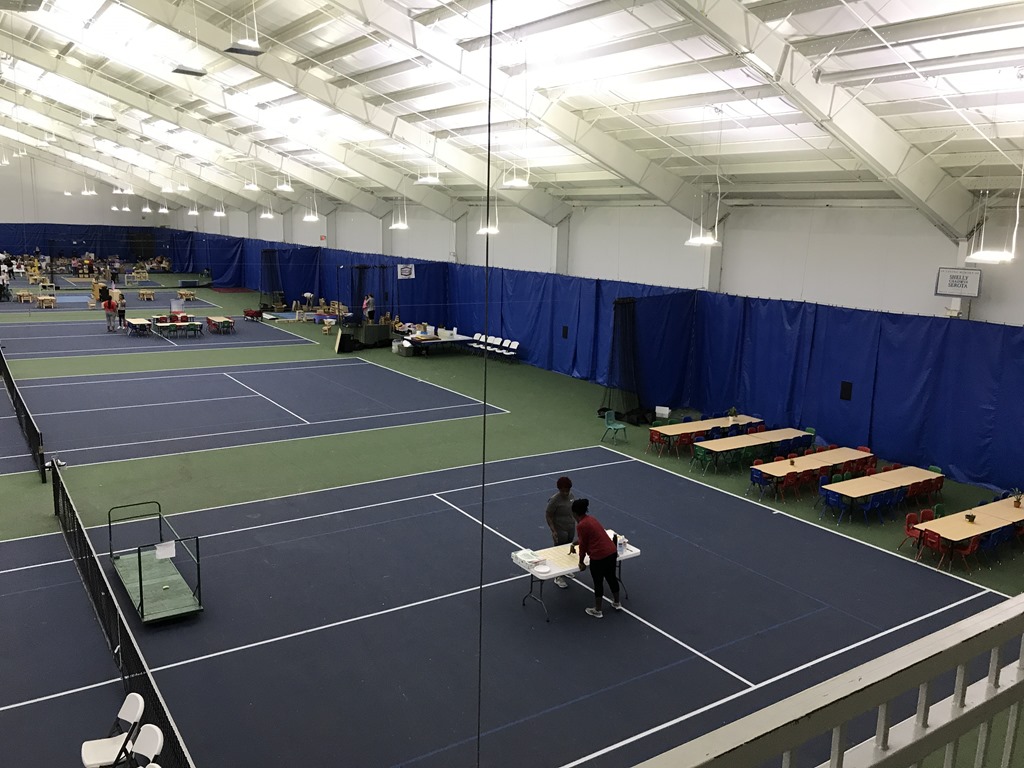
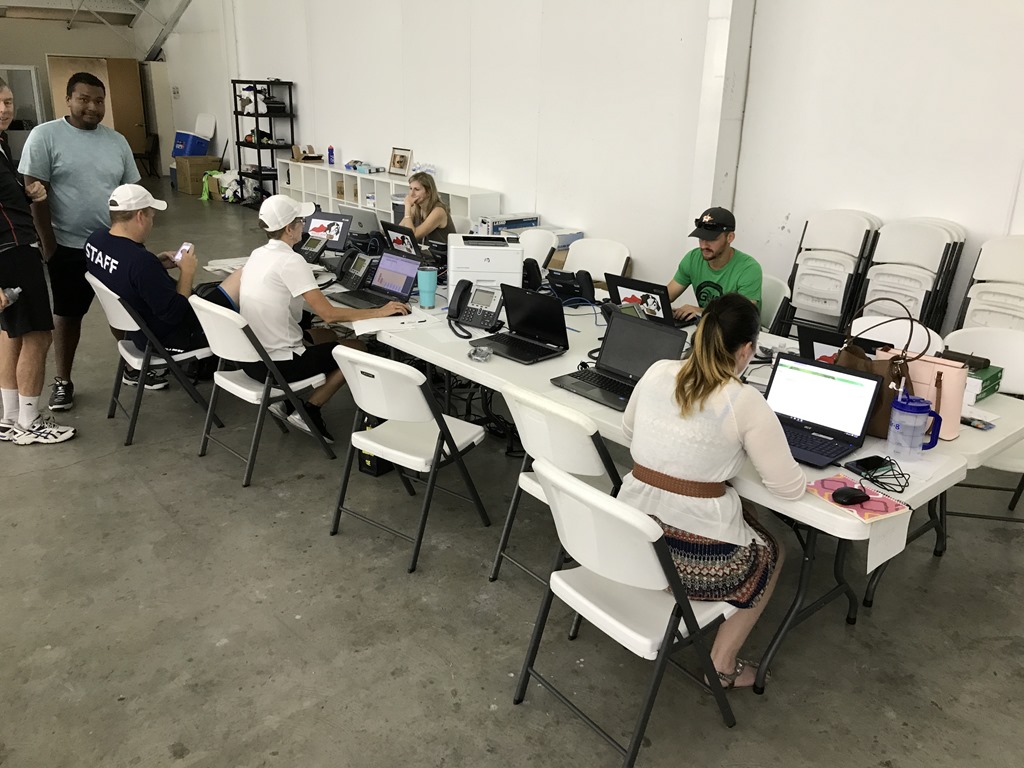
    Unfortunately one of the places that was hard hit in the area is the Evelyn Rubenstein Jewish Community Center of Houston. Their first floor was completely submerged & is now decimated. The first floor of the ERJCC houses their offices, Meals on Wheels, the Senior Center, and other community & education related spaces. All of the office machines were lost in the flooding. Please take a look at our video appeal in which we are asking for help acquiring laptops for the staff. Ultimately insurance will cover things, however in that could take months given the size of the claim & the urgent need for the funds to get essential community services back operation as fast as humanly possible. Here is the video:

    Reach out to Laura directly if you can help: lastrich@erjcchouston.org
    Full links from the video: First walk through video & Second walk through video

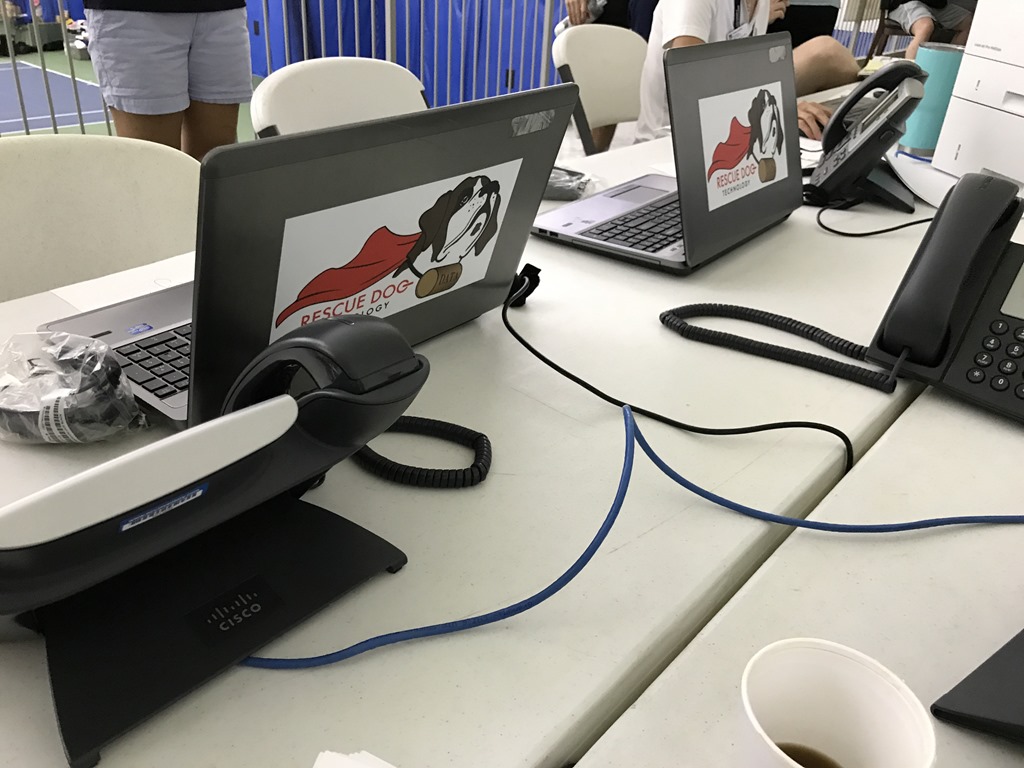
    formerly the tennis center, soon to be the temorary pre-schoolformerly the tennis center, soon to be the temorary pre-schoolERJCC Staffers trying to get back to worklaptops lent from http://www.rdogtech.com/

    Pictures from the ERJCC

    I hope that those who are staring down the barrel of Irma take heed of the lessons learned from Harvey and get prepared or get out of harms way. My Grandparents, who live in West Palm Beach, were relocated this week to Memphis.

    As I told my boys this week about all of this: We cannot control Mother Nature, but we can be smart & prepared. Stuff can be replaced, lives cannot. We don’t take chances with our lives.

    Thanks to everyone for their donations, help loading, unloading, advice, texts, calls, Facebook messages, and concern. The SharePoint Community never ceases to amaze me. I am so lucky to be a part of this wonderful group of people who are passionate about not just technology, but who are truly committed to helping their fellow humans. I have to give a special thanks to my parents for helping us with the boys so that we could make the trip happen.

    The rebuilding of Houston is going to be a long and terrible process for those who have to live through it. Let’s not just give now and forget. Round back in a few weeks and reach out to those that you know who were impacted. The shock will wear off and eventually depression will take root. Let’s not let allow Harvey to take the strong out of #HoustonStrong.

  • Rackspace and the Microsoft ProServe Partner Network

    I have been a Racker for more than 2 years now and during this time I have found that Rackspace has always strived to maintain an amazing group of Microsoft Partners that do Professional Services (ProServe) work. We have phenomenal partners that we send work to today, however we want to broaden our knowledge base of who is out there doing great things in the Microsoft ProServe space. We no longer have teams that do ProServe work, save some migration efforts, but as their trusted advisors our customers ask us for recommendations of who they turn to in order to get their ProServe work done. This is where my ask of you comes in.

    Are you interested in Rackers mentioning your company as a potential ProServe provider to our customers? If the answer is yes, then we need to know about you. My ask is that you fill out our 2 minute survey to let us know who you are and what is in your sweet spot.

    A couple of caveats:
    1.) This is the first of 2 surveys that we will ask you to fill out. The second will come after you have self identified and we have a reasonable number of responses. Additionally, we will reach out at least annually to validate that you are still pursing the same work as that which you have identified in the survey(s).
    2.) Filling out the survey(s) does not guarantee that you will be referred business. It simply gives us an opportunity to do so and possibly reach out for additional partner conversations.
    3.) We are not selling this list or doing anything nefarious with it. We just want to know who we can send our customers to when they ask for referrals and this is the best way I can think of doing that.
    4.) PLEASE do not reach out to me asking (yelling at me about) why we haven’t done anything with your company yet. I will have no control over who our customers choose to reach out to. Think of this as a Rackspace ProServe Yellow Pages effort.
    5.) Rackspace has a very well defined Partner Network Program which can be found at https://partners.rackspace.com/.  We will be providing some inputs from this effort to the team that runs that program, but this effort is independent of that. We are looking to identify (and keep fresh) a list of referral partners that we can tell our customers about when they ask. Plus the Partner Network is more focused on you help to sell our stuff than us sending you business, so feel free to go do that too! We would love for you to make money for referring us to your customers…

    Closing thoughts, Rackspace loves Community. We went into hibernation for a while but are stirring back it life. Keep an eye out for us… in the meantime, please fill out this form: http://bit.ly/rackspace-msftpartners

  • May 16th is the new May 4th in SharePoint land

    May 16th is the new May 4th in SharePoint land

    Seth Patton started the event today by saying that today we are here to celebrate customers who are using using Office 365 to accelerate their digital transformations. He highlighted the Microsoft mission of empowering every person and every organization on the planet to achieve more. I was lucky enough to be invited, along with my fellow Racker & Microsoft MVP Randy Drisgill and several other community friends, to take part in the filming of this event. In addition to the excitement around all of the announcements I was especially thrilled that Microsoft had chosen to highlight Rackspace as a customer taking part in the aforementioned digital transformation.

    As a part of the big announcement blog post that Jeff Teper put out today Rackspace was listed as one of the 9 customer success stories. This has been a labor of love here at Rackspace for me and I see our transformation daily in the way that we work together. From the migration to OneDrive, to our limited use of Microsoft Teams, and including our latest efforts to migrate to Exchange Online there is so much benefit to the people using the new functionality being brought to them via Office 365. You can read our Customer Story here: https://customers.microsoft.com/en-us/story/rackspace-professional-services-office-365

    As for all of the amazing new things that Seth, Jeff and the Microsoft team share with us today, here is my recap:

    OneDrive for Business

    There were 3 big areas of highlight today:

    1. OneDrive Admin Center
    2. New Sharing Experience
    3. OneDrive Files OnDemand

    OneDrive Admin Center

    admin center

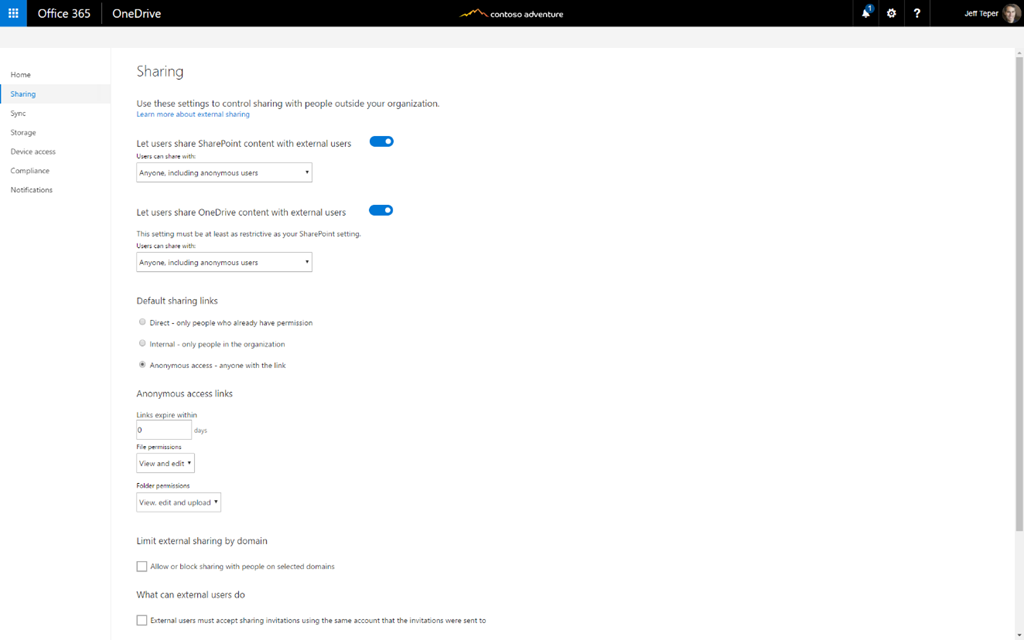
    There are several really cool things that they showed today about the new OneDrive Admin Center, specifically the ability to set the default sharing policy for links. This will make it so that users do not have the ability to share a link that has no governance around it. The Admin Center controls override for all users and allow Admins to better control what is happening with their data.

    The other great new feature that was demoed was the ability to limit sharing by domain. You now have the ability to either whitelist or blacklist domains. This will allow Admins to ensure that sharing can be done, however it gives them the ability to keep their users from accidentally opening access to the wrong element.

    New Sharing Experience

    sharing

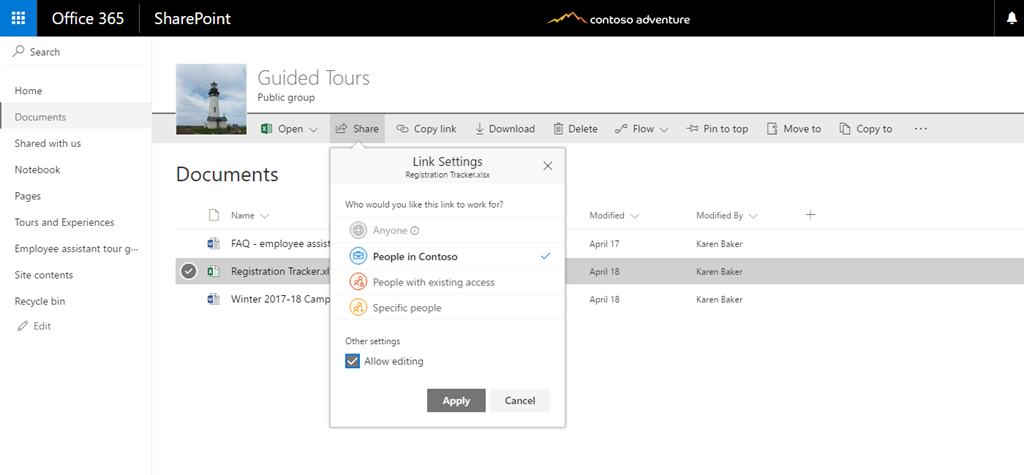
    I have written quite a bit on this for Microsoft, so I am going to limit my prose here and simply say that the new sharing experience is elegant, clean, and easy to use. I am a big fan. Once my article gets published and is out of embargo from being posted to my blog I will be sure to update this section and link it.

    OneDrive Files OnDemand

    files ondemand

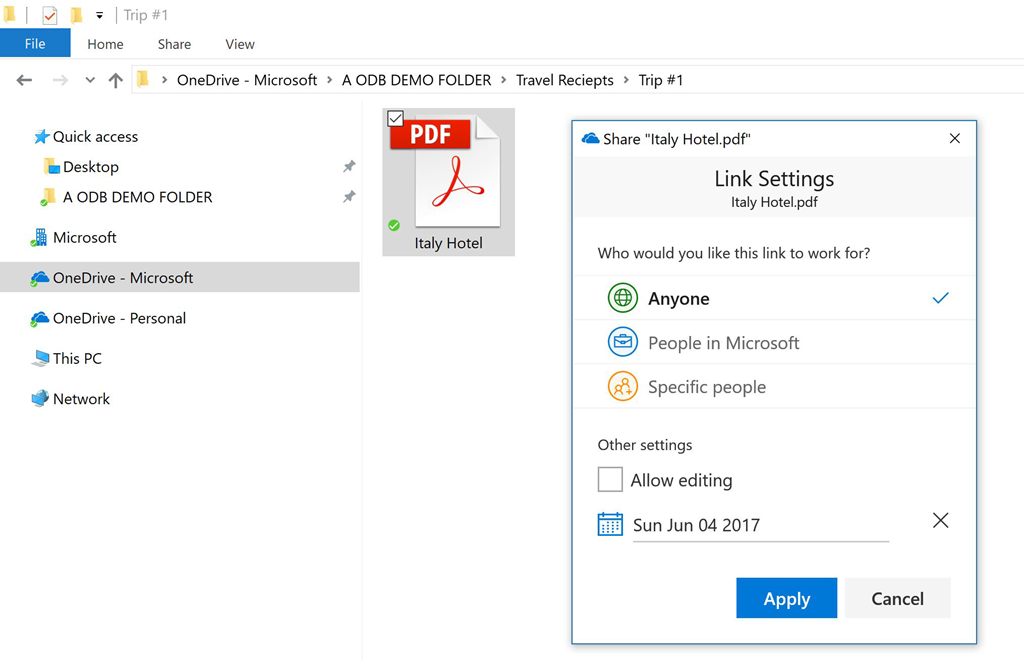
    My previous statement about embargoed content goes for this section too. My screenshot here shows a bit of the user experience we are expecting to see in the coming months once the Fall Creators Update for Windows 10 hits.

  • 7 things to think about when attending Microsoft Ignite 2016

    7 things to think about when attending Microsoft Ignite 2016

    Ignite top banner - 03-17-16

    Hard to believe that yesterday was the first day of Fall. It was 93degrees for the high here in San Antonio and there is no appearance of a season other than HOT anywhere.

    Tomorrow I fly out to Atlanta for the Microsoft Ignite 2016 Conference and I couldn’t be more stoked. We are all primed to hear TONS of awesome new announcements from Microsoft this week and learn all about them from the folks responsible for bringing them to market. From Windows Server to Office 365, this week promises to be chock full of excellent stuff.

    In addition all of the live breaking news, there are more than official 1400 sessions taking place throughout the week, including the 6 sessions that I am presenting,  PLUS hundreds of in booth sessions that companies like Rackspace are doing on their own.

    For those of you who are lucky enough to have gotten a ticket before it sold out here are a few pointers that hopefully will help you make the most of your experience at this year’s event. Since my co-workers in Corporate Marketing tell me that its best to have a click-baity title with an odd numbered list, here are my “7 things to think about for Microsoft Ignite 2016”:

    1.) Keep an eye on the weather before you go

    Atlanta is not nicknamed HOTlanta for nothin’. While much of the US is starting to see cooler temperatures, the South is still pretty toasty. That said, at this time of year evenings can get cooler PLUS conference rooms are either boiling hot or iceberg cold, so bringing a light jacket is not a terrible idea.

    2.) Hydrate, hydrate, hydrate!

    Whether you are a wild child going out to every party that the week offers you or you are a hard studying, attend every session event goer this truth is universal. We never drink enough water. There is a reason that Microsoft is going to give you a water bottle. Yes, there are sodas EVERYWHERE but H20 is still critical to you surviving the week. This is a normal thing that we all think about at home, but when we get to big conferences our brains sometimes get left in our checked luggage.

    3.) Have session backups

    Pick multiple sessions for each time slot. Find that you are not enjoying a session that you have stumbled into? Make your exit and find your way into another session that might suit you better. As a presenter the last thing I want is for you to sit through an entire session of mine FUMING because I am not covering something the way you need to hear it. We all learn different ways and my if my style of teaching is like nails on a chalk board to you, PLEASE find a session that is going to be a better fit. Neither of us benefit from you being overly polite to a complete stranger. Our ego will recover from losing you in the room. Ok, maybe Todd Klindt’s, won’t but most presenters will survive. He is kinda needy, which is why he needs so many hugs.

    …and oh by the way, if you end up not going to those other sessions in your list, they are a perfect play list for you to start with when the videos come online for watching after the event, thus making this a good practice no matter what.

    4.) Get out there and meet people

    The Microsoft Technology community is a fun one. We have some unique characters, especially in the SharePoint & SQL Communities. Don’t be shy, get out there and make some connections. For the most part people are open and looking to share & learn from each other. There are lots of opportunities, you just have to step up and take advantage of them.

    5.) Visit the vendors

    This is not just for the SWAG that you will inevitably fill your suitcase with, but more importantly to learn about what is going on in the ecosystem that you might not be aware of. Down every aisle there are gems of information, not just sales pitches (although there are plenty of those too), just waiting for you to discover. Worried that you are going to get Spammed? Stop worrying… it is GOING TO HAPPEN. That’s why there is Clutter & Junk mail filtering. There is also the “unsubscribe button”.

    6.) PAR-TAY

    There are events, cocktail hours, shindigs, parties, and merriment happening every night during Microsoft Ignite. See #5 to find out how to get on the invite list to most of them. If you aren’t being invited to things, you aren’t talking to enough vendors!

    7.) Hassle the Microsofties!

    Spend time in the Microsoft area of the Expo Hall. Microsoft spends a TON of money on this event with the intention of simply breaking even financially (which they don’t always do). They fly in experts from around the world to staff their dozens of booths with experience in everything that they sell. Bring your questions and find your expert. There will be an “Ask the Experts” session where all of the speakers are required to be on the floor and we are always happy to answer your questions, especially when there is free booze Smile

    …a bonus #8:

    There are going to be TONS of Microsoft MVPs of all backgrounds in attendance. In general we MVPs are a friendly bunch… its kinda required with the whole community award thing. As a breed we are about engaging with & helping people. When you see us stop & say hi. From Hillbillies to CatPainters, BinaryBrewers to DiveDowners, Wonder Women to podcasting *ick* Florida Gators*ick* there will be plenty of us kicking around this week.

    Hopefully while you are there you can stop by the Rackspace booth (#521) and say hi. If you don’t find me there you can always come to one of my sessions during the week. Find all of those details here on the Microsoft Ignite site.

    Last thing to remember, when you fly home at the end of the week with your brain all filled with awesome new knowledge and you don’t think you can take any more, the sessions (and decks) are all being recorded and posted to Channel 9 for consumption later.

    Enjoy!