Month: November 2012

  • How to: Create Active Directory Users using PowerShell

    Not unlike several posts in recent weeks, tonight’s adventures in PowerShelling started with from a conversation at SharePoint Saturday New Hampshire with the Iowan treasure Todd Klindt. The conversation was around the script that he used to create Active Directory users. I had my own bit of jumbled together code for this purpose, but his has some snazzy ifelse-ness to it and the ability to set Managers and add Pictures that made it especially appealing.

    At the same time there were things in his script that I felt were a bit lacking and it lead to the whole “I can write that code in 2 hours” game not unlike a name that tune style geek-out.

    Rather than reiterating all of the goodness that Todd built into his version of the script I will refer you to his post: http://www.toddklindt.com/PoshMakeUsers to read all of his fun comments.

    Instead I will regale you with the updates that I have made:

    1. Specify an OU – I am an old school AD guy at heart and I HATE a mess Users directory where I can’t find anything. I always end up moving my SQL & SharePoint Service accounts to their own OU, as well as my dummy test accounts. This tweak to the script asks you what OU you want the accounts created in and then will create the OU if it doesn’t already exist (given you have those rights). If you hit enter it will default to attempting to place the accounts in an OU called “SharePoint Service Accounts”.
    2. Prompt for the CSV input file – I have multiple files that I use in different dev environments for different purposes: a.) SQL service accounts b.) SharePoint service accounts c.) Dummy user accounts d.) Smart user accounts e.) etc, etc, etc. The script now prompts for which CSV file you want to import the users from. Hitting enter when prompted will look for a file called Users.csv in the local running directory.

      **Updated**

    3. Change the default passwordOn Todd’s Netcast tonight he mentioned this little bit of code, however I hadn’t actually written it yet. Nothing like throwing down the gauntlet there, Mr. Klindt! In response I whipped up version 3.1 of the script which now allows you to change the default password as a variable when run. If you choose nothing it will default to the pass@word1 standard.

    Here is a copy of the code:

    # Script to create Active Directory accounts
    # v3.1 11/26/2012
    # Updated by Jason Himmelstein
    # https://bifocal.llc
    # Based upon the script by Todd Klindt
    # http://www.toddklindt.com
    
    # Add the Active Directory bits and not complain if they're already there
    Import-Module ActiveDirectory -ErrorAction SilentlyContinue
    
    $OU= Read-Host -Prompt "Enter OU name you want. Press Enter for SharePoint Service Accounts"
    If ($OU -eq "") {$OU = 'SharePoint Service Accounts'}
    $FQDN = (Get-ADDomain).DistinguishedName
    
    If ([adsi]::Exists("LDAP://OU=$OU, $FQDN") -eq $True){
    write-host "The OU already exist" -ForegroundColor DarkGreen -BackgroundColor Gray}
    else{dsadd ou "ou=$OU,$FQDN"}
    
    $OU_specified = "ou=$OU,$FQDN"
    
    # specify the file location
    $csvfile = 'users.csv'
    $userfile = Read-Host -Prompt "
    Enter the location of the CSV file containing the users you want to import. Press Enter for $csvfile"
    If ($userfile -eq "") {$userfile = $csvfile}
    
    # set default password
    # change pass@word1 to whatever you want the account passwords to be
    $userpassword = Read-Host -Prompt "Enter default password you wish to set for all of these accounts. Press Enter for pass@word1"
    If ($userpassword -eq "") {$userpassword = 'pass@word1'}
    $password = (ConvertTo-SecureString $userpassword -AsPlainText -Force)
    
    # Get domain DNS suffix
    $dnsroot = '@' + (Get-ADDomain).DistinguishedName
    
    # Import the file with the users. You can change the filename to reflect your file
    $users = Import-Csv $userfile
    
    foreach ($user in $users) {
    if ($user.manager -eq "") # In case it's a service account or a boss
     {
    try {
    New-ADUser -SamAccountName $user.SamAccountName -path $OU_specified -Name ($user.FirstName + " " + $user.LastName) `
    -DisplayName ($user.FirstName + " " + $user.LastName) -GivenName $user.FirstName -Surname $user.LastName `
    -EmailAddress ($user.SamAccountName + $dnsroot) -UserPrincipalName ($user.SamAccountName + $dnsroot) `
    -Title $user.title -Enabled $true -ChangePasswordAtLogon $false -PasswordNeverExpires  $true `
    -AccountPassword $password -PassThru `
                        }
    catch [System.Object]
     {
    Write-Output "Could not create user $($user.SamAccountName), $_"
     }
                }
     else
     {
    try {
    New-ADUser -SamAccountName $user.SamAccountName -path $OU_specified -Name ($user.FirstName + " " + $user.LastName) `
    -DisplayName ($user.FirstName + " " + $user.LastName) -GivenName $user.FirstName -Surname $user.LastName `
    -EmailAddress ($user.SamAccountName + $dnsroot) -UserPrincipalName ($user.SamAccountName + $dnsroot) `
    -Title $user.title -manager $user.manager `
    -Enabled $true -ChangePasswordAtLogon $false -PasswordNeverExpires  $true `
    -AccountPassword $password -PassThru `
                        }
    catch [System.Object]
     {
    Write-Output "Could not create user $($user.SamAccountName), $_"
     }
                 }
     # Put picture part here.
     $filename = "$($user.SamAccountName).jpg"
     Write-Output $filename
    
     if (test-path -path $filename)
                {
    Write-Output "Found picture for $($user.SamAccountName)"
    
     $photo = [byte[]](Get-Content $filename -Encoding byte)
    Set-ADUser $($user.SamAccountName) -Replace @{thumbnailPhoto=$photo} 
                }
       }
    

    If you are looking for the downloadable PowerShell or text file version, please find them linked below. Happy PowerShelling!

    powershell notepad

  • How to: Automatically log your PowerShell session every time

    Preface

    At SharePoint Saturday New Hampshire I sat in a packed room and listened as Todd Klindt showed everyone how to install SharePoint 2013 without screwing it up (too badly). The big take away for me was this command that I had not heard about before called start-transcript. The power of start-transcript is that it is able to write everything that you do in a PowerShell session to a log file that you can review later. Todd demo’ed how he throws this every time he opens PowerShell and has found it to be invaluable.

    The main reason that I had not heard of start-transcipt before is that I live in PowerShell ISE and rarely (if ever) go into plain ol’ PowerShell, and sadly start-transcript is not supported in PowerShell ISE. DAMN YOU POWERSHELL GODS FOR TEASING ME SO!!!!

    The Use Case

    The problem that this solves in my view is:

    1. I spend a ton of time tweaking away at some code on a SharePoint server, get it right and then inadvertently close the PowerShell window. It’s just GONE.
    2. Opening and closing PowerShell windows and trying to remember what I manually typed 2 hours ago to fix a problem that got reintroduced after redeploying code.
    3. Needing a way to review who made changes to the serverenvironment and see what they actually did.

    The more I thought about it the more the more I liked the ability to log everything that is done in PowerShell on a server, but the issue that I had was that it was something that the person opening PowerShell had to remember to do every time they opened a window.

    I started thinking about using PowerShell profiles to implement this for every user. In my experience I have seen profiles used infrequently, but in a couple of the scenarios they have been deployed via AD Group Policy. However if you are working in an environment that you don’t have access to create GPOs or you are working in a development environment and developing GPOs just isn’t your thing what do you do?

    The Problem

    The task at hand was two-fold:

    1. Auto deploy a PowerShell Profile for SharePoint Admins that would be lightweight, contain the start-transcript function to start automatically, assist in auditing, and be Server Administrator deployable
    2. Figure out if start-transcript like functionality was available for the native PowerShell ISE

    The Solution

    The solution that I came up with was to leverage the All Users Startup option in Windows to launch a script that would check to see if the folder that holds the PowerShell profile scripts exists. If it exists, the script terminates and all is well. This happens on every interactive login, but takes only a second. If the folder does not exist, the will kick off a creation of the scripts based upon a preset profile definition that includes the targeting & naming of the logs, starting the transcript, and loading the SharePoint module. The profile definition can be completely customized making this a viable approach for admins of other technologies, not just SharePoint.

    For PowerShell this is great because it works out perfectly as built. PowerShell ISE on the other hand is still a thorn in our sides. The Scripting Guys, aka Ed Wilson and Craig Liebendorfer, wrote a terrific function that allows you to log the output pane in PowerShell ISE v1 & 2. Sadly this is not working in PowerShell v3 since there is no output pane. Leveraging that we can get part of the functionality in ISE that we get in the command-line version.

    Behind the code

    The solution that I came up with is in the form of a single PowerShell script that builds the following:

    • 2 folders (at the Root of C:)
      • c:PowerShellLogs will house all of the transcripts
      • c:PowerShellScripts will be the home for the scripts used to build the profiles and will be the default starting location when PowerShell opens. This way you can put all of the scripts you want to call in one place for all users and they can launch them easily.
    • check-profiles.lnk (in the All Users Start Menu Startup folder)
      • This shortcut points to a batch file in the C:PowerShellScripts folder called check-profiles.bat
    • check-profiles.bat (in c:PowerShellScripts)
      • This batch file launches the check-profiles.ps1
    • check-profiles.ps1 (in c:PowerShellScripts)
      • This PowerShell script checks to see if the user has a WindowsPowerShell folder in their My Documents folder. If it finds the folder, the script terminates. If it doesn’t find the folder it launches the create-profiles.ps1 script
    • create-profiles.ps1 (in c:PowerShellScripts)
      • This PowerShell Script creates the profiles for both PowerShell & PowerShell ISE.

    Here is what I put in the PowerShell profile:

    • Set the location for PowerShell to start in to C:PowerShellScripts
    • Display a message about needing to Run as Administrator to effect changes
    • Set the path for logging the session to C:PowerShellLogs
    • Set the log name using the user context and date time stamp
    • Start the transcript
    • Display a message about waiting for the SharePoint snap-ins to load
    • Load the SharePoint snap-ins
    • Display a message that loading the SharePoint snap-in is complete and lets you know who you are running PowerShell as

    Here is what I put in the PowerShell ISE profile:

    • Set the location for PowerShell to start in to C:PowerShellScripts
    • Display a message about needing to Run as Administrator to effect changes
    • Set the path for logging the session to C:PowerShellLogs
    • Load a function to set the log name using the user context and date time stamp
    • Load the function for Output-ISETranscript (the Scripting Guys code)
    • Display a message about waiting for the SharePoint snap-ins to load
    • Load the SharePoint snap-ins
    • Display a message that loading the SharePoint snap-in is complete and lets you know who you are running PowerShell as

    Conclusion

    While its may not be the perfect solution for PowerShell ISE that I was looking for when I set out, at the end of the day with this code I now have the ability to automatically log everything done in command line PowerShell.

    Thanks to Todd Klindt, Evan Riser, Mark Rackley, and Dan Holme for talking through these use cases, reviewing some of the code, and taking differing view points on this to validate that it is a reasonable approach or not. I love being a part of a community where bouncing ideas and solutions off of peers is so easy and open.

    You can find the code here:

    powershell Jason’s code on GitHub

    Hopefully this code will be useful to you in your day to day world.

  • SQL Server 2012 SP1 is here & it’s huge for SharePoint 2013 BI

    This is a massive deal for SharePoint 2013 BI.  Here is an excerpt from What’s New in SQL Server 2012:

    Business Intelligence highlights (with SQL Server 2012 SP1, Office and SharePoint Server 2013 )

    Business Intelligence highlights (with SQL Server SP1, Office and SharePoint Server 2013 Preview) are:

    • Enable self-service BI as a natural part of users day-to-day activities in Excel 2013:

    • Access and mash-up data from any source (PowerPivot). Documentation related to PowerPivot in Excel 2013 (http://go.microsoft.com/fwlink/p/?LinkID=255958).

    • Stunning visualizations and data discovery (Power View). Documentation related to Power View in Excel (http://go.microsoft.com/fwlink/p/?LinkID=255957).

    • Work with hundreds of millions of rows of data (powered by xVelocity in-memory technologies).

    • Discover, assess and audit user created spreadsheets via SharePoint Server 2013 Preview.

    • A new version of the Reporting Services add-in for SharePoint and an updated SharePoint mode report server that supports SharePoint 2013. For more information, see the following:

    • A new architecture for SQL Server 2012 SP1 CTP4 PowerPivot that supports a PowerPivot server outside a SharePoint 2013 farm. A Windows Installer package (spPowerpivot.msi) that enhances the PowerPivot for SharePoint experience. Additional features include PowerPivot Gallery, schedule data refresh, and management dashboard. For more information, see the following:

    • Share and collaborate on self-service BI assets via SharePoint Server 2013 Preview and SQL Server 2012 SP1.”

    The key takeaway and true game changer is that the SQL SSAS engine for PowerPivot is no longer required to be on a SharePoint box.  This means you no longer need a SQL license for your SharePoint App server to be able to run PowerPivot.  Don’t miss understand, you still need to license SQL to run PowerPivot, but you can do it on a separate box that can support multiple SharePoint farms and multiple Tabular BISM solutions.  Pretty huge shift.

    You can download SQL Server 2012 SP1 & SQL Server 2012 SP1 Feature Pack from these links.

    Enjoy… I know I will!

  • How to: Create a OneNote help file out of a PowerShell Module

    Being an ITPro in the current day and age I write a decent amount of PowerShell. Since I am not always on a server that has the SharePoint PowerShell modules installed most of my time on TechNet is spent basically reading the help files of specific modules to validate syntax, flags or review examples. This can become a bit of a pain after a while so I thought it would be nice to have a OneNote notebook on my SkyDrive that I could sync to my laptops or access in the cloud where I could search more easily and have all of my cmdlets at my fingertips.

    Here is how I accomplished this:

    Select the module. For this example I used the Microsoft.SharePoint.PowerShell module, however this will work with any PowerShell module.

    Run the following command to get an output of the cmdlets in the module:

    1

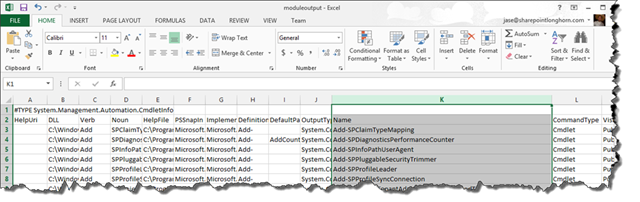
    Opening in Excel will give you the best opportunity to grab what you need. Column K in this particular output will list all of the cmdlets names.

    2 

    Grab just that column and copy it to a text file called “cmdlets.csv”.

    Next use the following PowerShell command to create an ANSI output file for each of the help files in the module.

    3

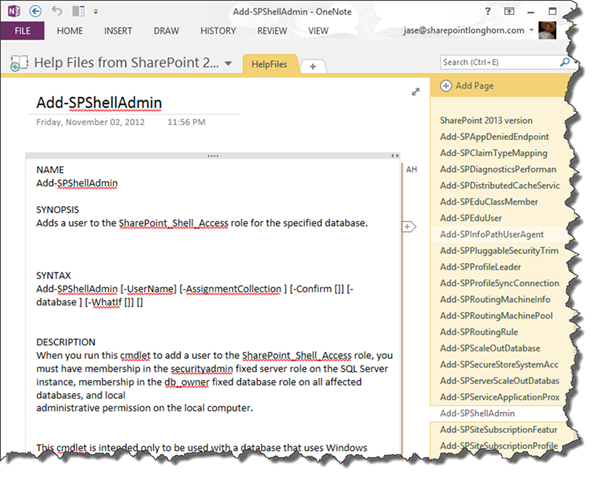
    For this module it created 771 individual text files. Using the OneNote 2010 Text Importer from John Guin I was able to create a single OneNote file that contains all of the help for the entire SharePoint 2013 PowerShell module that is now searchable in a faster and easier way. One caveat, I had to use OneNote 2010 for the importer to work properly.

    Not sure if this will be helpful for anyone else, but I use it all the time when writing PowerShell Code.

    4

    I will endeavor to keep this up to date, but since I just explained how to accomplish this, if I slip up you can perform the actions yourself.

    You can get download the notebook here: http://sdrv.ms/X7PqqI

    notepad  get cmdlets in the module script

    notepad  create ANSI output file for each of the help files in the module script